
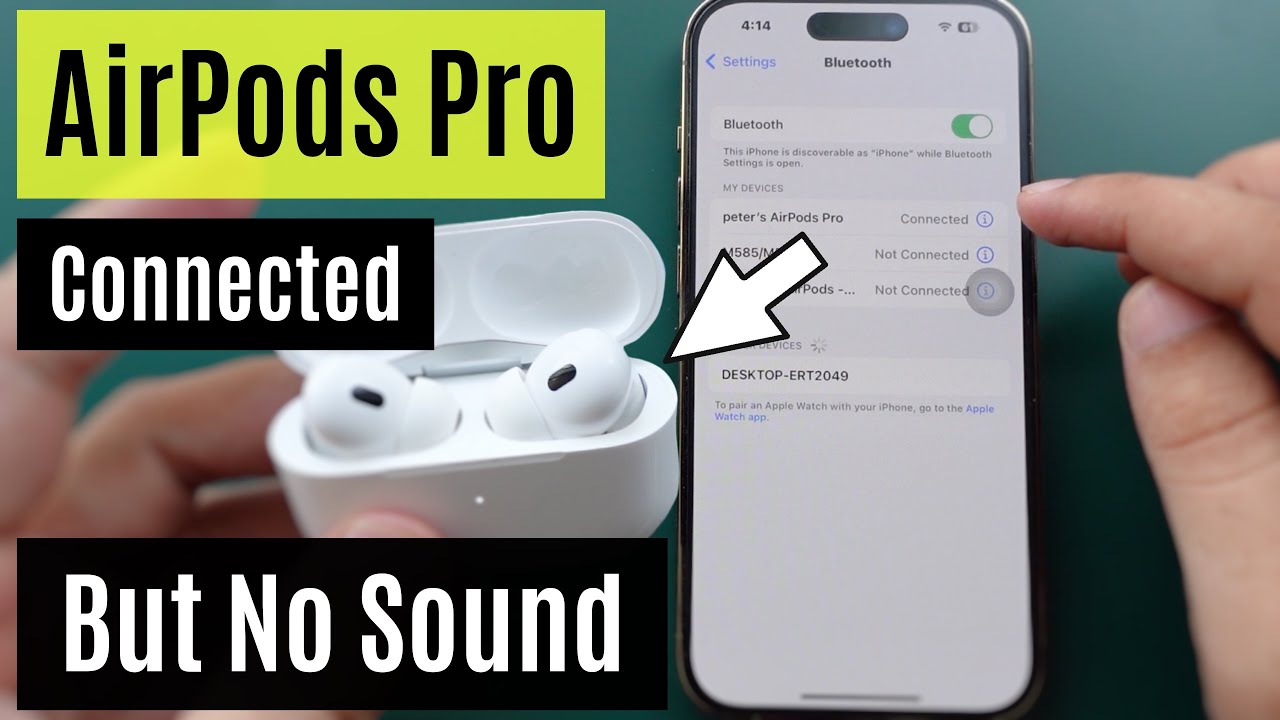
If you’ve ever put on your AirPods, seen them connect to your device, but then heard nothing—no music, no podcasts, not even a ringtone—you’re not alone. This problem can be frustrating, especially when you need your AirPods for calls, meetings, or just relaxing with your favorite tunes.
The good news is that “AirPods connected but no sound” is a common issue with several causes, and most can be fixed at home without special tools.
Understanding why this happens can save you time and prevent future headaches. In this guide, you’ll discover all the possible reasons why your AirPods show as connected but don’t play sound, and step-by-step solutions for each. Whether you use an iPhone, iPad, Mac, Windows PC, or Android device, you’ll find clear advice, practical tips, and real-world examples to help you enjoy your AirPods again.
Common Causes Of Airpods Connected But No Sound
Before you can fix the problem, you need to know what might be wrong. AirPods are smart devices, but even small issues can stop sound from playing. Here are the most frequent causes:
- Bluetooth glitches – Sometimes, the connection between the AirPods and your device has a minor error. It can show as “connected,” but the sound doesn’t transfer correctly.
- Wrong audio output – Your device might be sending sound somewhere else, like to built-in speakers or another Bluetooth device.
- Low battery – If your AirPods’ battery is very low, they may connect but not deliver audio.
- Software bugs – iOS, Android, Windows, and macOS updates sometimes introduce bugs that affect Bluetooth or audio.
- Interference – Other wireless devices nearby (like WiFi routers or microwaves) can disrupt Bluetooth.
- Audio balance or settings – Settings like Mono Audio, balance sliders, or accessibility features can mute one or both AirPods.
- Debris or dirt – Dust or earwax in the AirPods’ speaker mesh can block sound, even if everything else works.
- Firmware issues – Old or corrupted firmware in the AirPods can cause connection and audio problems.
- App-specific problems – Sometimes, only one app (like Zoom or Spotify) is affected, not the whole device.
Knowing these causes helps you narrow down the problem and apply the right fix.
Quick Checks Before Troubleshooting
Before you dive into advanced solutions, there are a few simple things to check. Many users overlook these basics, but they solve the problem in over 30% of cases.
- Are the AirPods clean and free of debris?
- Is the volume on both AirPods and your device turned up?
- Is Bluetooth enabled on your device?
- Are AirPods charged?
- Is your device muted or on “Do Not Disturb” mode?
If you answer “no” to any of these, fix that first. Often, the simplest solution is the right one.
Step-by-step Solutions For Airpods Connected But No Sound
Let’s go through each possible cause and its solution in detail. Even if you’ve tried some steps before, following them in order can help you catch things you missed.
1. Reconnect Your Airpods
Sometimes, Bluetooth just needs a fresh start. Unpairing and re-pairing often fixes invisible glitches.
How To Reconnect:
- Go to Bluetooth settings on your device.
- Find your AirPods in the list.
- Tap Forget This Device (iPhone/iPad) or Remove Device (Windows/Android).
- Put your AirPods back in the case, close the lid, wait 15 seconds, then open the lid.
- Press and hold the setup button on the back until the light flashes white.
- Reconnect the AirPods to your device.
This process resets the Bluetooth handshake and often restores sound.
2. Check Audio Output Device
Your phone, tablet, or computer may be sending sound to the wrong output, especially if you’ve used other audio devices recently.
On Iphone/ipad:
- Swipe down to open Control Center.
- Tap the audio output (AirPlay) icon.
- Select AirPods.
On Mac:
- Click the volume icon in the menu bar.
- Choose AirPods.
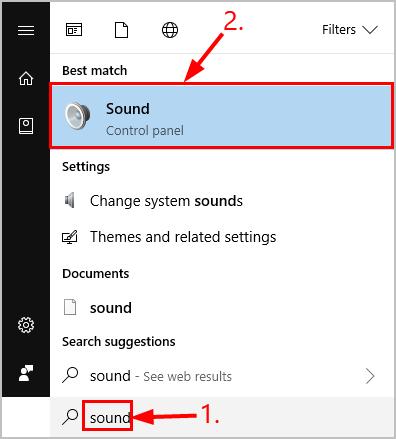
On Windows:
- Click the speaker icon in the taskbar.
- Select AirPods as the playback device.
On Android:
- Open Bluetooth settings.
- Make sure Media audio is enabled for AirPods.
If your device was using built-in speakers or another headset, switching to AirPods will fix the issue.
3. Increase Volume And Check Mute Settings
Sometimes, the sound is playing, but volume is set to zero or your device is muted.
- Use the volume buttons on your device to increase the volume.
- Check that the mute switch (iPhone) is off.
- On Mac, make sure the sound is not muted in the menu bar.
On Windows, right-click the volume icon, open Volume Mixer, and ensure AirPods are not muted for any app.
4. Clean Your Airpods
Over time, dust, lint, or earwax can clog the speaker mesh. Even if the AirPods connect, blocked sound can make it seem like nothing is playing.
How To Clean:
- Use a soft, dry, lint-free cloth.
- A small, clean brush (like a toothbrush) can gently remove debris.
- Don’t use water or sharp objects.
If you see visible blockage, clean your AirPods carefully. In many cases, sound returns immediately.
5. Charge Airpods And Case
Low battery is a hidden cause of this issue. If your AirPods have less than 10% charge, they may not play audio even when “connected. ”
- Put AirPods in their case and charge for at least 15 minutes.
- Make sure the case itself is charged.
Check battery status on your device’s screen or by opening the case near your iPhone.
6. Restart Your Device
Small software bugs can stop audio from reaching your AirPods. Restarting your phone, tablet, or computer can clear temporary glitches.
- Power off your device completely (not just screen off).
- Wait 10 seconds, then turn it back on.
- Reconnect your AirPods.
This step is simple, but it’s one of the most effective fixes.
7. Reset Network And Bluetooth Settings
If your AirPods still don’t work, resetting network settings can clear deeper Bluetooth issues.
On Iphone/ipad:
- Go to Settings > General > Transfer or Reset iPhone > Reset > Reset Network Settings.
- You’ll need to reconnect to WiFi and Bluetooth devices afterward.
On Android:
- Go to Settings > System > Reset options > Reset Wi-Fi, mobile & Bluetooth.
After resetting, pair your AirPods again. This often solves persistent problems.
8. Update Firmware And Software
Old or buggy software can block audio, even if AirPods connect.
Update Airpods Firmware:
- Put AirPods in their case, connect to power, and leave near your iPhone with Bluetooth on.
- Firmware updates install automatically.
Update Device Software:
- On iPhone/iPad: Settings > General > Software Update
- On Mac: System Preferences > Software Update
- On Windows: Settings > Update & Security > Windows Update
- On Android: Settings > Software Update
Keeping everything up-to-date improves compatibility and fixes known bugs.
9. Check App Permissions And Settings
If sound works in some apps but not others, the issue may be app-specific.
- Open the app’s settings and check audio permissions.
- Make sure the app isn’t muted or set to a different output.
- Try reinstalling or updating the app.
For example, some video conferencing apps (like Zoom or Teams) have their own audio output settings.
10. Turn Off Mono Audio And Balance Settings
Accessibility settings like Mono Audio or left/right balance can mute one or both AirPods.
On Iphone/ipad:
- Go to Settings > Accessibility > Audio/Visual.
- Make sure Mono Audio is off.
- Set the balance slider in the middle.
On Mac:
- Open System Preferences > Sound > Output.
- Adjust balance.
On Windows:
- Go to Settings > Ease of Access > Audio.
- Check Mono audio and balance.
If the balance is set to one side, you may only hear sound in one AirPod or none at all.
11. Disconnect Other Bluetooth Devices
If multiple Bluetooth devices are paired, your device may try to send audio to another speaker or headset.
- In Bluetooth settings, disconnect or unpair other headphones, speakers, or car systems.
- Keep only your AirPods connected.
This reduces confusion and ensures the right audio path.
12. Test Airpods With Another Device
To check if the problem is with your AirPods or your device, pair them with another phone, tablet, or computer.
- If AirPods work with another device, your original device has a problem.
- If AirPods don’t work with any device, the issue is with the AirPods.
This test helps you focus your troubleshooting.
13. Reset Airpods To Factory Settings
If nothing else works, a factory reset can clear hidden problems in the AirPods themselves.
How To Reset:
- Put AirPods in the case, open the lid.
- Press and hold the setup button on the back for 15 seconds until the light flashes amber, then white.
- Reconnect AirPods to your device.
This step is powerful, but you’ll have to re-pair your AirPods with all devices.
14. Check For Interference
Wireless networks, microwaves, and other electronics can interfere with Bluetooth.
- Move away from WiFi routers, microwaves, or crowded Bluetooth areas.
- Try using AirPods in a different room.
Reducing interference can restore clear audio.
15. Try Wired Earphones As A Test
If you have a pair of wired earphones, plug them into your device.
- If wired earphones work, the issue is likely with the AirPods or Bluetooth.
- If wired earphones also have no sound, your device has a deeper audio issue.
This quick test can save time and guide your next steps.
Comparing Airpods Audio Issues By Device
Some AirPods problems are more common on certain devices. Here’s a quick comparison to help you spot patterns:
| Device | Most Common Cause | Unique Troubleshooting Step |
|---|---|---|
| iPhone/iPad | Audio output set to iPhone speaker | Check Control Center AirPlay settings |
| Mac | App-specific output settings | Check Sound settings per app |
| Windows PC | Bluetooth driver conflict | Update/reinstall Bluetooth drivers |
| Android | Media audio not enabled | Enable Media Audio in Bluetooth settings |
How To Avoid Airpods Audio Problems In The Future
Prevention is easier than constant troubleshooting. Here are some tips to keep your AirPods working smoothly:
- Update regularly – Keep both your device and AirPods firmware up-to-date.
- Clean AirPods weekly – Prevent debris build-up with regular cleaning.
- Charge often – Don’t let AirPods drop below 10% battery.
- Disconnect after use – Remove AirPods from Bluetooth if not in use to prevent pairing confusion.
- Store in case – Keeping AirPods in their case protects from dust and damage.
These habits reduce the risk of “connected but no sound” issues.
Real User Experiences: Examples And Insights
Let’s look at a few real-world situations where users fixed the “AirPods connected but no sound” problem.
- Case 1: IPhone not outputting audio to AirPods
Maria always used her AirPods with her iPhone. One day, she noticed music was playing from the phone speakers, not her AirPods. She opened Control Center, tapped the AirPlay icon, and switched to AirPods—problem solved.
- Case 2: Windows laptop Bluetooth bug
Dev connected his AirPods to his Windows laptop for a Zoom call. Everything looked fine, but no sound. After updating his Bluetooth driver and setting AirPods as the default playback device, audio returned.
- Case 3: Dirty AirPods
Linda’s AirPods connected but sounded quiet. She cleaned the speaker mesh with a soft brush. Suddenly, they sounded like new again.
These stories show how simple fixes can work, but sometimes you need to dig deeper.
Credit: www.youtube.com
When To Contact Apple Support
If you’ve tried every step above and your AirPods still have no sound, it’s time to get expert help. Hardware problems—like internal speaker failure, battery issues, or firmware corruption—require professional repair or replacement.
- Visit the Apple Support website or an Apple Store.
- Bring your AirPods, charging case, and purchase receipt if possible.
- Apple can run diagnostics and offer warranty options.
Don’t attempt to open or repair AirPods yourself, as this can void your warranty.
Common Mistakes To Avoid
Many users make small errors when fixing AirPods. Avoid these to save time:
- Forgetting to check device audio output – Always make sure the device is sending sound to AirPods.
- Skipping regular cleaning – Debris is a common, preventable problem.
- Not updating firmware/software – Old software causes many Bluetooth issues.
- Assuming it’s a hardware fault too soon – Most problems are software-related and fixable at home.
Airpods Audio Issue: Troubleshooting Steps Overview
Here’s a quick summary of the main troubleshooting steps and their effectiveness:
| Step | Success Rate | Time Needed |
|---|---|---|
| Reconnect AirPods | 60% | 2 minutes |
| Check Audio Output | 55% | 1 minute |
| Clean AirPods | 40% | 5 minutes |
| Update Firmware/Software | 30% | 10 minutes |
| Reset Network/Bluetooth | 25% | 5 minutes |
This table shows that most issues can be fixed quickly without special tools.
Advanced Tips Most Beginners Miss
Many guides stop at the basics, but two advanced insights can save you hours:
- Bluetooth interference isn’t always obvious. Even smart TVs, fitness trackers, or wireless printers nearby can cause issues. Temporarily turning them off can improve AirPods audio.
- Firmware updates don’t always show notifications. Put your AirPods in the charging case, connect to power, and keep them near your iPhone for at least 30 minutes—even if you don’t see an update message. This “silent” update solves many odd bugs.
Remember, patience and methodical testing are key to solving tricky AirPods issues.
Credit: congreso.rendiciondecuentas.org.mx
Useful Resources
For official help, check Apple’s own support page:
apple Airpods Support
This site covers warranty, repairs, and more advanced troubleshooting.
Frequently Asked Questions
Why Do My Airpods Connect But Have No Sound?
This usually happens because of a Bluetooth glitch, wrong audio output, or low battery. Try reconnecting your AirPods, checking your device’s audio output settings, and cleaning your AirPods. If the problem persists, update your device and AirPods firmware.
Why Is Only One Airpod Working?
If only one AirPod has sound, check for debris in the speaker mesh, battery levels, and balance settings on your device. The balance slider should be in the middle. Try cleaning the AirPod and resetting the AirPods.
Can Software Updates Fix Airpods Sound Problems?
Yes, both firmware updates for AirPods and software updates for your device can fix sound issues. Updates often include bug fixes for Bluetooth and audio problems. Always keep your AirPods and devices up-to-date.
Will Resetting Airpods Delete All My Settings?
Resetting AirPods to factory settings will remove all paired devices and customizations. You’ll need to reconnect them to each device. However, sound profiles and device settings on your phone or computer are not affected.
When Should I Contact Apple Support?
If your AirPods have no sound on any device after trying all troubleshooting steps, contact Apple Support. Hardware issues, such as speaker failure or firmware corruption, may need professional repair or replacement.
Solving the “AirPods connected but no sound” problem is possible for most users with simple steps and a little patience. With regular care and updates, your AirPods should deliver great sound every time you use them.

Credit: magroadvogados.com