
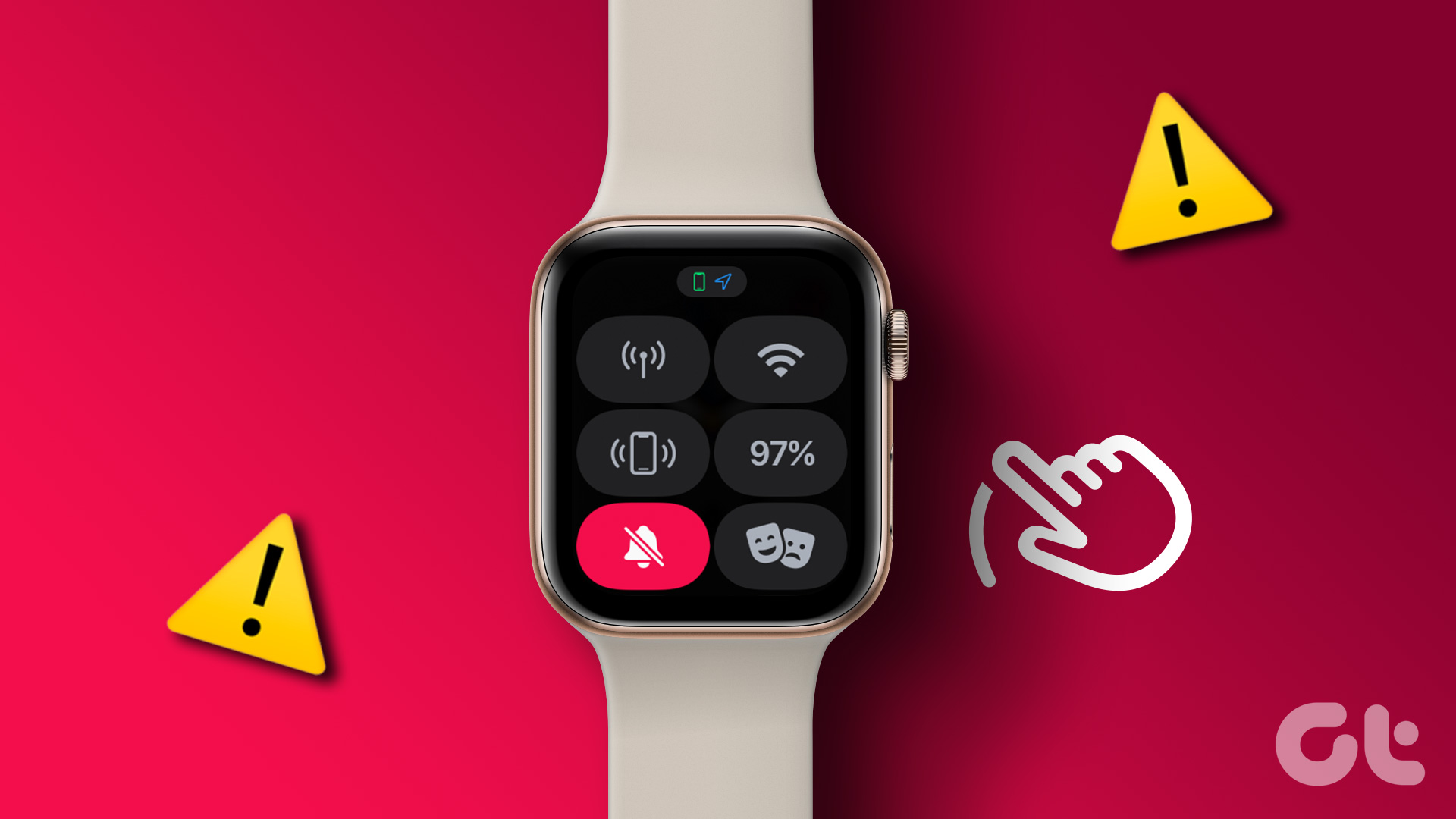
Is your Apple Watch refusing to swipe up no matter how many times you try? You’re not alone, and it can be incredibly frustrating when a simple gesture like swiping up doesn’t bring up the Control Center or other features you rely on daily.
But before you panic or think your watch is broken, there are easy fixes you can try right now. You’ll discover why your Apple Watch won’t swipe up and the step-by-step solutions that will get it working smoothly again. Keep reading to regain full control of your watch with quick, effective tips anyone can follow.
Common Causes
Several reasons can stop your Apple Watch from swiping up. These common causes affect the touch functionality and user experience. Knowing them helps you fix the problem quickly. Below are some frequent issues that prevent swiping up on your Apple Watch.
Water Lock Mode Active
Water Lock mode disables touch to avoid accidental taps from water. If you see a water droplet icon on your watch, the mode is on. You cannot swipe up while this mode is active. Turn the Digital Crown to unlock the screen and restore touch control.
Dirty Or Greasy Screen
Dirt, sweat, or grease can block touch sensitivity. A dirty screen often causes the swipe up gesture to fail. Clean your Apple Watch screen gently with a soft, lint-free cloth. Avoid using harsh chemicals or abrasive materials to prevent damage.
Voiceover Accessibility Enabled
VoiceOver changes how touch gestures work on your watch. When enabled, swiping up may not bring up the Control Center. Check Accessibility settings and disable VoiceOver if you want normal swipe gestures. Go to Settings > Accessibility > VoiceOver to toggle it off.
Software Glitches
Software bugs may stop swipe gestures from working correctly. Restart your Apple Watch to clear temporary glitches. If problems persist, update your watchOS to the latest version. Unpairing and pairing your watch again can also fix deeper software issues.

Basic Fixes
Basic fixes often solve the Apple Watch swipe up issue quickly. These simple steps check common problems that block swipe gestures. Try them before exploring advanced solutions. Each step targets a specific cause of swipe failure on your device.
Turn Off Water Lock
Water Lock stops the screen from responding to touch. Look for a water droplet icon on the screen. Turn the Digital Crown to unlock the display. This action disables Water Lock and restores swipe functions.
Clean The Display
Dirt, sweat, or grease can block touch detection. Use a soft, non-abrasive cloth to clean the screen. Wipe gently until the display looks clear and dry. A clean screen improves swipe sensitivity and accuracy.
Disable Voiceover
VoiceOver changes how swipes work on the Apple Watch. It may prevent swipe up gestures from working normally. Go to Settings, then Accessibility, and turn off VoiceOver. This restores the default swipe behavior.
Restart Apple Watch
Restarting the watch refreshes its software and hardware. Press and hold the side button until the power off slider appears. Slide to turn off, then press the side button again to turn it back on. A restart often fixes minor glitches affecting swipes.
Advanced Solutions
Advanced solutions help fix persistent swipe up issues on your Apple Watch. These methods address deeper software or hardware problems that simple fixes cannot solve. Follow each step carefully to restore full swipe functionality.
Force Restart Watch
Press and hold the side button and Digital Crown together. Keep holding for about 10 seconds. Release both buttons when the Apple logo appears. This action resets the watch without losing data.
Update Watchos Software
Open the Watch app on your iPhone. Tap General, then Software Update. Download and install any available updates. Updated software fixes bugs that cause swipe problems.
Unpair And Pair Again
Open the Watch app on your iPhone. Select your watch and tap the “i” icon. Choose Unpair Apple Watch and confirm. After unpairing, pair the watch again with your iPhone. This refreshes the connection and clears glitches.
Set Up As New Device
After unpairing, choose to set up your Apple Watch as a new device. This option erases old settings and data. It can solve issues caused by corrupted files or settings. Set up your watch step-by-step for a fresh start.
Swipe Technique Tips
Swiping up on your Apple Watch should be smooth and easy. Sometimes, the screen does not respond because of swipe technique errors. Changing how you swipe can help fix this problem. Below are simple tips to improve your swipe gestures.
Use Slow, Deliberate Swipes
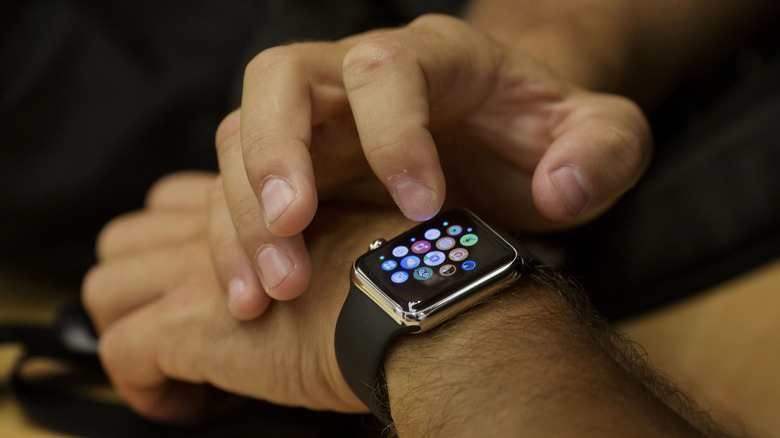
Swipe slowly and with purpose. Fast swipes may not register well on the screen. A slow, steady swipe helps the watch understand your gesture. Try to keep your finger in contact with the screen throughout the swipe.
Swipe From Screen Edge
Start your swipe from the very bottom edge of the watch screen. Swiping too far from the edge can cause no response. Place your finger gently at the screen edge, then swipe upward. This helps the watch detect the control center gesture correctly.
Avoid Quick Flicks
Quick flicks often fail to activate the swipe up function. Avoid sharp or jerky movements on the screen. Use smooth, even motion instead. This gives the watch enough time to react and open the control center.
Preventive Measures
Preventive measures help keep your Apple Watch responsive and working well. Small habits protect the screen and settings from damage. Taking care of your device avoids swipe up issues.
Keep Screen Clean Regularly
Use a soft, lint-free cloth to wipe the screen every day. Dirt, oil, and dust reduce touch sensitivity. Avoid using harsh chemicals or abrasive materials. Clean hands before touching the screen to limit smudges. A clean screen makes swiping smooth and easy.
Avoid Water Exposure
Water can block touch input on the Apple Watch screen. Avoid wearing the watch in the shower or swimming pool. If the watch gets wet, dry it gently with a soft cloth. Turn off Water Lock mode after water contact. Protecting the screen from moisture keeps swipe functions working well.
Monitor Accessibility Settings
Check settings like VoiceOver that may change how touch works. Go to Settings > Accessibility on your Apple Watch. Disable features that interfere with swiping gestures. Adjust settings carefully to keep normal screen behavior. Proper settings ensure the swipe up gesture responds every time.
When To Seek Support
Your Apple Watch not swiping up can disrupt daily use. Basic fixes often work well. Yet, some problems need expert help. Knowing when to seek support saves time and effort.
If the screen stays unresponsive after cleaning and restarting, it signals deeper issues. Software glitches or hardware faults might be the cause. Don’t delay getting professional help to avoid further damage.
Apple Support Options
Apple offers several ways to get support. The official website has troubleshooting guides and chat support. You can call Apple Support for direct assistance. They help with software updates and complex problems.
Using the Apple Support app on your iPhone is another easy option. It lets you book repairs or schedule calls. Support staff can guide you through difficult steps safely.
Authorized Service Centers
Authorized service centers provide certified repairs for your Apple Watch. These centers use genuine Apple parts to ensure quality. Technicians here have special training for Apple devices.
Visiting an authorized center protects your warranty. They offer in-person diagnostics and fast repairs. Choose this option if your watch has physical damage or persistent issues.
Always book an appointment before visiting. This helps avoid long wait times and ensures better service.
Frequently Asked Questions
Why Is My Apple Watch Not Letting Me Scroll Up Or Down?
Your Apple Watch may not scroll due to Water Lock mode, dirt on the screen, enabled VoiceOver, or software glitches. Clean the screen, disable Water Lock and VoiceOver, then restart or update your watch. Unpair and re-pair if the problem continues.
How Do I Fix An Unresponsive Touch Screen On My Apple Watch?
Turn off Water Lock by rotating the Digital Crown. Clean the screen with a soft cloth. Disable VoiceOver in Accessibility settings. Restart or force restart your watch. Unpair and re-pair the Apple Watch via the iPhone app to fix software issues.
How To Fix A Jammed Apple Watch Button?
Clean around the jammed button using a soft cloth. Press the button firmly several times. Restart your Apple Watch to reset it. If stuck, contact Apple Support for professional help.
Why Isn’t My Swipe Up Working?
Your swipe up may not work due to Water Lock mode, dirty screen, or enabled VoiceOver. Restart or update your Apple Watch.
Why Can’t I Swipe Up On My Apple Watch?
Swiping up may be disabled by Water Lock mode. Also, VoiceOver in Accessibility can change swipe functions. Cleaning the screen helps if dirt blocks touch.
Conclusion
Troubles with swiping up on your Apple Watch can feel frustrating. Simple steps often solve the problem quickly. Try cleaning the screen or turning off Water Lock first. Restarting the watch or updating its software also helps. Adjusting accessibility settings may fix swipe issues too.
If nothing works, unpair and set up the watch again. These tips cover most common causes and solutions. Your Apple Watch should respond well after these fixes. Keep your device updated and clean for the best experience.