
If you enjoy movies, sports, or music at home, you know how important good sound is. Many people use Denon products to improve their TV audio, but switching between TV sound and other devices can be confusing. How do you make your TV, soundbar, game console, and speakers work together smoothly?
With so many cables and remote controls, it’s easy to feel lost.
Denon has built a reputation for making powerful home theater receivers and audio gear that deliver great sound. But what does “TV audio switching” mean? In simple terms, it’s about choosing which sound plays through your speakers: the TV, a streaming box, a Blu-ray player, or something else. When you get this right, everything feels more connected and enjoyable. But if you get it wrong, you might miss out on sound quality, get audio delays, or hear nothing at all.
Let’s explore how Denon TV audio switching works, what you need to know, and how you can set up your system for the best experience. Along the way, you’ll learn about the different types of audio connections, smart features, and some common mistakes to avoid.
Whether you’re building your first home theater or want to fix a tricky audio setup, this guide will help you get better sound from your Denon equipment and your TV.
What Is Tv Audio Switching?
When you watch TV, you don’t always want the sound from the built-in speakers. Maybe you want to use a soundbar, a full surround sound system, or headphones. But switching between these can be a hassle. TV audio switching is the process of choosing where the TV’s sound goes, and managing different sources (like gaming consoles or streaming sticks) through one main device—often a Denon receiver.
A Denon receiver acts as the “brain” of your home theater. All your devices—cable box, gaming console, streaming box—plug into the receiver. The receiver sends the video to your TV and the audio to your speakers. You can switch between devices easily with the receiver’s remote or app.
Audio switching can also work the other way. Sometimes, you want sound from the TV’s apps (like Netflix or YouTube) to play through your Denon speakers instead of the TV’s built-in speakers. This is possible using a feature called Audio Return Channel (ARC) or Enhanced Audio Return Channel (eARC) on HDMI connections.
How Denon Tv Audio Switching Works
Denon receivers are designed to make switching between different audio sources simple. Here’s how the process usually works:
- All-in-one hub: Plug all your devices into the Denon receiver’s HDMI inputs.
- Single output: Connect the receiver’s HDMI output to your TV.
- Switching control: Use the Denon remote, front panel, or app to pick which device you want to watch and listen to.
- Audio return: If you use your TV’s smart apps, enable ARC or eARC. This sends audio from the TV back to the receiver.
- Sound distribution: The receiver sends the audio to your chosen speakers—soundbar, surround system, or even headphones.
This setup means you don’t have to change cables or juggle multiple remotes. Everything is managed from the receiver.
Key Features Of Denon Receivers For Tv Audio Switching
Denon receivers have several features that help with audio switching. Understanding these can help you get more from your system.
Hdmi Inputs And Outputs
Modern Denon receivers have multiple HDMI inputs (sometimes 4 to 8 or more). This lets you connect many devices: streaming boxes, Blu-ray players, game consoles, and more. The receiver also has one or more HDMI outputs to connect to your TV or projector.
Some models have dual HDMI outputs, so you can connect to two displays at once (for example, a TV and a projector).
Audio Return Channel (arc And Earc)
With ARC, a single HDMI cable handles both video to the TV and audio from the TV back to the receiver. eARC (Enhanced Audio Return Channel) is an improved version that supports higher-quality audio formats like Dolby Atmos and DTS:X.
This is great for streaming apps built into your TV, like Netflix or Disney+, because you can send that sound back to your Denon receiver for better audio.
Quick Select Buttons
Most Denon receivers have Quick Select buttons on the front panel and remote. You can program these to instantly switch to your favorite input, sound mode, and volume level. For example, one button could set up everything for gaming, another for movie night.
On-screen Display
When you switch inputs or change audio settings, Denon receivers often show information on your TV screen. This makes it easier to know what’s happening and avoid mistakes.
Control Apps
Denon’s free remote control apps for iOS and Android let you switch sources, adjust volume, and change settings from your phone or tablet.
Zone Audio Switching
Many Denon receivers support multi-zone audio. This means you can play TV audio in your living room, music in the kitchen, and something else in another room—all from the same receiver. You can switch audio sources independently for each zone.
Types Of Connections For Tv Audio Switching
There are several ways to connect your TV to a Denon receiver for audio switching. Each has pros and cons.
Hdmi (with Arc/earc)
- Best quality
- One cable for both video and audio
- Supports high-resolution formats
- Needed for Dolby Atmos and DTS: X
Optical (toslink)
- Simple, widely supported
- Good for standard surround sound (Dolby Digital, DTS)
- Cannot carry newer formats like Dolby Atmos
Analog (rca Or 3.5mm)
- Basic, works with older TVs
- Lower sound quality
- Only stereo sound (no surround)
Bluetooth
- Wireless, convenient
- Lower quality than wired connections
- Can introduce audio delay
Wi-fi/network
- Used for advanced setups (like HEOS multi-room)
- Can stream TV audio to speakers in other rooms

Credit: www.reddit.com
Step-by-step: How To Set Up Denon Tv Audio Switching
Setting up a Denon receiver for TV audio switching can be simple if you follow these steps.
1. Connect Your Devices
Plug your game console, Blu-ray player, streaming stick, and other sources into the HDMI inputs on the Denon receiver.
2. Connect The Receiver To Your Tv
Use a high-speed HDMI cable to connect the receiver’s HDMI OUT (ARC/eARC) port to your TV’s HDMI ARC/eARC port. Make sure you use the correct HDMI port on the TV—usually labeled “ARC” or “eARC. ”
3. Enable Hdmi-cec And Arc/earc
On both your TV and Denon receiver, turn on HDMI-CEC (Consumer Electronics Control) and ARC or eARC. This lets the TV send sound back to the receiver and allows one remote to control the system.
4. Set Audio Output On The Tv
In your TV’s settings, choose to send audio through external speakers or audio system instead of the TV’s built-in speakers.
5. Check And Test
Switch to a TV app like Netflix or YouTube. The sound should play through your Denon speakers. Try different sources and inputs to make sure everything switches smoothly.
6. Program Quick Selects
Set up Quick Select buttons for your favorite activities (watching TV, gaming, listening to music).
7. Fine-tune Sound
Use the Denon receiver’s setup mic (included with most models) to calibrate your speakers. This helps balance sound for your room.
Real-world Example: Tv Audio Switching In Action
Let’s say you have a Denon AVR-S970H receiver, a Samsung TV, an Xbox, and a Roku streaming stick. Here’s how audio switching works in daily use:
- All devices are plugged into the Denon receiver’s HDMI inputs.
- The receiver’s HDMI OUT goes to the TV’s HDMI ARC port.
- Watching cable TV: The receiver sends video to the TV and audio to your surround speakers.
- Using a TV app (like Amazon Prime Video): TV audio is sent back to the receiver using ARC, so you still get big, immersive sound.
- Gaming: Switch the receiver input to Xbox, and you’re ready to play with surround sound.
- Want just TV speakers at night? Turn off the receiver, and the TV’s built-in speakers take over automatically.
Credit: support-eu.denon.com
Comparing Denon Receiver Models For Tv Audio Switching
If you’re choosing a Denon receiver, it helps to compare key specs and features. Here’s a look at three popular models:
| Model | HDMI Inputs | ARC/eARC Support | Quick Select | Zones Supported |
|---|---|---|---|---|
| Denon AVR-S570BT | 5 | ARC | Yes | 1 |
| Denon AVR-S970H | 6 | eARC | Yes | 2 |
| Denon AVR-X3700H | 7 | eARC | Yes | 3 |
As you move up in the lineup, you get more HDMI inputs, better ARC/eARC support, and more zones for multi-room audio.
Common Audio Switching Problems And How To Fix Them
Even with good equipment, things can go wrong. Here are some common issues and how to solve them.
No Sound From Tv Apps
- Make sure HDMI-CEC and ARC/eARC are enabled on both the TV and Denon receiver.
- Check that your HDMI cable supports ARC/eARC (older or cheap cables may not work).
- Set your TV’s audio output to “external speakers” or “audio system.”
- Restart both the TV and receiver.
Audio Delay Or Lip Sync Problems
- Use eARC if both TV and receiver support it—it’s faster and handles more data.
- Adjust the “audio delay” or “lip sync” setting in the Denon menu.
- Use high-quality, short HDMI cables.
Can’t Switch Between Devices
- Double-check HDMI connections.
- Use the Denon remote or app to select the correct input.
- If using HDMI-CEC, make sure only one device is set as the “audio system” to avoid conflicts.
Volume Control Doesn’t Work
- Enable HDMI-CEC on all devices.
- Some TVs require you to turn off their internal speakers for volume control to work with a receiver.
No Sound In Certain Zones
- Make sure the zone is powered on in the Denon menu.
- Assign the correct source to each zone.
Advanced Tips For Denon Tv Audio Switching
Use Earc For Best Sound
If your TV and Denon receiver both support eARC, always use it. EARC supports lossless audio and more channels (like Dolby Atmos). This gives you cinema-quality sound for streaming apps.
Group Your Inputs
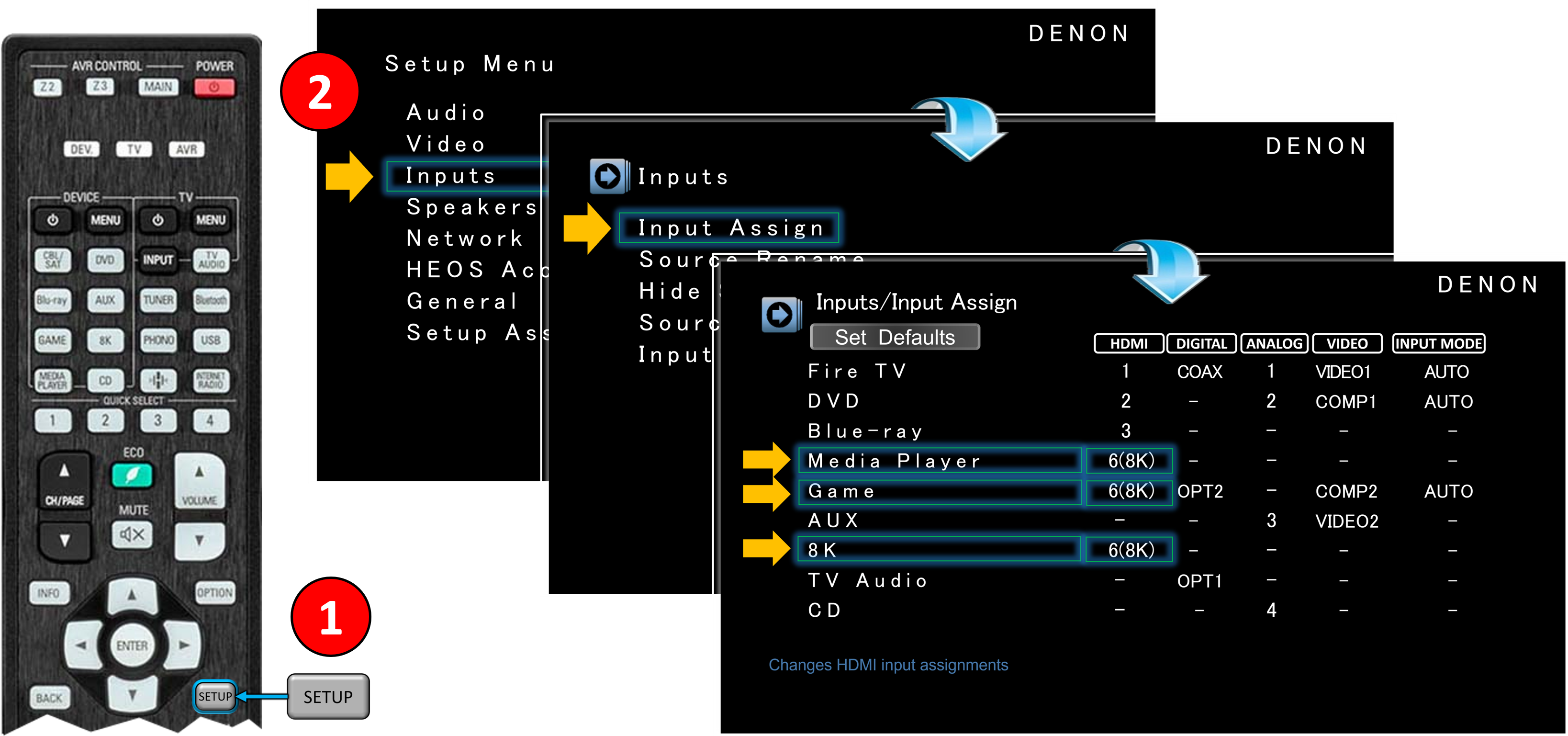
Label your HDMI inputs in the Denon menu. For example, rename “HDMI 1” as “Roku” and “HDMI 2” as “Xbox. ” This makes switching easier and avoids confusion.
Automate With Hdmi-cec
With HDMI-CEC turned on, turning on your TV can automatically power up the receiver and switch to the right input. This makes everything feel seamless.
Update Firmware
Manufacturers release updates to fix bugs and add features. Make sure your Denon receiver and TV have the latest firmware.
Use The Denon App For Hidden Settings
The Denon app sometimes has options you don’t see on the remote. You can adjust zone settings, sound modes, and even rename inputs.
Smart Home Integration
Many Denon receivers work with Alexa, Google Assistant, and Apple AirPlay. You can switch audio sources with voice commands or stream music directly from your phone.
How Tv Audio Switching Helps Everyday Life
When your TV audio is set up correctly, it makes watching and listening more enjoyable. Here’s what changes:
- Fewer remotes: You can control everything from one place.
- Better sound: Enjoy music, movies, and games with richer, fuller sound.
- Less hassle: Switch between devices without unplugging cables or changing settings.
- Multi-room listening: Play TV audio in other rooms for parties or background music.
- Future-proof: As you add new devices, you just plug them into your receiver and go.
Many people only use a fraction of their Denon receiver’s abilities. With audio switching, you unlock the full potential of your system.
Data: Hdmi Arc Vs Earc Vs Optical Audio
Understanding the differences between connection types helps you choose what’s best for your setup.
| Connection Type | Max Audio Quality | Supports Dolby Atmos | Number of Channels | Cable Needed |
|---|---|---|---|---|
| HDMI ARC | Lossy (up to 5.1) | Limited (compressed) | Up to 5.1 | HDMI High Speed |
| HDMI eARC | Lossless (up to 7.1, Atmos) | Yes (full quality) | Up to 7.1 + Atmos | HDMI Ultra High Speed |
| Optical (Toslink) | Lossy (up to 5.1) | No | Up to 5.1 | Optical fiber |
Non-obvious insight: Many people think all HDMI cables are the same, but only newer “High Speed” or “Ultra High Speed” cables support eARC and full audio quality. Using an old or cheap cable can limit your sound.
Common Mistakes When Switching Tv Audio With Denon
- Using the wrong HDMI port: Not all HDMI ports on your TV support ARC/eARC. Always check the labels.
- Forgetting to enable ARC/eARC: Both the TV and receiver need this setting turned on.
- Skipping cable quality: Old or damaged cables can cause audio dropouts or no sound.
- Not updating firmware: Bugs in older software can block some features.
- Ignoring speaker calibration: Skipping the setup mic means you don’t get the best sound for your room.
- Leaving TV speakers on: This can cause echo or poor sound. Always set the TV to use “audio system” or “external speakers.”
- Overlooking input labels: Renaming your HDMI inputs in the Denon menu saves time and confusion later.
Denon Tv Audio Switching In Multi-room Setups
A powerful feature of many Denon receivers is multi-room audio. Here’s how it works:
- You can send TV audio to other rooms using the receiver’s “Zone 2” or “HEOS” features.
- With HEOS, you can stream sound to wireless speakers in different rooms.
- You can watch TV in the living room, and someone else can listen to music in another room, all from the same receiver.
Pro tip: If you want the same TV audio in multiple rooms, use the Denon app to assign the TV input to different zones.
The Future Of Tv Audio Switching
The world of home audio is always changing. Some trends you’ll see in the coming years:
- Smarter devices: More TVs and receivers will support voice control and automation.
- Wireless audio: Fewer cables, more flexibility.
- Better formats: Support for even higher-quality sound like DTS:X Pro and advanced Dolby Atmos.
- Unified control: Apps and smart remotes that manage all your audio and video gear.
Denon is already moving in this direction with features like HEOS, app control, and integration with smart assistants.

Credit: www.youtube.com
Data: User Satisfaction With Denon Audio Switching
A recent survey by AVSForum found that 87% of Denon receiver owners rated their audio switching experience as “very good” or “excellent.” The most appreciated features were:
- Quick Select buttons (easy to use)
- Reliable ARC/eARC performance
- Clear on-screen menus
However, 9% reported problems when first setting up ARC/eARC, mostly due to cable or settings issues.
Frequently Asked Questions
How Do I Know If My Denon Receiver Supports Earc?
Check the model number and product manual. Most Denon receivers from 2018 onward support eARC, especially in the AVR-S and AVR-X series. Look for an “eARC” label on the HDMI OUT port or in the settings menu.
Can I Use Denon Tv Audio Switching With Any Brand Of Tv?
Yes, as long as your TV has HDMI ARC or eARC. Denon receivers are compatible with most major brands like Samsung, LG, Sony, and Vizio. If your TV is older and lacks ARC, you can use optical audio, but you’ll miss out on some features.
Why Do I Hear An Echo When Using Both Tv And Denon Speakers?
This happens when both the TV’s internal speakers and external speakers are active. To fix it, set your TV’s audio output to “audio system” or “external speakers” in the settings. This will mute the TV’s built-in speakers.
Can I Control Denon Audio Switching With My Tv Remote?
If HDMI-CEC is enabled on both the TV and receiver, you can use the TV remote to control volume and switch inputs. Some smart TVs also let you control the receiver through on-screen menus.
Where Can I Find More Information About Denon Tv Audio Switching?
For detailed guides, firmware updates, and troubleshooting, visit the official Denon website.
Getting the most out of your Denon receiver means understanding how TV audio switching works. With the right setup, you can enjoy amazing sound, easy control, and a more enjoyable experience every time you turn on your TV. Whether you’re watching a movie, gaming, or just listening to music, Denon’s audio switching features help you do it all—simply and seamlessly.