
Are you wondering if your Hisense TV supports Bluetooth? Whether you want to connect wireless headphones, speakers, or other devices, knowing if your TV has Bluetooth is key.
You might be surprised to learn that many Hisense models, including popular ULED and Laser TVs, come with built-in Bluetooth. But not every model does, and finding the right settings can feel tricky. You’ll discover how to quickly check if your Hisense TV has Bluetooth, where to find the Bluetooth settings, and what to do if your TV doesn’t support it.
Keep reading, and you’ll be enjoying wireless connections in no time!

Bluetooth Availability On Hisense Tvs
Hisense TVs offer various features, and Bluetooth is one of them. Not all models include this function. Many newer Hisense TVs come with built-in Bluetooth. This allows easy connection to headphones, speakers, and soundbars. You can check Bluetooth settings in the TV menu under “Remotes & Accessories” or “Connection.”
Older or budget models might not have Bluetooth. For those, users need extra devices like Bluetooth transmitters. These devices connect to the TV’s audio output. This section explains which Hisense models have Bluetooth and which do not.
Models With Built-in Bluetooth
Most Hisense ULED series TVs include Bluetooth support. Laser TVs and Android or Google TV models also have this feature. These models allow pairing with wireless headphones and external speakers. You can find Bluetooth options in the settings menu. The process is simple and fast.
To connect, go to Settings > Remotes & Accessories > Pair Accessory (Android/Google TV). On Vidaa Smart TVs, find Bluetooth under Settings > Connection. Keeping your firmware updated helps avoid connection issues.
Models Without Bluetooth Support
Some Hisense TVs, especially older or low-priced ones, lack built-in Bluetooth. These models do not show Bluetooth options in the menu. Users must use external Bluetooth transmitters for wireless connections. These transmitters plug into headphone jacks or audio outputs.
Check your TV model’s specifications on the official Hisense support website. This helps confirm if Bluetooth is included. If not, purchasing a Bluetooth adapter is a practical solution. It adds wireless capability without replacing the TV.

Locating Bluetooth Settings
Locating Bluetooth settings on Hisense TVs varies by model and operating system. Knowing where to find these options helps connect wireless devices quickly. This section breaks down steps for different Hisense TV types.
Android And Google Tv Models
On Hisense Android and Google TV models, Bluetooth settings are easy to locate. Start by pressing the Settings button on your remote. Then select Remotes & Accessories. Here, choose Pair Accessory to see available Bluetooth devices. You can add headphones, speakers, or other gadgets from this menu.
Vidaa Smart Tv Series
Vidaa Smart TVs have a different menu layout. Press the Settings icon on the home screen. Next, select Connection from the options. Within Connection, find the Bluetooth option. Turn it on to scan for devices. This section lets you manage paired accessories easily.
Accessing Through Network And Accessories Menus
Some Hisense TVs place Bluetooth settings under Network or Accessories menus. Open Settings and look for Network or Remotes & Accessories. Inside these menus, Bluetooth can be enabled or disabled. This setup allows you to connect to wireless audio or input devices.
Connecting Bluetooth Devices
Connecting Bluetooth devices to your Hisense TV is simple and convenient. Many models come with built-in Bluetooth, allowing you to link headphones, speakers, and soundbars. This feature enhances your viewing experience by delivering wireless audio without clutter.
Access Bluetooth settings through the TV’s menu to start pairing devices. Each type of device has its own steps for connection and management. Keeping track of your paired devices helps maintain a smooth connection.
Pairing Headphones
Turn on your Bluetooth headphones and make them discoverable. On your Hisense TV, go to Settings > Remotes & Accessories or Connection > Bluetooth. Select “Add Accessory” or “Pair Device.” Choose your headphones from the list. Wait for the TV to confirm the connection. Once paired, audio will play through the headphones for private listening.
Connecting Speakers And Soundbars
Power on your Bluetooth speaker or soundbar and set it to pairing mode. Open your Hisense TV’s Bluetooth menu. Select “Add Accessory” to scan for devices. Find your speaker or soundbar in the device list and select it. The TV will pair and route audio to the external device. Enjoy richer sound without wires.
Managing Paired Devices
Visit the Bluetooth section in your TV settings to view all paired devices. You can disconnect or remove devices you no longer use. Removing old devices prevents connection conflicts. Reconnect devices anytime by selecting them from the available list. This keeps your Bluetooth connections organized and reliable.
Troubleshooting Bluetooth Issues
Bluetooth issues on Hisense TVs can disrupt your audio experience. Fixing these problems often requires simple steps. This section covers common fixes to restore Bluetooth functionality quickly.
Firmware And Software Updates
Outdated firmware can cause Bluetooth to malfunction. Check for updates regularly. Go to Settings, then Support, and select System Update. Install any available updates to improve Bluetooth performance. Updates often fix bugs that block Bluetooth connections.
Missing Bluetooth Options
Sometimes the Bluetooth menu does not appear on your TV. This happens if the TV model does not support Bluetooth or due to a software glitch. Confirm your model supports Bluetooth by checking the manual or the Hisense website. Restart your TV to refresh the system if the option is missing.
Resetting Bluetooth Connections
Resetting Bluetooth settings can solve connection problems. Navigate to Settings, then Remotes & Accessories, and find the Bluetooth section. Remove all paired devices and restart the TV. After reboot, re-pair your Bluetooth devices for a fresh connection.
Alternative Bluetooth Solutions
Not all Hisense TVs come with built-in Bluetooth. Older or budget models might lack this feature. Alternative Bluetooth solutions offer a way to connect wireless headphones, speakers, or other devices. External devices can add Bluetooth capability to any TV with audio outputs. These solutions are simple and cost-effective.
Using External Bluetooth Transmitters
External Bluetooth transmitters plug into the TV’s audio output. Common ports include the headphone jack, RCA, or optical audio out. The transmitter sends audio signals wirelessly to Bluetooth headphones or speakers. This method works well for TVs without native Bluetooth support. It also helps if your TV’s built-in Bluetooth has limited range or compatibility.
Compatibility Considerations
Check the transmitter’s compatibility with your TV’s audio outputs. Some transmitters support only specific ports. Confirm if your headphones or speakers use Bluetooth version compatible with the transmitter. Latency matters for watching videos or gaming to avoid audio delay. Look for transmitters with low latency or aptX support for better sync.
Setup Tips For Transmitters
First, connect the transmitter to the proper audio port on your TV. Turn on the transmitter and pair it with your Bluetooth headphones or speakers. Follow the transmitter’s instructions for pairing mode. Adjust your TV volume to balance sound quality. Keep the transmitter and device within range to maintain a stable connection.
Checking Your Hisense Tv Model
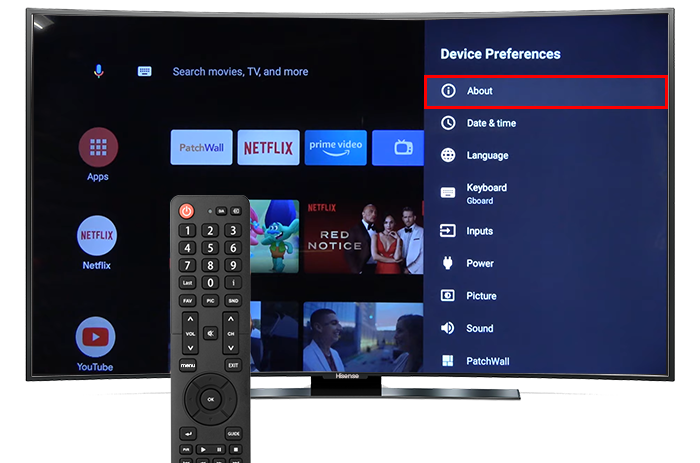
Checking your Hisense TV model is the first step to know if it supports Bluetooth. Different models come with different features. Some include Bluetooth for wireless audio devices. Others may not have this feature built-in. Knowing your exact model helps you find accurate information.
Hisense offers various TV lines like ULED, Vidaa, and Android TV. Each series may handle Bluetooth differently. Checking your model ensures you don’t miss out on features or settings. It also helps in troubleshooting connection issues.
Finding Model Specifications
Locate your TV model number on the back of the device or in the settings menu. The model number usually starts with letters followed by numbers. Use this number to search online or in your TV manual.
Visit the official product page or check the user guide for detailed specs. Look specifically for “Bluetooth” under connectivity or wireless features. This confirms if your model supports Bluetooth and what version it uses.
Using The Hisense Support Website
Go to the Hisense support website and enter your model number. The site provides manuals, FAQs, and detailed specifications. These resources help you identify Bluetooth availability and how to enable it.
The support site may also offer firmware updates. Updating your TV can add or improve Bluetooth functionality. Follow the instructions carefully to keep your TV up to date and fully functional.
Frequently Asked Questions
How Do I Tell If My Hisense Tv Has Bluetooth?
Check your Hisense TV’s Settings menu for “Bluetooth” under “Remotes & Accessories” or “Connection. ” Most ULED, Laser, and Android models include Bluetooth. Older or budget models might lack it. Visit the Hisense support site to verify your model’s features.
How Do I Connect My Hisense Smart Tv To Bluetooth?
Open Settings on your Hisense Smart TV. Select “Remotes & Accessories” or “Connection. ” Enable Bluetooth and choose your device to pair.
How Do I Know If My Tv Has Bluetooth?
Check your TV’s settings menu for Bluetooth options under “Remotes & Accessories” or “Network. ” Consult your model’s specs online.
Does The Hisense 55 Inch Tv Have Bluetooth?
Most Hisense 55 inch TVs, including ULED and Android models, have built-in Bluetooth. Check Settings > Remotes & Accessories to enable it. Some older or budget models may lack Bluetooth, requiring a separate transmitter. Always verify your model’s specs on the Hisense support site for confirmation.
Do All Hisense Tvs Come With Built-in Bluetooth?
Most modern Hisense TVs, like ULED and Laser TV, include built-in Bluetooth. Older or budget models may not have this feature. Always check your TV’s specifications to be sure.
Conclusion
Many Hisense TVs include built-in Bluetooth for easy connections. Check your model’s settings under “Remotes & Accessories” or “Connection. ” Older or budget models might not have Bluetooth. You can use a Bluetooth transmitter with those TVs. Updating your TV’s firmware can add or improve Bluetooth features.
Knowing this helps you enjoy wireless audio with headphones or speakers. Simple steps make connecting quick and hassle-free. Now, you can decide if your Hisense TV meets your Bluetooth needs.