
Many people buy Samsung TVs for their clear picture quality, smart features, and reliable design. But as technology changes, more users want to connect wireless headphones, soundbars, or speakers directly to their TV. This brings up a common question: Do Samsung TVs have Bluetooth? The answer is not always simple. Over the years, Samsung has released many different TV models, each with unique features. Some include Bluetooth, while others do not. Understanding if your Samsung TV supports Bluetooth—and knowing how to use it—can make your home entertainment setup much better.
If you want to connect wireless audio devices, pair a game controller, or even use your smartphone as a remote, Bluetooth can help. But first, you need to know if your Samsung TV supports this feature, how to set it up, and what to do if it doesn’t.
This guide will explain everything you need to know about Bluetooth on Samsung TVs. You’ll learn which models have it, how to activate it, how to connect devices, and what to do if your TV does not have Bluetooth built-in.
Plus, you’ll find tips, common mistakes to avoid, and answers to the most popular questions from Samsung TV owners.
What Is Bluetooth And Why Does It Matter For Tvs?
Bluetooth is a short-range wireless technology. It lets devices connect and share data without cables. On a Samsung TV, Bluetooth can be used to:
- Connect wireless headphones for private listening
- Pair Bluetooth speakers or soundbars for better audio
- Use wireless game controllers
- Connect a smartphone or tablet as a remote control
Bluetooth is popular because it’s simple and works with many devices. For TV owners, this means no messy wires and more flexibility in your setup.
The Growth Of Wireless Home Entertainment
Over the past decade, more TVs, speakers, and audio products have started using Bluetooth. According to market research, by 2023, over 80% of smart TVs sold globally had Bluetooth support. Samsung, as a leading brand, has followed this trend in most newer models.
However, not every Samsung TV has Bluetooth. Some older or budget models do not include it, and even some newer models may have limited Bluetooth functions.
Which Samsung Tvs Have Bluetooth?
The answer depends on the model, year, and series of your Samsung TV. Most recent Samsung smart TVs do support Bluetooth, but there are exceptions. Here’s a closer look.
Samsung Smart Tvs With Bluetooth (recent Years)
Most Samsung Smart TVs released since 2016 include Bluetooth. This covers popular series such as:
- QLED TVs (Q series)
- The Frame series
- The Serif and The Sero lifestyle TVs
- Crystal UHD models (TU and AU series)
- Neo QLED series
If your TV is from 2016 or newer and is a mid-range or premium model, it likely has Bluetooth.
Older Samsung Tvs (before 2016)
Bluetooth was less common on Samsung TVs made before 2016. Only some high-end models offered it. Basic or budget models from these years usually did not include Bluetooth.
How To Check If Your Samsung Tv Has Bluetooth
If you’re not sure, here are three reliable ways to find out:
- Check the TV’s specifications: Look up your TV’s model number on the Samsung website or in the manual. Search for “Bluetooth” under audio or connectivity features.
- Use the TV settings: Go to Settings > Sound > Sound Output. If you see Bluetooth Speaker List as an option, your TV supports Bluetooth.
- Look for Bluetooth Pairing Option: On your TV remote, press Home/Menu, go to Settings > Connections (or Network), and check for a Bluetooth menu.
Key Models With And Without Bluetooth
Here’s a quick comparison of some common Samsung TV models:
| Model Series | Year | Bluetooth Support |
|---|---|---|
| QLED Q60-Q95 | 2018–2023 | Yes |
| The Frame | 2017–2023 | Yes |
| Crystal UHD TU/AU | 2020–2023 | Yes |
| Basic LED Series (N, M, J) | 2015–2018 | No (most) |
| Plasma and Early LED | 2010–2015 | No (most) |
Pro tip: Even if your TV is a newer model, always double-check the manual or settings. Some entry-level TVs might leave out Bluetooth to save costs.
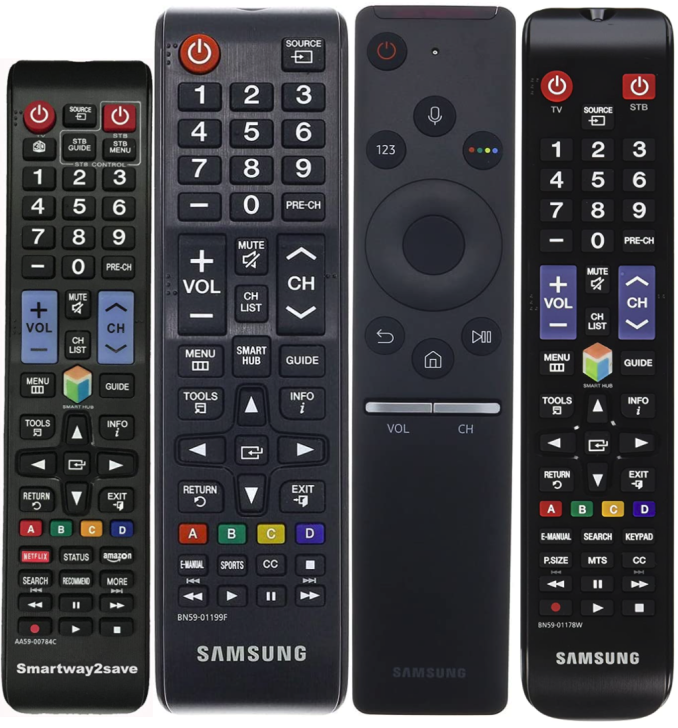
Credit: specialthailande.com
How To Enable Bluetooth On Your Samsung Tv
If your TV supports Bluetooth, it’s usually easy to set up. Here’s a step-by-step guide.
1. Access The Settings Menu
- Using your Samsung TV remote, press the Home or Menu button.
- Scroll to Settings.
2. Find The Bluetooth Option
- Go to Sound.
- Select Sound Output.
- If you see Bluetooth Speaker List, your TV supports Bluetooth.
Alternatively, on some models:
- Go to Connections or Network.
- Look for Bluetooth Settings or Device Manager.
3. Turn On Bluetooth Pairing
- Enter the Bluetooth Speaker List.
- Your TV will start searching for Bluetooth devices.
4. Put Your Device In Pairing Mode
- For headphones, speakers, or soundbars, press the pairing button (check the device manual if unsure).
- On your TV, wait for the device name to appear.
5. Select And Pair
- Highlight your device on the TV screen.
- Press Pair and Connect.
6. Test The Connection
- Play some audio or video on your TV.
- If you hear sound through your Bluetooth device, the setup is complete.
Common Problems When Enabling Bluetooth
Some users do not see the Bluetooth Speaker List or cannot find Bluetooth options. This usually means:
- Your TV does not support Bluetooth
- The software needs to be updated
- The TV is set to a mode that disables Bluetooth (e.g., some hotel or retail modes)
If your TV is supposed to have Bluetooth but you can’t find the option, try updating your TV’s firmware.
Connecting Different Bluetooth Devices To Samsung Tv
Samsung TVs support many types of Bluetooth devices. Each device type may have small differences in pairing.
Connecting Bluetooth Headphones Or Earbuds
- Put your headphones in pairing mode.
- Go to TV Settings > Sound Output > Bluetooth Speaker List.
- Select your headphones and connect.
- Adjust the TV volume using the remote.
Tip: When headphones are connected, most Samsung TVs mute the built-in speakers automatically. If you want to switch back, just disconnect the headphones.
Connecting Bluetooth Speakers Or Soundbars
- Place the speaker or soundbar in pairing mode.
- On the TV, go to Sound Output > Bluetooth Speaker List.
- Pair and connect as above.
Some soundbars can connect by both Bluetooth and HDMI. For best audio quality, HDMI (ARC) is usually better, but Bluetooth is simpler and avoids cables.
Connecting Game Controllers
Many Samsung TVs let you pair Bluetooth game controllers for gaming apps.
- Put the controller in pairing mode.
- On the TV, go to Settings > General > External Device Manager > Input Device Manager.
- Select Bluetooth Device List and pair your controller.
Not all controllers are supported. Samsung TVs work best with official Samsung or PlayStation/Xbox controllers.
Connecting A Smartphone As A Remote
You can use the Samsung SmartThings app to control your TV from your phone. If both devices are on the same Wi-Fi network, Bluetooth is sometimes used for fast discovery and pairing.
- Download SmartThings on your phone.
- Add your TV to the app.
- Follow the on-screen instructions to pair.
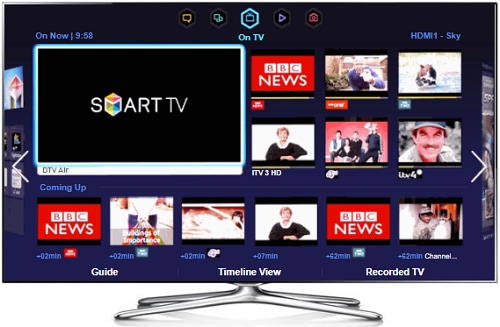
Credit: www.samsung.com
Bluetooth Range, Audio Delay, And Limitations
Bluetooth is handy, but it has some limits. Here’s what you should know.
Range
Most Samsung TVs use Bluetooth 4.2 or 5.0, which works up to about 30 feet (10 meters) indoors. Walls and furniture may reduce the range. For best performance, keep the Bluetooth device within the same room as your TV.
Audio Delay (latency)
With Bluetooth headphones or speakers, you may notice a slight audio delay compared to the video. This is called latency. On newer Samsung TVs, the delay is usually less than 100 milliseconds, which is small but sometimes noticeable when watching sports or gaming.
Tip: If the audio delay is a problem, some Bluetooth headphones have a “Low Latency” mode. Look for this feature if you care about perfect lip sync.
Number Of Devices
Most Samsung TVs can connect to one Bluetooth audio device at a time (one pair of headphones or one speaker). They do not support multiple simultaneous Bluetooth audio outputs. However, you can pair other devices (like a controller or phone) at the same time as an audio device.
Supported Codecs
Samsung TVs support standard Bluetooth audio codecs like SBC and sometimes aptX. However, they do not support high-end codecs like LDAC or AAC for TV audio. This means the audio is good, but not “hi-res” quality.
What If My Samsung Tv Doesn’t Have Bluetooth?
Not every Samsung TV includes Bluetooth. But you can still enjoy wireless audio with a few clever solutions.
Using A Bluetooth Transmitter
A Bluetooth transmitter is a small device that plugs into your TV’s audio output (headphone jack, RCA, or optical port) and sends the sound to Bluetooth headphones or speakers.
How It Works
- Plug the transmitter into your TV’s audio out port.
- Pair your Bluetooth headphones or speaker with the transmitter.
- Set your TV’s audio output to the corresponding port.
Many Bluetooth transmitters cost $20–$50 and work with almost any TV.
Choosing A Good Bluetooth Transmitter
- Look for aptX Low Latency support for less audio delay.
- Make sure it has the right plug for your TV (3.5mm, optical, or RCA).
- Some transmitters can pair with two headphones at once.
Using External Streaming Devices
Devices like Amazon Fire TV Stick, Apple TV, or Roku have Bluetooth. If you connect one of these to your Samsung TV, you can use their Bluetooth feature to send audio to headphones or speakers.
Example
- Plug a Fire TV Stick into your TV’s HDMI port.
- In Fire TV settings, pair your Bluetooth headphones.
- Use the streaming device for all your apps.
This is a good option if your TV lacks Bluetooth but you want smart features too.
Wired Alternatives
If you don’t want to use Bluetooth, you can always connect headphones or speakers using the TV’s headphone jack or audio output. Wired connections have no audio delay and always work, but you lose the freedom of wireless.
Common Mistakes And Troubleshooting Bluetooth On Samsung Tvs
Even with Bluetooth built in, users often face problems. Here are some common mistakes—and how to solve them.
Mistake 1: Device Not Showing Up
If your Bluetooth headphones or speaker doesn’t appear on the TV’s Bluetooth list:
- Make sure the device is in pairing mode (reset if needed).
- Move the device closer to the TV.
- Restart your TV and the Bluetooth device.
Mistake 2: Audio Delay Or Sync Issues
If the sound does not match the video:
- Try a different Bluetooth device—some have lower latency.
- Check for a “Game Mode” on your TV (Settings > Picture > Game Mode).
- Use a Bluetooth transmitter with aptX Low Latency.
Mistake 3: Bluetooth Option Missing
If you can’t find Bluetooth settings:
- Check your TV model’s specs online.
- Update your TV’s firmware (Settings > Support > Software Update).
- Some models need to be switched from “Retail Mode” to “Home Mode” to unlock Bluetooth.
Mistake 4: Connection Drops Or Stutters
Bluetooth can be affected by interference:
- Keep other wireless devices (Wi-Fi routers, microwaves) away from the TV.
- Move your Bluetooth device closer.
- Avoid obstacles between the TV and device.
Mistake 5: Trying To Connect Two Headphones
Most Samsung TVs only support one Bluetooth audio device at a time. You cannot connect two pairs of headphones directly. To share audio, use a dual-link Bluetooth transmitter.
Advanced Tips: Getting More From Your Samsung Tv’s Bluetooth
If you want more than basic Bluetooth, try these advanced tips:
Update Your Tv’s Software
Samsung regularly releases software updates to improve Bluetooth performance. To check:
- Go to Settings > Support > Software Update > Update Now.
Enable Bluetooth Developer Mode
On some Samsung TVs, there’s a hidden “developer” menu for Bluetooth settings. This is mostly for advanced users. To access it:
- With the TV off, press “Info”, “Menu”, “Mute”, then “Power” on the remote (in order).
- Enter the service menu, but be careful—changing random settings can affect your TV.
Pair Bluetooth Keyboards Or Mice
Some Samsung Smart TVs allow you to pair a Bluetooth keyboard or mouse for easier searching or web browsing.
- Put the device in pairing mode.
- Go to Settings > General > External Device Manager > Input Device Manager.
- Pair your keyboard or mouse.
Use Bluetooth For Samsung Multiroom Audio
Newer Samsung TVs can connect to multiple Samsung Multiroom wireless speakers over Bluetooth or Wi-Fi. This creates a surround sound effect in your home. Look for the Multiroom option in your TV’s sound settings.
How Does Samsung Bluetooth Compare To Other Brands?
Samsung is not the only TV brand with Bluetooth support. Here’s a quick look at how Samsung compares to other popular TV brands:
| Brand | Bluetooth Availability | Special Features |
|---|---|---|
| Samsung | Most mid-high models since 2016 | SmartThings, Multiroom Audio |
| LG | Most models since 2017 | Bluetooth Surround Ready |
| Sony | Android TVs since 2018 | Google Fast Pair |
| TCL/Hisense | Only in Roku/Google TV models | Private Listening (Roku App) |
Samsung’s Bluetooth support is as good or better than most rivals. Its SmartThings and Multiroom features offer extra value, especially for users with other Samsung devices.
Privacy And Security: Is Bluetooth On Tvs Safe?
Many users worry about privacy or security when using Bluetooth. In general, Bluetooth on Samsung TVs is safe for everyday use. Pairing requires physical access to the TV, and your devices cannot be hacked remotely through Bluetooth unless you allow pairing.
Important: Always pair devices you trust. If you see a strange device trying to connect, deny it. For extra safety, turn off Bluetooth when you don’t need it.
Real-world Examples: How People Use Bluetooth On Samsung Tvs
Bluetooth adds real convenience for different types of users. Here are a few examples:
- Families: Parents can watch late-night movies with Bluetooth headphones while children sleep.
- Gamers: Use a wireless controller for cloud gaming apps on Samsung Smart TVs.
- Music lovers: Pair a Bluetooth speaker to enjoy music streaming apps with louder sound.
- Seniors: Connect a hearing aid or wireless headphones for clearer dialogue.
These examples show why Bluetooth is one of the most-requested TV features today.
When You Should (and Shouldn’t) Use Bluetooth On Your Samsung Tv
Bluetooth is great for:
- Private listening with headphones
- Quick speaker setup without wires
- Using wireless game controllers
But it may not be the best choice if:
- You want the highest sound quality (HDMI or optical is better)
- You need to connect multiple headphones
- Audio delay is a big concern (e.g., for competitive gaming)
If your TV or audio device supports a wired or digital connection, consider that for the main setup and use Bluetooth for convenience or secondary use.
Key Takeaways
- Most Samsung TVs from 2016 onwards have Bluetooth.
- You can check Bluetooth support in your TV’s settings or manual.
- Bluetooth lets you connect headphones, speakers, controllers, and more.
- If your TV lacks Bluetooth, a Bluetooth transmitter can solve the problem.
- Bluetooth is best for wireless convenience, but has some delay and only supports one audio device at a time.
For more details about Bluetooth technology, you can visit Wikipedia’s Bluetooth page.
Frequently Asked Questions
Can I Add Bluetooth To An Older Samsung Tv?
Yes, you can use a Bluetooth transmitter. Plug it into your TV’s headphone or audio out port, then pair your Bluetooth headphones or speaker with the transmitter. This adds wireless audio support, even if your TV doesn’t have built-in Bluetooth.
Why Is There A Delay When Using Bluetooth Headphones With My Samsung Tv?
Bluetooth audio can have a small delay (latency) because it compresses and sends the sound wirelessly. Some Bluetooth devices and TVs handle this better than others. To reduce delay, look for headphones or transmitters with “Low Latency” support (aptX LL).
Can I Connect Two Bluetooth Headphones To My Samsung Tv At Once?
Most Samsung TVs only let you connect one Bluetooth audio device at a time. If you want to share audio with two headphones, use a Bluetooth transmitter that supports dual pairing.
How Do I Know If My Samsung Tv Has Bluetooth?
Check your TV’s settings: Go to Settings > Sound > Sound Output. If you see “Bluetooth Speaker List,” your TV supports Bluetooth. You can also look up your TV’s model number on the Samsung website or check the manual for Bluetooth support.
What Bluetooth Version Do Samsung Tvs Use?
Most Samsung TVs from 2018 onwards use Bluetooth 4.2 or Bluetooth 5.0. These versions are reliable and offer good range and speed for audio devices.
Samsung TVs continue to improve Bluetooth support each year, making wireless audio and control easier than ever. Whether you’re upgrading your setup or just want to watch TV without disturbing others, Bluetooth is a feature worth understanding and using.

Credit: www.youtube.com