
Smart TVs have changed how we experience entertainment at home. With access to streaming apps, voice assistants, and internet browsing, these televisions are now more than just a screen for cable channels. One feature that many people look for is Bluetooth. You might wonder, “Do Smart TVs have Bluetooth?” The answer isn’t as straightforward as you might think. This article will guide you through everything you need to know about Bluetooth on smart TVs—how it works, which brands support it, how to check for it, what you can do if your TV doesn’t have it, and much more. By the end, you’ll have a clear understanding of what to expect and how to make the most of Bluetooth with your smart TV.
What Is Bluetooth And Why Does It Matter For Smart Tvs?
Bluetooth is a short-range wireless technology. It allows devices to connect and share data without wires. On a smart TV, Bluetooth can be used to connect headphones, speakers, game controllers, keyboards, and even smartphones. This wireless connection can create a better and more flexible entertainment experience.
For example, if you want to watch TV late at night, you can use Bluetooth headphones so you don’t disturb others. If you want better sound than your TV speakers, you can connect a Bluetooth soundbar. You can even use a wireless keyboard to type in search bars or browse the web more easily.
Bluetooth also helps reduce clutter. You don’t need long cables running from your TV to your devices. For people with limited space or those who like a clean look, this is a big advantage.
Do All Smart Tvs Have Bluetooth?
Not all smart TVs include Bluetooth. While many new models support it, some do not. The presence of Bluetooth depends on the brand, model, and price range.
- High-end smart TVs from major brands almost always include Bluetooth.
- Mid-range models often have Bluetooth, but not always.
- Budget models or older smart TVs might not have Bluetooth at all.
Some brands, like Samsung and LG, include Bluetooth in most of their smart TVs. Others, such as Vizio and some TCL models, may leave it out in lower-priced TVs.
Why do some TVs lack Bluetooth? Manufacturers sometimes skip Bluetooth to reduce costs. In some cases, the TV may have the necessary hardware, but the feature is disabled in software, or only works with certain accessories.
This is why you should always check the specifications before buying if Bluetooth is important to you.
Which Brands And Models Commonly Have Bluetooth?
Let’s look at how popular TV brands handle Bluetooth support. Below is a comparison of major brands and their general Bluetooth availability in smart TVs.
| Brand | Bluetooth on Most Models? | Notes |
|---|---|---|
| Samsung | Yes | Usually available in mid-range and high-end models |
| LG | Yes | Almost all smart TVs support Bluetooth |
| Sony | Yes | Android/Google TV models support Bluetooth |
| Vizio | Rare | Usually only for Bluetooth LE (low energy) remote, not audio |
| TCL | Sometimes | More common in Roku models, check specs |
| Hisense | Sometimes | Bluetooth present in some models |
| Philips | Sometimes | Check Android TV models for Bluetooth |
Key insight: Even within the same brand, not every model will have Bluetooth. Always verify for the specific model you are considering.
How To Check If Your Smart Tv Has Bluetooth
If you already own a smart TV and want to know if it has Bluetooth, there are several ways to find out:
- Check the user manual. The manual will list Bluetooth if the TV supports it.
- Go to the TV’s settings. Look for a “Bluetooth” or “Wireless” section in the menu. On many TVs, you’ll find Bluetooth under “Sound” or “Connections.”
- Search the TV’s model number online. Visit the manufacturer’s website and check the specifications for your exact model.
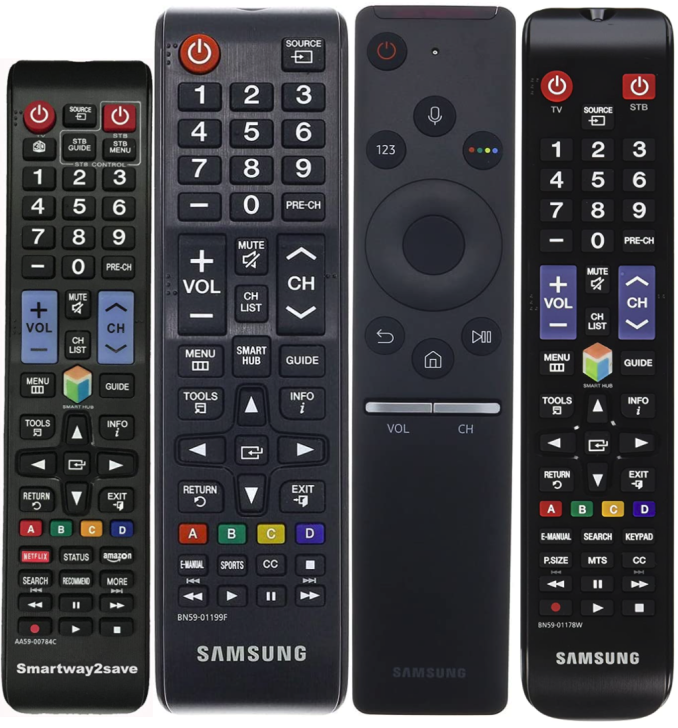
- Check the remote. Some TVs with Bluetooth come with a “magic remote” or a voice remote, which often connects via Bluetooth. This can be a clue.
- Look for pairing mode. Try to add a device (like headphones) in the settings. If you see an option to “Add Bluetooth device,” your TV supports it.
Non-obvious tip: Some TVs only support Bluetooth for certain devices, like their own brand’s soundbars or remotes. Audio streaming to headphones or speakers may not be supported, even if Bluetooth is present.

Credit: www.youtube.com
What You Can Do With Bluetooth On A Smart Tv
Bluetooth on a smart TV isn’t just for headphones. Here are the most common uses:
Connect Wireless Headphones
This is the most popular reason people use Bluetooth with their TV. You can listen to movies, shows, or games without disturbing anyone else.
- Tip: Some TVs can only connect to one pair of headphones at a time. Check your TV’s specs if you want to connect more.
Pair A Bluetooth Speaker Or Soundbar
If your TV’s speakers are weak, a Bluetooth speaker or soundbar can deliver much better sound.
- Non-obvious insight: Audio delay (lip sync) can be a problem with Bluetooth speakers. Look for TVs and speakers that support aptX Low Latency for better sync.
Use A Wireless Keyboard Or Mouse
Typing with the TV remote is slow. A Bluetooth keyboard makes it much easier to search for shows or browse the web.
- Practical tip: Not all TVs support all keyboard features (like function keys or touchpads).
Connect Game Controllers
Some smart TVs let you pair Bluetooth game controllers for gaming apps, especially on Android TV or Google TV models.
- Example: You can pair a PlayStation or Xbox controller with many Sony and Nvidia Shield TVs.
Transfer Files Or Cast Media
A few smart TVs let you send photos, music, or videos from your phone via Bluetooth. This is less common, since most people use Wi-Fi casting (like Chromecast or AirPlay).
How To Connect Bluetooth Devices To A Smart Tv
Setting up Bluetooth devices with your smart TV is usually simple, but the steps can be different for each brand. Here’s a general process:
- Put your Bluetooth device in pairing mode. Read its manual if you’re not sure how.
- Open your TV’s settings menu. Look for “Bluetooth,” “Connections,” or “Sound.”
- Select “Add device” or “Pair new device.”
- Choose your device from the list that appears.
- Complete the pairing process. You might need to confirm on both devices.
Example: Pairing Bluetooth Headphones With An Lg Tv
- Put your headphones in pairing mode.
- On the LG TV, go to Settings > Sound > Sound Out > Bluetooth.
- Choose your headphones from the list.
- Select “Pair” and wait for the connection.
Example: Pairing On A Samsung Tv
- Put the Bluetooth device in pairing mode.
- Go to Settings > Sound > Sound Output > Bluetooth Speaker List.
- Select your device and pair.
Insider tip: If you don’t see your device, make sure it’s close to the TV and not already connected to another device.
Common Problems When Using Bluetooth On Smart Tvs
Bluetooth is convenient, but it’s not perfect. Here are some common issues and solutions:
Audio Lag Or Lip Sync Problems
Bluetooth can sometimes cause sound to be slightly behind the picture. This is called audio lag.
- Solution: Look for TVs and devices that support aptX Low Latency or similar features. Some TVs have “audio delay” settings that let you adjust timing.
Limited Device Compatibility
Not all Bluetooth devices work with all TVs.
- Solution: Check compatibility lists from the TV brand. Avoid very old Bluetooth devices.
Connection Drops Or Interference
Bluetooth uses the 2. 4 GHz frequency, which can get crowded.
- Solution: Keep devices close to the TV. Avoid obstacles like thick walls or microwaves nearby.
Can’t Find Bluetooth In Tv Settings
Some TVs hide Bluetooth menus until a compatible device is nearby.
- Solution: Make sure your device is in pairing mode and very close to the TV before opening settings.
Tv Only Supports Bluetooth Remotes
A few TVs (like some Vizio models) have Bluetooth, but only for their own remotes. You can’t connect headphones or speakers.
- Solution: Check the user manual or specs to see if “Bluetooth audio” is supported.
What To Do If Your Tv Doesn’t Have Bluetooth
If your smart TV doesn’t have Bluetooth, you’re not out of luck. There are several ways to add Bluetooth support:
Use A Bluetooth Audio Transmitter
A Bluetooth transmitter plugs into your TV’s headphone jack or optical output. It sends audio to your wireless headphones or speakers.
- Prices start around $20–$50.
- Look for transmitters that support aptX Low Latency for best audio sync.
Choose The Right Audio Output
Some older TVs have a “headphone out” or “audio out” jack. Make sure your transmitter matches the output type.
- 3.5mm (headphone jack): Most common.
- RCA: Red and white ports.
- Optical (Toslink): For higher-end transmitters.
Example: Adding Bluetooth With A Transmitter
- Plug the transmitter into your TV’s headphone or optical port.
- Put your headphones in pairing mode.
- Pair the headphones to the transmitter.
- Enjoy wireless sound.
Non-obvious insight: Some transmitters can send to two pairs of headphones at once—a feature called “dual link.”
Use A Streaming Device With Bluetooth
Some external streaming devices, like the Amazon Fire TV Stick or Apple TV, have built-in Bluetooth. You can use these to add Bluetooth support, even if your TV doesn’t have it.
- Pair headphones or speakers in the streaming device’s settings.
Upgrade To A New Tv
If you’re buying a new TV, look for Bluetooth in the specifications. It’s becoming standard, but not universal.
Credit: specialthailande.com
Bluetooth Vs. Other Wireless Options: How Does It Compare?
Bluetooth isn’t the only way to connect devices wirelessly to your TV. Here’s how it compares to other options:
| Feature | Bluetooth | Wi-Fi (Casting) | Infrared (IR) |
|---|---|---|---|
| Range | 10–30 feet | Much farther (depends on Wi-Fi) | Line of sight only |
| Best for | Audio, remotes, keyboards | Streaming video, casting apps | Remote controls |
| Audio quality | Good, can have lag | Excellent, no lag | Not used for audio |
| Device support | Headphones, speakers, keyboards | Phones, tablets, computers | Remotes |
Key takeaway: Bluetooth is best for short-range audio and controls. For streaming video from your phone, Wi-Fi casting (like Chromecast or AirPlay) is usually better.
Privacy And Security: Is Bluetooth On Smart Tvs Safe?
Bluetooth is generally safe, but there are a few things to know:
- Pairing requests: Only pair with devices you recognize. Someone nearby could try to connect if your TV is in pairing mode.
- Data sharing: Bluetooth on TVs is mainly for audio, not file transfers, so the risk is low.
- Interference: Other wireless devices can sometimes interfere with your TV’s Bluetooth, but this is not a privacy risk.
For extra safety, turn off Bluetooth when you’re not using it. Some TVs let you disable Bluetooth in the settings.
Real-world Examples: Bluetooth In Action
Here are some real-life scenarios where Bluetooth on a smart TV makes a big difference:
Late-night Watching
You want to watch a movie, but your family is asleep. You connect Bluetooth headphones to your Samsung TV. The sound is clear, and you don’t disturb anyone.
Home Theater Upgrade
You buy a new LG OLED TV and pair it with a Bluetooth soundbar. The sound fills your living room, and you never trip over wires.
Helping With Hearing Loss
Your grandmother has trouble hearing the TV. You connect Bluetooth hearing aids that are compatible with her Sony smart TV. Now she can hear the dialogue clearly without turning up the volume for everyone else.
Gaming With Friends
You play games on a Google TV, using Bluetooth controllers for multiplayer. There are no wires to tangle, and everyone can move freely.
How Bluetooth Affects Tv Performance
Bluetooth uses a small amount of the TV’s processing power and battery (if any). For most users, this impact is too small to notice. However, connecting multiple Bluetooth devices at once may slow down older TVs or cause menus to lag.
- Insight: Using Bluetooth with an external soundbar or headphones may disable the TV’s built-in speakers. Check your TV’s manual for details.

Credit: buymode.shop
Future Trends: Is Bluetooth Evolving On Smart Tvs?
Bluetooth technology continues to improve. Newer versions offer better range, faster pairing, and less audio delay.
- Bluetooth 5.0 and later: These versions have lower energy use, better range, and faster speeds.
- Multi-device pairing: Some new TVs and transmitters support connecting to two headphones at once.
- Bluetooth LE Audio: This is a new standard (coming soon to TVs) that supports higher-quality sound, better battery life, and even sharing audio with multiple people in a room.
As more brands update their TVs, Bluetooth support will likely become more common and more powerful.
How To Choose A Smart Tv With Bluetooth: Buyer’s Guide
If Bluetooth is important to you, here’s what to look for when shopping:
- Check the specs. Look for “Bluetooth” or “Bluetooth Audio Out” in the feature list.
- Read reviews. Sometimes the specs are unclear. User reviews can reveal if Bluetooth works well.
- Test in-store. If possible, try pairing a device in the store.
- Look for Bluetooth version. Bluetooth 5.0 or higher is better for range and speed.
- Consider future needs. If you want to connect two headphones at once, check for “dual audio” or “multi-point” support.
- Avoid common mistakes. Don’t assume all smart TVs have Bluetooth. Some only support Bluetooth for remotes, not for audio.
Pro tip: If you use a soundbar, ask if you can use both the soundbar and headphones at the same time. Many TVs only let you use one Bluetooth audio device at once.
Cost Comparison: Is Bluetooth Worth Paying More For?
Smart TVs with Bluetooth may cost a little more, but the price gap is shrinking. Let’s compare two similar models:
| Model | Bluetooth | Average Price | Main Difference |
|---|---|---|---|
| Samsung TU7000 (2022) | No | $400 (43″) | Basic smart TV, no Bluetooth audio |
| Samsung TU8000 (2022) | Yes | $450 (43″) | Bluetooth for audio and remotes |
Insight: For about $50 more, you get Bluetooth and other small upgrades. For many users, this extra cost is worth the flexibility.
Troubleshooting Bluetooth: Quick Solutions
If you’re having trouble connecting Bluetooth devices to your TV, try these steps:
- Restart your TV and device. Simple, but often works.
- Move closer. Bluetooth works best within 10–30 feet.
- Unpair other devices. Some TVs only support one Bluetooth device at a time.
- Update your TV’s software. Go to your TV’s settings and check for updates.
- Reset Bluetooth. Some TVs let you turn Bluetooth off and on again in the menu.
If you still have problems, search your TV model plus “Bluetooth” for brand-specific help.
Frequently Asked Questions
Can I Add Bluetooth To A Smart Tv That Doesn’t Have It?
Yes. You can use a Bluetooth audio transmitter that plugs into your TV’s headphone or optical port. This device sends sound to Bluetooth headphones or speakers. Some streaming sticks, like Amazon Fire TV, also add Bluetooth support.
Why Can’t My Bluetooth Headphones Connect To My Tv?
Some TVs only support certain types of Bluetooth devices, or may only connect to one device at a time. Make sure your headphones are in pairing mode and not already connected to another device. Check your TV’s settings for a “Bluetooth” or “Sound Out” option.
Is Bluetooth Audio Quality As Good As Wired?
Bluetooth audio has improved a lot, but wired connections usually offer slightly better sound quality and no delay. With aptX Low Latency and newer Bluetooth versions, the difference is small for most people.
Can I Connect Multiple Bluetooth Devices At The Same Time?
Some newer TVs and transmitters support “dual audio” or “multi-point” connections, but most TVs only allow one Bluetooth audio device at a time. Check your TV’s manual or the product specs for this feature.
Do All Smart Tvs Come With Bluetooth Remote Controls?
No. Some smart TVs still use infrared (IR) remotes, especially lower-cost models. Higher-end TVs often include Bluetooth remotes, which can be more responsive and work from any direction.
Bluetooth is a powerful feature on smart TVs, but it’s not always guaranteed. By understanding what Bluetooth can do, how to check for it, and what to do if your TV doesn’t have it, you’ll be ready to enjoy all the benefits of a wireless entertainment setup. If you want more technical details about Bluetooth, you can read more on Wikipedia.
Whether you’re shopping for a new TV or making the most of your current one, Bluetooth can make your home entertainment easier and more flexible. Take a moment to check your TV’s features—wireless sound and control may be just a few clicks away.