
Gpx Tv Problems: Complete Guide To Troubleshooting And Solutions
If your GPX TV is not working as expected, you are not alone. Many people face issues with their GPX televisions, from no power to poor picture quality. The good news is, most problems can be fixed at home with a bit of guidance. This article will help you understand common GPX TV problems, how to diagnose them, and what steps you can take to fix them. Whether your TV is new or old, these tips will help you get back to enjoying your favorite shows.
Common Gpx Tv Problems
GPX TVs are affordable and simple to use, but they can develop issues over time. Here are the most frequent problems users report:
- TV will not turn on
- No picture or black screen
- No sound
- Poor image quality
- Remote control not working
- HDMI or input issues
- TV keeps turning off by itself
- Stuck on logo or boot loop
- Problems with apps or smart features
- Channels missing or not scanning
- Screen flickering or lines
- Power light blinking
- Audio out of sync
- Volume stuck or not changing
- TV menu not responding
Each issue can have several causes. Let’s look at each problem in detail and how you can fix it.
Tv Will Not Turn On
When your GPX TV does not power up, it can be frustrating. This problem can be caused by several things:
- Faulty power outlet
- Bad power cord
- Faulty internal board
Steps To Fix
- Check the power outlet: Plug another device into the same outlet to see if it works. If it does not, try a different outlet.
- Inspect the power cord: Look for any visible damage. If the cord is worn or broken, replace it.
- Try the power button: Sometimes, the remote control battery is dead. Press the power button on the TV itself.
- Unplug and wait: Unplug the TV for 5–10 minutes. This can reset the system.
- Look for standby light: If the standby light is on but TV won’t start, the problem could be with the internal power supply.
If none of these steps work, the internal power board may need repair or replacement. This is best done by a professional.
No Picture Or Black Screen
A black screen is one of the most common problems. You may hear sound, but see no image.
Causes
- Loose or faulty HDMI/AV cables
- Broken backlight
- Faulty display panel
Solutions
- Check cables: Make sure all cables are firmly connected.
- Try a different input: Switch to another HDMI or AV input.
- Shine a flashlight: Point a flashlight at the screen. If you see a faint image, the backlight may be broken.
- Adjust brightness: Sometimes, brightness is set too low.
- Factory reset: If the menu appears but the image is black, try a factory reset.
If the backlight is broken, it usually requires professional repair. Backlight repairs can cost up to $150, so weigh this against the TV’s value.
No Sound
If your GPX TV has no sound, you might miss important scenes in your movies or shows.
What To Check
- Is the TV muted?
- Is the volume turned down?
- Are external speakers connected?
Troubleshooting Steps
- Unmute and increase volume: Press the mute button and raise the volume.
- Check external devices: If using a soundbar or external speakers, make sure they are on and connected.
- Try another channel or input: Sometimes, only one input or channel has no sound.
- Factory reset: This can clear any software errors causing the sound problem.
- Audio output settings: Go into the TV’s audio menu and make sure the correct output (TV speakers or external) is selected.
If you still have no sound, the audio board might be damaged.
Poor Image Quality
Blurry, faded, or color-distorted images make watching TV unpleasant.
Common Reasons
- Low-quality source
- Wrong picture settings
- Signal interference
How To Improve
- Adjust picture settings: Increase sharpness, contrast, and brightness.
- Check input signal: Make sure your cable box, DVD player, or streaming stick is set to HD.
- Clean the screen: Dust and smudges can affect image clarity.
- Update firmware: Sometimes, a software update can improve picture quality.
- Use better cables: Poor HDMI or AV cables can reduce picture quality.
Some GPX models have limited picture adjustments. If you cannot improve the picture, it could be a hardware issue.
Remote Control Not Working
If the remote does not respond, you cannot easily control your TV.
Quick Fixes
- Replace the batteries: Use new, high-quality batteries.
- Clean the sensor: Wipe the remote’s front and the TV’s sensor.
- Check for obstructions: Make sure nothing blocks the sensor on the TV.
- Test with another remote: If you have a universal remote, try it.
- Reset remote: Remove the batteries, hold every button for 2 seconds, then replace the batteries.
If the remote still does not work, it may be broken and need replacing.

Credit: www.ebay.com
Hdmi Or Input Problems
Sometimes, your GPX TV does not recognize devices like game consoles or streaming sticks.
Steps To Solve
- Switch HDMI ports: Try a different port on the TV.
- Use a new cable: HDMI cables can break over time.
- Select the correct input: Use the TV remote to select the right input source.
- Restart devices: Power off and then on both the TV and the connected device.
- Check device settings: Some devices need to be set to output a compatible signal (like 1080p).
If the TV still does not detect the device, the HDMI port could be damaged.
Tv Keeps Turning Off By Itself
This problem can interrupt your viewing and signal a deeper issue.
Possible Causes
- Sleep timer is set
- Overheating
- Firmware bug
- Power supply issue
What To Do
- Check sleep timer: Turn off any timer settings in the TV’s menu.
- Ventilation: Make sure the TV is not overheating. Keep vents clear.
- Update firmware: Check if a software update is available.
- Try a different outlet: Sometimes, unstable power can cause shut-offs.
- Factory reset: This can clear any software glitches.
If your TV is still shutting off, it might be a hardware problem.
Stuck On Logo Or Boot Loop
Some GPX TVs get stuck on the company logo or keep restarting.
Causes
- Corrupt firmware
- Bad main board
Fixes
- Unplug and wait: Disconnect power for 10 minutes.
- Factory reset: Use the reset button (often a small hole on the TV case).
- Firmware update: If possible, update firmware from a USB drive.
- Contact support: If nothing works, the main board may need repair.
Boot loop problems are hard to fix at home, but unplugging the TV sometimes helps.
Problems With Apps Or Smart Features
Some newer GPX TVs have smart features. Issues can include apps not loading, crashing, or freezing.
Solutions
- Restart the TV: Power off and on.
- Update apps and firmware: Go to the settings menu to update.
- Clear app cache: Some TVs allow you to clear cache from the app settings.
- Check Wi-Fi: Make sure your internet is working and the TV is connected.
- Reinstall apps: Delete and reinstall the app that is not working.
Smart features on GPX TVs are basic compared to bigger brands, so problems are common.
Channels Missing Or Not Scanning
If your GPX TV cannot find channels, or some are missing, it can be due to signal or settings issues.
How To Troubleshoot
- Scan for channels: Use the TV’s menu to run a full channel scan.
- Check antenna/cable: Make sure your antenna or cable is connected and working.
- Move the antenna: Changing the position can improve reception.
- Manual tuning: Some TVs allow you to add channels manually.
- Factory reset: This can fix scanning issues.
In areas with weak signals, you may need a better antenna.
Screen Flickering Or Lines
Flickering or lines on the display can be distracting and signal bigger problems.
Causes
- Loose or faulty cables
- Interference from other devices
- Panel or board failure
Fixes
- Check all cables: Make sure they are tight and undamaged.
- Move other electronics: Devices like routers or cordless phones can cause interference.
- Try another input: See if the problem happens on all sources.
- Factory reset: Software glitches can cause flickering.
- Contact support: If lines remain, the panel may be failing.
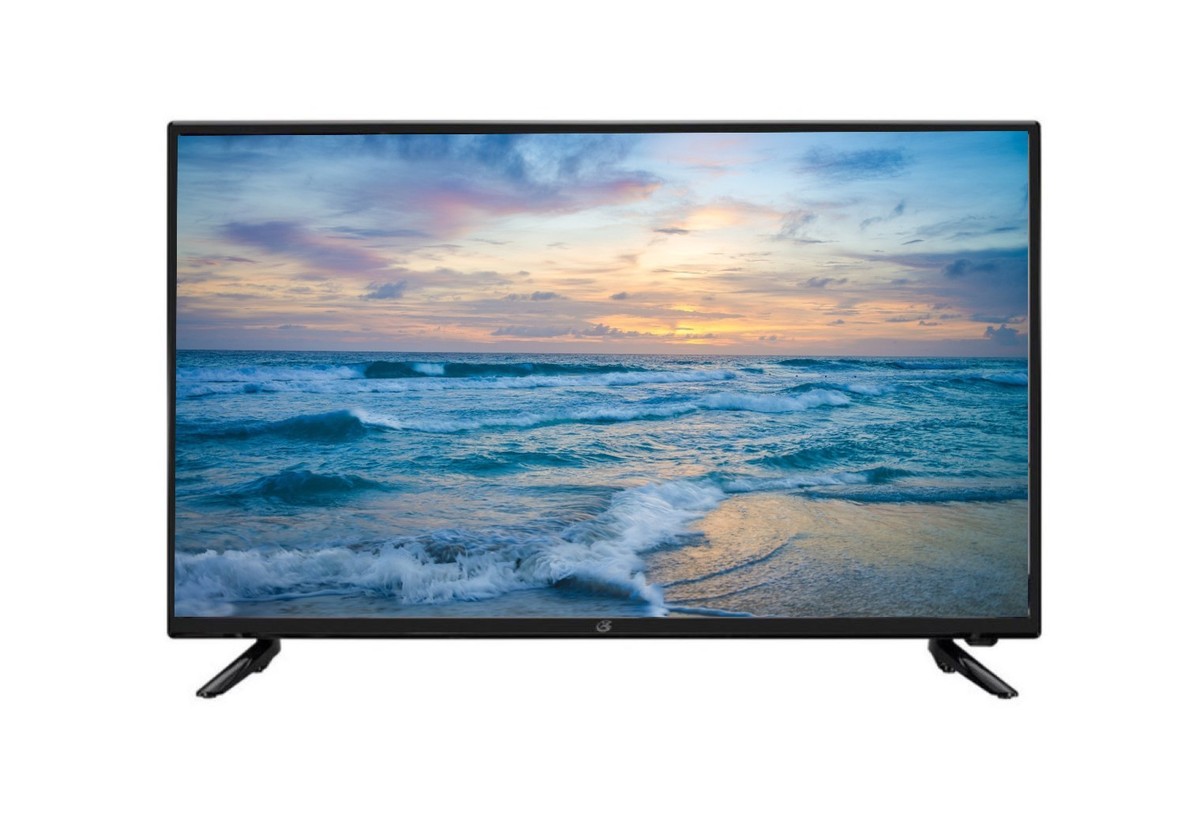
Credit: www.ebay.com
Power Light Blinking
A blinking power light can mean different things depending on the model.
What It Means
- Standby mode
- Error code (number of blinks can signal problem type)
- Firmware update in progress
What To Do
- Count the blinks: Some TVs blink in a pattern to show an error.
- Unplug and wait: Power cycle the TV.
- Check manual: Look up the blink code in your TV’s manual.
- Factory reset: Sometimes this clears the error.
If blinking continues, it often means a hardware fault.
Audio Out Of Sync
When sound and picture do not match, it can ruin the viewing experience.
Quick Solutions
- Restart TV and source device: This can resync audio and video.
- Check audio settings: Some TVs let you adjust audio delay.
- Try a different input: The problem might be the source, not the TV.
- Update firmware: Software updates often fix sync issues.
If the problem is only on one input, the device may be the problem.
Volume Stuck Or Not Changing
Sometimes the TV volume does not respond, stays low, or gets stuck at one level.
Troubleshooting
- Check if muted: Press mute and try to adjust the volume.
- Remote batteries: Weak batteries can cause laggy controls.
- Volume limiter: Some TVs have a setting that limits max volume.
- Factory reset: Software errors can freeze volume controls.
- Side buttons: Try using buttons on the TV, not just the remote.
If the volume still does not work, the internal audio board may be faulty.
Tv Menu Not Responding
If you cannot open or use the TV’s menu, you cannot change settings or scan for channels.
Fixes
- Restart TV: This often fixes unresponsive menus.
- Check remote: Make sure the remote is working.
- Factory reset: If you can access it, this often solves menu issues.
- Update firmware: If the menu freezes due to software, an update may help.
If the menu is still frozen, internal memory may be corrupted.
Comparison: Gpx Tv Problems Vs Other Brands
To help you understand how GPX TV problems compare to other brands, here is a side-by-side look at common issues:
| Problem | GPX TVs | Samsung/LG/Sony |
|---|---|---|
| No power | Common, often power board | Less common, more durable parts |
| No picture | Frequent, backlight issues | Occasional, panel failures |
| Audio problems | Moderate, board or settings | Occasional, often software |
| HDMI/input issues | Common, port wear | Less common, better build |
| Smart app issues | Frequent, limited app support | Less frequent, more updates |
Key Troubleshooting Tips For Gpx Tvs
While many GPX TV problems can be fixed at home, some require professional help. Here are extra tips to make troubleshooting easier:
- Always unplug the TV before opening or inspecting it inside.
- Use original parts for replacement, if possible.
- Keep the firmware updated for best performance.
- If you are not sure, ask for professional repair to avoid further damage.
- Save your TV’s model and serial number for support calls.
When To Repair Or Replace Your Gpx Tv
Sometimes, repairing your TV costs more than buying a new one. Here’s a quick guide to help you decide.
| Problem | Estimated Repair Cost | Consider Repairing? |
|---|---|---|
| Power board failure | $80–$150 | Yes, if TV is less than 3 years old |
| Backlight replacement | $100–$180 | Maybe, check TV value |
| Screen panel replacement | $200+ | Usually not, buy new TV |
| Remote replacement | $10–$25 | Yes |
| Firmware/software | Free or low cost | Yes |
A useful rule: If repair costs more than half the price of a new TV, it’s often better to buy a new model.
Preventing Future Gpx Tv Problems
Taking care of your TV can prevent many issues. Here are some simple steps:
- Keep it clean: Dust can block ventilation and cause overheating.
- Use a surge protector: This protects against power spikes.
- Do not block vents: Place your TV where air can flow freely.
- Update firmware: Check for updates every 6–12 months.
- Handle cables carefully: Do not pull or twist HDMI and power cords.
Most people overlook these small actions, but they make a big difference in how long your TV lasts.
Two Insights Most Beginners Miss
- Capacitor Bulging Is a Silent Killer: Many power problems in GPX TVs are caused by small parts called capacitors on the power board. If you open the back (only if you know how), look for capacitors with bulging tops. Replacing them can fix power issues for a few dollars.
- Weak Wi-Fi Can Break Smart Features: If your smart apps crash or freeze, the issue may not be the TV but your home Wi-Fi signal. Try moving your router closer or using a wired Ethernet connection if possible.
How To Contact Gpx Support
If you cannot fix the problem yourself, contact GPX customer service. Have your model and serial number ready. They may offer troubleshooting or recommend a repair shop.
For warranty information and official support, visit the GPX Support Center.

Credit: www.youtube.com
Frequently Asked Questions
Why Does My Gpx Tv Keep Turning Off By Itself?
This often happens because of a set sleep timer, overheating, or a power supply problem. Check the timer settings, make sure the TV has good ventilation, and try plugging it into another outlet. If it keeps happening, the power board may need repair.
How Do I Reset My Gpx Tv To Factory Settings?
Most GPX TVs have a reset option in the settings menu. If the menu is not working, look for a small reset hole on the back or side. Press it with a paperclip for 10 seconds. This will erase all settings and return the TV to default.
Why Is There Sound But No Picture On My Gpx Tv?
This usually means the backlight is broken or the display panel has failed. Shine a flashlight on the screen to see if you can see a faint image. If you can, the backlight needs repair. If not, the display panel may be the problem.
My Gpx Tv Remote Is Not Working. What Should I Do?
First, replace the batteries. Clean the remote’s sensor and the TV’s sensor with a soft cloth. Make sure nothing blocks the TV’s sensor. If it still does not work, try a universal remote or buy a replacement.
How Can I Get Missing Channels On My Gpx Tv?
Check that your antenna or cable is connected correctly. Run a full channel scan in the TV’s menu. If channels are still missing, try moving the antenna or use a stronger one. In some areas, only a few channels may be available.
Owning a GPX TV comes with its challenges, but most problems can be solved at home with a little patience and the right approach. By understanding what causes these issues and how to fix them, you can save time and money—and avoid unnecessary frustration. If you ever feel stuck, do not hesitate to reach out for professional support or check for more resources online, such as the Wikipedia page on television sets for deeper reading. With good care and smart troubleshooting, your GPX TV can provide years of entertainment.