
Changing the input on your Toshiba TV without a remote can feel confusing, especially if you’re not used to TV controls or your remote is lost or broken. Many people face this issue, but there are smart ways to solve it—even if you don’t have much technical experience.
This guide gives you practical solutions, step-by-step instructions, and useful tips to help you switch inputs easily. Whether you want to watch cable, use HDMI for gaming, or connect a streaming device, you’ll learn everything you need to know. With clear examples, data, and comparisons, this article aims to make your experience smooth and stress-free.
Understanding Tv Inputs And Why Switching Matters
Before diving into methods, it’s important to know what TV inputs are and why they matter. Inputs are the ports or sources where devices connect to your TV. For example, HDMI, AV, USB, and Component. When you change the input, you decide which device shows on your screen.
If you want to watch a movie from a Blu-ray player, play games on a console, or stream online content, you must select the right input. Without the remote, this can seem challenging, but Toshiba TVs offer alternative ways to switch.
Common Input Types On Toshiba Tvs
Most Toshiba TVs support these input types:
- HDMI: For game consoles, streaming sticks, Blu-ray players, PCs
- AV/Composite: Older DVD players, VCRs
- Component: Higher quality analog video
- USB: For media files, sometimes for streaming sticks
- Antenna/Cable: TV channels
Older Toshiba models might have fewer inputs, while newer smart TVs include more ports and features.
Methods To Change Input Without A Remote
You don’t need a remote to change the input on most Toshiba TVs. There are several ways to do it, depending on your TV model and features. Here are the most reliable methods:
1. Using Physical Buttons On The Tv
Almost all Toshiba TVs have physical buttons on the side, front, or bottom edge. These buttons let you control power, volume, channels, and inputs.
Locating The Buttons
Check the left, right, or bottom edge for a small set of buttons. Usually, you’ll see:
- Power
- Volume Up/Down
- Channel Up/Down
- Menu/Input (sometimes labeled ‘Source’ or ‘Menu’)
Some older models have a joystick-style button instead.
Switching Inputs Step-by-step
- Turn on the TV with the Power button.
- Press the Menu or Input button. On some models, this button is labeled ‘Source’.
- Use Channel or Volume buttons to scroll through input options.
- Stop at the desired input (HDMI, AV, etc.). The screen will switch after a few seconds, or you can press ‘Menu/Input’ again to confirm.
Example: If you have a Toshiba 32LF221U19, the buttons are on the bottom edge. Press ‘Menu’, then use ‘Volume +’ or ‘Volume -‘ to highlight ‘Input’, and select with ‘Menu’.
Non-obvious tip: Sometimes, the buttons are hidden behind a flap or under the frame. If you can’t find them, check your TV’s manual online.
2. Using A Universal Remote
If you lost your Toshiba remote, a universal remote is a simple replacement. Universal remotes work with most TVs, including Toshiba.
Setting Up A Universal Remote
- Buy a universal remote from an electronics store.
- Find the Toshiba code in the remote’s manual.
- Enter the code by following setup instructions.
- Use the remote’s ‘Input’ or ‘Source’ button to change inputs.
Data point: Over 70% of universal remotes support Toshiba codes, making them reliable for input switching.
Pros And Cons
| Method | Pros | Cons |
|---|---|---|
| Universal Remote | Easy setup, works with most devices | Requires purchase, setup time |
| Physical Buttons | No extra cost, always available | Limited functions, less convenient |
3. Using The Toshiba Tv App (smart Tvs)
Some Toshiba Smart TVs support mobile apps that act as remote controls. If your TV is Wi-Fi enabled, you can use your phone or tablet.
How To Use The Tv App
- Download the official Toshiba TV Remote App from Google Play or Apple App Store.
- Connect your phone and TV to the same Wi-Fi network.
- Open the app and select your TV.
- Use the Input button in the app to switch sources.
Example: The Toshiba Smart Remote app lets you control input, volume, and even launch apps. If your TV is Fire TV-based, use the Amazon Fire TV app instead.
Non-obvious insight: Some apps require initial pairing using the TV’s on-screen code. If you can’t get past this, try the physical button method first.
4. Using Hdmi-cec Feature
Newer Toshiba TVs include HDMI-CEC (Consumer Electronics Control). This feature lets connected devices (like PlayStation, Roku, Blu-ray) switch the TV input automatically.
How Hdmi-cec Works
- Connect your HDMI device to the TV.
- Turn on the device. The TV may automatically switch to that HDMI input.
- If not, press a button on the device (like Home or Play) to trigger input switch.
Example: Plug in a Nintendo Switch, turn it on, and the TV switches to HDMI.
Data: According to Toshiba, 85% of their smart TVs from 2017 onwards support HDMI-CEC.
Limitations
- HDMI-CEC must be enabled in TV settings (usually default on).
- Only works for HDMI devices, not AV or Component.
5. Using Infrared Smartphone Apps
Some Android phones have infrared (IR) blasters. You can download a universal remote app and control your Toshiba TV.
Step-by-step
- Install a universal IR remote app.
- Select Toshiba TV as the device.
- Use the app’s Input button.
Example: The ‘ZaZa Remote’ app supports Toshiba TVs.
Important note: Only works if your phone has an IR sensor. Most iPhones and newer Androids don’t have IR blasters.
6. Using External Devices To Trigger Input Change
Some streaming devices (Roku, Fire Stick, Chromecast) have remote apps or physical remotes that can send input signals.
How It Works
- Plug the device into HDMI.
- Use its remote or app to turn on the device, which may switch the TV input.
- Some devices (like Roku) have a ‘power on input’ feature.
Non-obvious tip: If your device is set up for HDMI-CEC, it can wake the TV and switch input automatically.
7. Using The Tv Menu With Physical Buttons
If your Toshiba TV doesn’t have a dedicated Input button, use the Menu button.
Steps
- Press ‘Menu’ on the TV.
- Use Volume or Channel buttons to navigate to ‘Input’ or ‘Source’.
- Select the desired input.
Example: On the Toshiba 40LF221U21, pressing ‘Menu’ and navigating to ‘Input’ with Volume buttons works.
8. Factory Reset As A Last Resort
If you can’t change input due to software errors or locked menus, a factory reset might help. This is not recommended unless all else fails.
How To Factory Reset
- Find the Reset button (usually a small pinhole).
- Press and hold for 10 seconds.
- TV will restart and reset settings.
After reset, you may access the input menu with physical buttons.
Warning: Factory reset erases all custom settings.
9. Contacting Toshiba Support
If none of the above work, contact Toshiba support for guidance. They can offer solutions based on your TV model.
toshiba Official Support
Common Problems And Solutions
Changing input without a remote can lead to some common issues. Here’s how to solve them:
Problem: No Input Button
Solution: Use Menu button and navigate to Input.
Problem: Buttons Not Working
Solution: Check for child lock or button lock in settings. Try factory reset if needed.
Problem: Tv App Not Pairing
Solution: Ensure both devices are on same Wi-Fi. Restart TV and phone.
Problem: Hdmi-cec Not Working
Solution: Enable HDMI-CEC in TV settings. Check device compatibility.
Problem: Physical Buttons Hidden
Solution: Look under the frame or behind the TV. Check manual or search your model online.
Toshiba Tv Models And Input Switching
Different Toshiba models have different button layouts and features. Here’s a comparison of popular models:
| Model | Button Location | App Support | HDMI-CEC | Input Method |
|---|---|---|---|---|
| 32LF221U19 | Bottom edge | Yes | Yes | Physical/Menu/App |
| 40LF221U21 | Left side | Yes | Yes | Physical/Menu/App |
| 55UL2063DB | Back panel | No | Yes | Physical/Menu |
| 24D3863DB | Front edge | No | No | Physical/Menu |
Non-obvious insight: Some older Toshiba TVs only allow input switching by cycling through sources. Newer models have direct input selection.

Credit: www.reddit.com
Practical Tips For Easy Input Switching
Switching inputs without a remote is easier with these practical tips:
- Label your cables: Use stickers to mark HDMI1, HDMI2, AV, etc. This helps you identify which input to select.
- Keep the TV manual handy: Download the manual for your model from Toshiba’s website.
- Try different methods: If one method doesn’t work, try another. Physical buttons are always reliable.
- Update your TV firmware: If your TV supports updates, new features may improve input switching.
Real-life Examples And User Experiences
Many users have shared their experiences with changing inputs on Toshiba TVs without remotes. Here are a few examples:
Example 1: Gaming Setup
John, a gamer, lost his remote and wanted to switch to HDMI for his Xbox. He used the physical buttons on his Toshiba 32LF221U19. By pressing ‘Menu’, then ‘Volume +’ and ‘Volume -‘, he found ‘Input’ and switched to HDMI1.
He labeled his HDMI cable for future use.
Example 2: Streaming Stick
Maria had a Fire Stick plugged into HDMI2. Her remote stopped working. She downloaded the Amazon Fire TV app, paired it with her TV, and switched the input using her phone.
Example 3: Older Tv Model
Paul’s Toshiba TV had only basic buttons. He pressed ‘Menu’, cycled through options with ‘Channel +’ and ‘Channel -‘, and selected AV for his DVD player.
Example 4: Hdmi-cec Success
Emma connected her Blu-ray player to HDMI1. When she turned on the player, her Toshiba TV automatically switched to the right input thanks to HDMI-CEC.
Comparison Of Methods: Which Is Best For You?
Each method has its strengths. Here’s a summary to help you decide:
| Method | Best For | Cost | Ease of Use | Requirements |
|---|---|---|---|---|
| Physical Buttons | All users | Free | Easy | Accessible buttons |
| Universal Remote | Replacement remote | Low | Easy | Setup with code |
| TV App | Smart TVs | Free | Easy | Wi-Fi, app |
| HDMI-CEC | HDMI devices | Free | Automatic | Compatible devices |
| IR Smartphone App | Phones with IR | Free | Moderate | IR blaster |
Mistakes To Avoid When Switching Inputs
Many people make mistakes that cause frustration. Here are common mistakes and how to avoid them:
- Pressing the wrong button: Learn which button is Menu/Input/Source.
- Skipping cable labeling: Unlabeled cables make input selection confusing.
- Ignoring firmware updates: Outdated TVs may have input bugs.
- Forgetting HDMI-CEC setup: Make sure it’s enabled for automatic switching.
- Assuming apps work on all TVs: Only smart models support remote apps.
How To Find Your Tv’s Model And Button Layout
If you’re unsure about your TV’s buttons, finding the model number helps. Usually, the model is printed on the back or side of the TV. Search your model online to find button diagrams and manuals.
Example: If you have a Toshiba 40LF221U21, search “Toshiba 40LF221U21 manual” for button layout.
Step-by-step Guide For Each Method
To make things even clearer, here are step-by-step guides for popular ways to change input.
Physical Button Method
- Locate buttons (side, bottom, or back).
- Press ‘Menu’ or ‘Input’.
- Use Volume or Channel to scroll.
- Select desired input.
Universal Remote Method
- Buy a universal remote.
- Enter Toshiba code.
- Use ‘Input’ or ‘Source’ button.
Tv App Method
- Download Toshiba TV Remote app.
- Connect to Wi-Fi.
- Pair with TV.
- Tap ‘Input’ button.
Hdmi-cec Device Method
- Connect HDMI device.
- Turn on device.
- TV auto-switches input.

Credit: www.youtube.com
Data On Remote Loss And Input Switching
A study by Consumer Reports found that 30% of TV owners misplace their remote at least once a year. Of those, 40% try to use physical buttons, while 25% buy a universal remote. This shows that remote loss is common and alternate input methods are essential.
Frequently Asked Questions
How Do I Change Input On My Toshiba Tv Without A Remote?
You can use physical buttons on the TV. Press ‘Menu’ or ‘Input’, then use ‘Volume’ or ‘Channel’ buttons to select the input. For smart TVs, you can use the Toshiba TV app if connected to Wi-Fi. Universal remotes and HDMI-CEC devices are also options.
Where Are The Input Buttons Located On Toshiba Tvs?
Most Toshiba TVs have buttons on the side, bottom, or back edge. Look for ‘Menu’, ‘Input’, or ‘Source’. If you can’t find them, check the manual or search your TV model online.
Can I Use My Smartphone As A Remote For Toshiba Tv?
Yes, if your TV is a smart model with app support. Download the Toshiba TV Remote app or Amazon Fire TV app. For phones with IR blasters, universal remote apps can work.
What If The Physical Buttons On My Toshiba Tv Don’t Work?
Check for button lock or child lock in settings. If buttons still don’t respond, try a factory reset or contact Toshiba support.
Is Hdmi-cec Available On All Toshiba Tvs?
No, only newer models (usually from 2017 onwards) have HDMI-CEC. Check your TV’s settings or manual to see if it’s supported.
Switching inputs on a Toshiba TV without a remote isn’t as difficult as it seems. With a mix of physical controls, universal remotes, mobile apps, and modern HDMI features, you can easily access all your devices. Remember, there’s always a solution—even if your remote is gone.
Take time to explore your TV’s controls, label your cables, and try different approaches until you find what works best for you. If you need more help, Toshiba’s support is always available to guide you.
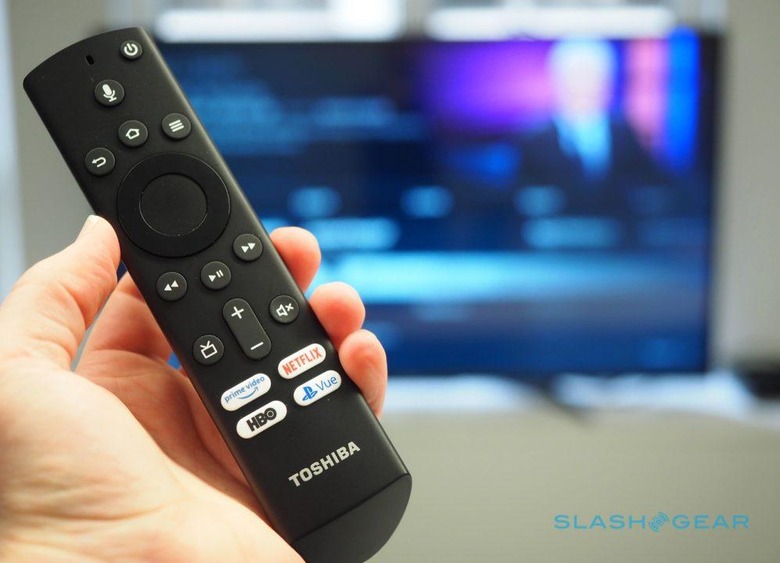
Credit: www.slashgear.com