
Most people enjoy watching their favorite shows on a smart TV, but nothing is more annoying than when your Samsung TV starts lagging, buffering, or acting strangely. One common reason for these problems is a full or corrupted cache. The cache is a part of your TV’s memory where it stores temporary files to help apps and the system run faster. Over time, these files can pile up, causing your TV to slow down or behave unpredictably. Learning how to clear the cache on a Samsung TV is not only a smart way to solve many issues—it also helps extend the life of your TV and keeps everything running smoothly.
If you have never cleared the cache on your Samsung TV, you’re not alone. Many users don’t realize this simple maintenance task can make such a big difference. This guide will walk you through every method, explain why it matters, and answer common questions.
You’ll learn step-by-step instructions, find out what to do if things go wrong, and discover tips to keep your TV performing its best for years. Let’s get started and make your Samsung TV feel like new again.
Why Clearing Cache Matters On Samsung Tv
The cache is designed to speed up your TV by storing frequently used information. For example, when you open a streaming app like Netflix or YouTube, the TV keeps some images and data in the cache so the app loads faster next time. Over time, though, this temporary data can become outdated or corrupted.
If you don’t clear the cache regularly, you might notice:
- Apps crashing or freezing
- Slow performance when switching between apps
- Storage errors or low memory warnings
- Videos buffering or not playing smoothly
- Unexpected ads or display glitches
Clearing the cache removes these temporary files and lets your TV rebuild them with fresh, updated data. This process often solves many common smart TV problems.
Non-obvious insight: Clearing the cache does not remove your app data, saved passwords, or personalized settings. It only deletes temporary files, so you won’t lose anything important.
Understanding Different Types Of Cache On Samsung Tv
Before you start, it’s helpful to know that Samsung TVs store cache in a few different places:
- App cache – Temporary files created by individual apps (like YouTube, Netflix, or web browsers).
- System cache – Data used by the TV’s operating system (Tizen) to manage overall performance.
- Browser cache – If you use the TV’s built-in web browser, it stores images and website data.
Each type of cache can be cleared using different steps. For the best results, clear all three types regularly.
How To Clear App Cache On Samsung Tv
Most users experience slowdowns because of app cache. Each app stores its own files, so you may need to clear the cache for several apps, not just one.
Step-by-step Guide For Clearing App Cache
- Press the Home button on your Samsung remote.
- Go to Settings (the gear icon at the bottom left).
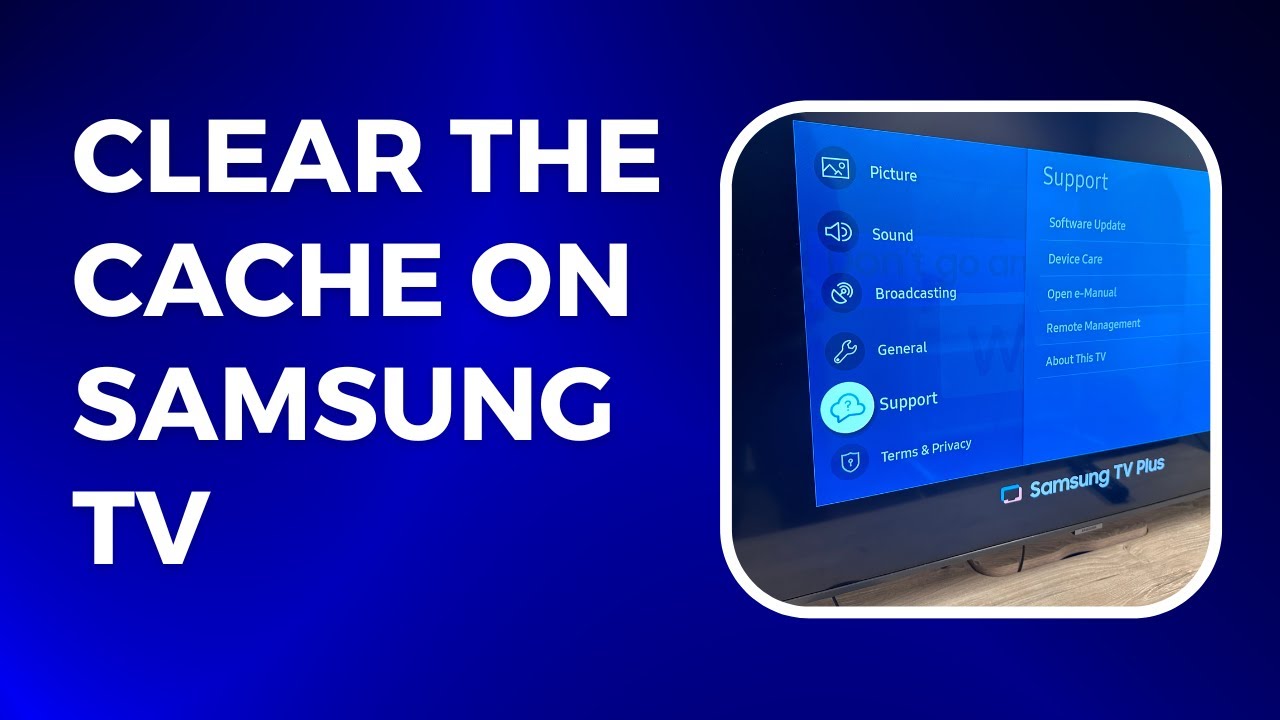
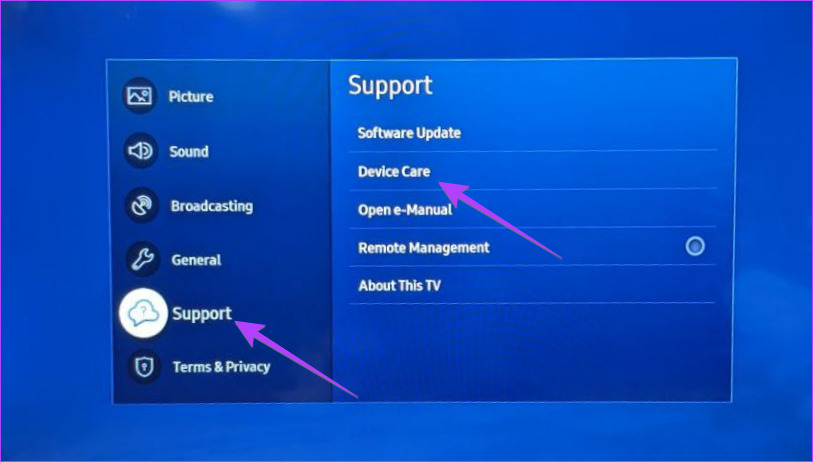
- Select Support.
- Choose Device Care or Self Diagnosis (depends on your model).
- Select Manage Storage.
- You’ll see a list of installed apps with their storage usage.
- Pick the app you want (for example, Netflix).
- Select View Details or Clear Cache (the wording may vary).
- Confirm when prompted.
Repeat these steps for other apps you use often, such as YouTube or Prime Video.
Non-obvious insight: If an app is misbehaving (keeps crashing or doesn’t load), clearing its cache is often more effective than reinstalling it.
For Older Samsung Tv Models
Some older Samsung TVs don’t have a Manage Storage option. Here’s what to do instead:
- Open the app you want to refresh.
- Go to the app’s settings (usually found in the app menu).
- Look for an option to Clear Cache or Clear Data.
- If you don’t see it, uninstall and reinstall the app (this will also clear its cache).
How To Clear System Cache On Samsung Tv
The system cache helps your TV’s operating system run smoothly. When it becomes overloaded, the TV may slow down or act oddly.
Method 1: Power Cycling (soft Reset)
This is the easiest way to clear the system cache:
- With your TV on, press and hold the Power button on your remote until the TV turns off and back on (about 5 seconds).
- Wait for the Samsung logo to appear.
- Release the button and let the TV restart.
This soft reset clears cached system memory and often solves minor glitches.
Method 2: Unplug Your Tv
For a deeper reset:
- Turn off your Samsung TV.
- Unplug the power cord from the wall outlet.
- Wait for at least 60 seconds (not just a few seconds).
- Plug the TV back in and turn it on.
Waiting a full minute allows all residual power to drain, which helps clear the cache more completely.
Method 3: Using The Secret Menu (for Advanced Users)
Samsung TVs have a service menu (also called the secret menu) for technicians. You can access it, but be careful—changing the wrong settings can damage your TV.
To open the service menu:
- Turn the TV off (standby mode).
- Press the following buttons in sequence: Info, Menu, Mute, Power (on some models it’s Mute, 1, 8, 2, Power).
- The service menu appears after the TV turns on.
- Use arrow keys to find Reset or Factory Reset (be aware, this will erase all settings).
Warning: Only use this if you are confident. For most users, the soft reset or unplugging is safer.
How To Clear Browser Cache On Samsung Tv
If you use the built-in Internet browser, it stores website files and cookies. Clearing this cache can fix loading problems and privacy issues.
Steps To Clear Browser Cache
- Open the Internet app on your Samsung TV.
- Press the Menu button on your remote.
- Go to Settings.
- Select Delete Browsing Data.
- Choose Cookies and Site Data, Cached Images and Files, or both.
- Confirm to clear.
This deletes all stored website data. If you have trouble logging into a website on your TV, clearing browser cache often helps.
Comparing Cache Clearing Methods
Different methods clear different types of cache and have varying levels of impact. Here’s a simple comparison:
| Method | Cache Cleared | Difficulty | Data Loss Risk |
|---|---|---|---|
| App Cache (Manage Storage) | App-specific cache | Easy | None |
| Power Cycling | System cache | Very Easy | None |
| Browser Cache | Web browser data | Easy | None |
| Service Menu Reset | All cache and settings | Advanced | High (settings lost) |
Tip: Start with the easiest methods first—most problems are fixed without needing a full reset.
When Should You Clear Cache On Samsung Tv?
There’s no strict rule for how often to clear the cache, but these situations are good triggers:
- Apps crash or freeze often
- TV feels slow or unresponsive
- Streaming is choppy or buffers a lot
- Storage space is running low
- After installing major software updates
- You notice glitches or errors with the browser
As a general guideline, clear the cache every 1-2 months, or whenever you notice performance issues.
Does Clearing Cache Delete Personal Data?
No, clearing the cache only removes temporary files and does not erase:
- App logins (username/password)
- Saved settings (unless you do a full factory reset)
- Downloaded apps or files
However, clearing browser cache will sign you out of websites in the TV browser, but not out of apps like Netflix or YouTube.
Common Problems Solved By Clearing Cache
Clearing the cache is a simple fix for many annoying TV problems. Here are some examples:
- App Not Working: Netflix or YouTube won’t load or crashes? Clearing cache usually helps.
- Slow TV: Menus lag or apps load slowly? Cache is often the cause.
- Playback Issues: Videos buffer or audio is out of sync? Old cache files can create these problems.
- Storage Warnings: If your TV says storage is low, clearing cache frees up space.
- Random Restarts: Some TVs restart due to corrupted cache.
If you’re struggling with any of these issues, try clearing the cache before contacting support.
How To Check Storage Usage On Samsung Tv
Knowing how much storage is used helps you decide when to clear the cache or delete unused apps.
To check storage:
- Press the Home button.
- Go to Settings.
- Select Support.
- Choose Device Care.
- Select Manage Storage.
You’ll see a breakdown of storage usage by app, and how much space is available.
| App Name | Storage Used (MB) | Cache Size (MB) |
|---|---|---|
| Netflix | 160 | 25 |
| YouTube | 140 | 20 |
| Prime Video | 120 | 15 |
If cache is taking up a large portion, it’s time to clear it.
Clearing Cache Vs. Deleting Data Vs. Uninstalling Apps
It’s important to know the difference:
- Clear Cache: Removes only temporary files. No loss of logins or personal data.
- Clear Data: Erases all app data, including logins, settings, and preferences.
- Uninstall App: Removes the app and all its data from your TV.
Advice: Try clearing cache first. If problems continue, clear data or reinstall the app as a last resort.
Practical Tips For Maintaining Tv Performance
Keeping your Samsung TV running smoothly isn’t just about clearing the cache. Here are some extra tips:
- Update Apps and System Software regularly. Outdated software can cause problems.
- Delete Unused Apps to free up space.
- Avoid Installing Unofficial Apps which may not manage cache well.
- Restart Your TV Weekly for best performance.
- Limit Background Apps: Too many apps running can slow down your TV.
Example: If you only watch Netflix and YouTube, remove other streaming apps you don’t use. This keeps your TV faster and the cache smaller.
What To Do If Clearing Cache Doesn’t Solve The Problem
Sometimes, clearing the cache isn’t enough. If your TV still has issues, try these steps:
- Restart your TV.
- Check for software updates (Settings > Support > Software Update).
- Clear app data for the affected app (note: You’ll need to log in again).
- Uninstall and reinstall the app.
- Factory reset your TV as a last resort (Settings > General > Reset).
If problems persist after all these steps, there may be a hardware issue, and you should contact Samsung support.
Differences Between Samsung Tv Models
Samsung TVs have different menus depending on the model year and system version. For example:
- Newer models (2019 onwards) use Tizen OS with Device Care and easy cache clearing.
- Older models may only allow clearing cache by uninstalling apps or power cycling.
If you’re not sure which model you have, check the label on the back of your TV or look in Settings > Support > About This TV.
| Model Year | Menu for Cache Clearing | Extra Steps Needed? |
|---|---|---|
| 2020–2024 | Device Care > Manage Storage | No |
| 2017–2019 | Self Diagnosis > Manage Storage | Sometimes |
| 2016 and earlier | Uninstall/Reinstall App | Yes |
Tip: If your menu looks different, search for your model’s manual on Samsung’s official support site.
Clearing Cache For Streaming Devices Connected To Samsung Tv
If you use a Roku, Fire Stick, or similar device with your Samsung TV, clearing the TV’s cache won’t help with those devices. Each has its own cache:
- Roku: Restart the device or go to Settings > System > System Restart.
- Fire Stick: Settings > Applications > Manage Installed Applications > Select app > Clear cache.
Clearing the Samsung TV cache only affects apps installed directly on the TV.
Security And Privacy Benefits Of Clearing Cache
Many people don’t realize that cache files can store sensitive information, especially in browsers. Regularly clearing your cache helps:
- Protect your privacy by removing stored cookies and browsing data
- Reduce targeted ads by deleting tracking files
- Lower the risk of hacking if your TV is ever sold or given away
If you plan to sell or donate your Samsung TV, always clear the cache and perform a factory reset.
Troubleshooting: Cache Clearing Doesn’t Appear In Menu
Some users report they can’t find the Manage Storage or Clear Cache options. Here’s what to do:
- Make sure your TV’s software is up-to-date.
- Try restarting the TV (soft reset).
- If the option is missing, uninstall and reinstall the app to clear its cache.
- For persistent problems, contact Samsung support.
Practical advice: Menu options sometimes change after a software update. If you can’t find a setting, look for it under different menu names, like Self Diagnosis or App Settings.
How To Automate Cache Clearing On Samsung Tv
Currently, Samsung TVs do not offer an option to automatically clear cache on a schedule. However, you can make it a routine to:
- Restart your TV weekly
- Check Device Care every month
- Clear browser cache after heavy use
Adding these steps to your routine keeps your TV running at its best.
Differences Between Clearing Cache On Tv And Other Devices
You might be used to clearing cache on your phone or computer. On Samsung TVs, the process is a bit more manual and menu-driven, but the effect is similar:
- Phones/Tablets: Cache clears in one tap from app settings.
- Samsung TV: Each app’s cache must be cleared individually, and system cache needs a restart.
Example: On Android phones, you can clear all app cache at once. On a Samsung TV, you need to do it app by app.
The Role Of Software Updates In Cache Management
Samsung regularly releases system updates to improve performance. Sometimes, a software update will automatically clear some cache files or change how cache is handled.
Advice: Always keep your TV updated. Go to Settings > Support > Software Update and enable Auto Update if available.
You can read more about the importance of software updates for smart TVs on the official Samsung support site.
Clearing Cache: Myths And Misconceptions
Many people believe clearing cache will:
- Speed up TV dramatically: It helps, but don’t expect miracles if your TV is very old.
- Delete all settings and data: Only temporary files are removed.
- Harm your TV: It’s a safe and recommended maintenance step.
Real insight: If your TV is very slow, the real issue may be too many installed apps or very old hardware, not just cache.
Frequently Asked Questions
How Often Should I Clear Cache On My Samsung Tv?
For most users, clearing the cache every one to two months is enough. If you use lots of apps, or notice slowdowns or crashes, do it more often.
Will Clearing Cache Delete My Netflix Or Youtube Logins?
No, clearing cache only removes temporary files. Your logins, settings, and favorites stay safe unless you choose Clear Data or uninstall the app.
What Is The Difference Between A Soft Reset And A Factory Reset?
A soft reset (power cycling) clears the system cache and fixes minor glitches without deleting your settings. A factory reset erases everything—apps, logins, and custom settings—making your TV like new.
Why Can’t I Find The Clear Cache Option On My Samsung Tv?
Some older models or software versions don’t have a Clear Cache menu. In this case, try uninstalling and reinstalling the app, or update your TV’s software.
Is It Safe To Clear Cache On My Samsung Tv Regularly?
Yes, it’s completely safe and even recommended. It keeps your TV running smoothly and helps prevent many common problems.
Clearing the cache on your Samsung TV is a quick and easy way to fix many problems, speed up performance, and protect your privacy. Whether you’re watching movies, streaming sports, or browsing the web, a clean cache helps everything run better.
Make it a regular habit, and your Samsung TV will reward you with smoother, more reliable viewing for years to come.