
Many people still enjoy using their older Samsung TVs. These TVs offer reliable performance and familiar features. But as technology moves forward, the need to connect your TV to WiFi becomes more important. Streaming apps, firmware updates, and even screen mirroring depend on a stable internet connection. If your Samsung TV is not the latest model, connecting it to WiFi can sometimes be tricky. Don’t worry—this guide will show you every method, step by step, to connect your old Samsung TV to WiFi, even if your TV doesn’t have built-in wireless features.
You’ll learn about the different Samsung TV models, the challenges that come with older hardware, and the best solutions. You’ll also get practical tips, troubleshooting advice, and answers to common questions. This article is designed for non-technical readers, so every step is clear and easy to follow.
Understanding Old Samsung Tvs And Wifi Connectivity
Before you connect your Samsung TV to WiFi, it helps to know what “old” means in this context. Samsung has made TVs for decades, with significant changes in technology every few years.
Most TVs made before 2012 may not have built-in WiFi. Some models have an Ethernet port, some require a special WiFi dongle, and others have no network options at all. Here are the main types of old Samsung TVs:
- Smart TVs (2010–2014): Early smart models, such as the C, D, and E series, often need a Samsung-branded WiFi dongle.
- Non-Smart TVs (before 2010): These TVs cannot connect directly to WiFi but can still use external devices for internet features.
- Smart TVs with Built-in WiFi (2013 and later): These can connect directly but may have outdated software.
Knowing your TV’s model number (found on the back or in the settings menu) is the first step. If you’re unsure, search “Samsung TV [model number] manual” online.
Checking Your Tv’s Wifi Capability
To avoid frustration, check what your TV supports before you start connecting.
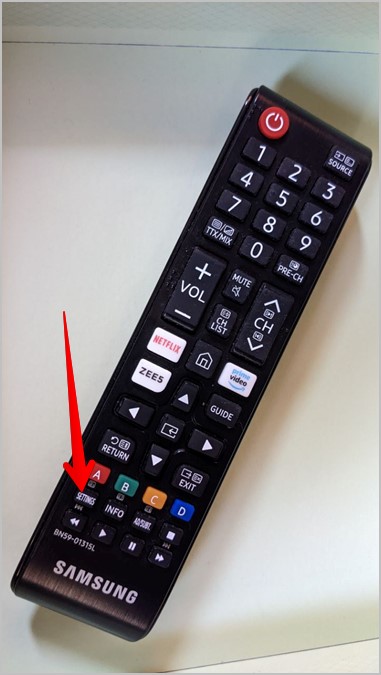
- Look for a Network Option: On your TV remote, press the Menu or Home button. Navigate to “Settings” > “Network.” If you see both “Wired” and “Wireless,” your TV supports WiFi.
- Check for a USB Port: If you see only “Wired” or “Network Cable,” but there’s a USB port, you might need a Samsung WiFi dongle.
- No Network Option: If there’s no Network menu, your TV is not a smart model. You’ll need an external device (like a streaming stick).
Pro Tip: Older TVs sometimes need a firmware update before they can see new WiFi networks, even if they have wireless support.

Method 1: Connecting Directly To Wifi (built-in Wifi Models)
If your Samsung TV already supports WiFi, connecting is simple. Here’s how:
- Turn on your TV and press the Menu or Home button.
- Go to Settings.
- Select Network.
- Choose Network Settings or Open Network Settings.
- Select Wireless.
- The TV will scan for available WiFi networks. Choose your WiFi network name.
- Enter your WiFi password using the on-screen keyboard.
- Wait for the connection confirmation.
If you see “Connected,” you’re done. Try opening a streaming app or the web browser to test.
Common Issues And Solutions
- Incorrect Password: Double-check for typos. WiFi passwords are case-sensitive.
- Network Not Showing: Move your router closer or restart both the router and TV.
- Weak Signal: Walls or distance can reduce signal. Try a WiFi range extender if possible.
Insider Tip: Old Samsung TVs can be slow with long passwords. Try a shorter password if you control your network.
Method 2: Using A Samsung Wifi Dongle
Many Samsung TVs from 2010–2013 need a specific Samsung WiFi dongle to add wireless capability. Generic USB adapters usually won’t work.
How To Identify And Use A Samsung Wifi Dongle
- Check Compatibility: Look in your TV manual or search online for “Samsung TV [model] WiFi dongle compatibility.”
- Find the Right Dongle: The most common is the WIS12ABGNX or WIS09ABGN. These are available from online sellers or sometimes secondhand.
- Connect the Dongle: Plug it into the USB port on your TV.
- Setup Steps:
- Go to Menu > Network > Network Settings.
- Choose Wireless.
- Select your WiFi network and enter the password.
- Wait for confirmation.
Why You Can’t Use Any Usb Wifi Adapter
Samsung’s older TVs need drivers built into the TV’s software. Only Samsung’s own dongles (or a few rare compatible models) will be recognized. Generic adapters won’t work because the TV cannot load new drivers.
Practical Insight: These dongles can be expensive or hard to find. If your TV doesn’t already have one, consider using a streaming device (see below) instead.
Method 3: Wired Connection Via Ethernet Cable
If your TV has an Ethernet port, a wired connection is fast, reliable, and easy to set up.
Steps To Connect With Ethernet
- Plug one end of an Ethernet cable into your TV’s LAN port.
- Plug the other end into your router.
- On your TV, go to Menu > Network > Network Settings.
- Choose Wired.
- Wait for the “Connected” message.
Wired connections don’t have issues with WiFi signal strength or interference. If your router is far from your TV, you can use a long Ethernet cable or a powerline adapter.
Ethernet Vs Wifi: Which Is Better?
Here is a quick comparison:
| Feature | Ethernet (Wired) | WiFi (Wireless) |
|---|---|---|
| Speed | Faster and stable | Can be slower, depends on distance |
| Interference | None | Possible (walls, devices) |
| Setup Difficulty | Needs cable | Simple, no cable |
| Best For | Streaming, gaming | General use |
If possible, use Ethernet for the most stable experience—especially for streaming HD video.
Method 4: Connecting Non-smart Samsung Tvs (no Network Port)
If your Samsung TV has no network options, you can still get WiFi features using external streaming devices. These devices connect to your TV’s HDMI port and provide smart features like YouTube, Netflix, and more.
Popular Streaming Devices
- Amazon Fire TV Stick
- Google Chromecast
- Roku Streaming Stick
- Apple TV
- Android TV Boxes
These devices are small, easy to set up, and support WiFi. You only need an available HDMI port and, in some cases, a USB port for power.
Example: Setting Up A Fire Tv Stick
- Plug the Fire TV Stick into your TV’s HDMI port.
- Connect the USB power cable to the TV’s USB port or a wall adapter.
- Switch your TV input to the correct HDMI.
- Follow the on-screen setup to connect the Fire Stick to your WiFi network.
- Log in with your Amazon account and install apps.
Practical Tip: You can control most streaming devices with their included remote. Some also support voice commands.
Advantages Of Streaming Devices
- They are often faster and more up-to-date than old smart TVs.
- Support for more apps and regular updates.
- Easy to replace if technology changes.
Important Insight: Many people keep old TVs working for years by adding a streaming stick. It’s a cost-effective way to get smart features without buying a new TV.
Method 5: Using A Media Bridge Or Wifi Repeater
Sometimes, your TV only has an Ethernet port, but you want to connect it to WiFi. A media bridge (also called a WiFi bridge or client) is a device that receives WiFi and outputs Ethernet to your TV.
How A Media Bridge Works
- The bridge connects to your WiFi network.
- You run an Ethernet cable from the bridge to your TV’s LAN port.
- The TV thinks it’s connected to wired internet, but the bridge handles the wireless part.
Setting Up A Media Bridge
- Buy a device labeled “WiFi bridge,” “Ethernet WiFi adapter,” or “wireless game adapter.”
- Follow the device’s instructions to connect it to your WiFi network (usually using a web browser or app).
- Connect the bridge’s Ethernet port to your TV.
- On your TV, set the network connection to “Wired.”
Non-obvious Insight: This method is perfect if your TV doesn’t support WiFi dongles or if you want to avoid long Ethernet cables.
Method 6: Using A Laptop Or Pc As A Wifi Bridge
If you have a laptop or desktop near your TV, you can share its WiFi connection using Ethernet.
Steps To Share Internet From Laptop To Tv
- Connect your laptop to WiFi.
- Plug an Ethernet cable from your laptop to the TV.
- On your computer (Windows):
- Go to Network & Internet Settings.
- Choose Mobile hotspot.
- Enable Share my Internet connection with other devices.
- Set “Share over” to “Ethernet.”
- On your TV, choose “Wired” in network settings.
This solution is free and uses what you already have, but the laptop must stay on.
Helpful Example: If you’re staying in a hotel with only WiFi, this trick can let your old TV use streaming apps.
Troubleshooting Wifi Connection Problems
Even with the right method, things can go wrong. Here’s how to fix common issues:
Wifi Network Not Detected
- Restart your TV and router.
- Move the router closer to the TV.
- Check for nearby devices causing interference (cordless phones, microwaves).
- Update your TV’s firmware if possible.
Can’t Connect Even With Correct Password
- Double-check the password (case-sensitive).
- Try connecting a smartphone to the same network to rule out router problems.
- Reset your TV’s network settings (usually under Settings > General > Reset).
Connection Drops Frequently
- Check if other devices also lose WiFi—if yes, the router may be overloaded.
- Try changing your router’s WiFi channel to avoid interference.
- Reduce the number of devices connected to your WiFi.
Tv Says “connected,” But Apps Don’t Work
- Test the internet connection on another device.
- Restart the TV.
- Update apps and firmware if possible.
- Some old TVs do not support new security types (like WPA3); try lowering your WiFi security to WPA2 for a test.
Non-obvious Insight: If your TV is very old, some apps may have stopped working because the manufacturer no longer supports them. In this case, using an external streaming device is the best fix.
Updating Your Samsung Tv Firmware
Sometimes, connecting to WiFi is blocked by old firmware. Updates add support for new WiFi types and fix bugs.
How To Update (if Not Connected To Wifi Yet)
- Download the latest firmware for your model from Samsung’s official website on your computer.
- Copy the file to a USB drive (must be formatted as FAT32).
- Insert the USB into your TV.
- Go to Menu > Support > Software Update > Update via USB.
- Follow the prompts.
Pro Tip: After updating, repeat the WiFi connection process.
Smart Features You Unlock By Connecting To Wifi
After your TV is online, you unlock many useful features:
- Access to streaming apps like Netflix, YouTube, and more.
- Ability to update apps and firmware automatically.
- Screen mirroring from your phone or tablet.
- Web browsing (on supported models).
- Voice assistant features (on some TVs).
Data Point: A Samsung smart TV connected to the internet can access over 1000+ apps, depending on your region and TV model.
What If Nothing Works? When To Consider Upgrading
If you’ve tried every method and your TV still won’t connect, it might be time to consider other options.
- New streaming devices cost between $30–$60 and work with any TV with HDMI.
- Upgrading to a new TV gives you built-in WiFi, faster apps, and better picture quality.
- Some new TVs use less power, saving you money over time.
Practical Example: An old Samsung TV from 2010 uses about 150 watts when running apps, while a modern LED TV can use as little as 40 watts.
Comparison Of Connection Methods For Old Samsung Tvs
To help you choose, here’s a quick comparison of the main methods:
| Method | Cost | Ease of Setup | Reliability | Best For |
|---|---|---|---|---|
| Built-in WiFi | Free | Easy | Good (if strong signal) | 2012+ Smart TVs |
| WiFi Dongle | Medium ($30–$50) | Medium | Good | 2010–2013 Smart TVs |
| Ethernet | Low (cable only) | Easy | Excellent | TV near router |
| Streaming Device | Medium ($30–$60) | Very Easy | Excellent | Non-smart TVs |
| Media Bridge | Medium ($25–$60) | Medium | Good | Ethernet-only TVs |
Choose the method that fits your TV’s features, your budget, and your comfort with technology.
Advanced Tips For Stable Wifi On Old Samsung Tvs
- Use the 2.4GHz band if your router offers both 2.4GHz and 5GHz. Old TVs rarely support 5GHz, and 2.4GHz goes through walls better.
- Keep your TV’s software updated for best compatibility.
- Limit the number of apps running at once—older TVs have less memory and can slow down.
- Restart your TV weekly to clear memory and avoid glitches.
- Avoid hidden or special characters in your WiFi network name (SSID), as some old TVs cannot connect to networks with symbols.
Security Considerations
When connecting an old Samsung TV to WiFi, remember:
- Old TVs may not support the latest WiFi security (like WPA3). Use WPA2 for best compatibility.
- Set a strong WiFi password to protect your network.
- Disable features you don’t use, like remote access, to reduce security risks.
For more about WiFi security, visit the Wi-Fi Protected Access Wikipedia page.

Frequently Asked Questions
Why Won’t My Samsung Tv Find My Wifi Network?
Some old Samsung TVs only see 2. 4GHz WiFi networks. Make sure your router broadcasts on this frequency. Also, try restarting both the router and TV, and check for firmware updates.
Can I Use Any Usb Wifi Adapter On My Samsung Tv?
No. Samsung TVs need specific WiFi dongles. Most generic USB WiFi adapters are not compatible because the TV’s software only recognizes certain chipsets.
My Tv Connects To Wifi But Apps Won’t Load. What Should I Do?
Try restarting your TV and router. If that doesn’t help, update the TV’s firmware and apps. If apps are still not working, the service may no longer support your TV model.
Is It Better To Use Ethernet Or Wifi For Streaming?
Ethernet is usually more stable and faster, especially for HD video. If you can run a cable from your router to your TV, this is the best option.
Do Streaming Devices Work On Any Tv?
Streaming devices like Fire TV Stick, Chromecast, and Roku work on any TV with an HDMI port, even if the TV is not a smart model. Just plug in the device, follow the setup, and enjoy smart features.
Connecting your old Samsung TV to WiFi may take a few extra steps, but it’s possible in almost every situation. With the right tools and a little patience, you can enjoy streaming, updates, and smart features—keeping your trusted TV working for years to come.