
If you own a Samsung Smart TV, you have access to a world of entertainment and services right in your living room. From streaming movies and TV shows to playing games, learning new skills, or video calling friends, your TV can do much more than simply show cable channels. But to unlock these features, you need to know how to download apps on Samsung Smart TV. Many people, especially those new to smart TVs, find the process confusing. This guide will walk you through every step, explain the options, and help you solve common problems. Even if you are not a tech expert or English is not your first language, you will find all the clear answers here.
Understanding Samsung Smart Tv Apps
Before you start downloading, it’s important to know what apps on Samsung Smart TV are. These are small programs, similar to the ones you use on your smartphone. Apps let you access services like Netflix, YouTube, Spotify, and more. Some are for watching content, while others help you with fitness, cooking, or even browsing the internet.
Samsung uses its own app store, called the Samsung TV App Store or Smart Hub. This is where you will find all the apps available for your TV. However, not every app you know from your phone will be available. Samsung TVs use a different operating system called Tizen OS, so only apps developed for Tizen will work.
One insight many users miss is that app availability can change based on your country or TV model. Sometimes, an app you expect may not appear if your TV is set to a different region, or if it is an older model.
Getting Ready: What You Need Before Downloading
To download apps on Samsung Smart TV, you need to prepare a few things. Skipping any of these steps can make the process more difficult or even impossible.
- Stable Internet Connection: Your TV must be connected to the internet. Apps are downloaded from online servers, so you need Wi-Fi or a wired connection.
- Samsung Account: To install most apps, you must sign in with a Samsung Account. Without it, many features are blocked.
- Remote Control: The TV remote is your main tool for navigating menus and searching for apps.
- Enough Storage Space: Like your phone, the TV has limited space. If it’s full, you cannot install new apps.
- Software Updates: Make sure your TV’s software is updated. Old software may not support new apps.
A surprising fact is that using a Samsung Account can unlock extra features, like syncing app lists or receiving recommendations.

Credit: help.pbs.org
How To Connect Samsung Smart Tv To The Internet
If your TV is not yet connected, here’s a quick guide:
- Press the Home button on your remote.
- Go to Settings (the gear icon).
- Choose General.
- Select Network, then Open Network Settings.
- Pick Wireless or Wired (depending on your setup).
- For wireless, choose your Wi-Fi and enter the password.
- For wired, connect an Ethernet cable to your TV and router.
After connecting, your TV will check the network. If successful, you are ready to move to the next step.
Creating Or Signing In To A Samsung Account
If you don’t have a Samsung Account:
- Press Home on your remote.
- Go to Settings > General > System Manager.
- Choose Samsung Account.
- Select Create Account and follow the instructions.
If you already have an account, just sign in. You will need your email and password. This step is important for downloading many apps.
Navigating To The Samsung Smart Hub
The Smart Hub is your main app center. Here’s how to access it:
- Press the Home button.
- You will see a bar at the bottom of the screen.
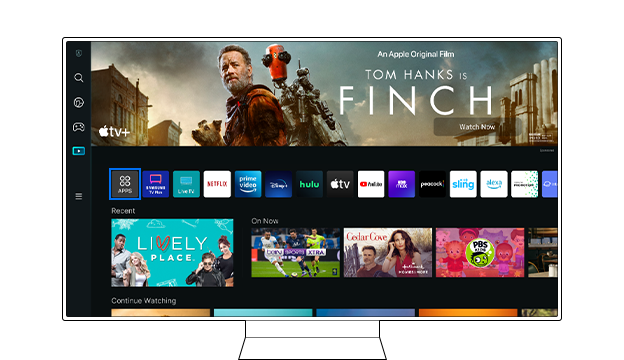
- Navigate to the Apps icon (it usually looks like four small squares).
- Press Enter or OK on your remote.
Now you are inside the Samsung TV App Store. You can search, browse, and manage all your apps here.
Step-by-step: How To Download Apps On Samsung Smart Tv
Let’s go through the main process, step by step. This method works for most Samsung TVs from 2016 onward.
- Open Smart Hub: As explained above, press Home, go to Apps.
- Browse or Search for Apps: You can look through categories, such as Entertainment, Sports, Lifestyle, or use the Search function at the top right.
- Select an App: When you find the app you want, highlight it and press Enter.
- View App Details: You’ll see information about the app, screenshots, and user reviews.
- Download and Install: Press the Install button. The app will start downloading. You’ll see a progress bar.
- Open the App: When installation finishes, the button changes to Open. Press it to launch the app.
- Add to Home (optional): For quick access, you can choose Add to Home so the app appears on your main menu.
If you follow these steps, you can download most apps easily. Some apps may require extra login or subscription.

Credit: www.youtube.com
How To Update Or Delete Apps On Samsung Smart Tv
Keeping apps updated is important for security and new features. Here’s how:
Updating Apps
- Go to Apps from the Home menu.
- Choose Settings (usually a gear icon at the top).
- Select Auto Update and turn it On. Now, apps update automatically.
- To update apps manually, find the app, highlight it, and choose Update if the option appears.
Deleting Apps
- In the Apps menu, go to Settings.
- Highlight the app you want to remove.
- Choose Delete. Some system apps cannot be deleted.
You might notice some apps cannot be updated or deleted. These are usually built-in, like Internet Browser or Gallery.
Downloading Apps On Older Samsung Smart Tvs
If you have a Samsung TV made before 2016, the process can be a little different.
- For TVs from 2012-2015, press the Smart Hub button (it may look like a colored cube).
- Find the Samsung Apps section.
- Search or browse for the app.
- Select and download as above.
Older TVs may have fewer apps available, and some popular services may not support them anymore. This is a limitation of hardware and software.
Credit: www.samsung.com
Using A Usb Drive To Install Apps (for Advanced Users)
Most people will only use the App Store, but some advanced users may want to install apps from a USB drive. This only works for certain apps and models.
- Find a Tizen OS compatible app (with .tpk file extension) from a trusted source.
- Copy the app file to a USB drive.
- Insert the USB drive into the TV’s USB port.
- Go to My Apps and look for options like Install from USB (this may not appear on all models).
- Follow instructions to install.
Warning: Installing unofficial apps can risk your TV’s security or void your warranty. Only do this if you understand the risks.
Comparing App Installation On Samsung Vs Other Smart Tvs
Many users wonder how Samsung’s app process compares to other brands. Below is a simple comparison.
| Brand | App Store Name | Account Needed | Popular Apps Available |
|---|---|---|---|
| Samsung | Smart Hub | Samsung Account | Yes (Netflix, YouTube, Spotify, etc.) |
| LG | LG Content Store | LG Account | Yes, but some differences |
| Sony (Android TV) | Google Play Store | Google Account | Yes, usually more options |
| TCL (Roku TV) | Roku Channel Store | Roku Account | Yes, some unique channels |
Samsung’s store is strong but not as open as Google Play Store on Android TVs. Some apps, especially smaller or newer ones, may come to Android TVs first.
Top 15 Most Popular Apps To Download On Samsung Smart Tv
If you want to know what to install first, here are the top 15 apps that most users download:
- Netflix – For streaming movies and TV shows.
- YouTube – Watch videos, music, vlogs, and tutorials.
- Amazon Prime Video – Amazon’s streaming service.
- Disney+ – Home to Marvel, Star Wars, and Disney content.
- Hulu – Live TV and on-demand shows (US only).
- Spotify – Stream millions of songs.
- Apple TV – Watch Apple’s original shows and movies.
- HBO Max – Movies, series, and exclusive content.
- Plex – Organize and stream your personal media.
- Peacock – NBCUniversal’s streaming service.
- Vudu – Buy, rent, or watch free movies.
- Samsung TV Plus – Free live TV channels by Samsung.
- YouTube Kids – Safe videos for children.
- Red Bull TV – Sports, adventure, and music.
- BBC News – Latest news from around the world.
Many of these require a subscription or account with the service, not just with Samsung.
Troubleshooting: Common Problems When Downloading Apps
Even with clear steps, things can sometimes go wrong. Here are solutions to common problems:
1. App Not Found
- Check your region settings. Some apps are only available in certain countries. Go to Settings > General > System Manager > Location.
- Try updating the TV’s software.
2. “not Enough Space” Error
- Delete unused apps.
- Clear the TV’s cache if possible. Go to Settings > Support > Device Care.
- Avoid installing too many large apps at once.
3. Download Or Install Button Is Gray
- Make sure you are signed in to your Samsung Account.
- Restart the TV.
- Check your internet connection.
4. Tv Freezes Or Restarts
- Unplug the TV for 1 minute, then plug back in.
- Reset Smart Hub: Settings > Support > Self Diagnosis > Reset Smart Hub.
- Update the TV’s firmware.
5. App Crashes Or Won’t Open
- Delete and reinstall the app.
- Check for updates for both the app and your TV.
A tip: Sometimes, factory resetting the TV can solve stubborn issues, but only do this as a last resort, as it erases all settings.
Managing Storage And Organizing Apps
Your TV’s storage is limited, so managing your apps is important. Here are a few strategies:
- Uninstall rarely used apps to free up space.
- Move your favorite apps to the Home menu for quick access.
- Use folders if your TV model supports them, to organize similar apps together.
A less-known insight is that clearing app data (if available in your TV’s settings) can free up space without deleting the app.
How To Install Paid Or Subscription Apps
Many popular apps are free to download but require a paid account or subscription to use. For example, Netflix and Disney+ are free to install, but you need to pay to watch content.
- Download the app as above.
- Open the app and sign in with your service account.
- If you don’t have one, use your phone or computer to create it first.
- Enter any payment info directly in the app, if required.
Samsung TVs do not usually let you pay for apps through their store. Payments happen inside each app.
Setting Up Parental Controls For Apps
If you want to control what your children can access:
- Go to Settings > General > System Manager > Security.
- Set a PIN code.
- You can lock apps by going to Apps > Settings > select the app > Lock/Unlock.
This helps prevent children from opening certain apps without your permission.
What To Do When An App Is Not Available
Sometimes, you may search for an app and not find it. There are several reasons:
- The app may not be available in your country.
- Your TV model may be too old.
- The app developer may not support Samsung TVs.
Alternative solutions:
- Use the TV’s web browser to visit the service’s website, if supported.
- Use an external device (like a Roku, Fire Stick, or Apple TV) to access more apps.
Keeping Your Samsung Smart Tv Secure
Downloading apps is safe if you use the official Smart Hub. Do not install apps from unknown sources unless you know what you’re doing. Samsung checks apps for security, but unofficial apps can put your TV and home network at risk.
If you want to learn more about TV security, you can visit the official Samsung support page.
Accessibility: Using Voice Commands To Download Apps
Modern Samsung TVs support voice assistants like Bixby, Alexa, or Google Assistant. You can use your voice to search and download apps.
- Press the Microphone button on your remote.
- Say “Download YouTube” or “Open Netflix.”
- The TV will show the app or take you to the App Store page.
Voice commands make it easier for those who find the remote difficult to use.
Data Table: Samsung Tv Models And App Support
Different Samsung TV models support different app features. Here’s a quick overview.
| TV Model Year | App Store Access | Voice Assistant | USB App Install |
|---|---|---|---|
| 2020-2024 | Full (Smart Hub) | Bixby/Alexa/Google | Limited |
| 2016-2019 | Full (Smart Hub) | Bixby (some models) | Limited |
| 2012-2015 | Basic (Samsung Apps) | No | Rare/Not supported |
| Before 2012 | No | No | No |
If you want the best app support, choose a newer model.
Practical Tips For A Smoother Experience
- Always update your TV’s firmware as soon as possible. New updates bring new features and fix bugs.
- Use a wired internet connection if possible, for faster downloads.
- If your TV is slow, unplug it for 1-2 minutes to clear memory.
- Consider getting a universal remote if you find the Samsung remote hard to use.
One thing most beginners miss is that you can rearrange your home menu to put your favorite apps first—simply highlight the app, press and hold the select button, and choose Move.
Frequently Asked Questions
Why Can’t I Find A Certain App On My Samsung Smart Tv?
Some apps are only available in certain countries or for newer TV models. Check your TV’s region settings and software version. If the app is still missing, the developer may not support Samsung TVs.
How Do I Free Up Space To Install More Apps?
Delete apps you don’t use. Go to Apps > Settings, highlight the app, and select Delete. Also, clear app data if your TV allows it.
Can I Install Android Apps (apk Files) On My Samsung Tv?
No, Samsung TVs use Tizen OS, not Android. APK files will not work. Only use apps from the Smart Hub or Samsung’s official sources.
What Should I Do If My Tv Says “installation Failed”?
Check your internet connection and make sure you are logged in with your Samsung Account. Restart your TV and try again. If it still fails, update your TV’s firmware or reset Smart Hub.
Is It Safe To Install Apps From Outside The Samsung App Store?
No, it’s not recommended. Unofficial apps can harm your TV or steal your data. Always use the official Smart Hub for app downloads.
Samsung Smart TVs are powerful and can bring a lot of value to your home, but only if you know how to unlock their potential. With this complete guide, you should feel confident to download, manage, and enjoy apps on your Samsung Smart TV—no matter your experience level.
Whether you want to watch movies, listen to music, or try something new, everything starts with the right app. Happy viewing!