
The Astro A50 is a popular wireless gaming headset, known for its premium sound quality and comfortable design. But like any electronic device, sometimes it can run into problems—maybe it won’t connect, the sound is distorted, or it just isn’t responding. Many users find themselves stuck, not knowing what to do next. Resetting the Astro A50 can fix a surprising number of these issues, but the process isn’t always clear, especially for beginners or those new to gaming headsets.
This guide will walk you through everything you need to know about resetting the Astro A50, from understanding why and when you should reset, to step-by-step instructions for every generation of the headset. You’ll also learn about common mistakes, advanced troubleshooting, and how to avoid problems in the future. Whether you’re a casual gamer, a streamer, or just someone who wants their headset to work perfectly, you’ll find practical advice and clear solutions here.
Understanding The Astro A50 Headset
Before diving into the reset process, it’s important to know what makes the Astro A50 unique. This headset comes in several versions, known as “generations.” Each one has a few differences, but the core features stay the same: wireless connection, Dolby audio, a charging base station, and customizable settings.
Key Features
- Wireless design for freedom of movement
- Base station for charging and connection
- MixAmp technology for sound customization
- Dolby Audio for immersive sound
- Comfortable fit for long gaming sessions
Different generations may have slight changes in button layout or firmware, but the reset process is similar for all.
Common Problems That Require A Reset
- Headset not powering on
- No sound or distorted audio
- Microphone not working
- Headset not syncing with the base station
- Firmware updates failing
These issues can happen due to software glitches, corrupted settings, or connection errors. A reset often solves them quickly.
When Should You Reset Your Astro A50?
Not every problem needs a full reset. Sometimes, simply unplugging the headset or restarting your console/PC works. So, when is a reset really needed?
Signs A Reset Is Necessary
- The headset doesn’t respond to any button presses.
- Audio is missing or sounds broken, even after reconnecting.
- The mic stops working, and basic troubleshooting fails.
- The base station doesn’t recognize the headset.
- Firmware updates are stuck or incomplete.
- The headset won’t charge or shows incorrect battery level.
When Not To Reset
If the problem is with your game, software settings, or the device you’re connecting to, a headset reset won’t help. Always check your cables, USB ports, and software audio settings first.
Preparing For The Reset
Resetting wipes certain settings on your Astro A50. While it’s not as drastic as a full factory reset, it’s smart to prepare:
- Charge the headset: Ensure the battery isn’t low, or the reset might not complete.
- Back up custom profiles: If you use the Astro Command Center to save EQ or mic profiles, back these up.
- Disconnect unnecessary devices: Remove other USB devices, especially audio devices, to avoid conflicts.
How To Reset Astro A50: Step-by-step Guide
The reset process varies slightly depending on the generation of your Astro A50. Below are step-by-step instructions for each.
Resetting Astro A50 Gen 1 & Gen 2
These older models use a direct button combination.
- Turn off the headset.
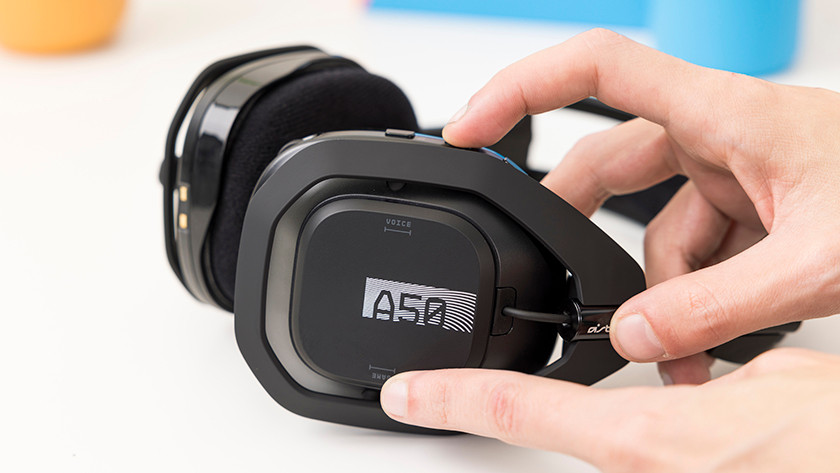
- Hold down the Dolby button and the Game button (located on the right ear cup).
- Keep both buttons pressed for 15 seconds.
- Release the buttons and wait for the headset to power back on.
This method clears most temporary glitches and sync issues.
Resetting Astro A50 Gen 3 & Gen 4
These versions come with a base station and have a slightly different process.
- Remove the headset from the base station.
- Power off the headset completely.
- Locate the Game (Volume Up) button and the Dolby button on the right ear cup.
- Press and hold both buttons for 15 seconds.
- Release the buttons. The headset should restart, showing the reset is complete.
If you have the base station connected, make sure it’s plugged in, but keep the headset off the dock during the reset.
Factory Reset Vs. Soft Reset
A soft reset clears temporary memory and glitches but doesn’t erase saved EQ profiles. A factory reset (when available) returns all settings to default, which can help if software errors are persistent.
To Perform A Factory Reset (when Possible):
- Open the Astro Command Center software (download from Astro’s official website).
- Connect your headset to your PC using a USB cable.
- In the software, look for the factory reset option under device settings.
- Follow on-screen instructions.
Important: Not all firmware versions offer a factory reset. If you don’t see the option, a soft reset is your best choice.
Troubleshooting After Reset
A reset should solve most issues, but sometimes problems remain. Here’s what to check next.
Headset Won’t Power On
- Charge the headset for at least 30 minutes.
- Try a different USB cable and power source.
- Check the base station’s power light.
No Sound Or Microphone
- Make sure the headset is paired with the base station.
- Check audio settings on your PC or console.
- Reinstall the Astro Command Center and update firmware.
Base Station Not Syncing
- Reset both the headset and base station.
- Use a different USB port for the base station.
- Unplug and replug all cables.
Firmware Update Problems
- Download the latest Astro Command Center from the official site.
- Connect only the headset to your PC (not the base station).
- Complete the update, then reconnect the base station.
Advanced Tips And Non-obvious Insights
Many guides stop at the basic reset. Here are two key insights that often go unnoticed:
- Interference from Nearby Wireless Devices: The Astro A50 uses a 2.4 GHz connection, which is the same frequency as many Wi-Fi routers, smart devices, and even microwaves. If your headset experiences random disconnects or static, check for interference. Try changing the base station’s position or turning off other wireless devices during troubleshooting.
- Updating Firmware Can Fix Deep Problems: Sometimes, a reset isn’t enough. Outdated firmware can cause issues that look like hardware failures—like random shutdowns or audio dropouts. Always check for updates after resetting. Firmware updates often include bug fixes that make the headset more stable.

Credit: www.youtube.com
Preventing Future Problems
Resetting is helpful, but prevention is better. Here’s how to keep your Astro A50 running smoothly.
Regular Firmware Updates
Check for firmware updates every few months. This ensures you get the latest fixes and features. Use the official Astro Command Center for updates.
Safe Charging Practices
- Always use the official base station or high-quality USB cables.
- Avoid letting the battery drop to zero regularly. This can shorten battery life.
Store Properly
- Place the headset on the base station when not in use.
- Keep away from dust and humidity.
Avoiding Common Mistakes
- Don’t try to reset while the headset is charging.
- Don’t press random button combinations—stick to the official process.
- Never force the headset into the base station; align it carefully.
Comparing Astro A50 Generations
If you’re not sure which version you own or are thinking of upgrading, here’s a quick comparison:
| Generation | Release Year | Key Features | Reset Method |
|---|---|---|---|
| Gen 1 | 2012 | Basic wireless, no base station | Dolby + Game button |
| Gen 2 | 2014 | Improved battery, new mic design | Dolby + Game button |
| Gen 3 | 2016 | Base station, USB charging, Dolby Atmos | Dolby + Game button |
| Gen 4 | 2019 | Updated base, PC/console switch | Dolby + Game button |
Common Mistakes When Resetting Astro A50
Even experienced users make errors during the reset. Avoid these pitfalls for a smooth process:
- Not holding buttons long enough: Fifteen seconds can feel long—use a timer or count slowly.
- Trying to reset while charging: The headset must be off the base station and powered down.
- Mixing up buttons: Check your manual or look at images online to identify the Dolby and Game buttons.
- Skipping firmware updates: Resetting helps, but old firmware can bring back old problems.
- Forgetting to check audio settings: Sometimes, your PC or console is set to the wrong output.
Resetting The Astro A50 Base Station
Sometimes, the problem is in the base station, not the headset. Here’s how to reset it:
- Unplug the base station from power and from your PC or console.
- Wait 30 seconds.
- Plug the base station back in and reconnect the USB cable.
- Place the headset on the dock and check for a solid connection.
If the lights flash or the base station doesn’t detect the headset, repeat the process and check for firmware updates.
Using The Astro Command Center For Troubleshooting
The Astro Command Center is a free software tool from Astro Gaming. It lets you update firmware, customize sound profiles, and diagnose problems.
Key Functions
- Update firmware for both headset and base station
- Create and save EQ profiles for different games or music
- Adjust microphone settings for clarity
- Monitor battery health
Always download the software from the official Astro Gaming website to avoid malware or compatibility issues.
Real-world Example: Fixing A Persistent Mic Issue
Let’s look at a practical case. John, a competitive gamer, found his Astro A50 mic stopped working after a system update. He tried unplugging and reconnecting, but nothing worked. Here’s how he solved it:
- Checked audio input settings on his PC (everything seemed normal).
- Reset the headset using the Dolby + Game button method.
- Updated firmware using the Astro Command Center.
- Restarted his PC.
After these steps, the mic worked perfectly. The key insight: Resetting alone wasn’t enough—the firmware update was essential because the system update had changed how audio devices were recognized.
Credit: www.coolblue.nl
Comparing Wired Vs. Wireless Headsets For Resetting
How does resetting the Astro A50 compare to troubleshooting wired headsets? Here’s a quick view:
| Feature | Astro A50 (Wireless) | Wired Headset |
|---|---|---|
| Reset Process | Button combination + software | Usually unplug and replug |
| Common Issues | Sync, firmware, wireless interference | Cable breaks, jack issues |
| Firmware Updates | Yes (via software) | Rarely (if ever) |
| Power Needed | Battery/charging base | No battery (uses device power) |
Wireless headsets like the Astro A50 need more maintenance but offer more features. Wired headsets are simpler, but lack advanced controls.
Advanced Troubleshooting: When Resetting Isn’t Enough
If you’ve tried all reset steps and still have issues, consider these advanced options:
Clean The Charging Contacts
Over time, the gold contacts on the headset and base station can get dirty. Use a soft, dry cloth or a cotton swab with a little rubbing alcohol to gently clean them.
Test On Another Device
Try connecting your Astro A50 to a different PC or console. If it works elsewhere, the problem is with your original device’s settings.
Contact Support
If all else fails, reach out to Astro Gaming Support. They can guide you through repairs or replacements if your headset is still under warranty.
Community Forums
Other users may have faced the same issue. Check the official Astro forums or Reddit for tips.
Firmware Update Process: Step-by-step
Keeping your Astro A50 updated is key for long-term stability. Here’s how to update firmware safely:
- Download and install the latest Astro Command Center from the official website.
- Connect your headset and base station to your PC via USB.
- Launch the software. It will check for updates automatically.
- If an update is available, follow on-screen prompts.
- Do not disconnect cables or power off during the update.
- Once complete, restart both headset and base station.
Tip: Always update the headset and base station together to avoid compatibility problems.
What To Do If Problems Persist After Reset
Sometimes, even after a perfect reset, issues stay. Here’s a checklist:
- Test the headset on a different device.
- Try a different USB port or cable.
- Reset both headset and base station.
- Reinstall the Astro Command Center.
- Update all drivers on your PC or console.
If the headset is still not working, it may have a hardware fault. In that case, warranty service or professional repair is your best option.

Credit: www.wikihow.com
Where To Find Official Resources
Always use trusted sources for software and support. Visit the official Astro Gaming site for downloads and troubleshooting guides:
astro Gaming Support
This ensures you get safe and up-to-date tools for your device.
Frequently Asked Questions
How Do I Know Which Generation Of Astro A50 I Have?
Check the label under the ear cup or on the box. Gen 1 and 2 do not have a base station, while Gen 3 and 4 include a rectangular dock. You can also compare your model’s design with images on the official Astro website.
Can I Reset The Astro A50 Without A Pc?
Yes, a basic reset uses the headset’s buttons and does not require a computer. However, for firmware updates or factory resets, you’ll need to connect to a PC and use the Astro Command Center.
Why Does My Astro A50 Keep Disconnecting After Resetting?
Wireless interference is a common cause. Other devices on the same frequency, like Wi-Fi routers, can interrupt the signal. Move the base station away from such devices, or change their channels if possible. Also, check for firmware updates.
Will Resetting Delete My Eq Profiles And Saved Settings?
A soft reset will not delete EQ profiles. Only a factory reset (done through the Astro Command Center) will erase custom profiles and return settings to default. Always back up important profiles before a factory reset.
What Should I Do If My Astro A50 Still Doesn’t Work After Resetting?
First, update firmware using the Astro Command Center. Then, test the headset on another device and try a different USB cable or port. If problems continue, contact Astro Gaming Support for further help.
The Astro A50 is a high-quality headset, but even the best tech sometimes needs a reset. By following these steps, using the right tools, and staying up to date, you can solve most problems at home. With a little care, your headset will deliver great sound and comfort for years to come.