
If your Blink camera is not working as expected, or you want to give it to someone else, knowing how to reset it is important. Many people are surprised to discover there are actually a few different ways to reset a Blink camera, and choosing the right method can save you a lot of time.
Whether you’re troubleshooting a connection problem, moving your camera to a new Wi-Fi network, or just want a fresh start, understanding the full reset process is key. This guide will show you exactly how to reset every Blink camera model, what to expect during the process, and share expert tips to avoid common mistakes.
If you follow these steps, you’ll be able to solve most problems without calling support.
Understanding The Blink Camera Reset
Before jumping into the steps, it’s helpful to understand what “reset” means for Blink cameras. Unlike some other security devices, Blink does not always have a physical reset button. There are two main types of reset:
- Soft Reset: This simply restarts the camera or system. It does not remove your settings or saved videos.
- Factory Reset: This wipes all settings, disconnects from Wi-Fi, and returns the camera or Sync Module to its original, out-of-the-box state.
Most problems can be fixed by a soft reset, but more serious issues may need a factory reset. Knowing the difference helps avoid unnecessary data loss.
When Should You Reset Your Blink Camera?
It’s not always obvious when a reset is needed. Here are some situations where resetting the camera is the best solution:
- Camera won’t connect to Wi-Fi or the Blink app
- Motion detection stops working or is inconsistent
- Live View fails or shows black screen
- You’re moving the camera to a new location or Wi-Fi network
- You plan to sell or give away the camera
- You forgot your settings and want a fresh start
- Firmware update failed and the camera is unresponsive
Resetting should be a last resort after trying simple fixes like restarting your router or updating the app.
Types Of Blink Cameras And Reset Options
Blink has several models, and the reset steps can be different for each one. The main Blink camera types are:
- Blink Indoor (2nd Gen)
- Blink Outdoor
- Blink Mini
- Blink Video Doorbell
- Blink XT and XT2
- Blink Sync Module 2
Some cameras need the Sync Module to work, while others (like Blink Mini) can function alone. The type of reset button and process also varies. Here’s a quick overview:
| Blink Camera Model | Physical Reset Button | Needs Sync Module | Factory Reset Method |
|---|---|---|---|
| Blink Indoor (2nd Gen) | No | Yes | Reset Sync Module |
| Blink Outdoor | No | Yes | Reset Sync Module |
| Blink Mini | Yes | No | Reset Button on Camera |
| Blink Video Doorbell | Yes | No | Reset Button on Camera |
| Blink XT/XT2 | Yes (inside battery) | Yes | Reset Button on Camera/Sync Module |
| Blink Sync Module 2 | Yes | – | Reset Button on Module |
Step-by-step: How To Reset Blink Cameras
Let’s look at how to reset each Blink camera model, including both soft and factory reset methods.
Resetting Blink Indoor (2nd Gen) And Blink Outdoor Cameras
These two models use the Sync Module for setup and control. If you need to reset your camera, you’ll almost always reset the Sync Module.
Soft Reset (camera Only)
- Open the Blink app.
- Tap on the camera you want to reset.
- Tap the settings (gear icon).
- Scroll down and tap “Restart Camera.”
- Wait for the camera to reboot (usually 1-2 minutes).
This will refresh the connection and fix minor issues without deleting your settings.
Factory Reset (sync Module)
- Find the Sync Module (small box with LED and USB port).
- On the side, locate the reset button (small, round).
- Use a paperclip or small tool to press and hold for 5 seconds until the LED blinks red and blue.
- Release the button. The Sync Module will reset.
- In the Blink app, remove the Sync Module (Settings > Sync Module > Delete).
- To re-add, tap the “+” icon and follow setup steps.
This will disconnect all cameras linked to the Sync Module. You’ll need to set up each one again.
Pro Tip
Many users forget that resetting the Sync Module affects every camera attached to it. If you have multiple cameras, you’ll need to reconnect each after the reset. This can take time, so plan ahead.
Resetting Blink Mini
Blink Mini is the only model with a dedicated reset button on the camera itself.
Soft Reset
- Unplug the camera from power.
- Wait 10 seconds.
- Plug it back in.
This quick reboot often fixes connection and streaming problems.
Factory Reset
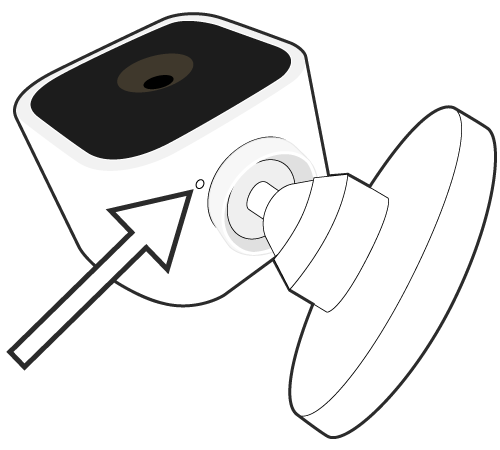
- Find the reset button under the camera (next to the USB port).
- Use a paperclip to press and hold for 5 seconds.
- The LED will flash red, then blue.
- Release the button. The camera will reset.
- In the app, remove the camera (Settings > Device > Delete).
- Re-add the camera using the Blink app.
One beginner mistake is pressing the reset button too quickly. Hold it for the full 5 seconds until the light blinks.
Resetting Blink Video Doorbell
The Blink Video Doorbell also includes a small reset button.
Soft Reset
- Remove the doorbell from its mount.
- Take out one battery, wait 10 seconds, then reinsert.
- The device will restart.
Factory Reset
- Find the reset button (small hole near the battery compartment).
- Press and hold with a paperclip for 10 seconds.
- Release when the LED flashes red.
- In the app, remove the doorbell and re-add it.
A common error here is not waiting long enough. Hold the button for at least 10 seconds for a full reset.
Resetting Blink Xt And Xt2 Cameras
Older Blink XT and XT2 models also have a hidden reset button.
Soft Reset
- Remove one battery, wait 10 seconds, then reinsert.
- The camera will reboot.
Factory Reset
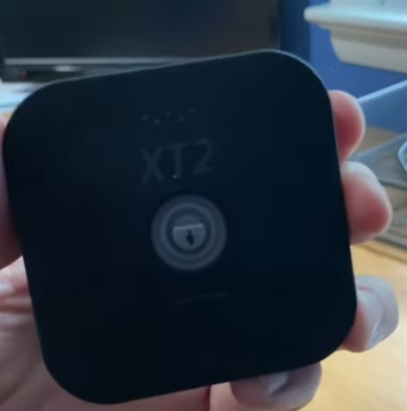
- Open the back cover and remove both batteries.
- Locate the reset button (tiny hole inside, near the top).
- Insert a paperclip, press and hold for 10 seconds.
- Reinsert batteries and wait for the LED to flash.
- Remove and re-add the camera in the app.
XT/XT2 cameras are sensitive to battery type. Always use AA lithium batteries for best results.
Resetting The Blink Sync Module 2
The Sync Module is the “brain” for most Blink cameras. If it’s not working, a reset can solve many issues.
Soft Reset
- Unplug the power cord from the Sync Module.
- Wait 10 seconds.
- Plug it back in.
This refreshes the connection to your cameras and Wi-Fi.
Factory Reset
- Find the reset button on the side.
- Use a paperclip to press and hold for 5 seconds.
- Wait for the LED to blink red and blue.
- Remove and re-add the module in the app.
Resetting the Sync Module will disconnect all cameras from the system.
Comparison: Blink Reset Methods At A Glance
To help you pick the right method, here’s a quick comparison.
| Reset Type | Data Lost? | Common Use Case | Time Needed |
|---|---|---|---|
| Soft Reset (Reboot) | No | Minor glitches, Live View issues | 1-2 minutes |
| Factory Reset | Yes (settings, connections) | Moving, selling, major errors | 3-5 minutes |
What Happens After A Reset?
After you reset a Blink camera or Sync Module, some things will change:
- Wi-Fi connection is removed. You’ll need to re-enter Wi-Fi info.
- Camera settings go back to default. Motion zones, schedules, and alerts reset.
- App notifications turn off. You must enable them again.
- Cloud storage is unaffected. Your saved clips remain in your Blink account, but you may need to reconnect the camera to access them.
- Linked Alexa or smart home integrations are lost. Re-link these after setup.
If you’re resetting because of a security concern (like selling the camera), this is a good thing. If you just want to fix a problem, be ready to spend a few minutes reconfiguring your settings.
Troubleshooting: Reset Didn’t Solve The Problem
Sometimes, even after a reset, your Blink camera may not work. Here’s what to try next:
- Check your Wi-Fi network. Make sure it’s on 2.4GHz (Blink does not support 5GHz).
- Move the camera closer to the Sync Module or router. Walls and distance can block the signal.
- Update the Blink app. Old versions can cause connection errors.
- Try different batteries. Especially for XT/XT2, low or old batteries cause strange issues.
- Contact Blink support. If the camera is still under warranty, they may replace it.
A common oversight: after a factory reset, some users forget to delete and re-add the device in the app. The camera won’t work until this step is done.
Real-world Example: Fixing A Blink Outdoor Camera
Let’s look at a typical situation. John installed a Blink Outdoor camera last year. Suddenly, it stopped sending motion alerts and wouldn’t show Live View. He tried restarting the app and router, but nothing worked.
First, John performed a soft reset by unplugging the Sync Module. No change. He then did a factory reset on the Sync Module, deleted the camera from the app, and set everything up again. This fixed the problem completely.
What John learned: sometimes, a full reset is the only way to fix deeper software problems, especially after a failed update.
Frequently Missed Details When Resetting Blink Cameras
- Resetting the camera does NOT cancel your Blink subscription. You must do this separately if you’re selling or giving away the device.
- Physical reset buttons are often hidden. Check the manual or Blink’s official support site if you can’t find it.
- Sync Module reset affects all cameras. If only one camera is having problems, try a soft reset first.
- Blink Mini can be reset alone. It doesn’t need a Sync Module, making troubleshooting easier.
- Wi-Fi networks must be 2.4GHz. Many users try connecting to 5GHz and get stuck.
Advanced Tips For Blink Camera Owners
Blink cameras are designed for easy use, but some expert tricks can make resets smoother:
- Label your devices in the app. This helps you know which camera you’re resetting, especially if you have several.
- Write down your camera settings. After a factory reset, you’ll need to re-enter these.
- Update your firmware before resetting. Sometimes a simple update solves the problem.
- Keep a paperclip handy. You’ll need it for most reset buttons.
- Don’t reset more than needed. Repeated resets can sometimes cause more problems, especially with cloud connections.
Safety And Security After A Reset
If you’re resetting your Blink camera because you’re selling it or moving, follow these safety steps:
- Delete all devices from your Blink app. This prevents anyone from accessing your account.
- Remove your payment info and subscription.
- Perform a factory reset on both the camera and the Sync Module.
- Log out of the Blink app on all devices.
These steps protect your personal data and prevent the new owner from accessing your video clips or settings.
Blink Camera Reset: Common Questions Beginners Ask
Many first-time users have similar questions about the reset process. Here are answers to the five most common:
- Will resetting my Blink camera delete my video clips?
- No, video clips saved to the cloud are not deleted when you reset the camera or Sync Module. However, clips stored locally (on a USB drive in the Sync Module 2) may be lost if you format the drive.
- Can I reset my Blink camera without the app?
- Yes, you can use the physical reset button on the camera or Sync Module. However, you’ll need the app to re-add the device and finish setup.
- Why won’t my Blink camera connect after a reset?
- The most common reasons are wrong Wi-Fi password, trying to use a 5GHz network, or poor signal strength. Make sure your phone and camera are both on the 2.4GHz band during setup.
- How do I know if the reset worked?
- The LED on the camera or Sync Module will flash (usually red or blue) after a successful reset. In the app, the device will appear offline until you re-add it.
- Do I need to reset both the camera and the Sync Module?
- Only if you’re having problems with multiple cameras or the entire system. For single camera issues, try a soft reset or camera-only reset first.
Comparison: Blink Vs Other Security Cameras (reset Process)
To see how Blink compares to other popular brands for reset options, check this summary:
| Brand | Physical Reset Button | App-Based Reset | Factory Reset Time |
|---|---|---|---|
| Blink | Yes (some models) | Yes | 3-5 min |
| Ring | Yes | Yes | 2-3 min |
| Arlo | Yes | Yes | 3-5 min |
| Nest | No | Yes | 5-7 min |
Blink’s process is similar to other leading brands, but the need to reset the Sync Module is a unique step.
Where To Find Official Support
If you need more help or want to see video guides, the official Blink Support Center is a trusted source. They offer step-by-step articles, videos, and live chat.
Frequently Asked Questions
How Often Should I Reset My Blink Camera?
You shouldn’t need to reset your Blink camera often. Only reset when you experience connection problems, software errors, or if you are selling or giving away the device. Regular resets are not required for normal use.
Can I Use The Same Blink Camera On A New Wi-fi Network After A Reset?
Yes, after a factory reset, you can set up your Blink camera on a new Wi-Fi network. You’ll need to re-add the camera in the Blink app and enter the new Wi-Fi details.
What Should I Do If The Reset Button Does Not Work?
If the reset button does not respond, first check that you are pressing it long enough (usually 5–10 seconds). Try a different tool, like a paperclip. If it still does not work, remove and reinsert the batteries or power, and try again.
If the problem continues, contact Blink support.
Will I Lose My Blink Subscription If I Reset My Camera?
No, resetting your camera or Sync Module does not cancel your Blink subscription. You must cancel your subscription separately in your Blink account settings if you no longer need it.
Is It Safe To Reset My Blink Camera During A Firmware Update?
No, you should never reset your Blink camera or Sync Module while a firmware update is in progress. Wait until the update is complete to avoid damaging the device.
Resetting a Blink camera is not complicated if you follow the right steps for your model. With a bit of patience, you can solve most problems yourself and keep your home secure. If you ever feel unsure, it’s better to check the official Blink help resources or reach out to support for guidance.
Remember, a careful reset can be the fastest way to get your camera working like new.