
Resetting a Samsung One Connect Box can seem complicated, especially if you’re not familiar with the device. The One Connect Box is a unique feature of many Samsung Smart TVs, acting as a central hub for connections and controls. If you’re experiencing display issues, connection problems, or your TV isn’t responding as expected, resetting the box can often solve the problem. In this guide, you’ll find clear, step-by-step instructions for resetting your Samsung One Connect Box, along with important details to consider before, during, and after the process. Whether you’re a first-time user or a tech-savvy owner, these tips will help you restore your TV’s performance quickly and safely.
Understanding The Samsung One Connect Box
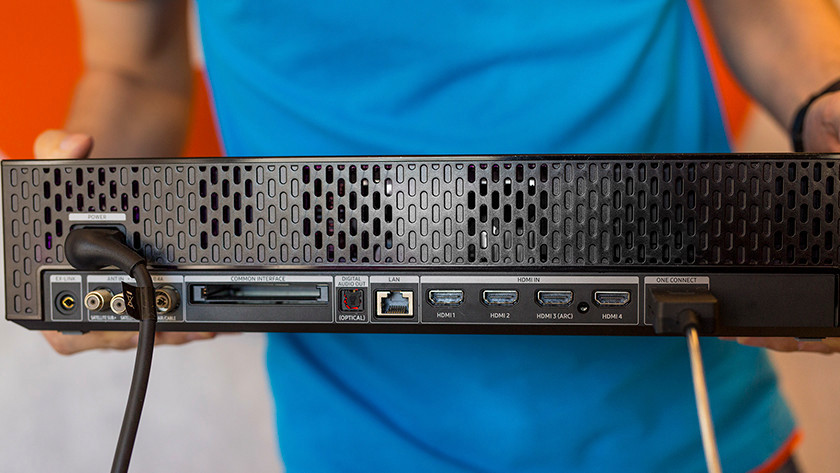
Before you reset, it’s helpful to know what the One Connect Box does. This device is designed to keep your living room tidy by moving most of your TV’s ports and connections away from the TV itself. Instead of plugging cables directly into your TV, you connect them to the box, which then links to the TV using a single One Connect cable.
The box typically includes HDMI, USB, optical audio, and other ports. It’s used in premium Samsung models like the QLED and The Frame series. If your TV screen is black, flickering, or not detecting inputs, the One Connect Box might be the issue.
Common Reasons To Reset The One Connect Box
There are many situations where you might need to reset your Samsung One Connect Box. Here are some of the most common:
- No Signal Detected – Your TV says “No Signal” even though devices are connected.
- Black Screen with Sound – The TV plays audio but the screen remains black.
- Input Lag or Delay – Remote or device inputs respond slowly.
- Firmware Update Issues – The TV fails to update or restarts repeatedly.
- Unrecognized Devices – Devices plugged into HDMI or USB ports aren’t detected.
- Intermittent Connectivity – Connection drops occur randomly.
- Overheating Warnings – The box gets unusually hot and displays warnings.
Resetting can often resolve these issues by clearing stored errors and refreshing connections.
Types Of Resets: Soft Reset Vs. Hard Reset
You can reset the One Connect Box in two main ways: soft reset and hard reset. Each has a different effect.
| Reset Type | What Happens | When to Use |
|---|---|---|
| Soft Reset | Reboots the box; no data lost | Minor issues (lag, temporary glitches) |
| Hard Reset | Restores factory settings; erases custom settings | Persistent problems, serious errors |
A soft reset is safer and should be tried first. A hard reset will erase saved settings and may require you to set up your TV again.
How To Perform A Soft Reset
A soft reset is the easiest and most common troubleshooting step. Here’s how to do it:
- Turn Off Your TV – Use the remote or the power button.
- Unplug the TV – Disconnect your TV’s power cord from the wall outlet.
- Disconnect the One Connect Box – Unplug the One Connect cable from both the TV and the box.
- Wait 60 Seconds – This allows any residual power to drain, which clears minor errors.
- Reconnect Everything – Plug the One Connect cable back into the TV and box.
- Plug the TV Back In – Restore the power cord to the outlet.
- Turn On Your TV – Check if the problem is fixed.
This method does not delete your apps, settings, or data. It simply restarts the hardware, clearing minor issues.
Practical tip: Make sure to wait the full 60 seconds after unplugging. Some electrical components need time to fully reset.

Credit: sunpremium.com
How To Perform A Hard Reset (factory Reset)
If a soft reset doesn’t solve the problem, you may need a hard reset. This is also called a factory reset because it restores the device to its original settings.
Using The Tv Menu
Most Samsung TVs let you reset the One Connect Box through the TV’s menu:
- Turn On Your TV – Make sure the One Connect Box is connected.
- Press the Home Button – On your Samsung remote.
- Go to Settings – Use the directional pad to select “Settings.”
- Select General – Scroll down and choose “General.”
- Find Reset – Select “Reset” from the list.
- Enter PIN – The default is usually 0000 unless you changed it.
- Confirm the Reset – Follow on-screen prompts.
After the reset, the TV and One Connect Box will restart. You’ll need to set up your TV, Wi-Fi, and any accounts again.
Manual Hard Reset (if Tv Screen Is Blank)
If your TV screen is blank and you can’t access the menu, use this method:
- Turn Off and Unplug TV – Disconnect power.
- Unplug One Connect Box – Remove all cables, including the power cable.
- Wait 5 Minutes – This ensures all power is drained.
- Reconnect Everything – Plug in power and One Connect cable.
- Hold Power Button on TV – For about 15 seconds, until you see the Samsung logo.
- Release and Wait for Startup – The TV should restart, showing the initial setup screen.
This method works even if the TV menu is inaccessible.
Non-obvious insight: After a hard reset, you’ll need to rescan for channels and re-download any streaming apps you use.
What To Check Before Resetting
A reset isn’t always needed. Before you begin, check these things:
- Cable Connections – Make sure all cables are fully plugged in, without dust or debris.
- Input Source – Confirm your TV is set to the correct input (HDMI1, HDMI2, etc. ).
- Device Power – Check that connected devices (game console, Blu-ray player) are powered on.
- Firmware Updates – Sometimes, updating your TV’s software can solve problems without a reset.
- Remote Batteries – Weak batteries can make it seem like the TV is unresponsive.
What Happens After A Reset?
Once you reset the One Connect Box, here’s what to expect:
- TV Setup Required – You’ll need to go through the initial setup (language, Wi-Fi, accounts).
- Lost Settings – Picture, sound, and network settings return to default.
- App Reinstallation – Download your favorite apps again from the Samsung App Store.
- Channel Scan – If you use an antenna, rescan for channels.
Some users forget that a hard reset removes personalization, so keep a list of your favorite settings and apps before starting.
Differences By One Connect Box Model
Samsung has released several generations of the One Connect Box. Each has slightly different reset options.
| Model Year | Box Appearance | Reset Method |
|---|---|---|
| 2017-2018 | Large, black with fan vents | Menu or power button reset |
| 2019-2020 | Thinner, rounded edges | Menu reset preferred |
| 2021+ | Smaller, compact “Slim One Connect” | Menu or remote power cycle |
Non-obvious insight: The physical design of your box can affect which reset methods work. For example, older models have a physical reset button (small pinhole). Newer models rely mostly on TV menu options.

Credit: www.amazon.com
Resetting The One Connect Box Without A Remote
If your remote isn’t working, you can still reset your One Connect Box:
- Use the TV’s Power Button – Press and hold for about 15 seconds to force a restart.
- Manual Unplugging – Disconnect all cables, wait 60 seconds, and reconnect.
- SmartThings App – If you’ve set up the Samsung SmartThings app, you can control the TV via your phone and access reset options.
Remember, not all TV models have physical buttons for menu navigation, so the SmartThings app can be very helpful.
What To Do If Reset Does Not Fix The Problem
Sometimes, a reset doesn’t solve the issue. Try these steps:
- Check for Firmware Updates – Use the TV menu or Samsung’s website to update software.
- Test with a Different Cable – The One Connect cable is unique, but you can try another compatible cable if available.
- Try Different Devices – Plug in another device (like a DVD player) to see if any input works.
- Check for Physical Damage – Look for bent pins or cracks on the box or cable.
- Contact Samsung Support – If you’re under warranty, repairs may be free.
If your box is out of warranty, you might need to replace the One Connect Box. These can be expensive, so check with Samsung customer service for options.
Credit: aurabio.com
Tips For Avoiding Future One Connect Box Problems
You can prevent many issues with a few simple habits:
- Keep the Box Well-Ventilated – Don’t cover the box or place it in a tight space. Overheating is a common cause of failure.
- Use a Surge Protector – Protect the box from power surges.
- Regular Firmware Updates – Keep your TV and box updated for the latest features and bug fixes.
- Clean Ports Regularly – Dust can block connections. Use compressed air to clean ports every few months.
- Avoid Moving the Box Often – The One Connect cable is delicate. Moving the box frequently can damage the connector.
Comparing One Connect Box Reset With Other Tv Reset Methods
It’s easy to confuse resetting the One Connect Box with resetting the TV itself or individual apps. Here’s how they differ:
| Reset Type | What It Affects | When to Use |
|---|---|---|
| One Connect Box Reset | Resets external hub; affects connections and some settings | Connection, input, or power issues |
| TV Factory Reset | Resets all TV settings, erases accounts/apps | Major software problems, persistent errors |
| App Reset | Clears app data/settings only | App crashes or won’t load |
If you’re unsure where the problem is, start with a soft reset of the One Connect Box. Move to a TV factory reset only if necessary.
Potential Risks Of Resetting The One Connect Box
While a reset is usually safe, there are a few risks to consider:
- Loss of Custom Settings – Hard reset removes all personalized settings.
- Account Logouts – You’ll need to re-enter accounts for streaming apps.
- Possible Data Loss – Any unsaved data in apps (like passwords) may be erased.
- Incompatibility – Rarely, some older accessories may need re-pairing.
Make sure you have your Wi-Fi password, Samsung account info, and any other important details before starting.
Additional Solutions For Persistent Issues
If your One Connect Box continues to malfunction after multiple resets, try these solutions:
- Replace HDMI/USB Cables – Faulty cables can mimic box problems.
- Update Connected Devices – Sometimes, Blu-ray players or consoles need firmware updates.
- Try a Different Power Outlet – Bad outlets can cause unstable power.
- Check for Interference – Wireless routers or other electronics can interfere with signals.
- Professional Cleaning – Dust inside the box can cause overheating. A technician can clean it safely.
When To Seek Professional Help
If you’ve tried all steps and the box still doesn’t work, it’s time to get professional help:
- Under Warranty – Contact Samsung for a repair or replacement.
- Out of Warranty – Look for authorized service centers.
- Physical Damage – Cracked casings, bent ports, or burnt smells require expert repair.
- Frequent Overheating – This may be a sign of internal failure.
You can find more details and contact information on the official Samsung Support page.
The Role Of Firmware Updates In Preventing Reset Needs
Firmware updates keep your One Connect Box running smoothly. Updates can fix bugs, improve compatibility, and add features. Here’s how to update:
- Go to TV Settings – Home > Settings > Support > Software Update.
- Select Update Now – The TV checks for updates and installs them automatically.
- Restart – The TV restarts after updating.
Keep your TV connected to the internet for automatic updates. Outdated firmware is a common cause of recurring problems.
Real-world Examples: Reset Success Stories
Example 1: Black Screen Fixed
A user had a QLED TV with a black screen but sound worked. After checking cables, a soft reset solved the issue. The TV returned to normal after a 60-second power cycle.
Example 2: Input Not Detected
Another owner found HDMI devices weren’t being detected. A hard reset from the menu restored all inputs. The user had to re-enter Wi-Fi and app info, but the TV worked perfectly afterward.
Example 3: Overheating Warnings
A family saw repeated overheating warnings. After cleaning the box and using a surge protector, the issue stopped. They also updated firmware, which improved stability.
These examples show that a reset is often effective, but sometimes extra steps like cleaning or updating are needed.
Frequently Asked Questions
How Often Should I Reset My Samsung One Connect Box?
You do not need to reset your One Connect Box regularly. Reset only when you notice problems like lost connections, unresponsive inputs, or black screens. Regular resets are not required for normal use.
Will Resetting The One Connect Box Delete My Tv Apps And Accounts?
A soft reset will not delete apps or accounts. A hard (factory) reset will erase custom settings, log you out of apps, and may require app reinstallation. Make sure you know your account details before a hard reset.
Can I Reset My One Connect Box If The Tv Screen Is Totally Black?
Yes. If the TV screen is blank, use the manual unplugging method. Unplug the TV and One Connect Box for five minutes, then plug back in. You can also hold the TV’s power button for 15 seconds during startup to force a reset.
Is It Safe To Reset The One Connect Box During A Firmware Update?
No. Do not unplug or reset your box during a firmware update. This can cause software corruption and may permanently damage the device. Wait for updates to finish before resetting.
What Should I Do If Resetting Does Not Fix My Issue?
If a reset does not solve the problem, check cables, try different devices, update firmware, or contact Samsung support. Some problems may require repair or replacement of the One Connect Box.
Getting your Samsung One Connect Box back to normal can be simple with the right steps. By following these detailed instructions, you can solve most issues and enjoy your TV without frustration. Remember to keep your device updated, handle cables carefully, and seek expert help when needed.
With a little patience, your Samsung TV and One Connect Box can deliver excellent performance for years to come.