
If you’ve ever lost your Dynex TV remote, you know the frustration of staring at a blank screen with no way to turn it on. Many people think a remote is the only way to control a modern television, but that’s not true. In fact, turning on a Dynex TV without a remote is possible using several simple methods. Whether your remote is broken, lost, or just out of batteries, you don’t have to sit in the dark.
This guide covers all the reliable ways to switch on your Dynex TV without a remote. You’ll learn how to use the built-in buttons, set up your smartphone as a remote, connect universal remotes, and even use gaming consoles and streaming devices as backup controllers.
Along the way, you’ll discover practical tips, common mistakes to avoid, and solutions to problems that often surprise beginners. By the end, you’ll have the confidence to control your TV anytime, remote or not.
Using The Physical Power Button
The most direct way to turn on your Dynex TV without a remote is by using the physical power button on the TV itself. Many people overlook this solution, but it works for almost all models.
Locating The Power Button
Dynex TVs usually have manual control buttons hidden on the frame. These are often on the bottom edge, side panel, or even at the back of the set. The power button is typically larger or marked with a standard power symbol (a circle with a line through the top). On some older models, the buttons may be labeled with small text, while newer flat-screen models often use icons.
Here’s how you can find it:
- Bottom bezel: Feel along the bottom edge of your TV. Some designs place a row of buttons here.
- Right or left side: Check the sides of your TV for a vertical row of buttons. These often include power, volume, and channel controls.
- Rear panel: On a few models, the buttons are on the back, near the lower right or left corner when you face the TV.
Turning On The Tv
Once you find the power button, press and hold it for about 1-2 seconds. You should see the Dynex logo appear on the screen, and the TV will power up.
Non-obvious Insight
Sometimes, users mistake the input or menu button for the power button. If you press another button and nothing happens, try each button in turn. Don’t press all buttons at once—this can confuse the TV’s control board.
When The Power Button Doesn’t Work
If your TV doesn’t respond, check that it’s plugged in and the power outlet works. Some Dynex TVs also have a standby mode, which can make the TV appear off. Pressing the power button firmly should wake it.
Using Smartphone Remote Control Apps
Modern technology offers another solution: smartphone remote apps. Many Dynex TVs, especially those with HDMI-CEC or smart features, can be controlled by apps.
What You Need
- A smartphone (Android or iPhone)
- Wi-Fi connection (for smart TV models)
- An IR blaster (for some Android phones)
Popular Remote Apps
- Dynex TV Remote (various versions in app stores)
- Universal TV Remote (works for many brands)
- Google Home (for TVs with Chromecast built-in)
- Roku App (if using a Roku device with Dynex TV)
Setting Up The App
- Download and install a universal remote app from your app store.
- Open the app and select “Dynex” from the list of brands.
- If your TV is a smart TV, connect your phone and TV to the same Wi-Fi network.
- If your phone has an IR blaster, point it at the TV and use the app’s power button.
Practical Example
Suppose you have an Android phone with an IR blaster. Open your universal remote app, choose “Dynex,” and tap the power button in the app. The TV should turn on, just like using a physical remote.
Non-obvious Insight
Not all phones have an IR blaster. Most iPhones and many Androids (like Google Pixel) do not. If your phone lacks this feature, the app will only work with smart TVs connected to Wi-Fi—not basic Dynex models.
Common Mistakes
- Trying to use Wi-Fi apps with non-smart TVs.
- Forgetting to connect both devices to the same network.
Credit: www.api.motion.ac.in
Universal Remote Controls
A universal remote can save the day if you lose your original Dynex remote. These remotes are widely available and work with nearly any TV brand.
How Universal Remotes Work
A universal remote sends signals that most TVs understand. You program it to match your TV’s code. After setup, the power button will turn on your Dynex TV.
Steps To Use A Universal Remote
- Buy a universal remote (from a local store or online).
- Insert batteries.
- Find the Dynex code in the remote’s manual (usually a 3- or 4-digit number).
- Press the “Setup” button, enter the code, and test the power button.
Comparison Of Popular Universal Remotes
Here’s a look at some popular universal remotes and their compatibility with Dynex TVs:
| Remote Model | Supports Dynex | Price Range (USD) | Programming Method |
|---|---|---|---|
| GE Universal Remote | Yes | $10–$18 | Code Entry |
| Logitech Harmony 650 | Yes | $40–$60 | Computer Setup |
| Philips Universal Remote | Yes | $8–$16 | Code Entry |
Pro Tips
- If the first code doesn’t work, try others from the manual.
- Some remotes have an “auto search” mode—use this if manual codes fail.
- Universal remotes usually control power, volume, and input. Advanced features may need the original Dynex remote.
Using Streaming Devices As A Remote
If you use a streaming device like Roku, Amazon Fire Stick, or Apple TV with your Dynex TV, you may be able to turn on the TV using the device’s remote or app.
How It Works
Many streaming devices support HDMI-CEC (Consumer Electronics Control). This feature allows a device to send commands to your TV, like turning it on or off, through the HDMI cable.
Enabling Hdmi-cec
- Plug the streaming device into your TV’s HDMI port.
- Use your TV’s manual buttons to open the settings menu.
- Enable “HDMI-CEC” (may be called “CEC,” “Anynet+,” or “HDMI Control”).
Turning On Your Tv
Once set up, pressing any button on your streaming device’s remote (like “Home” or “OK”) can wake your Dynex TV from standby or off mode.
Example
If you have a Roku stick, press the Home button on the Roku remote. If HDMI-CEC is enabled, your TV should turn on automatically.
Common Issues
- HDMI-CEC is often off by default—remember to enable it.
- Some Dynex TVs don’t support HDMI-CEC. Check your manual.
Using A Computer Or Laptop
Connecting a computer or laptop to your Dynex TV via HDMI or VGA can also turn the TV on in some cases.
Steps
- Make sure your TV is plugged in.
- Connect your computer to the TV using an HDMI or VGA cable.
- Turn on your computer.
- The TV may automatically wake up and switch to the correct input.
Why This Works
Some TVs sense a new input signal and power on, even from standby. This can be a handy backup if you have no remote or manual buttons.
Limitations
- Not all Dynex TVs support auto-on via HDMI.
- This method may not work if the TV is fully powered off rather than in standby.
Plugging And Unplugging The Tv
A basic but sometimes effective method is simply unplugging and re-plugging your TV.
How This Helps
Unplugging the TV from the wall and plugging it back in can trigger a restart. Some Dynex TVs automatically power on after being reconnected to electricity.
Steps
- Unplug the TV from the power outlet.
- Wait at least 30 seconds.
- Plug the TV back in.
- Watch for the power light or logo on the screen.
When To Use
This is most useful if your TV is stuck, unresponsive, or you suspect a power glitch.
Caution
- Do not use this as a daily method. It’s safe occasionally but can stress the TV’s power supply if done too often.
- Always handle plugs with dry hands.
Setting Up Voice Assistants
Some modern home setups let you turn on your Dynex TV using voice assistants like Amazon Alexa or Google Assistant, but only if you have compatible smart plugs or devices.
What You Need
- A smart plug (like TP-Link Kasa or Wemo)
- Amazon Alexa or Google Assistant speaker
- Your Dynex TV plugged into the smart plug
How To Set Up
- Plug your Dynex TV into the smart plug.
- Set up the smart plug in your assistant’s app (Alexa or Google Home).
- Name the plug (e.g., “TV”).
- Say, “Alexa, turn on the TV.”
Limitations
- Works best with older Dynex TVs that turn on when power is restored. Some newer TVs stay in standby and need the power button.
- Can’t control volume or channel with this method.
Non-obvious Insight
Some smart plugs allow scheduling. You can have your TV turn on at a set time, useful for routines or as a backup if you often lose your remote.
Using The Tv’s Menu And Volume Buttons
On Dynex TVs, the menu and volume buttons can sometimes substitute for the power button if that button is broken or missing.
How It Works
- Pressing and holding the volume up or menu button for 5-10 seconds may act as a power-on command on certain models.
- On older TVs, pressing any button may wake the TV from standby.
Practical Tip
If you can’t find the power button, try pressing other buttons one at a time. Wait a few seconds between presses to see if the TV responds.
Mistakes To Avoid
- Don’t press multiple buttons together, which can send confusing signals.
- Don’t use sharp objects to press recessed buttons.
Using External Keyboards And Mice
Some smart Dynex TVs (rare, but exist) have USB ports that accept external keyboards or mice. Plugging in a keyboard and pressing the spacebar or Enter can sometimes wake the TV.
When This Works
- Only on smart TVs with USB input and keyboard/mouse support.
- If the TV is in standby, not completely powered off.
Steps
- Plug a USB keyboard or mouse into the TV.
- Press a key (spacebar, Enter, or any arrow key).
- Observe if the TV wakes up.
Limitations
- This does not work for most basic Dynex TVs.
- You cannot turn on the TV if it’s fully off (no standby power).
Comparing The Most Reliable Methods
To help you choose the best way to turn on your Dynex TV without a remote, here’s a comparison of the most common methods:
| Method | Works on All Models? | Tools Needed | Reliability |
|---|---|---|---|
| Physical Power Button | Yes | None | Very High |
| Universal Remote | Yes | Universal Remote | High |
| Smartphone App | Smart TVs Only | Smartphone, Wi-Fi | Medium |
| Streaming Device | HDMI-CEC Models | Roku/Fire Stick/Apple TV | Medium |
| Smart Plug/Voice Assistant | Older TVs | Smart Plug, Speaker | Low–Medium |
| Plug/Unplug | Some Models | None | Low |

Credit: www.youtube.com
Troubleshooting Common Problems
Sometimes, even after following all these methods, your Dynex TV won’t turn on. Let’s address some common issues and solutions.
Power Light Is On, But Screen Is Blank
- Make sure the TV isn’t on a different input.
- Try pressing the “Input” or “Source” button on the TV.
- Check if a connected device (cable box, streaming stick) is powered on.
Tv Won’t Respond To Any Button
- Unplug the TV for 1 minute, then plug it back in.
- Try a different wall outlet.
- Inspect the power cord for damage.
Remote App Doesn’t Work
- Double-check that your phone and TV are on the same Wi-Fi network.
- Restart both devices.
- Try a different app.
Universal Remote Won’t Program
- Test with new batteries.
- Try all available Dynex codes.
- Use the auto-search feature if available.
When To Seek Professional Help
If none of these methods work, your Dynex TV may have a hardware problem (like a faulty power board or internal fuse). In this case:
- Contact Dynex customer support or a trusted repair technician.
- If your TV is under warranty, avoid opening it yourself.
- Some repairs are inexpensive, but for older TVs, replacement may make more sense.
How To Prevent Future Problems
It’s easier to avoid remote issues than to solve them. Here are a few ways to stay prepared:
- Buy a backup remote and keep it in a safe place.
- Label your TV’s buttons with tape if they’re hard to find.
- Download a universal remote app as a backup, even if you don’t need it now.
- Store TV manuals and codes for easy access.
Frequently Asked Questions
How Do I Find The Power Button On My Dynex Tv?
The power button is usually on the bottom edge, side, or back of your TV. Look for a button with a circle and a line through it. If you can’t find it, check your TV’s manual or search for your model number online.
Can I Use My Phone As A Remote For Any Dynex Tv?
You can use your phone as a remote if your TV is a smart TV or if your phone has an IR blaster. For most non-smart Dynex TVs, you’ll need a physical universal remote instead.
Why Doesn’t My Tv Turn On When I Plug It In?
Some Dynex TVs require you to press the power button after plugging in. Others may be in standby mode. If the TV still won’t turn on, check the outlet, try a different cable, or unplug for a minute and retry.
What’s The Best Universal Remote For Dynex Tvs?
GE Universal Remote and Logitech Harmony 650 are reliable choices. Both support Dynex and can be found online or in electronics stores. Always check for Dynex compatibility on the packaging.
Where Can I Find The Dynex Tv Codes For Universal Remotes?
You can find Dynex TV codes in the universal remote’s manual or on the manufacturer’s website. Example codes include 0463, 0171, and 11463. If these don’t work, use the auto-search feature on your remote.
—
Losing your remote doesn’t mean losing control over your TV. Whether you use the physical button, a universal remote, a smartphone app, or another creative method, you have options. The key is to know your TV’s model and features, try the most reliable methods first, and keep a backup plan ready. With these tips, you’ll never be stuck in front of a blank screen again. For more details on universal remotes and TV control, visit the official Wikipedia page on universal remotes. Empower yourself to take charge of your entertainment, no matter where your remote ends up.
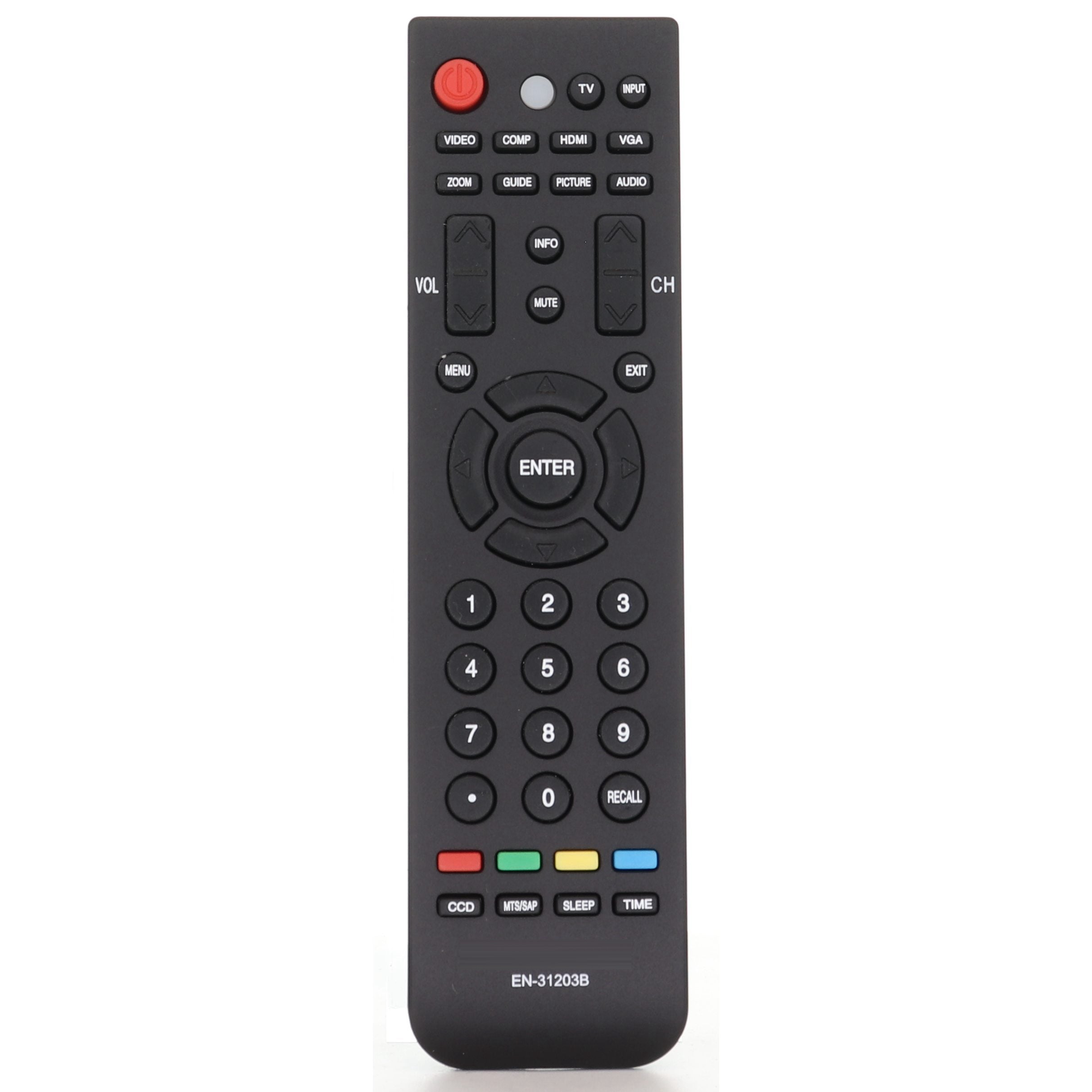
Credit: www.anderic.com