
Many people enjoy using an Insignia TV for watching movies, sports, and shows. But sometimes, you notice something strange: the volume on your Insignia TV is too low. Even when you press the remote to the maximum level, the sound is still weak or hard to hear. This can make your favorite program less fun or even impossible to follow.
This problem is more common than you might think. It can happen with new TVs as well as older models. There are many reasons why Insignia TV volume may be too low. Sometimes it is a simple setting, but other times it can be a hardware issue or a problem with connected devices.
In this guide, you will learn how to fix low volume on Insignia TVs. We will go step by step, starting from basic checks to more advanced solutions. You will also learn how to avoid this problem in the future and get the most out of your TV’s audio.
Whether you are a beginner or have some technical knowledge, this article will help you hear your TV clearly again.
Understanding Insignia Tv Volume Issues
Low volume on an Insignia TV can be caused by several different factors. It’s important to know what might be wrong before trying solutions. Here are the most common reasons:
- TV volume settings are not adjusted correctly.
- Audio settings like balance or equalizer are set to unusual values.
- Issues with external speakers or soundbars.
- Problems with connected devices (like cable boxes, streaming sticks, or gaming consoles).
- Outdated or incorrect software/firmware.
- TV hardware problems (rare, but possible).
Sometimes, more than one of these factors can combine to make the volume too low. For example, if your TV’s volume is low and your streaming device’s volume is also down, the sound will be much weaker.
Here’s a quick overview of where problems may start:
| Cause | Typical Symptoms | Difficulty to Fix |
|---|---|---|
| TV Audio Settings | Volume bar looks high, sound is weak | Easy |
| External Devices | Some channels or apps are quiet | Medium |
| Worn Out Speakers | Distorted or muffled sound | Hard |
| Firmware Issues | Volume changed after update | Medium |
Understanding the root cause is the first step toward a clear solution.
Initial Checks Before Troubleshooting
Before diving into settings or advanced fixes, it’s smart to check some basics. Many people overlook simple things that can cause low volume.
- Remote Batteries: Weak batteries may not send full commands. Try replacing them.
- Volume Button: Make sure you are pressing the correct buttons on the remote (not the mute or channel buttons).
- Mute Function: Check if the TV is muted. Sometimes the mute button is pressed by mistake.
- TV Speaker Output: Check if the TV speakers are selected as the main audio source, not headphones or an external device.
- Physical Obstructions: Speakers can be blocked by objects, dust, or even the TV stand. Clear the area around your TV’s speakers.
These checks can save you time and might solve the problem right away.
Checking And Adjusting Tv Audio Settings
TV settings play a big role in how loud or clear the sound is. Insignia TVs offer several options to adjust audio. Here’s how to review and fix your settings:
How To Access Audio Settings
- Press the Menu button on your Insignia TV remote.
- Navigate to Audio or Sound settings.
- Explore the following options:
- Volume Level
- Balance
- Equalizer
- Audio Output
- AV Sync
- Surround Sound
Key Settings To Review
- Volume Level: Make sure this is set high enough. Sometimes, a power outage or software update can reset this.
- Balance: If the balance is off (all sound to left or right), it may sound quieter.
- Equalizer: Reset to default. Extreme settings can make audio seem weak.
- Audio Output: Set this to TV Speakers if you’re not using external speakers.
- AV Sync: If out of sync, it can cause delays or missing sounds.
Example Of Settings Reset
If you are unsure about your settings, you can reset all audio to default:
- Go to Audio Settings.
- Select Reset to Default.
- Confirm the action.
This often solves strange volume issues caused by custom settings.
Troubleshooting External Devices
Many people use Roku, Amazon Fire Stick, Apple TV, or game consoles with their Insignia TV. These devices have their own volume controls and can cause low sound.
Steps To Check
- Volume on Device Remote: Increase the volume on the device’s remote, not just the TV remote.
- Device Audio Settings: Go into the streaming device or console menu and look for audio settings. Set output to Stereo or PCM for best compatibility.
- HDMI CEC: Turn off HDMI-CEC (“Consumer Electronics Control”) if you notice volume confusion between devices.
- Audio Cable Connections: Make sure HDMI or optical cables are fully inserted and not damaged.
Common Mistake
Many users forget that some streaming apps or devices have their own volume slider. For example, if you watch YouTube on a Roku, the app has its own volume bar. Always check both the TV and the app/device.

Credit: www.youtube.com
Checking For Software Or Firmware Updates
Sometimes, an Insignia TV may have bugs or problems with its software. A new firmware update can fix sound issues, or sometimes a recent update can cause them. Keeping your TV updated is important.
How To Update
- Press Menu on your remote.
- Go to Settings.
- Choose System or About (depending on model).
- Select Check for Updates.
- If an update is available, follow instructions to install.
Updates can improve compatibility with new devices and fix bugs that affect volume.
Rollback Option
If you noticed the low volume started after a recent update, see if your model allows firmware rollback. This is rare but possible on some Insignia models. Check the Insignia support website for details.
Examining Hardware And Physical Issues
Sometimes, the problem is not software or settings but the TV’s hardware. Here are a few things to check:
Speaker Damage
Speakers inside the TV can wear out, especially if the TV is old or has been played at high volume for years. Signs of damage include:
- Distorted sound
- Buzzing or crackling
- Volume goes up and down by itself
You can test this by playing a known loud video and listening closely.
Dust Or Blockage
If dust collects in the speaker holes, sound can be muffled. Use a soft brush or a can of compressed air to gently clean the speaker area.
Connection Ports
Loose HDMI, optical, or RCA cables can cause poor sound. Make sure all connections are firm and clean.
Power Source
A weak or unstable power supply can also affect performance. Try plugging your TV directly into a wall outlet, not a power strip.
Using External Audio Devices
If your Insignia TV’s built-in speakers are always too quiet, you might consider an external audio device like a soundbar or home theater system. These can provide much louder and clearer sound.
Connecting A Soundbar
Most Insignia TVs support:
- HDMI ARC
- Optical Audio Out
- 3.5mm Headphone Jack
- Bluetooth (on some models)
Here’s how these compare:
| Connection Type | Sound Quality | Setup Difficulty | TV Remote Control |
|---|---|---|---|
| HDMI ARC | Excellent | Medium | Yes |
| Optical Audio | Very Good | Medium | Sometimes |
| 3.5mm Jack | Good | Easy | No |
| Bluetooth | Good | Easy | No |
Using HDMI ARC usually lets you control the soundbar with your TV’s remote. For other connections, you may need to adjust volume on both devices.
Setting Up External Speakers
- Connect the cable from your soundbar or speakers to the TV’s audio out port.
- Go to the TV’s Audio Settings and set Audio Output to External Speakers or the correct port.
- Adjust volume as needed.
Many users find that even a basic soundbar makes a big difference compared to TV speakers.
Special Audio Features And Their Impact
Insignia TVs sometimes include special audio options like Surround Sound, Night Mode, or Auto Volume. These features can help—or hurt—your listening experience.
Surround Sound
This spreads audio across multiple speakers (if you have them). On regular TV speakers, it may make voices quieter.
Tip: Try turning off Surround Sound if volume is too low.
Auto Volume
This keeps volume stable between different programs or commercials. Sometimes, it can reduce overall loudness.
Tip: If you feel the TV is never loud enough, turn off Auto Volume.
Night Mode
This setting lowers loud sounds and raises quiet ones. It’s made for watching TV late at night.
Tip: Turn Night Mode off for the loudest possible volume.
Advanced Troubleshooting Steps
If the above tips do not solve your low volume problem, try these advanced methods.
Factory Reset
This returns the TV to its original settings and can fix deep software issues.
- Go to Settings.
- Find System or Reset & Admin.
- Select Factory Reset.
- Confirm and wait for the TV to restart.
Warning: You’ll need to set up the TV again after a factory reset. Save your passwords and Wi-Fi info.
Test With Different Content And Apps
Sometimes, the problem is only with certain channels, apps, or videos. Try:
- Playing a DVD or Blu-ray
- Watching regular broadcast TV
- Using different streaming apps
If the sound is only low on one app, the problem is likely with the app or its settings.
Test With Headphones
Plug in a pair of headphones and listen. If the volume is also low, the issue is likely with the TV’s audio system. If headphones are loud, the TV speakers may be damaged.
Check For Audio Format Issues
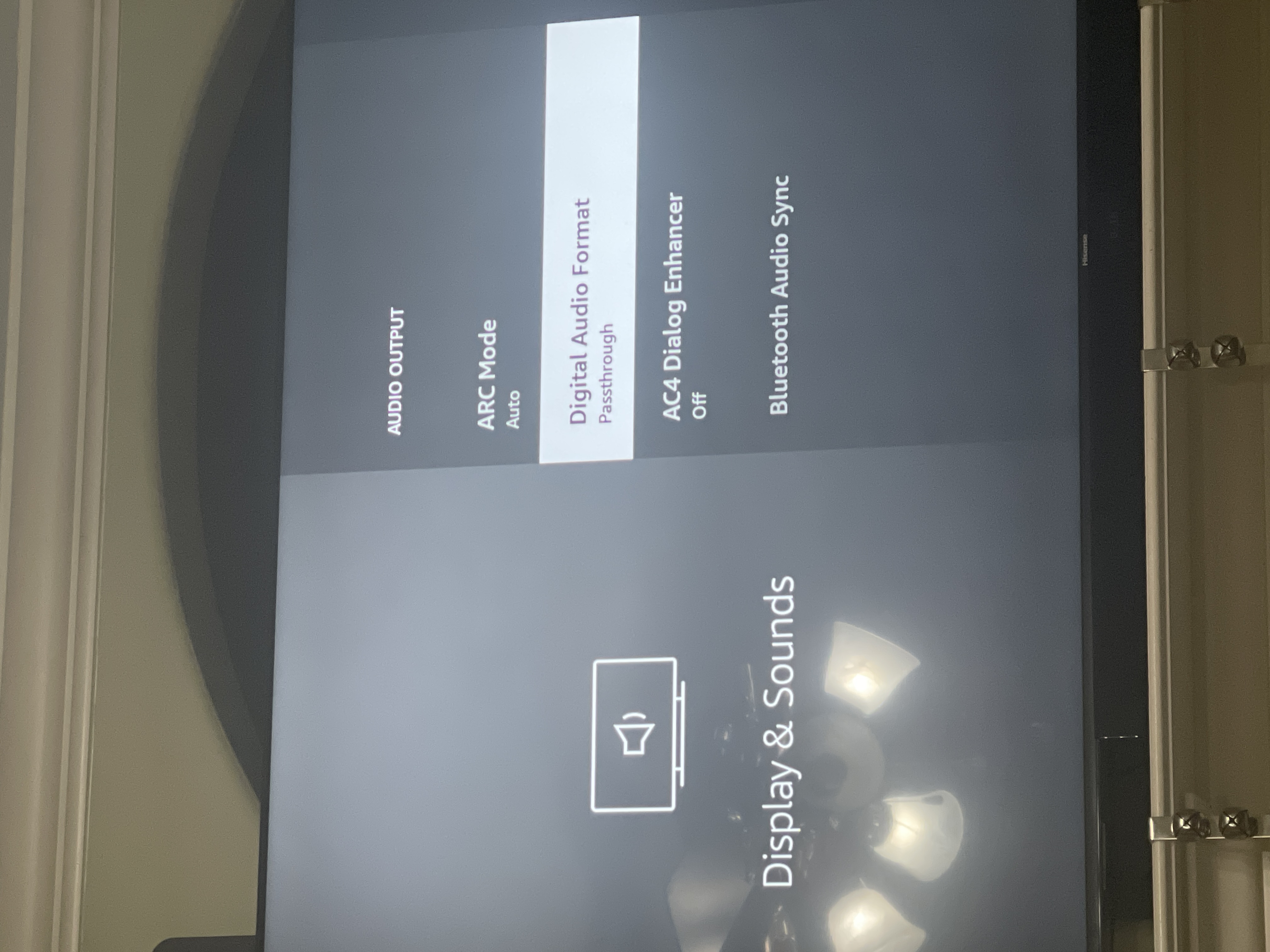
Some streaming services use Dolby Digital or DTS. If your TV can’t decode these, you may get weak or no sound. Set audio output to PCM or Stereo for better compatibility.
Contact Insignia Support
If you’ve tried everything and the problem remains, contact Insignia support. Provide your model number and describe all troubleshooting steps you’ve done. They can suggest advanced solutions or arrange repair if needed.
Preventing Future Volume Problems
Once you solve your Insignia TV’s low volume, it’s smart to avoid future issues. Here’s how:
- Update Software Regularly: Check for updates every few months.
- Clean TV Speakers: Dust the speaker area gently every few months.
- Avoid Extreme Volume: Don’t play audio at maximum for long periods; this can damage speakers.
- Use a Surge Protector: This protects against power spikes that can harm electronics.
- Check Cables Annually: Replace worn or loose cables.
Credit: adaptersettlement.com
Non-obvious Insights For Better Tv Audio
Even experienced users sometimes miss these tips:
- TV Placement Matters: Placing your TV inside a cabinet or against a wall can block sound. Try moving it forward or angling the speakers toward your seating area.
- Audio Delay Settings: Some TVs have “audio delay” options. If this is set too high, it can cause sound to be out of sync and seem quieter or “hollow.”
When To Consider A New Tv Or Audio System
If your Insignia TV is more than 7 years old, and the sound is always weak—even with all settings correct—it may be time for an upgrade. New TVs and soundbars have much better speakers and smart audio features.
Insider tip: Spending even $40–$80 on a budget soundbar can make a big difference, often more than buying a more expensive TV.
Credit: www.amazonforum.com
Example: Real-world User Story
Maria bought an Insignia Fire TV Edition. The first few weeks were fine, but after a software update, her volume was low, especially on Netflix. She tried raising the TV volume, but it maxed out at 100 and was still quiet. After checking the TV’s Audio Output setting, she discovered it was set to Dolby Digital Plus. Switching to PCM fixed the issue immediately.
This example shows that a small setting can make a big difference.
Comparing Insignia Tv Models And Volume Performance
Different Insignia TV models have different speaker power and audio features. Here’s how some popular models compare:
| Model | Speaker Output (Watts) | Audio Features | Notable Issues |
|---|---|---|---|
| NS-39DF510NA19 | 16W | Dolby Audio, Night Mode | Low volume on streaming apps |
| NS-50DF710NA21 | 20W | Surround Sound, Auto Volume | Occasional audio lag |
| NS-32D310NA17 | 10W | Stereo Only | Quiet overall sound |
| NS-55DF710NA21 | 20W | Dolby Digital, AV Sync | Rare speaker crackle |
Knowing your model’s features can help you choose the best settings or decide if an upgrade is needed.
Frequently Asked Questions
Why Is My Insignia Tv Volume So Low Even At 100?
Often, the TV’s volume bar shows 100 but the sound is still quiet. This usually means an audio output setting is wrong, or the connected device (like a Roku or cable box) has its own volume set low. Also, check for audio modes like “Night Mode” or “Auto Volume,” which can reduce loudness.
How Do I Make My Insignia Tv Louder?
First, check all volume controls on your TV and connected devices. Set the TV’s audio output to Stereo or PCM. Turn off special features like Night Mode or Auto Volume. For much louder sound, connect a soundbar using HDMI ARC or optical cable.
Can A Firmware Update Fix Insignia Tv Sound Problems?
Yes, a firmware update can fix bugs or improve sound compatibility. However, sometimes an update can cause new issues. Always check for updates from the TV’s menu, and if the issue started after an update, contact Insignia support or visit the Insignia Support Page.
What Should I Do If Only Some Channels Or Apps Have Low Volume?
If only certain apps or channels are quiet, the problem is likely with that app or device. Open the app’s own audio settings. Check the streaming device’s volume as well. If the problem is with broadcast channels, contact your cable or satellite provider.
Is It Worth Repairing Old Insignia Tv Speakers?
If your TV is more than 5–7 years old, replacing speakers is often not cost-effective. New TVs or external soundbars usually offer better sound for the same price as repair.
Final Thoughts
Low volume on an Insignia TV can be frustrating, but most problems have simple solutions. Start with basic checks, review your audio settings, and test all connected devices. Don’t forget about special features or software updates that may affect sound.
For the best results, an external soundbar can give you louder and clearer audio than built-in speakers.
If you have tried everything and the problem stays, support is available from Insignia or your retailer. Small changes often make a big difference—so you can get back to enjoying your favorite shows and movies with clear, strong sound.