
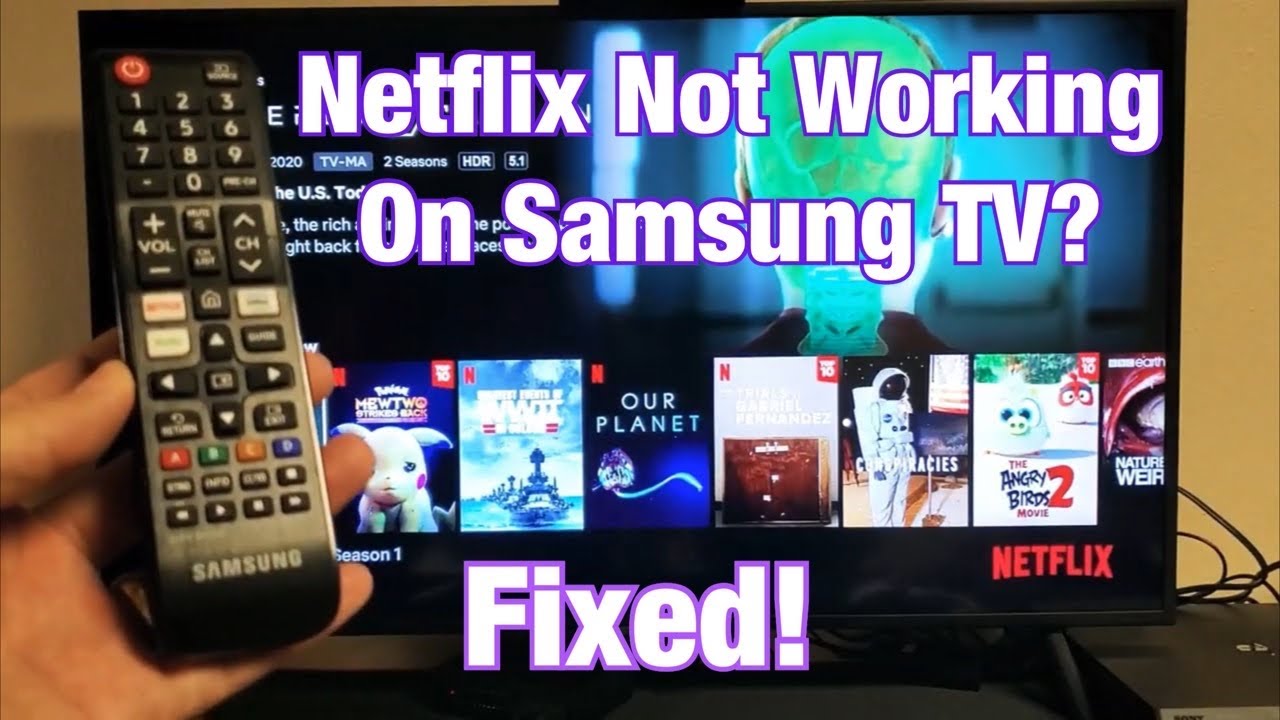
Netflix is one of the world’s most popular streaming services, offering a huge library of movies, TV shows, and documentaries. Many people prefer to watch Netflix on their Samsung TV for a bigger screen and better sound. But what happens when Netflix suddenly stops working? The frustration is real—especially after a long day when all you want is to relax. Whether the app won’t open, keeps buffering, or throws an error message, these problems can ruin your streaming experience.
This guide explores why Netflix is not working on Samsung TV, and how you can fix it. You will learn practical solutions, see common mistakes, and discover tips most people miss. If you’re struggling with Netflix on your Samsung TV, this guide can help you get back to watching your favorite shows quickly and confidently.
Why Netflix Stops Working On Samsung Tv
Several things can cause Netflix to stop working on a Samsung TV. Understanding these reasons helps you find the right fix faster.
- Internet connection problems: Netflix needs a strong and steady internet connection. A weak signal, slow speed, or network interruptions can all stop the app from working.
- Outdated Netflix app: If you haven’t updated the Netflix app for a long time, it might not work well with Samsung’s latest TV software.
- Samsung TV software issues: Sometimes, the TV’s own software (firmware) is outdated or has bugs. This can make apps, including Netflix, unstable.
- Account or subscription issues: If your Netflix subscription expires or there are problems with your account, you might get error messages or be unable to log in.
- Corrupted app data or cache: Over time, cached files can become corrupted, causing the app to freeze or crash.
- Server-side Netflix problems: Sometimes, the problem isn’t on your side. Netflix’s own servers may be down or under maintenance.
- HDMI or hardware glitches: Physical issues like a loose HDMI cable or TV hardware bugs can affect app performance.
- Incorrect TV settings: Changing settings like date/time, network configurations, or parental controls can block Netflix.
Many users overlook one key thing: sometimes, a simple reboot can solve a surprising number of problems. Before diving into complicated solutions, always try restarting your TV and router.
Quick Fixes: First Steps To Try
Before moving to advanced troubleshooting, start with these basic solutions. They often resolve minor issues quickly.
- Restart your Samsung TV: Turn off your TV, unplug it from the wall, wait 60 seconds, then plug it back in and turn it on. This clears temporary glitches.
- Restart your router: Unplug your router, wait for 30 seconds, then plug it back in. Wait until all lights are stable, then try Netflix again.
- Check your internet connection: Use the TV’s built-in browser or another app to see if the internet is working. You can also run a speed test on another device.
- Sign out and sign back in to Netflix: Open the Netflix app, go to settings, sign out, then sign back in with your credentials.
- Check for error messages: Write down any error codes. Search for them on the Netflix Help Center for targeted advice.
- Try another device: See if Netflix works on your phone, tablet, or computer. If it does, the problem is likely with your TV.
If these steps don’t solve the issue, more advanced troubleshooting is needed.

Credit: www.youtube.com
Network And Internet Problems
Your internet connection is the backbone of streaming. Without a good connection, Netflix can’t play smoothly. Here are ways to check and fix network issues.
Check Network Status On Samsung Tv
Go to Settings > General > Network > Network Status. Your TV will test the connection and show the result.
- Connected to internet: If yes, the issue may be with the app, not your network.
- Not connected: You need to fix your Wi-Fi or Ethernet connection.
Improve Your Internet Speed
Netflix recommends at least 3 Mbps for SD, 5 Mbps for HD, and 15 Mbps for Ultra HD streaming.
- Move your router closer to the TV.
- Remove obstacles between the TV and router.
- Limit the number of devices using the network at once.
- Switch from Wi-Fi to Ethernet for a more stable connection.
Compare Streaming Quality Vs. Internet Speed
Here’s how speed affects what you can watch:
| Speed (Mbps) | Recommended Quality | Number of Devices |
|---|---|---|
| 3 Mbps | Standard Definition (SD) | 1 |
| 5 Mbps | High Definition (HD) | 1-2 |
| 15 Mbps | Ultra HD (4K) | 2-3 |
| 25+ Mbps | Ultra HD (4K) Multiple Devices | 4+ |
If your speed is lower than needed, try pausing other downloads or upgrading your internet plan.
Advanced Tip: Dns Settings
Many users never check DNS settings. If your ISP’s DNS is slow, Netflix may not load. Try switching to Google DNS (8. 8. 8. 8 and 8. 8. 4. 4) in your TV’s network settings for a possible boost.
Updating Netflix App And Samsung Tv Software
Outdated software is a common reason for Netflix not working.
How To Update Netflix App
- Press the Home button on your Samsung remote.
- Select “Apps” at the bottom.
- Choose “Settings” (gear icon).
- Find Netflix and select “Update” if available.
If you see no option to update, your TV may be set to auto-update apps. Still, check manually, as updates sometimes get stuck.
How To Update Samsung Tv Software
- Press Home on your remote.
- Go to Settings > Support > Software Update.
- Select “Update Now.”
A new update may fix bugs that stop Netflix. If your TV is very old, some updates may not be available. In that case, consider using a streaming device like Roku or Fire Stick for better Netflix support.
Software And App Version Compatibility Table
It helps to see how app and TV software versions can impact Netflix support.
| Samsung TV Model Year | Latest Supported Netflix App Version | Software Update Available |
|---|---|---|
| 2016-2018 | 7.x.x | Yes |
| 2013-2015 | 6.x.x | Limited |
| 2012 and older | Not Supported | No |
If your TV is no longer supported, Netflix may stop working after an app update. This is a common but often missed reason for issues.
Clearing Netflix Cache And Data
Corrupted cache or data can make Netflix freeze, crash, or show errors.
How To Clear Cache On Samsung Tv
For most Samsung TVs:
- Press Home on your remote.
- Go to Settings > Apps.
- Select System Apps.
- Choose Netflix.
- Select “Clear Cache” and “Clear Data.”
If your TV doesn’t show these options, try uninstalling and reinstalling the app instead.
Uninstall And Reinstall Netflix
- Go to Apps.
- Highlight Netflix.
- Press “Tools” or use the remote’s options button.
- Select “Delete” or “Remove.”
- Restart your TV, then reinstall Netflix from the app store.
Reinstalling can fix deep app errors that clearing cache does not.
Fixing Account And Subscription Issues
Sometimes, Netflix doesn’t work because of account problems.
- Check subscription status: Log in at netflix.com on a computer or phone to see if your payment went through.
- Account sharing: If too many people use the same account, Netflix might block new streams.
- Profile problems: Try switching to another profile. If it works, your main profile may be corrupted.
If your account is fine but Netflix still fails on your TV, the cause is likely on the device or network, not your account.
Netflix Error Codes And What They Mean
Error codes can be confusing. Here are a few common Netflix error codes on Samsung TVs and what they mean:
| Error Code | Meaning | Quick Fix |
|---|---|---|
| NW-2-5 | Network connection issue | Check internet, restart router |
| UI-800-3 | Corrupted app data | Clear cache, reinstall app |
| tvq-st-103 | Server communication error | Restart app and TV |
| tvq-pb-101 | Playback issue | Try another show or profile |
| 11800 | App launch failed | Update app/TV, reinstall app |
Always take a photo of the error code before troubleshooting. This makes searching for solutions easier.
Advanced Troubleshooting Steps
If all basic steps fail, try these deeper fixes.
Reset Smart Hub
The Smart Hub is the core software that controls apps on Samsung TVs.
- Go to Settings > Support > Self Diagnosis.
- Select “Reset Smart Hub.”
- Enter your TV’s PIN (default is 0000).
This will log you out of all apps and clear many software bugs.
Factory Reset Your Tv
As a last resort, you can factory reset your Samsung TV. This erases all settings and returns the TV to its original state.
- Settings > General > Reset.
- Enter PIN.
- Confirm reset.
Warning: You’ll need to set up the TV from scratch, including Wi-Fi and all apps.
Use A Streaming Device
If your Samsung TV is old or keeps having app problems, consider using an external device like a Roku, Amazon Fire Stick, or Apple TV. These devices often get faster updates and better Netflix support.
Credit: www.youtube.com
When Netflix Servers Are Down
Sometimes, the problem is not your TV or network—Netflix itself may be down. This is rare, but it can happen during major outages or maintenance.
- Check the Netflix status page or search “Is Netflix down?” on your phone.
- Look on social media for other people reporting problems.
If Netflix is down for everyone, you’ll need to wait until service is restored.
Hdmi And Hardware Issues
Physical connections matter, too. Here’s what you should check:
- Loose HDMI cables: If you use an external streaming device, make sure the HDMI cable is plugged in tightly.
- Try another HDMI port: Sometimes, ports go bad.
- Test another device: Plug a game console or DVD player into the same port to check if it works.
- Power cycle the TV: Unplug the TV for a full minute before plugging it back in.
Hardware issues are rare but can cause apps to fail or TV to freeze.
Adjusting Tv Settings For Netflix
Some TV settings can block Netflix or make it run badly.
- Date and time: Wrong date/time can stop streaming apps from working. Set to “Auto.”
- Parental controls: Too strict controls can block Netflix.
- Region settings: If your TV is set to a region where Netflix is not available, the app may not work.
You can find these settings under General > System Management.
Common Mistakes To Avoid
Many users make the same mistakes when trying to fix Netflix on a Samsung TV:
- Forgetting to check internet on other devices: Always test Netflix on your phone or laptop first.
- Skipping software updates: Keeping apps and TV firmware up-to-date solves many problems.
- Ignoring error codes: These codes give clues to what’s wrong—don’t overlook them.
- Not restarting devices: A simple restart often fixes bugs.
- Resetting TV too soon: Try less drastic solutions first—resets erase all your settings.
Real-world Example: Fixing Netflix On A 2017 Samsung Tv
One user reported that Netflix stopped opening on their 2017 Samsung TV after a power outage. They tried restarting the TV and router, but the problem remained. Here’s how it was fixed:
- Updated the Netflix app (found an update waiting).
- Cleared the app cache.
- Signed out, then back in.
- Netflix worked again.
The key insight: Sometimes, a combination of small fixes is needed. Updates plus clearing cache is a powerful combo that many users miss.
When To Contact Support
If all else fails, you may need help from Samsung or Netflix support.
- Samsung Support can help with TV software and hardware issues.
- Netflix Support can help with account and app problems.
Before you call, write down your TV model, Netflix error codes, and steps you’ve already tried. This saves time and makes support more effective.
You can find the official support pages at Netflix Help Center.

Credit: www.wikihow.com
Frequently Asked Questions
Why Does Netflix Keep Buffering On My Samsung Tv?
Buffering usually means your internet connection is too slow, unstable, or overloaded. Try moving your router closer, switching to a wired Ethernet connection, or pausing other downloads on the network. Also, check for any pending TV or app updates.
How Do I Reset Netflix On My Samsung Tv?
You can reset Netflix by clearing its cache and data. Go to Settings > Apps > System Apps > Netflix > Clear Cache/Clear Data. If you can’t access these options, uninstall and reinstall the app. As a last resort, reset the TV’s Smart Hub or do a factory reset.
Why Is Netflix Not Showing Up On My Samsung Tv?
If the Netflix app is missing, your TV may not support it, or the app has been removed. Check for software updates, change your TV’s region settings, or add the app again from the Samsung App Store. On very old TVs, Netflix support may have ended.
Is Netflix Compatible With All Samsung Tvs?
Netflix works on most Samsung Smart TVs made after 2012. However, some older models may no longer support the app if Netflix or Samsung stops updates. Check your TV’s app store or Samsung’s website for a compatibility list.
Does Reinstalling Netflix Delete My Viewing History?
No, uninstalling and reinstalling the Netflix app does not erase your viewing history or account data. All your shows, profiles, and recommendations are stored on Netflix’s servers, not your TV.
Netflix not working on a Samsung TV is a common problem, but it’s almost always fixable with the right steps. By understanding the causes, trying each solution carefully, and avoiding common mistakes, you can get back to streaming your favorite content with minimal stress.
If you ever feel stuck, don’t hesitate to reach out to official support—help is always available.