
If you’ve ever tried to relax and watch your favorite show, only to find every button on your Roku remote turns off your TV, you’re not alone. This odd issue can turn a simple evening into a frustrating puzzle. The good news?
You don’t have to be a tech expert to fix it. In this guide, we’ll dive deep into why this happens, how to troubleshoot, and what you can do to get your Roku remote and TV working together again—without the headaches.
Whether you’re a beginner or someone who’s tried everything, you’ll find practical solutions and advice here.
Understanding The Roku Remote
Before jumping into fixes, it’s helpful to know how your Roku remote works. Most Roku remotes control not just the Roku device, but also your TV’s power and volume. They use either infrared (IR) signals or wireless pairing (Wi-Fi Direct or Bluetooth). The ability to control the TV comes from a feature called HDMI-CEC (Consumer Electronics Control) or through direct IR programming.
There are two main types of Roku remotes:
- Simple IR remotes: Communicate directly with the Roku device through a line-of-sight signal. These are the most basic type and often come with entry-level Roku models like Roku Express. They can be less expensive, but are also more likely to be affected by obstacles between the remote and the device, such as furniture or even direct sunlight.
- Enhanced “voice” or “point anywhere” remotes: Pair wirelessly and can control TV power and volume. These remotes do not need to be pointed directly at the device, and many include extra features like voice search and personal shortcut buttons. They are more advanced and usually come with higher-end Roku models like the Streaming Stick+ or Roku Ultra.
Knowing which type you have will help you understand where things might go wrong. For example, IR remotes are more prone to interference from other IR devices, while enhanced remotes rely on proper pairing and might be affected by Wi-Fi congestion.
Why Every Button Turns Off Your Tv
This problem—every button on your Roku remote powering off your TV—sounds strange, but there are several possible causes. The most common include:
- Remote programming error: The remote may have been incorrectly programmed, causing all buttons to send the power-off signal. This can happen if you recently set up your remote for TV control and selected the wrong brand or model.
- Stuck or damaged buttons: Physical issues inside the remote can lead to this behavior. Sometimes, residue or debris under the rubber keypad can make multiple contacts trigger the same command.
- Interference from other devices: Nearby electronics can sometimes disrupt the remote’s signal. Devices like fluorescent lights, wireless headphones, or even other remotes can send mixed signals.
- HDMI-CEC confusion: Sometimes the TV misinterprets remote signals if HDMI-CEC isn’t working right. This is especially common if you have multiple HDMI-CEC devices connected to your TV.
- Firmware glitches: Bugs in the Roku device or TV can cause unusual remote responses. These bugs sometimes appear after an update or after adding new devices.
- Battery issues: Weak batteries can cause erratic remote behavior. In some cases, low voltage can cause the remote to send incorrect or repeated commands to the TV.
Let’s break down these causes and how to tackle each one.
Troubleshooting Steps
1. Check The Batteries
Weak or nearly dead batteries can cause unpredictable remote actions. Replace your remote’s batteries with new, high-quality ones. Even if the remote appears to work, low battery voltage can send incomplete or “noisy” signals, confusing your TV.
A good practice is to use alkaline batteries from well-known brands, as cheaper batteries can sometimes leak or lose power faster. After replacing the batteries, test every button to see if the problem remains. Sometimes, simply re-seating the batteries can help if the contacts were loose or corroded.
2. Inspect The Remote For Stuck Buttons
Look closely at your remote. Gently press each button and make sure none are stuck or sticky. Dust, crumbs, or spilled liquids can lead to button malfunctions. If a button feels odd, carefully clean around the buttons with a cotton swab and a little rubbing alcohol. Avoid using too much liquid.
If you suspect a deeper problem, you can open the remote (if you’re comfortable) and check the contacts inside. Sometimes, compressed air can help remove stubborn debris. Remember to let all parts dry completely before reassembling the remote.
3. Re-pair Or Reset The Remote
If you have a “point anywhere” Roku remote, try re-pairing it:
- Remove the batteries.
- Unplug your Roku device from power.
- Wait 10 seconds, plug it back in, and let it boot up.
- Insert the batteries back into the remote.
- Press and hold the pairing button (often inside the battery compartment) for 5 seconds until the light starts flashing.
This process resets the remote’s connection and can clear up strange behaviors. If your remote does not pair, check that you’re using fresh batteries and that there are no physical obstructions between the remote and the Roku device. For remotes without a pairing button, simply reinserting the batteries can sometimes trigger a reset.
4. Test For Hdmi-cec Issues
Most new TVs and streaming devices use HDMI-CEC to allow one remote to control multiple devices. Sometimes, if your TV’s CEC system is bugged, it might interpret every remote press as a power-off signal.
Try this:
- Turn off HDMI-CEC in your TV’s settings. Look for options called Anynet+ (Samsung), Bravia Sync (Sony), Simplink (LG), or simply “HDMI-CEC.”
- Restart both your TV and Roku.
- Test your remote again.
If the problem stops, HDMI-CEC was likely the cause. You can try turning it back on later, but sometimes leaving it off is the only fix. Keep in mind that by disabling HDMI-CEC, you may lose convenient features like turning on the TV with the Roku remote, but it can solve stubborn problems.
5. Re-program Tv Controls On The Roku Remote
Sometimes, the Roku remote’s TV control feature gets programmed incorrectly. To re-program:
- Go to Settings > Remotes & devices > Remotes > [your remote] > Set up remote for TV control.
- Follow the steps on your screen. The Roku will ask you to confirm if you can hear music or mute the TV.
This process helps the remote learn your TV’s correct signals. Make sure you carefully answer the on-screen questions—choosing the wrong options can teach the remote the wrong codes. If your TV brand isn’t listed, try “I don’t see my brand” for more options.
6. Check For Firmware Updates
Both your Roku device and your TV should have the latest software. Outdated firmware can cause remote control bugs.
To update Roku:
- Go to Settings > System > System update > Check now.
For your TV, check the manufacturer’s website or your TV’s settings menu. Some TVs require you to download the update to a USB drive. Keeping firmware current not only prevents remote issues but also improves overall stability and adds new features.
7. Try The Remote On Another Tv
If possible, try using your Roku remote with a different TV. If the issue follows the remote, it’s likely the remote itself. If it only happens with one TV, the problem may be with that TV’s settings or hardware.
This step is helpful because it narrows down the cause. For instance, if two TVs have the same problem with the remote, the remote is probably faulty. But if only one TV has the issue, focus on that TV’s settings, cables, or firmware.
8. Test With The Roku Mobile App
Install the Roku mobile app (available for iOS and Android) and use it as a remote. If the app controls your Roku device without turning off the TV, this confirms the physical remote is the issue.
The app can also serve as a temporary solution while you wait for a replacement remote. It works over your home Wi-Fi and has all the buttons of a regular remote, plus extras like keyboard input for easier searching.
9. Factory Reset The Roku Device
As a last resort, you can factory reset your Roku device. This will erase all settings and apps, so try other steps first.
- Go to Settings > System > Advanced system settings > Factory reset.
After resetting, set up your Roku and remote again. This can solve deep software issues or bugs that can’t be fixed with a regular reboot.
Comparing Causes And Solutions
To help you see the relationship between the cause and the right fix, here’s a side-by-side comparison.
| Possible Cause | Best Solution |
|---|---|
| Weak Batteries | Replace with new batteries |
| Stuck/Damaged Buttons | Clean or replace remote |
| Programming Error | Re-program TV controls |
| HDMI-CEC Bug | Disable HDMI-CEC |
| Firmware Glitch | Update or reset device/TV |
This makes it easier to match your symptoms to possible fixes. Always start with the simplest solution before moving to more advanced steps.
When To Replace Your Remote
After you’ve tried all troubleshooting steps, sometimes you just need a new remote. Signs you need a replacement include:
- Physical damage (cracked case, loose buttons)
- Remote doesn’t work with any TV or Roku device
- Buttons feel “mushy” or don’t click
- Remote drains batteries unusually fast, which can indicate a short circuit
You can buy genuine Roku remotes from Roku’s official site or major retailers. Be sure to buy the right type (IR or enhanced) for your device model. Avoid cheap, off-brand remotes, as they may not support all features or work reliably. It can help to bring your old remote or Roku device information with you when shopping.
Insights Most Beginners Miss
Many people focus on the remote when, in fact, the TV or even the HDMI cable can be the problem. If you have a faulty HDMI cable, it can send incorrect signals through HDMI-CEC, causing weird issues—including every button turning off your TV. Try swapping the HDMI cable for a high-quality, certified one. HDMI cables are often overlooked but can be the silent cause of many problems. Cables older than five years are especially suspect.
Another common mistake is forgetting about universal remotes or soundbars that may be interfering with TV control. If you have other remotes in the room, remove their batteries or move them away while testing your Roku remote. Sometimes, IR signals from other remotes can “jam” your TV’s sensor. Even sunlight through a window can sometimes cause IR interference, especially in the afternoon.
Also, it’s easy to forget that certain smart home devices, like voice assistants or smart plugs, can trigger power cycles or interact with your TV in ways you may not expect. Always check what’s plugged in and communicating with your TV.
Understanding Hdmi-cec And Its Role
HDMI-CEC is designed to simplify your home theater by letting devices talk to each other. For example, pressing “Power” on your Roku remote can turn your TV on or off. But if the system gets confused, things go wrong.
Some TVs have poorly designed CEC systems. For example, certain older Sony or Samsung models are known for HDMI-CEC bugs. If you notice the problem only happens when other devices are connected, unplug everything except your Roku and test again.
Here’s a quick look at common HDMI-CEC names by brand:
| Brand | CEC Name |
|---|---|
| Samsung | Anynet+ |
| Sony | Bravia Sync |
| LG | Simplink |
| Panasonic | Viera Link |
| Toshiba | Regza Link |
| Philips | EasyLink |
If you see these names in your TV’s settings, you’re looking at HDMI-CEC controls. Disabling them can sometimes break the link between your Roku remote and TV, but it also can solve persistent issues.
Remote Types And Compatibility
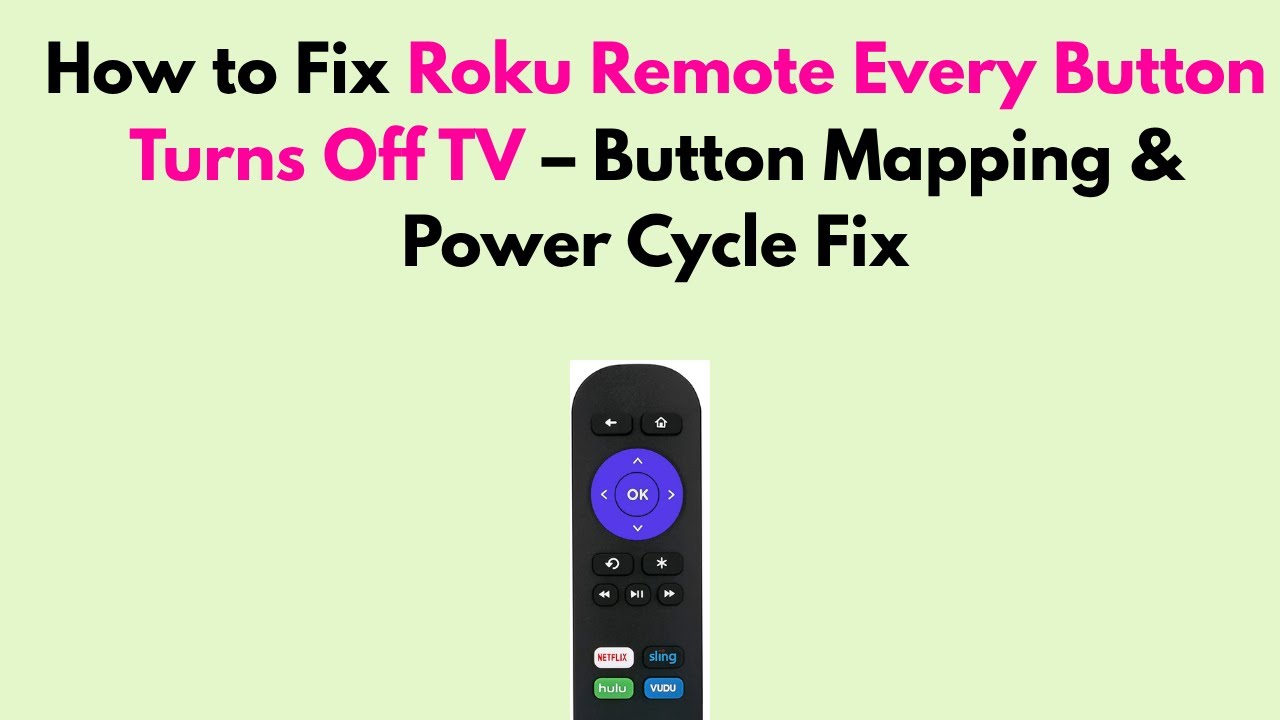
Not all Roku remotes are the same. If you have a Roku Streaming Stick, you need an enhanced remote. If you have a Roku Express, a simple IR remote will do. Using the wrong remote type can lead to issues, including the power-off problem.
Here’s a comparison of the main remote types:
| Remote Type | Works With | TV Control |
|---|---|---|
| Simple IR | Roku Express, older Roku models | No (except for Roku TV) |
| Enhanced (voice, point-anywhere) | Roku Streaming Stick, Roku Ultra | Yes |
| Roku TV Remote | Roku TVs | Yes |
If you recently replaced your remote, double-check it matches your Roku model. For instance, a simple IR remote won’t work with a Streaming Stick, and enhanced remotes may not pair with older devices.
Advanced Troubleshooting
If the basics don’t work, try these advanced fixes:
Update Tv Firmware Manually
Some TVs require a manual update. Check the manufacturer’s support page, download the latest update to a USB drive, and follow their instructions. Outdated TV firmware can cause remote issues even if the Roku is up to date. Always follow the TV maker’s directions exactly, as a failed update can cause more problems.
Test In A Different Room
Electronics in your room—like LED lights, routers, or even smart speakers—can cause IR interference. Move your Roku and TV to another room and test the remote. If it works there, something in your original room is causing interference.
This step is often overlooked but can quickly reveal environmental problems. Try turning off other electronics one by one to see if the problem goes away.
Remove All Other Hdmi Devices
Unplug all other devices from your TV’s HDMI ports except the Roku. Sometimes, game consoles, soundbars, or DVD players can confuse HDMI-CEC.
This is especially true if you have an AV receiver or a soundbar that also has HDMI-CEC enabled. Each device may try to “take over” the TV’s controls, leading to command conflicts.
Try A Universal Remote
If you have a universal remote, program it for your Roku. If it works properly, your original remote may be malfunctioning.
Universal remotes can also help you control multiple devices with one remote, reducing confusion and clutter. Make sure the universal remote supports your specific Roku model.
When To Contact Roku Or Tv Support
You’ve tried everything, but the problem won’t go away. At this point, contact Roku support or your TV’s manufacturer. Provide details:
- Roku model and software version
- TV brand and model
- Steps you’ve tried
Sometimes, there are known issues or recalls that only the manufacturer can address. Support teams might offer replacement remotes, advanced troubleshooting, or even firmware patches.
For more technical information about Roku remotes, you can visit the official Roku Support page.
Preventing Future Remote Issues
Once you solve the problem, a few simple habits will help prevent it from happening again:
- Replace batteries regularly—don’t wait for them to die. Mark your calendar to change them every six months.
- Keep your remote clean and away from food and drinks. Wipe it down gently with a soft cloth every few weeks.
- Update your Roku and TV firmware every few months. Set a reminder to check for updates at least quarterly.
- Use high-quality HDMI cables. Cheap or old cables can cause problems beyond just remote issues.
- Avoid stacking multiple remotes close to your TV. Store remotes separately to prevent signal confusion.
Real-world Example
Mary, a Roku user in Texas, suddenly found every button on her remote shut off her TV. She checked the batteries, cleaned her remote, and re-paired it. Nothing worked. The breakthrough? She turned off HDMI-CEC on her Samsung TV. The problem vanished.
Later, she bought a new HDMI cable, re-enabled CEC, and everything worked perfectly. This story shows how small details, like cable quality and TV settings, can make a big difference.
Another example: John in California tried three different remotes without success. Eventually, he discovered his universal remote—hidden under a stack of magazines—was stuck with the power button pressed, sending constant IR signals to the TV. Removing the batteries from the universal remote fixed the issue instantly.
Common Mistakes To Avoid
- Ignoring HDMI-CEC: Many users forget to check their TV’s CEC settings.
- Assuming the remote is always the problem: Sometimes, it’s the TV or other devices.
- Not updating firmware: Skipping updates can lead to avoidable bugs.
- Using low-quality batteries: Cheap batteries can cause signal problems.
- Overlooking IR interference: Bright LED bulbs and other remotes can disrupt signals.
- Forgetting to test with the Roku mobile app: The app can help separate remote and device issues.
Frequently Asked Questions
Why Does My Roku Remote Turn Off The Tv With Every Button Press?
This usually happens due to programming errors, stuck buttons, or HDMI-CEC confusion. Start by checking batteries, cleaning the remote, and reviewing your TV’s CEC settings. If you recently changed cables or added new devices, check those too.
Can I Fix This Problem Without Buying A New Remote?
Yes, most of the time you can fix it by re-programming the remote, disabling HDMI-CEC, or updating firmware. Only buy a new remote if there’s clear physical damage or nothing else works. Don’t forget to try the Roku mobile app for testing.
Is This Issue Dangerous For My Tv Or Roku Device?
No, it’s not dangerous. It’s a software or hardware confusion, not a problem that will harm your devices. But it can be very annoying until fixed. However, using leaking or corroded batteries can damage your remote, so always replace bad batteries promptly.
Should I Turn Off Hdmi-cec Permanently?
If HDMI-CEC is causing problems, it’s safe to turn it off. However, you’ll lose some “smart” features like one-remote control. If you like those features, try updating firmware and using quality cables before turning CEC off for good. Sometimes, just unplugging and re-plugging HDMI devices can reset the connection.
Will A Universal Remote Solve This Problem?
A universal remote can help, especially if your original Roku remote is faulty. Make sure the universal remote is programmed correctly for your TV and Roku model. Double-check compatibility before purchasing a new universal remote.
Final Thoughts
Having every button on your Roku remote turn off your TV is more than a small glitch—it can make streaming impossible. But with careful troubleshooting, most people can solve the issue at home. Check the basics like batteries and stuck buttons, look at HDMI-CEC settings, and don’t overlook things like firmware updates and cable quality.
If you try all these steps, you’ll likely get your Roku and TV working together again smoothly. Remember, patience and careful testing are key. If all else fails, reaching out to support or replacing your remote are good next steps.
With this guide, you’re well-equipped to handle and prevent this frustrating problem in the future.