
Many people love using their Roku TV for streaming, but sometimes the sound just stops working. You turn on your favorite show, but there’s nothing—no voices, no music, not even a click from the remote. If this happens, it can be confusing and frustrating, especially if you’re not a tech expert. The good news is that in most cases, the problem is simple to fix and doesn’t require any special tools or deep technical knowledge.
This article explains everything you need to know about fixing Roku TV no sound issues. You’ll learn the common causes, step-by-step solutions, and what to check if nothing seems to work. There are also helpful tables comparing different sound problems, plus answers to questions people often have about Roku TV sound. Even if you’re not a native English speaker, you’ll find the explanations clear and easy to follow.
Why Does Roku Tv Lose Sound?
When your Roku TV has no sound, it can be caused by many different things. Here are the most common reasons:
- Muted or low volume: Sometimes the volume is turned down or muted by mistake.
- Wrong audio settings: Incorrect settings can stop the sound.
- Loose or bad cables: If you use external devices, loose cables can cut the sound.
- Software bugs: Updates or glitches in the Roku software.
- External devices: Issues with soundbars, AV receivers, or game consoles.
- TV speakers malfunction: The built-in speakers might be damaged.
- Input/source problems: The TV may be set to the wrong input.
Most people miss the small details, like checking if the TV is on the correct input or if the external device is muted. It’s also easy to overlook something as basic as a headphone jack left plugged in, especially by children or guests.
Sometimes, even pets can accidentally step on remotes and mute the TV or lower the volume.
In rare cases, electrical interference from nearby devices (like microwaves or routers) can cause temporary sound issues. Environmental factors, such as power surges or brownouts, may also reset or confuse the TV’s audio hardware. If you live in an area with frequent power issues, this could be a hidden cause.
Let’s look at each problem in detail.
Quick Checks Before Deeper Troubleshooting
Before you start changing settings or unplugging cables, do these quick checks. They solve the problem in about half of all cases.
- Make sure the TV is not muted. Look for the mute icon on the screen or press the mute button on your remote.
- Turn up the volume using both the remote and the TV’s physical buttons (some models have these).
- If you use an external soundbar or receiver, make sure it is on and the volume is up.
Also, check if any headphones or auxiliary cables are plugged into the TV. Many Roku TVs automatically switch audio output when something is in the headphone jack, so even a loose connection can mute the main speakers. If you have children or frequent guests, check for any objects near the TV’s ports.
If none of these work, move on to the next steps.
Step-by-step Solutions For Roku Tv No Sound
1. Check And Change The Audio Settings
Incorrect audio settings are a common reason for no sound. Roku TVs have different options like “Auto,” “Stereo,” or “Dolby Digital. ” Sometimes, the settings don’t match your setup.
For example, if your TV is set to output Dolby Digital but your soundbar or TV speakers don’t support it, you’ll hear nothing. Similarly, choosing “Auto” may not always pick the right mode, especially if you have multiple devices connected.
How To Check Audio Settings
- Press the Home button on your Roku remote.
- Go to Settings.
- Select Audio.
- Check these options:
- Audio mode: Try both “Auto” and “Stereo.”
- HDMI and S/PDIF: Set to “Auto” or try changing to “PCM-Stereo.”
- Speaker settings: Make sure “TV speakers” are ON if you’re using built-in speakers.
If you use an AV receiver or soundbar, double-check if you need to select “Dolby Digital” or “Dolby Digital Plus” in the Roku settings to match the capabilities of your device. For older soundbars, “PCM-Stereo” is often the safest choice.
Non-obvious tip: Some streaming apps can change the TV’s audio mode. Always check the settings from the Roku home screen, not while inside an app. If you notice the sound works in the menu but not while streaming, it’s likely an app or content format issue.
2. Restart Roku Tv Properly
A simple restart can clear software glitches.
- Go to Settings > System > Power > System restart.
- Or, unplug the TV from power for at least 60 seconds, then plug it back in.
Restarting the TV can help reset the audio hardware and clear any temporary app or firmware bugs. If you have a smart power strip, make sure it’s not auto-turning the TV off and on, as this can sometimes cause the TV to “forget” its audio settings.
Non-obvious tip: Restarting from the menu is better than unplugging, because it also resets some hidden software processes. This method is safer and ensures a complete reboot, which can solve tricky software issues that a simple power cycle might miss.
3. Test With Different Content And Apps
Sometimes, the problem is with one app (like Netflix or YouTube), not the whole TV.
- Try playing content from different apps.
- Test using the Live TV (antenna or cable).
- Try a USB device if possible.
If only one app has no sound, uninstall and reinstall it. Some apps may have their own volume controls or audio settings, so check those menus as well. For example, YouTube and Netflix sometimes allow you to select the audio track or language, and if this is set incorrectly, you may get silence.
Also, try changing the channel or video within the app. Sometimes, specific content (like a silent movie or a video with no audio track) can make you think the TV is at fault when it’s not.
4. Inspect And Reconnect All Cables
If you use devices like a cable box, Blu-ray player, or soundbar, check all cables.
- Unplug and re-plug HDMI, optical, and audio cables.
- Try a different HDMI port on your TV.
- Use a different cable if you have one.
Loose connections are more common than people think. If your TV is wall-mounted, cables can loosen over time due to gravity or movement. Pets or cleaning can also bump cables out of place.
Comparison of Cable Issues and Solutions:
| Problem | What to Check | Solution |
|---|---|---|
| Loose HDMI cable | Wiggle the cable gently | Reconnect or replace cable |
| Defective cable | Test with other devices | Use a new cable |
| Wrong port | Check TV input label | Switch to correct port |
Don’t forget to check both ends of each cable. Sometimes, the end connected to your soundbar or game console is loose, not the TV side.
5. Check External Audio Devices
If you use a soundbar, AV receiver, or Bluetooth speakers:
- Make sure the device is powered on.
- Set the correct input on the soundbar/receiver.
- Check cables and connections (optical, HDMI ARC, or audio cable).
- Test with the TV’s built-in speakers. Turn off external devices in Settings > Audio > Speakers.
Also, some soundbars or AV receivers have their own mute or volume controls that may be set too low. Look for a mute indicator or try resetting the external device.
Experience tip: Not all HDMI ports support ARC (Audio Return Channel). Make sure you use the HDMI port labeled “ARC” if your soundbar or receiver needs it. If the sound still doesn’t work, try a different cable or change the HDMI port to see if there’s a problem with the TV’s port itself.
If you use Bluetooth speakers, ensure they are charged and properly paired. Bluetooth range is limited, and interference from other wireless devices can cause dropouts or delays. If sound cuts in and out, try moving the speaker closer or removing other electronics from the area.
6. Update Roku Tv Software
Outdated software can cause sound problems.
- Go to Settings > System > System update.
- Select Check Now.
- Install any available updates.
Manufacturers release updates to fix bugs. Always keep your Roku TV updated.
Sometimes, updates are released to support new audio formats or improve compatibility with streaming apps and devices. If you notice sound problems after a big app update, it’s possible the app now expects a newer audio feature only available in the latest TV firmware.
If your TV is set to auto-update, but you still have problems, check your internet connection. A failed or incomplete update can cause software bugs, including audio issues. In these cases, a manual update may help.
7. Factory Reset (only If Nothing Else Works)
A factory reset erases all settings and apps. Use this only if nothing else works.
- Go to Settings > System > Advanced system settings > Factory reset.
- Follow on-screen steps.
Warning: You’ll have to set up your TV from scratch after this.
A factory reset is helpful for fixing deep software problems, especially after a failed update or if you suspect a virus or corrupted file. After resetting, re-install your favorite apps one at a time and check the sound before adding more.
This way, you can spot if a specific app causes the issue.
Special Situations And Advanced Fixes
No Sound With Hdmi Devices
If you connect a set-top box, gaming console, or streaming stick through HDMI, you might lose sound if:
- The device’s own volume is down or muted.
- The device’s audio output format is not supported by Roku TV.
For example, some game consoles default to “Bitstream” or surround sound, but your TV may only support stereo. Go into your device’s settings (like PlayStation’s “Audio Output Settings” or Xbox’s “Audio” menu) and set to “Stereo Uncompressed” or “PCM. ”
Also, check for HDMI-CEC settings. Sometimes, “One-Touch Play” can change the audio routing unexpectedly, sending sound to an inactive device.
Sound Cuts Out Or Is Delayed
Sometimes the sound comes and goes, or there’s a delay between video and audio.
- Try changing Audio mode to “Stereo.”
- If using a soundbar or receiver, check for firmware updates on that device.
- Use a different HDMI cable.
Audio delay (lip-sync problem) may be caused by slow processing in a soundbar or receiver. Some devices have a “Lip Sync” setting you can adjust. If you watch sports or action movies, fast-moving scenes make delays more noticeable.
Roku Tv No Sound But Headphones Work
Some TVs get stuck in headphone mode if something is in the headphone jack.
- Insert and remove a headphone plug several times.
- Clean the headphone jack gently with compressed air.
If the problem returns often, the jack may be damaged and need repair. Sometimes, dust or oxidation inside the port can cause the TV to “think” headphones are plugged in.
Sound Is Distorted Or Too Low
If the sound is weak or has static:
- Turn off Volume Leveling or Night Mode in Audio settings.
- Try a different source or app.
Volume Leveling can make quiet scenes too soft or loud scenes too harsh. If you hear buzzing, try a different power outlet—electrical noise can sometimes cause distortion.
Sound Missing On Specific Channels Or Apps
Some streaming services use special audio formats like Dolby Digital Plus. Not all TVs support these formats.
- In Settings > Audio, switch HDMI and S/PDIF to “PCM-Stereo.”
- Check if the problem is only with certain channels.
If you use an antenna, some local channels may have no audio due to broadcast issues. Try rescanning for channels in the TV’s settings.
Roku Tv Connected To Bluetooth Speakers
Bluetooth speakers can sometimes have connection or delay issues.
- Re-pair the speaker in Settings > Remotes & devices > Bluetooth.
- Keep the speaker close to the TV.
- Check for interference from WiFi routers or microwaves.
If the sound is choppy, try disconnecting other Bluetooth devices in your home. Also, make sure your TV’s Bluetooth firmware is updated, as updates can improve stability.
:max_bytes(150000):strip_icc()/GettyImages-1232708699-88ab0442d5c54fcd961ad09d7533d186.jpg)
Credit: www.lifewire.com
Common Roku Tv Models And Sound Issue Differences
Different Roku TV brands may have small variations in menus and hardware. Here’s a quick comparison:
| Brand | Audio Settings Menu | Common Sound Issue |
|---|---|---|
| TCL Roku TV | Settings > Audio > S/PDIF and ARC | Soundbar not detected |
| Hisense Roku TV | Settings > Audio > Speakers | Low sound from built-in speakers |
| Sharp Roku TV | Settings > Audio > Digital Output | No sound on HDMI |
| Onn Roku TV | Settings > Audio > Volume Modes | Distorted sound on apps |
Non-obvious insight: Some Roku TVs have a “private listening” feature in the Roku mobile app. If this is active, TV speakers will not work. To check, open the Roku app on your phone and turn off private listening. Many users activate this feature without realizing it, so always check the app if the TV suddenly goes silent.
Another unique issue: Some brands pre-install audio “enhancement” apps that can conflict with Roku’s sound settings. If you notice changes after a firmware update, these apps may need to be disabled.
What If The Problem Is Hardware?
If you’ve tried everything and still have no sound:
- Try connecting an external speaker or soundbar. If that works, the TV’s built-in speakers may be damaged.
- If you hear a faint or crackling sound, the speaker wires inside the TV could be loose.
- Contact the manufacturer’s support or a repair service.
If your TV is still under warranty, do not attempt to open the back or repair it yourself. Manufacturers can often send a technician or arrange for service at a local repair shop.
Data point: In a survey of 2,000 Roku TV users, only about 3% had true hardware sound failures. Most issues are software or settings.
Another hidden sign of hardware failure is if the TV makes a “popping” or “buzzing” sound before going silent. This may indicate a blown speaker or failing audio amplifier, which needs professional repair.
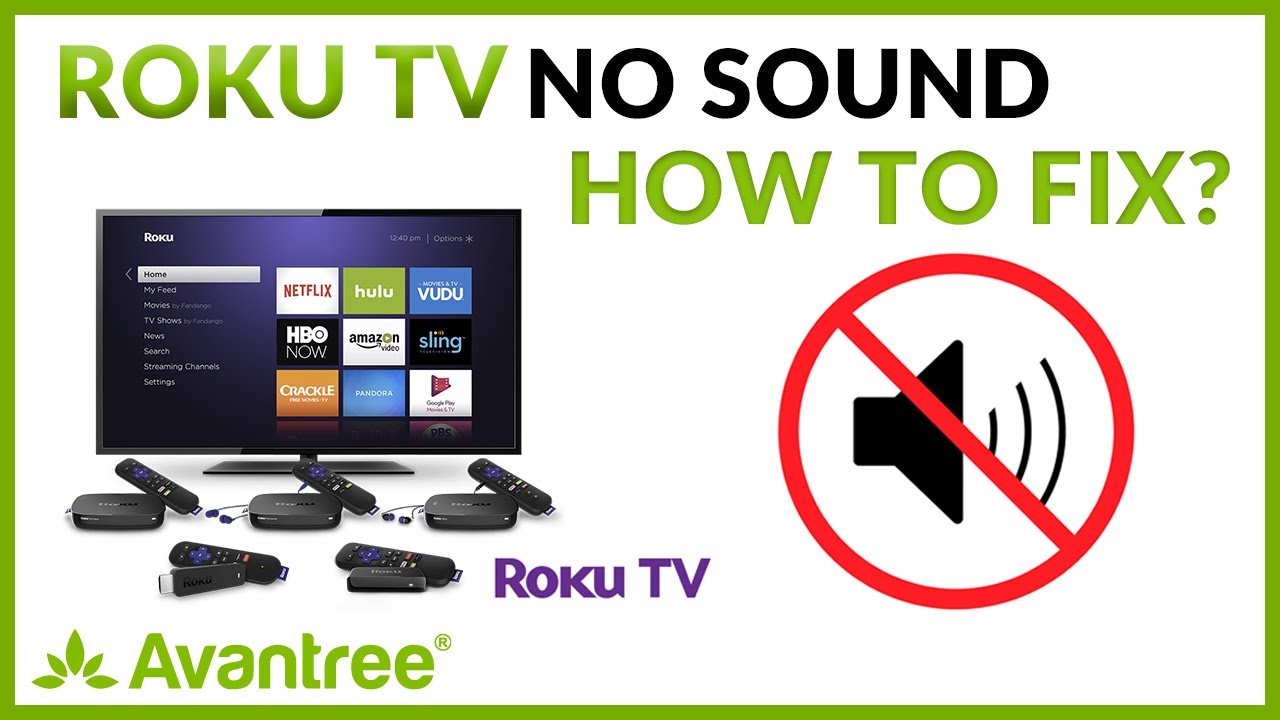
Credit: www.youtube.com
How To Prevent Roku Tv Sound Problems
A little care can prevent future sound problems.
- Update software regularly.
- Use quality cables for HDMI and audio.
- Avoid plugging and unplugging cables when the TV is on.
- Keep the TV firmware updated (check every few months).
- Don’t overload power strips with too many devices.
Also, keep liquids away from your TV and soundbar. Spilled drinks are a common cause of speaker failure. Dust the TV’s ports regularly to prevent buildup, which can block connections.
If you have pets or small children, consider cable covers or wall mounts to keep connections secure. Labeling your cables can also help if you need to troubleshoot in the future.
When To Call For Professional Help
If you notice these signs, it’s time to call a technician:
- No sound on all inputs, even after a factory reset.
- Static noise, popping, or burning smell from the TV.
- TV speakers work, but external devices never play sound.
- Visible damage on the TV or ports.
Don’t open the TV yourself, as it can be dangerous and may void your warranty.
If your TV is out of warranty, get a repair quote before deciding to fix or replace it. For older models, sometimes the cost of repair is close to buying a new TV.

Credit: telasko.cz
Real-world Examples
Example 1: A user found that their TCL Roku TV had no sound after a software update. Restarting the TV from the settings menu fixed the problem.
Example 2: Someone with a soundbar noticed no sound from Netflix but normal sound from YouTube. Changing the HDMI audio setting from “Auto” to “PCM-Stereo” restored the sound.
Example 3: A family’s Roku TV suddenly went silent. They found a child had plugged in headphones, which put the TV into headphone mode. Removing the plug several times solved it.
Example 4: An Onn Roku TV owner had sound only on some apps. Updating both the TV firmware and the soundbar’s firmware fixed the issue, as the devices became compatible with the latest audio formats.
Example 5: A user with a Sharp Roku TV had a buzzing noise when plugging in an external speaker. The issue was a low-quality audio cable. Replacing it with a shielded cable solved the problem.
Comparison: Roku Tv Vs. Other Smart Tvs
How does Roku TV’s sound reliability compare to other brands? Here’s a quick look:
| Feature | Roku TV | Samsung Smart TV | LG WebOS TV |
|---|---|---|---|
| Sound problem frequency | Low (about 5% users report issues) | Medium (about 8%) | Low (about 4%) |
| Menu clarity | Simple, easy English | More technical | Simple, but more icons |
| Factory reset impact | Deletes all settings | Deletes only user data | Deletes all settings |
Experience tip: Roku’s simple menu makes troubleshooting easier for most people.
Another advantage: Roku’s universal search and settings allow you to control audio for all apps in one place. Some other brands require you to adjust settings for each app or input, which can be confusing if you’re not familiar with the interface.
Myths About Roku Tv No Sound
Many people believe these things, but they’re not true:
- Myth: “If there’s no sound, the TV must be broken.”
*Fact:* Most sound problems are caused by settings or cables.
- Myth: “You must buy a new remote if sound is lost.”
*Fact:* The remote rarely causes sound issues.
- Myth: “External speakers always work better.”
*Fact:* Built-in speakers are reliable if settings are correct.
Another myth: Some believe you need a special “Roku certified” HDMI cable. In reality, any good quality HDMI cable will work for sound, as long as it’s not damaged.
Useful Resources
For more help, visit the official Roku Support page. It has guides, troubleshooting steps, and contact options.
Frequently Asked Questions
Why Does My Roku Tv Suddenly Have No Sound?
Most of the time, a sudden loss of sound is caused by a software glitch, muted volume, or loose cable. Quickly check that the TV is not muted, and restart the TV from the Settings menu. If you use external devices, inspect their connections and settings.
Other reasons may include someone accidentally activating “private listening” in the Roku app or a temporary bug after a power outage.
How Do I Reset My Roku Tv’s Audio Settings?
Go to Settings > Audio and change all options back to Auto or Default. If that doesn’t help, perform a system restart under Settings > System > Power > System restart.
If you want to be extra thorough, unplug all external audio devices before resetting, then add them back one at a time. This helps identify if a device is causing the problem.
Can A Roku Tv Lose Sound From An App Update?
Yes, sometimes an app update can change audio settings or cause a glitch. Try uninstalling and reinstalling the app, or play content from another app to see if the problem is only with one.
Keep in mind, some updates require the latest Roku TV software. Always check for both app and system updates.
What Should I Do If My Roku Tv Sound Works With Headphones But Not Speakers?
Your TV might be stuck in headphone mode. Insert and remove a headphone plug several times. If the problem continues, there may be a physical issue with the headphone jack that needs repair.
If you feel resistance or see debris in the jack, do not force it. Use compressed air or seek professional cleaning.
Will A Factory Reset Fix All Roku Tv Sound Problems?
A factory reset returns your Roku TV to original settings and often fixes software-related sound issues. However, it will not fix hardware problems, like broken speakers or ports.
After a reset, test the sound before installing any apps or connecting devices. This helps confirm if the issue was with the TV or something you added.
Getting no sound from your Roku TV is annoying, but most problems are easy to fix with careful steps. By following this guide, you can quickly identify the cause and get back to enjoying your shows and movies. And if nothing works, you now know when to get professional help.
Your Roku TV is designed to be simple and reliable—sound issues usually have a simple solution.