
Is your Samsung TV’s power light blinking, leaving you puzzled and unsure what to do next? Those blinking lights aren’t random—they’re actually a secret code from your TV, trying to tell you what’s wrong.
Understanding Samsung TV blink codes can save you time, money, and frustration by helping you identify the issue quickly. Whether your screen won’t turn on or the red light keeps flashing, this guide will walk you through the common blink patterns and what they mean for your TV.
Keep reading to learn how to decode these signals and get your Samsung TV back to perfect working order.

Credit: www.youtube.com
Samsung Blink Codes Explained
Samsung TVs use blink codes to signal internal issues. These codes help identify problems quickly. The blinking light on the TV is not random. It follows specific patterns to indicate different errors. Understanding these codes saves time and guides repair efforts.
Common Blink Patterns
Samsung TVs show several blink patterns. Each pattern involves a set number of flashes followed by pauses. For example, a single blink repeats after a pause. Two or three blinks form another pattern. Fast blinking can also occur, signaling more serious issues. Knowing these patterns helps users describe the problem accurately to technicians.
What Each Blink Means
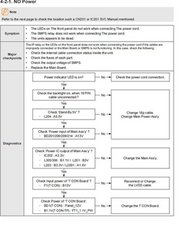
Each blink pattern corresponds to a specific error. One blink often means a power supply issue. Two blinks usually point to a main board failure. Three blinks can indicate a T-Con board problem. Fast blinking may signal a failed software update or boot error. These codes are diagnostic tools built into Samsung TVs. They guide users and repair experts toward the root cause of the problem.
Credit: www.ifixit.com
Diagnosing Power Issues
Diagnosing power issues is the first step to fix a Samsung TV that shows blink codes. These codes often signal power problems. Understanding the basic checks helps to find the root cause fast. This section guides you through simple steps to diagnose power issues effectively.
Checking Power Connections
Start by examining the power cord and connections. Make sure the power cable is firmly plugged into the TV and the wall outlet. Loose or damaged cables can cause blinking lights and power failures. Look for any visible damage or wear on the cord. If the cable is damaged, replace it with a new one to avoid hazards.
Testing The Power Outlet
Check the power outlet by plugging in another device, like a lamp or phone charger. This step confirms if the outlet supplies power correctly. Sometimes, outlets may be faulty or controlled by a switch that is off. Try using a different outlet to see if the TV powers on. Avoid using surge protectors during this test, as they might cause issues.
Power Reset Techniques
Perform a power reset to clear minor faults. Unplug the TV from the power source and wait for about one minute. Press and hold the TV’s power button for 10 seconds to drain any leftover power. Plug the TV back in and turn it on. This reset often resolves temporary glitches that cause blinking codes. Repeat the process if needed before seeking further help.
Troubleshooting Software Errors
Software errors can cause your Samsung TV to blink its standby light in specific patterns. These blink codes help identify problems during system updates or while the TV boots. Understanding these signals allows you to troubleshoot issues quickly. Follow simple steps to fix software-related errors without needing professional help.
Failed Software Update Indicators
A constant fast blinking red light often means a software update failed. Your TV may not start properly after an update. This error can occur if the update was interrupted or corrupted. Watch for repeated blinking patterns to confirm the issue. It shows the TV needs attention before normal use can resume.
Performing A Hard Reset
To fix software errors, try a hard reset. Unplug the TV from the power outlet. Wait at least 60 seconds to clear temporary files. Plug the TV back in and turn it on. This resets the system and often resolves update or boot errors. It is the easiest step to refresh your TV’s software state.
Using Secret Reset Codes
Samsung TVs have hidden reset codes for deeper troubleshooting. Enter these codes using your remote control to access service menus. Use codes like 0 or Info + Menu + Mute + Power on certain models. These commands can restore factory settings or force system checks. Handle these codes carefully to avoid unwanted changes.
External Device Interference
External device interference can cause your Samsung TV’s blink codes. These codes often signal connection or hardware conflicts. Understanding how to isolate these issues can save time and restore your TV’s normal function.
Sometimes, devices connected via HDMI or the One Connect cable may send conflicting signals. This interference may prevent the TV from starting properly or cause it to blink error codes repeatedly. Removing or testing these devices can help identify the culprit.
Unplugging Hdmi Devices
Disconnect all HDMI devices from your Samsung TV. This includes gaming consoles, streaming boxes, and Blu-ray players. After unplugging, power on the TV to check if the blinking stops.
Many times, one faulty or incompatible HDMI device causes the issue. Testing without these devices narrows down the problem quickly. If the TV turns on normally, plug in each device one at a time. This helps identify the problematic device causing interference.
Testing Without One Connect Cable
Samsung TVs using a One Connect cable may experience interference from this connection. Unplug the One Connect box and power on the TV alone. Observe if the blinking light still appears.
This test confirms whether the One Connect cable or connected devices cause the error. If the blink codes stop, the problem lies with the cable or attached devices. Repair or replace the cable to fix the issue.
Remote Control Problems
Remote control issues often cause frustration with Samsung TVs. The blinking red light on your TV may signal a problem with the remote. This section explains common signs of remote malfunctions and simple solutions to fix them.
Understanding these problems helps you decide the best way to restore full control of your TV. Often, the remote can be reset or replaced to solve the issue quickly.
Signs Of Remote Malfunction
The TV does not respond to remote commands. Buttons on the remote feel sticky or unresponsive. The red light on the TV blinks when pressing buttons. The remote works only at close range. The batteries drain quickly or show corrosion. These signs usually mean the remote is not working properly.
Resetting Or Replacing The Remote
Remove the batteries from the remote and wait for one minute. Press every button to discharge any remaining power. Insert fresh batteries and test the remote again. If this does not fix the problem, try resetting the remote by pairing it with the TV again. For smart remotes, hold the Return and Play/Pause buttons at the same time for five seconds.
If the remote still fails, consider buying a replacement remote. Check the model number to get the correct one for your Samsung TV. Using the original remote or a certified replacement ensures compatibility and better performance.

Credit: www.scribd.com
Advanced Troubleshooting Tips
Advanced troubleshooting tips help solve complex Samsung TV blink code issues. These tips go beyond basic fixes. They guide you through checking the TV’s internal parts. Understanding these steps can save time and money. They help avoid unnecessary repairs or replacements.
Checking Internal Hardware
Open the back panel carefully to inspect internal hardware. Look for loose or disconnected cables inside the TV. Check the power board for visible signs of damage or burning. Examine the main board for swollen or leaking capacitors. These parts often cause blink codes when faulty.
Use a multimeter to test voltage output from the power board. Low or no power can trigger blinking errors. Clean dust and debris from inside the TV. Dust can cause overheating and hardware failure. Reassemble the TV only after ensuring all parts are secure.
When To Contact Samsung Support
Contact Samsung support if the blink codes persist after hardware checks. Professional help is needed for advanced or hidden issues. Avoid opening the TV further to prevent warranty loss. Samsung technicians have tools to diagnose software and hardware faults accurately.
Reach out when the TV shows multiple or fast blinking sequences. These codes often signal serious internal problems. Also, seek support if the TV won’t turn on despite power resets. Timely contact can prevent further damage and higher repair costs.
Frequently Asked Questions
What Does 2 Blinks Mean On Samsung Tv?
Two blinks on a Samsung TV usually indicate a hardware or power supply issue. Check power connections and reset the TV.
How Do You Do A Hard Reset On A Samsung Tv?
To hard reset a Samsung TV, unplug it from power for 60 seconds. Then, press and hold the power button on the TV for 10 seconds. Plug the TV back in and turn it on. This clears temporary glitches and restores factory settings.
How To Fix Samsung Tv With Blinking Red Light?
Unplug your Samsung TV from the power outlet for 60 seconds, then plug it back in. Check all cable connections and remove external devices. Test the remote control by pressing the TV’s physical power button. If blinking continues, contact Samsung support for further diagnosis.
What Is The Secret Code To Reset Samsung Tv?
The secret code to reset a Samsung TV is 1-8-2-8 on the remote. Enter this code to access the service menu for resetting. Use it carefully to avoid unwanted changes.
What Do Samsung Tv Blink Codes Mean?
Samsung TV blink codes show specific errors or issues inside the TV. Each pattern helps identify the problem. It’s a way for the TV to communicate faults.
Conclusion
Samsung TV blink codes help identify specific problems quickly. Watching the pattern of flashes gives clues about the issue. Basic checks like unplugging and reconnecting cables often fix common errors. Removing external devices can reveal if one causes trouble. Power resets refresh the TV’s system and clear minor faults.
Understanding these blink codes saves time and avoids unnecessary repairs. Keep this guide handy for easy troubleshooting. Your Samsung TV can work smoothly with simple, clear steps. Stay calm and follow the blink code signals carefully.