
If you own a Samsung TV and enjoy home theater audio, you may have noticed a frustrating issue: the Dolby Digital option in your TV’s sound settings is sometimes greyed out. This problem can make it hard to get the best sound quality for movies, games, and streaming apps. If you’re struggling to enable Dolby Digital, you’re not alone. Many Samsung TV owners face this issue, and it can be confusing, especially if you’re not an audio or tech expert.
In this article, you’ll learn why Dolby Digital is greyed out on Samsung TVs, what causes it, and—most importantly—how to fix it. We’ll explore different setups, explain technical terms in simple words, and give you clear, step-by-step advice. Whether you use a soundbar, AV receiver, or just your TV speakers, you’ll find practical solutions here.
You’ll also discover tips that many beginners miss, so you can avoid common mistakes and enjoy the full power of your TV’s sound system.
What Does “dolby Digital Greyed Out” Mean?
When you go to the Audio Output or Expert Settings menu on your Samsung TV, you may see the Dolby Digital option. Sometimes, it’s selectable. Other times, it’s greyed out—meaning you can see it, but you can’t choose it. This means your TV won’t send Dolby Digital audio to your soundbar or receiver. Instead, it might use stereo (2.0) or another lower-quality format.
This issue is frustrating because Dolby Digital is one of the best ways to get surround sound. Many streaming services, Blu-ray discs, and games use this format. If you can’t select it, you miss out on richer, more immersive sound.
Why Is Dolby Digital Important?
Dolby Digital is a popular audio technology that provides surround sound. It lets you hear sounds from different directions—like a car passing behind you or rain falling around you. Here’s why it matters:
- Better Movie and Game Experience: With Dolby Digital, you hear audio as the creators intended.
- Clearer Dialogue: It can separate voices from background music and effects.
- More Powerful Bass: It supports subwoofers for deeper sound.
- Works With Most Home Theater Gear: Soundbars, AV receivers, and many speakers are designed for Dolby Digital.
If your TV only sends stereo audio, you lose these benefits.
Common Causes: Why Is Dolby Digital Greyed Out?
This problem can happen for many reasons. Here are the most common:
- Source Content Doesn’t Support Dolby Digital: Not every TV channel, app, or device sends Dolby Digital audio.
- Wrong Audio Output Setting: If the TV is set to “TV Speaker” or “PCM,” Dolby Digital won’t be available.
- HDMI or Optical Cable Issues: Some cables don’t support Dolby Digital, or you may be using the wrong port.
- External Device Limitations: If you use a set-top box, game console, or streaming stick, it may not send Dolby Digital to your TV.
- App or Streaming Service Limitation: Some apps on Samsung TVs only support stereo, not surround sound.
- TV Model or Firmware Restriction: Older or budget Samsung TVs may have limited audio features. Firmware bugs can also cause issues.
- ARC vs. eARC Confusion: Not all HDMI ports support audio return channel (ARC/eARC), which is needed for Dolby Digital.
Understanding these causes is key to finding the right fix.
How To Check If Your Tv Supports Dolby Digital
Before trying to fix the problem, confirm that your TV model supports Dolby Digital output. Here’s how:
- Check the Manual: Find the “Audio” section for supported formats.
- Look for HDMI ARC or eARC: These ports usually support Dolby Digital.
- Visit Samsung’s Official Website: Search your model number for full specs.
- Test With a Known Dolby Digital Source: For example, play a movie on Netflix that lists “5.1” audio.
Most Samsung TVs made after 2016 support Dolby Digital over HDMI ARC or optical output. However, some entry-level models may only support PCM (stereo) output.
Main Fixes For Samsung Tv Dolby Digital Greyed Out
Now let’s solve the problem step by step. Try these solutions in order. Each solution works for a different cause, so you may need to test more than one.
1. Change Audio Output From Pcm To Bitstream
Samsung TVs let you choose between PCM and Bitstream for audio output. PCM sends stereo sound, while Bitstream allows Dolby Digital.
Steps:
- Press the Home button on your remote.
- Go to Settings > Sound > Expert Settings.
- Find Digital Output Audio Format.
- If set to PCM, change it to Bitstream.
- Now check if Dolby Digital is selectable.
Non-obvious tip: Bitstream is required for surround sound formats. PCM will always grey out Dolby Digital, even if your content supports it.
2. Use The Right Hdmi Or Optical Port
Dolby Digital is only available on some ports:
- HDMI ARC or eARC: Needed for most soundbars and AV receivers.
- Optical (Toslink): Also supports Dolby Digital.
Steps:
- Find the HDMI port on your TV labeled ARC or eARC.
- Plug your soundbar or receiver into this port.
- If using optical, use a high-quality cable.
- Set the TV’s audio output to Receiver (HDMI) or Optical.
Practical insight: Regular HDMI ports (not ARC/eARC) may not send audio from TV apps to your soundbar/receiver.
3. Confirm Your Source Content Supports Dolby Digital
Some shows, movies, and games only have stereo audio. To test:
- Use a streaming app like Netflix or Disney+.
- Play a movie with the “5.1” or “Dolby Digital” logo.
- Check if Dolby Digital becomes available in the TV menu.
If you only see stereo content, Dolby Digital will stay greyed out.
Beginner mistake: Testing with news channels or basic YouTube videos, which rarely have surround sound.
4. Update Your Tv’s Firmware
Firmware bugs can cause audio options to disappear. To update:
- Press Home > Settings > Support > Software Update.
- Choose Update Now.
- Let the TV download and install updates.
- Restart the TV and check the audio menu again.
Non-obvious benefit: Updates can add new audio features or fix known Dolby Digital bugs.
5. Check App Or Device Settings
If you use an external device (like a Roku, Apple TV, or Xbox), you may need to enable Dolby Digital on that device.
For example:
- On Apple TV: Go to Settings > Video and Audio > Audio Format and select Dolby Digital 5.1.
- On Xbox: Set audio output to Bitstream and choose Dolby Digital.
If the external device is set to PCM, the TV will only receive stereo.
6. Reset The Audio Settings
If settings are corrupted, resetting can help.
Steps:
- Go to Settings > Sound > Expert Settings.
- Scroll to Reset Sound.
- Confirm the reset.
- Re-configure audio output to Bitstream or Dolby Digital.
This is useful if you’ve tried many changes and nothing works.
7. Try A Different Streaming App
Not all apps on Samsung TVs support Dolby Digital. For example, some versions of YouTube, Hulu, or local TV apps may only offer stereo sound.
- Test with a different app like Netflix or Prime Video.
- If Dolby Digital becomes available, the issue is with the app—not your TV.
Insider tip: Sometimes, using a streaming stick (like a Fire TV or Chromecast) instead of the built-in TV app can solve the issue.
8. Use The Correct Cable And Settings
If you use an optical cable, make sure:
- The cable is not old or damaged.
- The TV is set to output audio through optical.
- Your soundbar or receiver supports Dolby Digital over optical.
HDMI ARC/eARC is often more reliable for Dolby Digital than optical, especially with newer TVs and soundbars.
9. Enable Hdmi-cec And Arc
HDMI-CEC (called Anynet+ on Samsung TVs) controls devices over HDMI and is required for ARC.
Steps:
- Go to Settings > General > External Device Manager.
- Turn on Anynet+ (HDMI-CEC).
- Reconnect your soundbar or receiver.
Without CEC, ARC may not work, causing Dolby Digital to be unavailable.
10. Factory Reset As A Last Resort
If nothing else works, do a factory reset.
Steps:
- Settings > General > Reset.
- Enter your PIN (default is 0000).
- Follow the prompts to reset.
- Set up your TV from scratch.
This will fix deep software issues but will erase all your preferences.
Hdmi Arc Vs. Earc: What’s The Difference?
Many users are confused about ARC and eARC. Here’s a quick comparison:
| Feature | ARC | eARC |
|---|---|---|
| Max Audio Quality | Dolby Digital, DTS (lossy) | Dolby TrueHD, DTS-HD MA (lossless) |
| Supported Cables | Standard HDMI (with ARC) | High-Speed HDMI with Ethernet |
| Control Features | Basic | Advanced (better lip sync, more devices) |
| Release Year | 2010s | 2018+ |
If your soundbar or receiver supports eARC, use it for the best audio. For Dolby Digital, regular ARC is enough, but eARC is future-proof.

Pcm Vs. Bitstream Vs. Dolby Digital: What’s The Difference?
This is a common source of confusion. Here’s a simple breakdown:
| Audio Format | Channels | Use Case | Supports Surround? |
|---|---|---|---|
| PCM | 2.0 (Stereo) | Basic TV audio, headphones | No |
| Bitstream | 2.0, 5.1, 7.1 | Home theater, soundbars | Yes |
| Dolby Digital | 5.1 (Standard) | Movies, games, streaming | Yes |
To get surround sound, always use Bitstream or Dolby Digital. PCM will limit you to stereo.
Real-world Examples: When Dolby Digital Is Greyed Out
Let’s look at some real-life situations to help you understand the problem better.
Example 1: Streaming Apps
You open Netflix on your Samsung TV and play a movie labeled as “5. 1. ” You connect your soundbar via HDMI ARC. But Dolby Digital is still greyed out. Why?
- Solution: Check if the TV audio output is set to Bitstream, not PCM. Some soundbars need you to select “Receiver (HDMI)” as the output.
- Non-obvious factor: If you’re using an older HDMI cable, try a newer high-speed one.
Example 2: Gaming Console
You connect your Xbox or PlayStation to your TV. Games support surround sound, but the TV won’t let you pick Dolby Digital.
- Solution: Go into your console’s audio settings and set the output to Bitstream or Dolby Digital. Some consoles default to stereo PCM.
Example 3: Over-the-air Tv Broadcast
You watch local news or a sitcom on antenna TV. Dolby Digital is greyed out.
- Reason: Many TV broadcasts only send stereo audio, so Dolby Digital is not available.
Example 4: Using An Optical Cable
Your soundbar is connected via optical cable, but you still can’t pick Dolby Digital.
- Solution: Check that your soundbar supports Dolby Digital over optical. Some entry-level models only support stereo on optical input.
Insider tip: If your soundbar has HDMI ARC, use that instead of optical for better reliability.
Hidden Settings And Advanced Fixes
Some Samsung TVs have hidden menus or advanced settings. Use these only if you’re comfortable with technical steps.
Accessing The Service Menu
The service menu lets you change deep settings, but changing the wrong option can break your TV.
- To access: With the TV off, press a special remote sequence (often Info > Menu > Mute > Power).
- Only use if you’ve tried everything else and know what you’re doing.
Changing Digital Output Delay
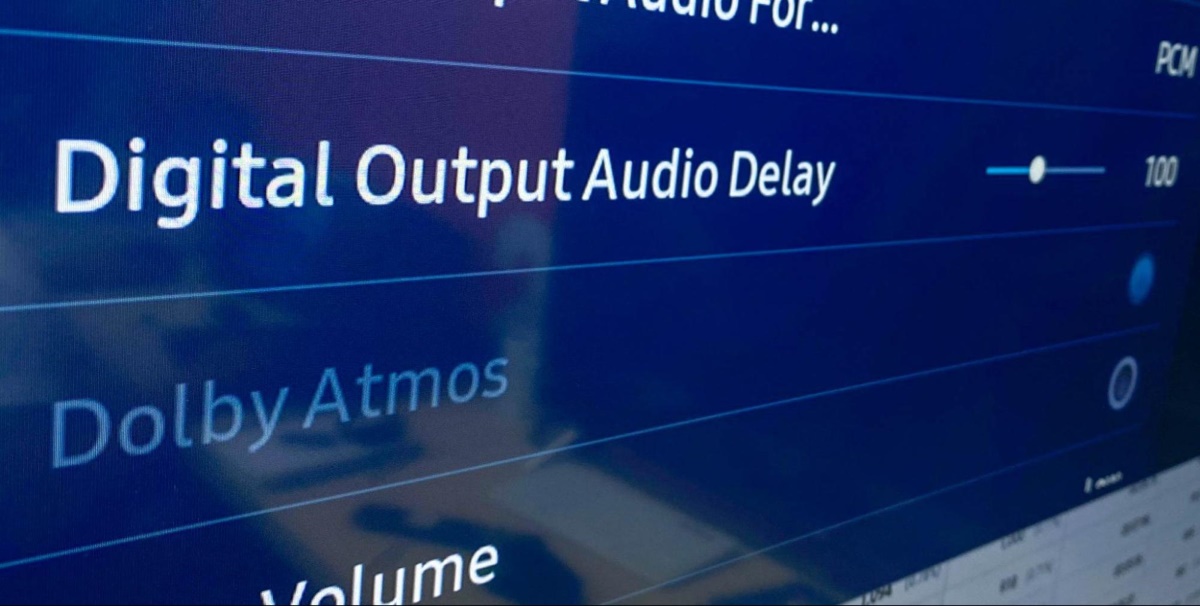
Sometimes, audio delay settings can interfere with Dolby Digital. In Expert Settings, try setting Digital Output Audio Delay to zero.
Switching Audio Priorities
If your TV has “Audio Format Priorities,” set Dolby Digital as the top priority.
Warning: Advanced settings can be risky. Write down your changes in case you need to undo them.
Differences Between Samsung Tv Models
Samsung releases many TV models each year. Not all have the same audio features. Here are some key differences:
- Entry-level models (Series 5, 6): May have limited Dolby Digital support, especially on optical.
- Mid-range models (Series 7, 8): Usually support Dolby Digital over HDMI ARC and optical.
- Premium models (QLED, Neo QLED, The Frame): Support Dolby Digital, Dolby Atmos (on newer models), and advanced HDMI eARC.
Pro tip: Look for the “Dolby Digital Plus” logo in your manual or specs. This means the TV can handle newer surround formats as well.
When To Contact Samsung Support
If you’ve tried every solution and Dolby Digital is still greyed out, there may be a hardware or software fault. It’s time to contact Samsung Support if:
- You updated your TV and lost Dolby Digital.
- Other users with your model can select Dolby Digital, but you can’t.
- Your soundbar/receiver works with other TVs, but not yours.
Prepare your model number, a description of the issue, and a list of what you’ve tried. Samsung may guide you through additional steps or arrange a repair.
For more official details, you can also check the Samsung official support site.
Tips To Avoid Dolby Digital Issues In The Future
- Use high-quality HDMI or optical cables. Cheap or old cables can limit audio options.
- Update your TV and devices regularly. Firmware bugs are common causes of audio problems.
- Choose compatible soundbars or receivers. Not all models support Dolby Digital from every input.
- Double-check app and device settings. Always set external devices to Bitstream or Dolby Digital.
- Label your HDMI ports. This makes it easier to remember which one is ARC or eARC.

What Beginners Often Miss
Even experienced users can miss small details that matter. Here are two insights many beginners overlook:
- Dolby Digital may be available only when playing actual surround content. The menu option can appear greyed out until you play a movie or show with 5.1 audio.
- Not all HDMI ports are the same. Using the wrong port (not ARC/eARC) is a common reason for Dolby Digital being unavailable.
Frequently Asked Questions
Why Is The Dolby Digital Option Greyed Out On My Samsung Tv?
This usually happens when your TV is set to output stereo audio (PCM), when your cable or device doesn’t support Dolby Digital, or when the content you’re watching is only in stereo. Make sure you’re using HDMI ARC or optical, set your output to Bitstream, and play a movie or show with 5.1 audio.
Can All Samsung Tvs Output Dolby Digital?
Most Samsung TVs from the last five years support Dolby Digital over HDMI ARC or optical. However, some entry-level or older models only support stereo output. Always check your TV’s manual or official specs to confirm.
Do I Need A Special Cable For Dolby Digital?
For HDMI ARC or eARC, use a high-speed HDMI cable. For optical, use a quality Toslink cable. Worn or low-quality cables can prevent Dolby Digital from working.
Does Every Streaming App On Samsung Tv Support Dolby Digital?
No, not all apps support Dolby Digital. Netflix and Disney+ usually do, but some apps like YouTube or local TV apps may only offer stereo. If Dolby Digital is greyed out, try a different app or use an external streaming device.
What Should I Do If None Of The Fixes Work?
If you’ve tried all the steps (changing audio output, updating firmware, testing different apps/devices, using the correct ports) and still can’t enable Dolby Digital, contact Samsung Support. There may be a hardware or firmware issue with your TV.
Solving the Samsung TV Dolby Digital greyed out issue can be tricky, but with the right steps, most problems have a solution. Make sure you use the correct cables, settings, and content sources. Stay patient, try each fix carefully, and don’t hesitate to ask for help if you get stuck. With a bit of effort, you can enjoy the full surround sound your TV and home theater are designed to deliver.