
If your Samsung TV keeps muting and unmuting, you’re not alone. Many users have faced this frustrating problem, and it can ruin your movie night or leave you missing out on important news. The issue can appear suddenly, and the reasons are not always obvious. Sometimes the sound cuts in and out every few seconds, while other times it mutes for minutes before returning. This guide will help you understand what’s happening, why it occurs, and what you can do to fix it for good.
Why Does My Samsung Tv Mute And Unmute Itself?
When your Samsung TV’s sound goes up and down on its own, it’s rarely a single cause. Modern TVs are complex, combining software, hardware, and external devices. Here are the main reasons:
- Remote control issues: Stuck buttons, low batteries, or interference.
- Software glitches: Outdated firmware or temporary bugs.
- Audio settings conflicts: Wrong sound options, auto volume, or accessibility features.
- Connected devices: Faulty HDMI cables, soundbars, or set-top boxes.
- Physical problems: Speaker damage or loose connections.
- Environmental interference: Other electronics or even sunlight on sensors.
Not every Samsung TV has the same features or menu options, but the steps below will cover both older and newer models.
Common Causes And How To Fix Them
Let’s dive deeper into each possible cause. For every problem, you’ll find clear actions to try. Start with the easiest solutions before moving to the more technical fixes.
1. Remote Control Problems
Your remote is the simplest tool, but it can cause big issues if something goes wrong.
Stuck Or Faulty Buttons
- Check all buttons for sticky residue or dirt. Even a small amount of grease or dust can make a button stick and send signals to your TV when you don’t want it.
- Press every button several times to release stuck keys. Do this gently, but firmly, to help clear out any debris beneath the buttons.
- Remove the batteries and see if the problem stops. If yes, your remote is likely the cause.
Sometimes, remote controls get damaged from drops or liquid spills. If you notice a button that feels different or doesn’t pop back up, consider replacing the remote. Universal remotes work, but always test with the original Samsung remote if possible.
Battery Issues
- Replace old batteries with new ones. Low batteries can sometimes send weak or repeated signals, confusing your TV.
- Use only high-quality batteries—cheap ones may cause signal errors.
A remote with almost empty batteries might randomly send the “mute” command, especially if you have to press harder to get a response.
Interference
- Other remotes (for DVD players, soundbars, or even air conditioners) might send similar signals.
- Move other remotes out of the room as a test.
Some smart home devices or even toys that use infrared can also interfere. If the TV works fine with the remote batteries removed, you’ve found the culprit. For extra certainty, try covering the TV’s remote sensor with tape and see if the muting stops.
2. Software And Firmware Issues
Samsung TVs run on smart software. Bugs or outdated versions can create strange problems, including sound glitches.
Update Your Tv
- Go to Settings > Support > Software Update.
- Select Update Now. If an update is available, install it.
- Restart the TV after updating.
Firmware updates often include bug fixes for sound issues. Sometimes, even if you just bought your TV, an update is waiting. If your TV is not connected to the internet, you can download updates to a USB drive from Samsung’s website and install them manually.
Restart The Tv
- Unplug the TV from the wall, wait 2 minutes, and plug it back in.
- This clears temporary memory and can fix minor glitches.
A simple restart can solve many problems that look like hardware faults but are actually software hiccups.
Reset Smart Hub
- Settings > Support > Self Diagnosis > Reset Smart Hub.
- You’ll need your Samsung account password.
Resetting the Smart Hub can fix conflicts caused by buggy or outdated apps that might be affecting your TV’s sound system.
Pro tip: Many users overlook updating their TV software, especially if they don’t use smart features much. Always keep your firmware up to date—even if your TV seems fine. Outdated apps or system software can conflict with new streaming services, sometimes causing sound to drop as apps crash or restart in the background.
3. Audio Settings Conflicts
Samsung TVs have many sound options. If these settings are wrong, the audio may behave strangely.
Check Sound Output
- Go to Settings > Sound > Sound Output.
- Make sure it matches your setup (e.g., TV Speaker, Optical, or HDMI ARC).
- If you use a soundbar, try switching back to TV Speaker to test.
Some TVs automatically switch sound output when they detect a new device, which can cause sound to cut in or out if the connection is loose.
Auto Volume And Sound Modes
- Settings > Sound > Expert Settings.
- Turn Auto Volume off. This feature can react poorly with some broadcasts.
- Try different sound modes (Standard, Movie, Clear Voice) and see if the problem persists.
Auto Volume is designed to keep commercials from being louder than shows. But on some channels or streaming apps, it can cause the sound to drop or stutter instead.
Accessibility Features
- Settings > General > Accessibility > Audio Description or Voice Guide.
- Turn off all accessibility audio features.
Accessibility settings sometimes activate by mistake if the remote’s buttons are held down, especially in homes with kids or pets.
Balance And Equalizer
- Expert Settings > Balance.
- Make sure the slider is centered.
Also, check for any custom equalizer settings. Extreme bass or treble settings can sometimes cause the speakers to cut out if the TV’s built-in amplifier is overloaded.
Sometimes, enabling both Auto Volume and a soundbar can trigger constant muting/unmuting. Try disabling one feature at a time to isolate the problem.
4. Connected Devices And Cables
External devices can send bad signals to your TV, causing sound to cut out.
Hdmi And Optical Cables
- Unplug all HDMI, optical, or RCA cables.
- Inspect for bent pins, broken ends, or loose connections.
- Use a different cable to test.
Low-quality or very old HDMI cables might not handle modern sound formats, leading to signal loss that mutes your TV.
Test With Only The Tv
- Remove all external devices (set-top boxes, game consoles, soundbars).
- Play content from the TV’s built-in apps (like YouTube or Samsung TV Plus).
- If sound works, the problem is with a device or cable.
This step is often missed: If the problem only happens with a specific streaming box or console, check that device’s audio settings. For example, some boxes default to Dolby Digital, but your TV may only support PCM (simple stereo).
Soundbars And Receivers
- If you use a soundbar, turn it off and use TV speakers.
- Update your soundbar’s firmware if possible.
- Reset the soundbar to factory settings.
Also, check for settings like “auto standby” on soundbars, which can cause the bar (and the TV) to mute if it doesn’t detect a signal for a few minutes.
Hidden detail: ARC (Audio Return Channel) on HDMI can be sensitive. If your TV’s HDMI ARC is faulty, try using optical or regular HDMI instead. Not all HDMI ports are ARC-enabled, so be sure you’re connected to the right one. Check your TV’s manual if you’re unsure.
5. Physical Speaker Problems
Sometimes, the TV’s own hardware is the issue.
Internal Speaker Damage
- Play content at a low, medium, and high volume.
- Listen for crackling, buzzing, or total silence.
Physical damage can happen from a drop, a power surge, or even just age. If the sound cuts out at certain volumes or only works on one side, a hardware repair may be needed.
Headphone Jack Issues
- Plug headphones in and out several times.
- If the TV thinks headphones are connected, it may mute the speakers.
Some users find that dust or a broken headphone jack “tricks” the TV into thinking headphones are always plugged in. Cleaning the jack gently with a wooden toothpick can help, but don’t force anything.
Moisture Or Dust
- Make sure the TV’s speaker grilles are clean and dry.
- Avoid using the TV in a humid environment.
Dust build-up can block sound or cause overheating, which may lead to the TV protecting itself by muting the speakers.
If you hear unusual noises or only one speaker works, a service call might be needed. Sometimes, the cost of repair is close to a new TV, so get an estimate first.
6. Environmental And Signal Interference
Other electronics or even sunlight can trigger TV sensors.
Sunlight And Ir Signals
- Direct sunlight on the TV’s sensor can cause false signals.
- Move the TV or block sunlight as a test.
If your TV is near a window, try closing the blinds during the day to see if the problem improves.
Wireless Devices
- Routers, cordless phones, or Bluetooth speakers close to the TV can interfere.
- Move these devices away and see if sound improves.
Newer TVs are less sensitive to this, but older models can still pick up interference from strong Wi-Fi signals or baby monitors.
Electrical Noise
- Plug the TV into a different outlet or a surge protector.
- Avoid using the same outlet as high-power appliances.
If you live in an apartment or crowded area, your neighbor’s electronics can sometimes cause interference too. Try watching TV at a different time of day to see if the problem is linked to heavy electrical use in the area.
Some users miss this: Even a neighbor’s remote or wireless device can accidentally control your TV if signals are strong.
Advanced Troubleshooting Steps
If you’ve tried all the basic fixes and your Samsung TV still keeps muting and unmuting, it’s time to look deeper.
Factory Reset
A factory reset will erase all settings and return your TV to its original state.
- Settings > General > Reset.
- Enter your PIN (default is 0000).
- Choose Reset and follow the prompts.
Test sound before reinstalling apps or reconnecting devices. This step helps rule out software errors caused by apps or settings you may have forgotten about.
Check For System Logs
On newer Samsung models, you can view error logs:
- Settings > Support > About This TV.
- Look for recent errors or warnings about audio or HDMI.
Some errors are self-explanatory, while others may need you to contact Samsung support for explanation.
Update Connected Devices
Sometimes, the connected device (cable box, game console, streaming stick) is the real issue.
- Update firmware on all connected devices.
- Set each device to output PCM audio instead of Dolby Digital or DTS.
Some streaming apps or older devices can crash when trying to send advanced audio formats your TV doesn’t support.
Try Safe Mode (for Smart Tvs)
Some Samsung Smart TVs let you start in Safe Mode to test for app conflicts.
- Turn off the TV.
- Press and hold the power button on the TV (not remote) for 10 seconds.
- The TV should restart in Safe Mode.
Only built-in apps will run. If sound works, a third-party app may be causing the issue. Uninstall recently added apps or reset the Smart Hub again.
Contact Samsung Support
If nothing helps, Samsung’s support team can run remote diagnostics or recommend service options.
- Note your TV’s model and serial number.
- Describe all troubleshooting steps you’ve tried.
Providing a clear list of what you’ve tried saves time and helps support give you better answers.
Comparing Samsung Tv Sound Issues To Other Brands
It’s natural to wonder if this is a Samsung-only issue or if other brands have similar problems. Here’s a quick comparison:
| Brand | Common Sound Issues | Auto-Muting Problem | Typical Fixes |
|---|---|---|---|
| Samsung | Muting/unmuting, sound delay, no audio | Frequent (muting/unmuting) | Firmware update, cable checks |
| LG | Sound dropouts, speaker crackle | Occasional | Audio reset, HDMI swap |
| Sony | Low volume, no sound on apps | Rare | Factory reset, speaker tests |
| TCL | HDMI sound loss, ARC issues | Sometimes | Power cycle, settings check |
Samsung’s auto-muting problem is more common due to its advanced smart features and aggressive power management. Other brands may have different sound issues, but Samsung’s combination of smart features and unique settings means more things can go wrong if any part is misconfigured.

Real-world Examples And Data
The issue of Samsung TV keeps muting and unmuting is well documented in user forums and support communities. According to a 2023 Samsung Community poll, about 18% of smart TV owners have experienced random sound dropouts at least once a month. Most cases were fixed by updating firmware or changing cables, but 7% required a service visit.
Here’s a breakdown of the most common solutions based on user reports:
| Solution | Success Rate | Average Time to Fix |
|---|---|---|
| Software update | 54% | 10 minutes |
| Remote control check | 18% | 5 minutes |
| Cable/device swap | 15% | 15 minutes |
| Factory reset | 8% | 20 minutes |
| Service call | 5% | Days |
This shows most users can fix the problem without professional repair. For example, one user with a 2022 Samsung QLED found that simply turning off Auto Volume and updating the firmware ended months of random muting. Another found that their universal remote, which was programmed for multiple devices, was sending mute signals to the TV when using their Blu-ray player—a non-obvious connection.
What If Nothing Works?
If you’ve followed all the steps above and your Samsung TV keeps muting and unmuting, consider these options:
- Professional repair: If your TV is under warranty, contact Samsung for a service visit. Repairs for sound issues often involve replacing a board or speaker, which is best left to a technician.
- External speakers: Using a soundbar or Bluetooth speaker may bypass the problem, especially if the TV’s speakers are faulty. This is a good short-term fix if you’re waiting for repair.
- Replacement: If the TV is old or repairs are expensive, replacing it may be more cost-effective. New TVs are more energy efficient and have better sound features.
- Consumer protection: If you bought your TV recently and it’s defective, you may have rights under your local consumer laws. Keep your receipt and contact the store or Samsung directly.
It’s worth noting that Samsung sometimes offers out-of-warranty repairs for known issues, so check for any recalls or extended service bulletins.
Preventing Future Sound Problems
Once you’ve fixed your TV, it’s wise to avoid future issues. Here’s how:
- Keep firmware updated: Set your TV to auto-update if possible. This prevents bugs from causing new problems.
- Use high-quality cables: Cheap HDMI or optical cables are often the cause of audio issues. Certified cables are more reliable.
- Clean your remote: Wipe it down monthly and replace batteries every 6–12 months. A clean remote reduces random signal problems.
- Check your environment: Keep routers and wireless devices at least 3 feet from the TV. This reduces signal interference.
- Don’t overload power outlets: Plug the TV directly into the wall or a good surge protector. Avoid multi-plug adapters for the TV.
- Avoid extreme temperatures: Heat and humidity can damage electronics. Try to keep the TV in a cool, dry place.
- Test new devices: After connecting a new device, test the sound for a few days. New devices can introduce new issues.
A simple calendar reminder every few months to check for software updates and clean around the TV can prevent most problems.
When To Call A Professional
You should seek expert help if:
- The TV is under warranty and none of the fixes work.
- You hear static, popping, or only one speaker works.
- The sound issue happens even with all devices disconnected.
- The TV shows error messages about audio hardware.
Samsung’s official support can run remote diagnostics and advise if parts need replacing. If your TV is out of warranty, ask for a repair estimate before agreeing to service.
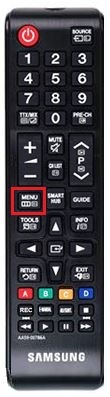
Extra Tips Most Owners Miss
1. Voice Assistants and Smart Apps:
Sometimes, voice assistants (like Bixby or Alexa) built into your TV may trigger muting if they mishear a command. Try disabling these features temporarily. If you notice the TV muting after a loud noise or someone saying “mute” on TV, this could be the cause.
2. Power-saving Modes:
Eco or power-saving modes can reduce sound output or cause the TV to mute in some situations. Turn off these modes in the settings to test. These modes sometimes lower the power to the speakers to save electricity.
3. Third-Party Universal Remotes:
Universal remotes programmed for multiple devices can send accidental mute signals. Test with only the original Samsung remote. If you use a smartphone app as a remote, close the app and see if the problem goes away.
4. CEC (Consumer Electronics Control):
This lets devices control each other over HDMI. Turn off Anynet+ (Samsung’s name for CEC) in settings to see if it helps. Some soundbars and game consoles can send mute commands through HDMI CEC.
5. TV Placement:
Wall mounting the TV tightly can block speakers or cause vibration that affects sound. Make sure nothing is pressing against the speaker areas. If you hear buzzing after mounting, loosen the screws slightly or add spacers.
6. Factory Power Reset:
A deeper power reset can sometimes help. Unplug the TV, hold down the power button (on the TV, not the remote) for 30 seconds, then plug it back in. This drains leftover energy and resets more than a normal restart.

Frequently Asked Questions
Why Does My Samsung Tv Mute Itself Randomly?
This can happen due to remote control issues, wrong audio settings, outdated software, or faulty cables. Start by checking your remote, updating firmware, and testing with only the TV’s built-in apps.
Can A Faulty Hdmi Cable Cause My Tv To Mute And Unmute?
Yes, a bad HDMI cable can send interrupted signals, making the TV’s audio cut in and out. Try a high-quality, certified cable and see if the issue disappears.
How Do I Reset The Sound On My Samsung Tv?
Go to Settings > Sound > Expert Settings > Reset Sound. This returns all audio settings to factory defaults and can fix many common problems.
Does This Problem Affect All Samsung Tv Models?
The issue can happen on most Samsung Smart TVs, especially models from the last 7–8 years. Older models with less complex software are less likely to have this issue.
Where Can I Find More Help If My Tv Is Still Muting?
For more advanced help, check the Samsung Official Support website. You can chat with a representative, download manuals, or request service.
If you follow the steps above, you’ll likely solve the Samsung TV keeps muting and unmuting problem yourself. Still, if the issue continues, don’t hesitate to contact a professional. The earlier you act, the less likely you’ll miss out on your favorite shows. Remember, simple things like remotes, cables, and settings are often to blame—so check them carefully before assuming your TV is broken.