
A Samsung TV is often the heart of your living room, providing entertainment for family and friends. But what happens when you turn it on, and the volume blasts at an unexpectedly loud level? This problem is surprisingly common, and it can be both annoying and alarming.
Imagine relaxing in the evening, turning on your TV, and suddenly, the sound is far too loud, disturbing everyone nearby. Not only can this interrupt your peace, but it can also worry those who may have sensitive hearing, like children or elderly family members.
If you’ve experienced this, you are not alone. Many Samsung TV owners report that their TV volume is loud when turned on. While this might seem like a simple glitch, there are actually several reasons it can happen. Sometimes, it’s a setting you overlooked. Other times, it could be a software bug or a problem with connected devices. Knowing what causes this issue—and how to fix it—can help you get back to enjoying your TV without the jarring shock of sudden loudness.
Let’s explore why this happens, how to fix it, and what you can do to prevent it in the future.
Why Does My Samsung Tv Volume Get Loud When Turned On?
There is no single reason why your Samsung TV volume might be too high at startup. In fact, it can result from a combination of settings, software updates, hardware issues, or even external devices. Understanding these causes is the first step to solving the problem.
Common Reasons For Loud Volume On Startup
- Default Volume Settings: Many Samsung TVs are set to remember the last used volume level. However, a few models revert to a preset volume each time they power on.
- Firmware Bugs: Sometimes, software updates introduce new bugs. One common bug is the TV not saving your last volume setting correctly.
- Connected Devices: If you use HDMI devices like soundbars, gaming consoles, or cable boxes, they might send their own volume commands to the TV when turned on, causing the volume to spike.
- Audio Output Settings: Switching between TV speakers and external audio devices can confuse the TV’s audio management, resulting in unexpected loudness.
- Anynet+ (HDMI-CEC) Issues: Samsung TVs use a system called Anynet+ to communicate with other devices. If Anynet+ malfunctions, it may reset your audio preferences.
- Smart Features: Some TVs have smart sound or auto volume settings that try to balance loudness automatically. If these features fail, they can set the volume incorrectly at startup.
- Remote Control Problems: Sticky or malfunctioning volume buttons on your remote can accidentally raise the volume when you turn the TV on.
- Factory Reset Glitches: After a factory reset, some TVs revert to a default loudness level until you adjust settings again.
Understanding these causes can help you identify the right fix for your Samsung TV.
Quick Fixes For Loud Volume When Turning On Samsung Tv
If you want to solve the problem quickly, try these steps before diving into more advanced solutions. Most users find that one of these simple actions can resolve the issue.
- Lower the Volume Before Turning Off: Always reduce the volume to a comfortable level before shutting down your TV. Many Samsung models will remember the last used volume.
- Check for Software Updates: Go to Settings > Support > Software Update and install any available updates. Updates often fix bugs, including audio issues.
- Restart the TV: Unplug your TV from the wall for 60 seconds, then plug it back in. This power cycle can reset minor glitches.
- Disconnect External Devices: Turn off or unplug soundbars, game consoles, or streaming devices to see if the problem persists.
- Check the Remote: Inspect the remote control for stuck or unresponsive volume buttons.
- Reset Audio Settings: In Settings > Sound > Expert Settings, look for a reset option to restore audio settings to default.
If the problem continues, you may need to explore deeper settings and advanced solutions.
Credit: www.coolblue.nl
Exploring Samsung Tv Audio Settings
Samsung TVs offer many options to customize your sound experience. Some settings, if enabled or misconfigured, can cause the TV to start with loud volume. Let’s look at the most important audio settings that may affect your TV’s startup volume.
Auto Volume
This feature tries to keep the volume at a consistent level, even when you switch channels or inputs. If auto volume is turned off, your TV might not control sudden loudness.
How to enable Auto Volume:
- Go to Settings > Sound > Expert Settings > Auto Volume
- Set it to Normal or Night Mode for softer startup volume
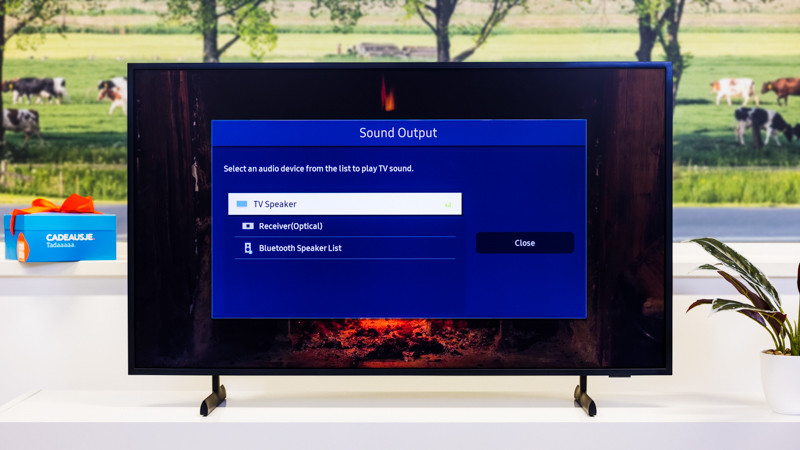
Sound Output
Choosing the right sound output can prevent audio confusion at startup.
- TV Speaker: Uses the built-in speakers.
- External Speaker (HDMI/Optical): Sends audio to a connected soundbar or receiver.
If you switch between these, make sure the output is set to your preferred device before turning off the TV.
Sound Mode
Samsung TVs offer modes like Standard, Movie, Clear Voice, and Amplify. Some modes may boost the volume at startup, especially Amplify.
Tip: Try switching to Standard to see if the issue resolves.
Expert Settings
In Expert Settings, you can adjust:
- Balance: Left/right audio balance
- Equalizer: Adjusts frequency levels
- Digital Output Audio Format: May affect loudness when using external speakers
Experiment with these settings to find a combination that prevents sudden loudness.
How Connected Devices Affect Tv Volume
Many people connect their Samsung TVs to soundbars, receivers, or streaming devices. These connections, especially via HDMI, can create unexpected audio behavior.
Hdmi-cec (anynet+)
HDMI-CEC allows your TV and connected devices to communicate. For example, turning on your game console can automatically turn on your TV—and sometimes adjust the volume.
Common problems with HDMI-CEC:
- Volume jumps to the level set on the external device, not the TV
- Devices “fight” for control over the audio level
To disable Anynet+:
- Go to Settings > General > External Device Manager > Anynet+ (HDMI-CEC)
- Turn it Off
This can stop external devices from sending volume commands at startup.
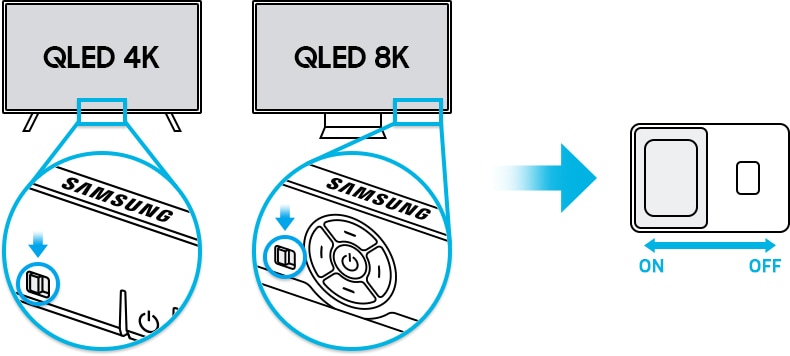
Soundbars And Receivers
Some soundbars and receivers have their own volume memory. When you turn on the TV, the soundbar may “wake up” at its last used volume, which could be higher than expected.
Tip: Lower the soundbar volume before turning off both devices.
Streaming Devices
If you use a Roku, Fire Stick, or Apple TV, these devices can sometimes override the TV’s audio settings. Try unplugging them to see if the loud volume problem disappears.
Credit: www.samsung.com
Advanced Solutions For Persistent Loud Volume
If you’ve tried the basics and your Samsung TV volume is still loud when turned on, it’s time for more advanced troubleshooting.
Factory Reset
A factory reset restores all TV settings to their original state. This can fix software bugs or corrupted settings.
Warning: You will lose all custom settings, saved Wi-Fi passwords, and app logins.
How to reset:
- Go to Settings > General > Reset
- Enter your PIN (default is 0000)
- Follow the on-screen instructions
After reset, set up your TV again and see if the volume issue is gone.
Update Firmware Manually
Sometimes, automatic updates do not install properly. You can download the latest firmware from the Samsung website and install it using a USB stick.
- Visit the official Samsung support site.
- Search for your TV model.
- Download the latest firmware and copy it to a USB drive.
- Insert the USB into your TV and follow the on-screen update steps.
Check For Hardware Issues
Rarely, a hardware issue in the TV’s mainboard or audio circuit can cause volume problems. If you’ve tried all software fixes and the issue persists, contact Samsung customer support or a qualified technician.
Use A Smart Remote App
Many Samsung TVs support smartphone remote apps. These allow you to control the TV and adjust settings with your phone. Sometimes, the app can reset or override stuck remote commands that cause loudness.
Comparison Of Samsung Tv Models And Startup Volume Behavior
Different Samsung TV models handle startup volume in different ways. Here’s a quick comparison of popular models and their default behavior regarding startup volume.
| Model Series | Startup Volume Memory | Auto Volume Feature | Common Loudness Issues |
|---|---|---|---|
| QLED (Q60, Q70, Q80, Q90) | Remembers last used volume | Yes | Rare, mostly with external soundbars |
| Crystal UHD (TU7000, TU8000) | Remembers last used volume | Yes | Occasional with HDMI-CEC devices |
| Frame TV | Remembers last used volume | Yes | Rare, more with art mode transitions |
| Older LED/LCD (pre-2017) | Sometimes resets to default | Limited | More common, especially after updates |
As seen above, newer models usually have better memory for volume levels, but issues can still occur with connected devices.
Preventing Loud Volume At Startup: Best Practices
Once you fix the issue, you’ll want to keep it from happening again. Here are some practical steps to prevent your Samsung TV from blasting loud sound when you turn it on.
Consistent Volume Habits
- Always lower the volume before turning off your TV.
- Do the same with any connected soundbars or receivers.
Regular Software Updates
Keep your TV’s firmware up to date. Most updates improve audio management and fix bugs.
Use Auto Volume
Enable the Auto Volume feature for smooth transitions between channels, apps, or devices.
Check External Devices
- Disconnect and reconnect devices if you notice repeated problems.
- Update firmware for soundbars, receivers, or streaming sticks.
Avoid Quick Power Cycles
Turning the TV on and off rapidly can sometimes confuse the software, leading to audio glitches.
Smart Plug Tip
If you use a smart plug to control your TV, make sure the TV is fully powered off before cutting electricity. Otherwise, it may reset to a loud default when powered on.
Real-world Examples
Let’s look at a few examples from actual Samsung TV users to better understand the problem.
Example 1:
A user with a Samsung Q70 TV found that every time they turned on their TV, the volume was set to 50, regardless of what it was before. They discovered that their connected soundbar was causing the issue. After disconnecting the soundbar and updating its firmware, the problem was fixed.
Example 2:
An owner of an older 2015 Samsung TV noticed that after a recent software update, the TV always started at a high volume. They fixed it by performing a factory reset and enabling the auto volume feature.
Example 3:
A family using a Samsung Frame TV with an Apple TV found that switching off the TV with the Apple TV remote caused the TV to forget the last volume level. Turning off Anynet+ (HDMI-CEC) prevented the external device from controlling the TV’s audio, solving the issue.
These examples show that the solution often depends on the devices and settings in your unique setup.
How Samsung Tv Volume Loudness Compares To Other Brands
Samsung is not alone in facing this issue. Other TV brands like LG, Sony, and TCL also have user reports of loud volume at startup. Here’s a comparison of how different brands handle startup volume:
| Brand | Startup Volume Memory | Auto Volume Feature | Common Issues |
|---|---|---|---|
| Samsung | Yes (most models) | Yes | External device conflicts |
| LG | Yes | Yes | Occasional firmware bugs |
| Sony | Yes | Yes | HDMI-CEC issues |
| TCL | Sometimes | Limited | Volume resets after power loss |
Samsung generally performs well, but the complexity of modern home entertainment systems means problems can still arise.
Two Insights Most Beginners Miss
While most people focus on the TV’s own settings, two important points are often overlooked:
- External Devices Override TV Settings: Many connected devices (soundbars, streaming sticks) have their own volume memory. If the device remembers a loud setting, it can force the TV to start at that level. Always check both the TV and the external device’s audio settings.
- Remote Control Interference: If you have multiple remotes or universal remotes programmed for your TV, they can send commands at startup that override your preferred volume. Sometimes, even a neighbor’s remote can interfere if you live in close quarters (e.g., apartments).

Credit: www.youtube.com
When To Contact Samsung Support
If you have tried all of the above steps and your TV still starts with loud volume, it may be time to contact official support. Samsung offers both phone and online help, and in some cases, they can push a special firmware update to your TV.
Before calling, have this information ready:
- Your TV model and serial number
- Firmware/software version
- Description of the problem and steps you’ve tried
- List of connected devices
This will help the support team provide the fastest solution.
Frequently Asked Questions
Why Is My Samsung Tv Volume Always Loud When I Turn It On?
This often happens due to incorrect audio settings, software bugs, or interference from connected devices. Lowering the volume before turning off, enabling auto volume, and updating firmware usually solve the problem.
Can External Soundbars Make My Samsung Tv Start With Loud Volume?
Yes, soundbars or receivers connected via HDMI or optical cable can have their own memory and may set the TV to a higher volume at startup. Lower the soundbar’s volume before turning off both devices.
Does A Factory Reset Always Fix Loud Startup Volume?
A factory reset can fix software glitches, but if the issue is caused by external devices or remote interference, you may need to adjust those as well.
How Do I Enable Auto Volume On My Samsung Tv?
Go to Settings > Sound > Expert Settings > Auto Volume and turn it on. This helps keep volume levels consistent across different sources.
Where Can I Find More Help For Samsung Tv Audio Problems?
You can visit the official Samsung Support site or refer to trusted resources like RTINGS.com for detailed troubleshooting and reviews.
A loud volume when turning on your Samsung TV can be frustrating, but with the right knowledge, you can fix it quickly and prevent it from happening again. By understanding your TV’s settings, checking connected devices, and following best practices, you’ll enjoy a more comfortable and peaceful viewing experience every time you turn on your TV.