
If your Samsung TV volume won’t go up or down, you are not alone. Many Samsung TV owners face this problem, and it can be very frustrating. You want to watch your favorite show or movie, but the sound is either stuck, too low, or too loud. Sometimes, the remote control doesn’t respond. Other times, the TV’s own buttons don’t work either. This issue can happen on both old and new Samsung TVs.
Understanding why the volume control is not working is the first step to fixing it. Often, the cause is simple. It could be a remote problem, a software glitch, or a setting that needs to be changed. In rare cases, it might be a hardware failure.
You do not always need to call a technician right away. Many volume issues can be solved at home with some basic steps.
This guide will help you find the real cause of your Samsung TV volume problem. You will learn how to test your remote, check your TV settings, and try simple resets. We will also cover advanced tips and what to do if nothing works.
This article is written to be clear and easy to understand, even if you are not a tech expert. By the end, you should have a working solution and a better understanding of how your Samsung TV handles sound.
Common Reasons Why Samsung Tv Volume Won’t Go Up Or Down
There are several possible reasons why the Samsung TV volume gets stuck or does not change. Before you try to fix the issue, it helps to know what could be wrong.
- Remote control problems: Dead batteries, stuck buttons, or a faulty remote can stop volume changes.
- Software glitches: Temporary bugs or unfinished software updates can freeze the volume control.
- Settings issues: Incorrect sound settings or audio outputs can block volume changes.
- External device conflicts: Soundbars or other devices connected to the TV might take over volume control.
- System errors: The TV’s internal memory or cache can become full, causing features to stop working.
- Physical button failure: The buttons on the TV itself may be damaged or dirty.
- Hardware faults: In rare cases, a broken audio chip or mainboard can cause volume to stop working.
Understanding these causes will help you troubleshoot faster and avoid unnecessary repairs.
Quick Checks Before Troubleshooting
Before you start deep troubleshooting, try these quick steps. Sometimes, the problem is simple and can be fixed in a minute.
- Make sure your TV is not muted. Look for the mute icon or try pressing the mute button.
- Check if the batteries in the remote are working. Replace them if you are not sure.
- Try using the volume buttons on the TV itself. If they work, the remote is the problem.
- Disconnect any external audio devices like soundbars or speakers and see if the TV speaker volume can be changed.
- Unplug the TV from the wall, wait 30 seconds, and plug it back in. This can reset minor errors.
If none of these work, continue to the more detailed steps below.

Step-by-step Troubleshooting Guide
If your Samsung TV volume won’t go up or down after basic checks, follow these steps. Each step solves a different possible cause.
1. Test The Remote Control
A faulty remote is the most common reason for volume issues. Here’s how to check:
- Replace the batteries with new ones.
- Check for stuck buttons. Sometimes, dust or debris causes buttons to stick.
- Point the remote at your phone’s camera and press any button. If the remote is working, you should see a light from the infrared (IR) transmitter in your phone’s camera view.
- Try a different Samsung remote if you have one. If the other remote works, your original remote is faulty.
What If The Remote Still Doesn’t Work?
Try using the Samsung SmartThings app on your smartphone. This app can control your TV over Wi-Fi and help you test if the problem is with the remote or the TV.
2. Check The Tv’s Physical Buttons
Every Samsung TV has manual buttons, usually hidden under the front panel or on the back. Try these steps:
- Press the volume up and down buttons on the TV itself.
- If the TV volume changes, the remote is the problem.
- If the TV volume does not change, the problem is inside the TV.
Tip: If the buttons are stuck or dirty, gently clean around them with a dry cloth.
3. Restart And Power Cycle The Tv
Sometimes, a simple restart fixes the problem. Here’s how:
- Turn off the TV and unplug it from the wall.
- Wait at least 30–60 seconds.
- Plug the TV back in and turn it on.
This process clears temporary memory errors. If your TV has a physical power button, press and hold it for 10 seconds after unplugging for a deeper reset.
4. Reset The Tv’s Smart Hub
The Smart Hub controls apps and settings on most Samsung TVs. Sometimes, it can cause volume issues if it freezes.
- Go to Settings > Support > Self Diagnosis > Reset Smart Hub.
- Enter your TV PIN if asked (default is usually 0000).
- This will log you out of all apps but will not erase your personal files.
After the reset, try adjusting the volume again.
5. Update The Tv’s Software
Old software can cause bugs. Always keep your TV updated:
- Go to Settings > Support > Software Update > Update Now.
- If an update is available, install it and restart your TV.
Note: Do not turn off the TV during an update.
6. Check The Tv’s Sound Output Settings
If your TV is set to an external sound device (like a soundbar or Bluetooth speaker), the TV’s own volume control may not work. Here’s what to do:
- Go to Settings > Sound > Sound Output.
- Change it to TV Speaker.
- Try adjusting the volume again.
Non-obvious Insight: If the TV is connected to a soundbar with HDMI-ARC, the soundbar’s remote may control the volume, not the TV remote.
7. Disconnect All External Devices
Sometimes, connected devices like gaming consoles or set-top boxes cause conflicts.
- Unplug all HDMI, optical, and audio cables from your TV.
- Try adjusting the volume with only the TV’s built-in speakers.
- If the problem is gone, reconnect devices one by one to find the one causing the issue.
8. Clear The Tv’s Cache And Memory
Samsung smart TVs can slow down when their system memory is full. Clearing the cache can fix sound and volume problems.
- Go to Settings > Support > Device Care > Manage Storage (if available).
- Clear the cache for unused apps.
- Restart your TV.
For older models, unplugging the TV for a few minutes can clear the cache.
9. Perform A Factory Reset
If nothing else works, a factory reset restores the TV to default settings. This erases all your apps, settings, and Wi-Fi passwords.
- Go to Settings > General > Reset.
- Enter your TV PIN.
- Confirm and let the TV restart.
Warning: Back up important settings or apps before resetting.
10. Contact Samsung Support
If your Samsung TV volume won’t go up or down after all steps, it could be a hardware issue. Contact Samsung Support or a local technician for help.
How To Fix Samsung Tv Volume Problems With A Soundbar
Using a soundbar with your Samsung TV can sometimes cause volume problems. Here’s what to check:
- Make sure the TV’s Sound Output is set to the soundbar.
- If using HDMI-ARC, enable Anynet+ (HDMI-CEC) in the TV’s settings.
- Use the soundbar’s own remote to control the volume.
- For Bluetooth soundbars, disconnect and reconnect the device if the volume gets stuck.
Example: If your Samsung soundbar is not responding, unplug both the TV and soundbar for 30 seconds, then plug them back in.
Common Soundbar Mistakes
- Mixing up the TV remote and soundbar remote.
- Not selecting the correct input on the soundbar.
- Forgetting to enable HDMI-CEC.
Special Cases: Apps And Streaming Devices
Some Samsung TV users notice that the volume only gets stuck when using certain apps (like Netflix or YouTube) or streaming devices (like Roku or Fire Stick).
- Try updating the app or device firmware.
- Exit and restart the app if the volume gets stuck.
- If using an external device, check if its own remote controls the sound.
Non-obvious Insight: Some apps override the TV’s volume and use their own internal volume control. Look for a volume setting inside the app.
Data Table: Most Common Samsung Tv Volume Issues
Below is a summary table comparing the most frequent causes and their symptoms.
| Cause | Common Symptom | Quick Fix |
|---|---|---|
| Remote Control Problem | Remote does not change volume | Replace batteries, check with phone camera |
| External Device Conflict | Volume stuck when device connected | Disconnect devices, test TV alone |
| Wrong Sound Output | No sound or volume stuck | Set output to TV speaker |
| Software Glitch | Volume works after restart | Update software, restart TV |
| Physical Button Failure | TV buttons not working | Clean buttons, check for damage |
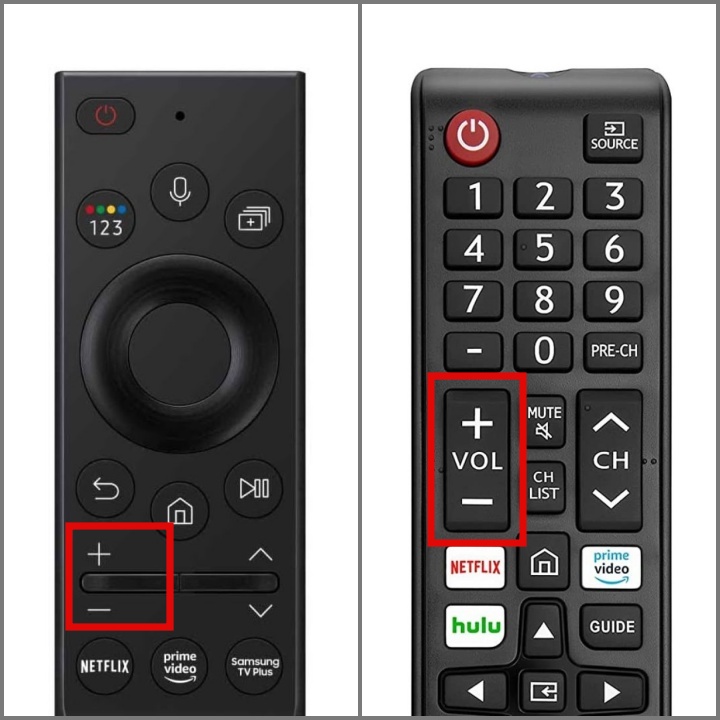
Advanced Troubleshooting For Persistent Volume Issues
If the basic steps do not solve the problem, try these advanced options.
Reset Audio Settings Only
You do not need to reset the whole TV. You can reset just the audio settings:
- Go to Settings > Sound > Expert Settings > Reset Sound.
- Confirm the reset.
- Try adjusting the volume again.
This option is faster and keeps your other settings.
Check For Stuck Updates
Sometimes, a software update does not finish, causing problems.
- Go to Settings > Support > Software Update.
- If it says “Update in progress,” let it finish or restart the TV.
Use Samsung’s Online Diagnostics
Samsung’s website offers online help tools. Enter your TV’s model number for personalized tips. For some models, you can run a sound test:
- Go to Settings > Support > Self Diagnosis > Start Sound Test.
If the test fails, the problem is likely hardware-related.
Try A Different Power Outlet
A weak or unstable power supply can cause strange issues.
- Unplug your TV and plug it into a different outlet.
- Avoid using extension cords or surge protectors when testing.
Compare With Another Tv
If possible, try your remote and cables on another Samsung TV. If they work fine, your original TV may have a hardware issue.
Table: When To Call A Technician
Here’s a simple guide for when you should call for professional help.
| Symptom | DIY Fix Possible? | Call Technician? |
|---|---|---|
| Remote not working | Yes | No |
| Buttons on TV unresponsive | Maybe | If cleaning does not help |
| No sound at all | Maybe | Yes, if reset fails |
| Volume stuck after reset | No | Yes |
| Physical damage to TV | No | Yes |
Preventing Future Samsung Tv Volume Problems
Once your TV is working again, you can take steps to avoid future volume issues:
- Keep your TV software updated regularly.
- Use high-quality batteries in your remote and change them at least once a year.
- Clean the TV and remote buttons with a dry cloth every few months.
- Avoid connecting too many devices at once.
- Do not overload your TV with unused apps.
- If you use a soundbar, read the manual and connect it as recommended.
Tip: Write down your TV model and serial number. This makes it easier to get support if you need it later.
How Samsung Tv Volume Control Works
Understanding how Samsung TV volume control works can help prevent future issues.
- The TV receives signals from the remote (IR or Bluetooth).
- The TV’s mainboard processes the signal and tells the audio chip to change the sound.
- If an external device is set as the sound output, the TV sends the volume command through HDMI or optical cables.
- Some smart remotes use Wi-Fi or Bluetooth, which can be affected by interference.
Example: If you use the Samsung Smart Remote, it pairs with your TV using Bluetooth. If your neighbor has the same remote, their signals will not affect your TV.
When It’s Time To Replace Your Tv
If your Samsung TV is older than 7–10 years, repeated volume problems may be a sign of aging hardware. Consider these points:
- New TVs have better sound systems and more reliable remotes.
- Repairing old TVs can cost as much as buying a new model.
- New Samsung TVs come with longer warranties and better support.
If you decide to upgrade, check the latest models on the official Samsung website for reliable options.

Frequently Asked Questions
What Should I Do If My Samsung Tv Volume Is Stuck At 100?
If your Samsung TV volume is stuck at the maximum, try restarting the TV and resetting the audio settings. If that doesn’t help, do a full factory reset. If the issue continues, it may be a hardware problem with the mainboard or audio chip.
Can A Universal Remote Fix My Samsung Tv Volume Problem?
A universal remote can help if your original remote is faulty. Make sure the universal remote is compatible with Samsung TVs and is properly programmed. If the problem is inside the TV, a new remote will not solve it.
Why Does My Samsung Tv Volume Change By Itself?
Automatic volume changes can be caused by features like Auto Volume, Anynet+ (HDMI-CEC), or connected devices. Check your TV’s sound settings and disable features you do not need. Also, check if another device is sending volume commands to your TV.
Is There A Way To Control Samsung Tv Volume With My Phone?
Yes, you can use the Samsung SmartThings app on your smartphone to control the TV’s volume over Wi-Fi. This is useful if your remote is lost or broken. Make sure both your TV and phone are on the same Wi-Fi network.
Will Updating My Tv Erase My Settings Or Apps?
No, updating your Samsung TV software will not delete your apps or settings. Only a factory reset will erase everything. Keeping your software updated helps prevent bugs and improves performance.
Fixing the Samsung TV volume won’t go up or down issue can seem hard, but most problems are simple to solve at home. By following the steps in this guide, you can get your TV’s sound working again quickly and avoid future frustrations. Remember, regular maintenance and knowing your TV’s features are the keys to a better viewing experience.