
If your Samsung TV won’t connect to WiFi, you’re not alone. Many people enjoy the convenience of streaming apps and smart features, but sometimes, your TV just refuses to go online. This can be frustrating, especially when you want to relax and watch your favorite shows. The good news is, most WiFi problems on Samsung TVs can be fixed at home with some simple steps. Understanding why your TV is not connecting, and learning how to solve it, saves time and possibly repair costs.
In this guide, you’ll find clear explanations, step-by-step troubleshooting, and practical advice based on real experiences. Whether you’re facing network errors, unstable connections, or your TV doesn’t see WiFi networks at all, you’ll discover solutions that actually work. Even if you’re not a tech expert, you’ll be able to follow along.
We’ll also cover what to do if nothing works, how to prevent future problems, and answer common questions about Samsung TV WiFi issues.
Why Your Samsung Tv Won’t Connect To Wifi
Before you try to fix the problem, it helps to know why it’s happening. Several things can cause your Samsung TV’s WiFi to stop working. Here are the most common reasons:
- Router or Internet Issues: Sometimes, the problem is not the TV, but your home WiFi network.
- Incorrect Network Settings: Wrong password or settings can block connection.
- Outdated TV Software: Old firmware may have bugs that affect WiFi.
- Signal Interference: Devices like microwaves or thick walls can weaken WiFi signals.
- Hardware Problems: The TV’s WiFi module may be damaged.
- Glitches and Temporary Bugs: Like all smart devices, TVs can have random software hiccups.
Understanding the cause helps you choose the right fix. For example, if other devices also lose WiFi, your router may be the problem, not the TV.
Quick Initial Checks
Don’t jump to complex solutions right away. Start with these basic checks:
- Make sure your router is working. Try connecting your phone or laptop to the same network.
- Check if your internet service is down. Call your provider if needed.
- Confirm your WiFi password is correct.
- Restart both your Samsung TV and the router.
- Move your TV closer to the router to rule out weak signals.
- Remove any physical objects that may block the signal.
If these steps don’t help, move on to more detailed troubleshooting.
Credit: www.samsung.com
Restarting Your Samsung Tv
A simple restart can fix many WiFi issues by clearing temporary glitches.
- Unplug your TV from the power outlet.
- Wait at least 60 seconds.
- Plug the TV back in and turn it on.
This “power cycle” is more effective than just turning the TV off with the remote. It forces the TV’s hardware to reset completely.
Rebooting Your Router And Modem
Your router or modem may be the source of the problem. To refresh your network:
- Unplug both your router and modem.
- Wait for about 1 minute.
- Plug them back in, starting with the modem. Wait for it to fully restart, then plug in the router.
- Wait until all lights on both devices are stable.
- Try connecting your TV again.
If your other devices now connect but your TV still doesn’t, the problem is likely with the TV.
Checking Network Settings On Your Samsung Tv
Incorrect network settings can block your TV from connecting to WiFi. Here’s how to review and fix them:
- Press the Home button on your remote.
- Go to Settings > General > Network.
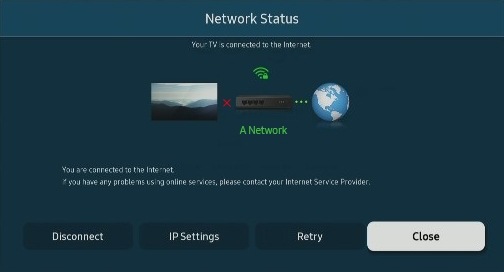
- Select Network Status. The TV will check the connection.
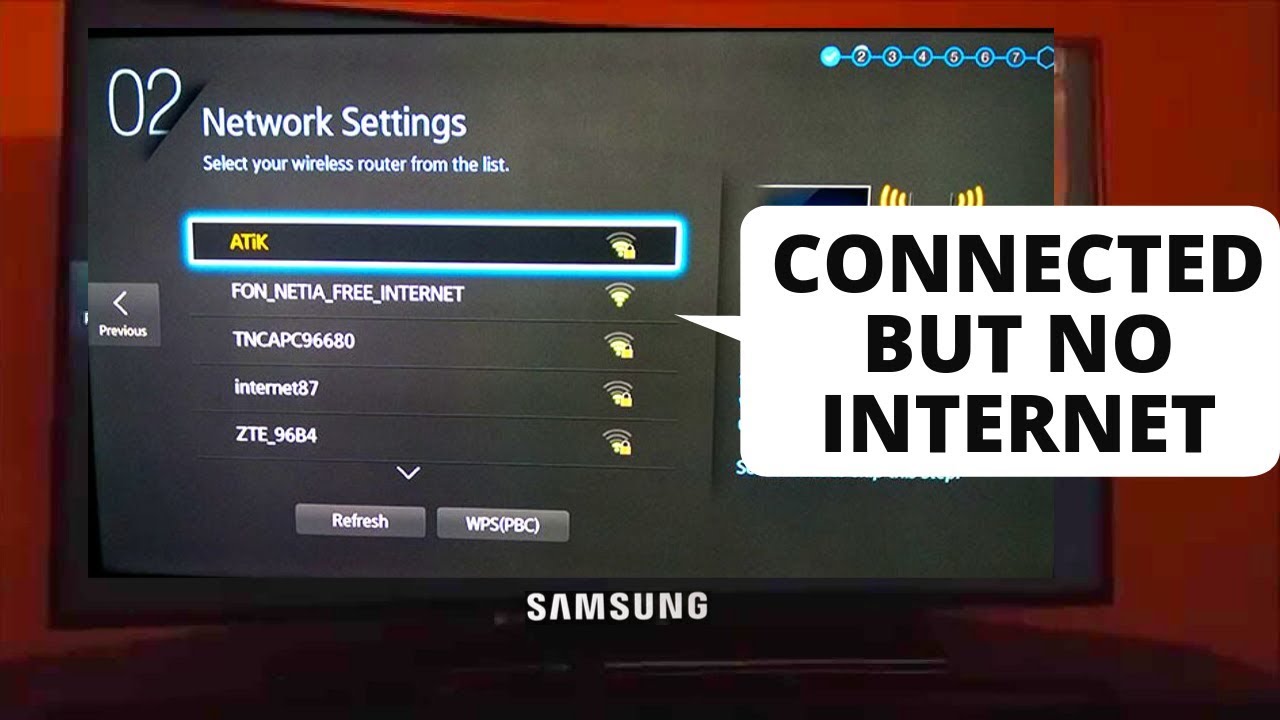
- If you see an error, choose Network Settings and select your WiFi network.
- Enter your password carefully.
If you’re unsure about the password, check your router or ask your internet provider.
Forgetting And Reconnecting To Wifi
Sometimes, your TV “remembers” an old or wrong password. Forgetting the network and reconnecting can solve this:
- Go to Settings > General > Network > Network Settings.
- Select your WiFi network, then choose Forget Network.
- Wait a few seconds.
- Re-select your WiFi and enter the correct password.
This step clears old settings that may cause issues.
Updating Samsung Tv Firmware
Outdated software can create WiFi problems. Samsung releases updates to fix bugs and improve stability.
How To Update Firmware (with Internet Access)
If you have a wired connection or your TV sometimes connects:
- Go to Settings > Support > Software Update.
- Choose Update Now.
How To Update Firmware (without Internet)
If your TV can’t connect at all, use a USB drive:
- Go to the Samsung Support website on your computer.
- Enter your TV’s model number and download the latest firmware.
- Copy the firmware file to a USB drive (do not unzip if the instructions say so).
- Plug the USB into your TV.
- On your TV, go to Settings > Support > Software Update > Update Now > USB.
This process can resolve WiFi bugs that updates fix.
Checking For Signal Interference
WiFi signals can be blocked or weakened by other devices and objects. Here’s what often interferes:
- Microwaves
- Cordless phones
- Bluetooth speakers
- Thick walls or floors
- Metal furniture
To improve your signal:
- Move your TV closer to the router.
- Place the router higher up, away from other electronics.
- Try changing your router’s channel (see your router’s manual for details).
Comparing Wired Vs Wireless Connections
Sometimes using an Ethernet cable solves WiFi issues. Here’s a quick comparison:
| Connection Type | Pros | Cons |
|---|---|---|
| Wireless (WiFi) | No cables, easy setup, flexible placement | Signal can be weak or unstable, affected by interference |
| Wired (Ethernet) | Stable, fast, not affected by interference | Needs a cable, less flexible, may require long Ethernet cord |
If your TV connects via Ethernet but not WiFi, the WiFi module may be the problem.
Resetting Network Settings On Your Samsung Tv
Resetting all network settings can clear out hidden issues.
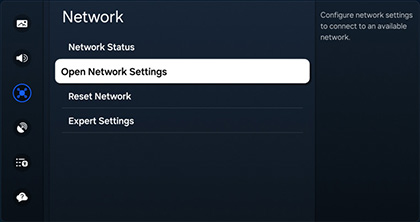
- Go to Settings > General > Network > Reset Network.
- Confirm your choice.
- Restart your TV.
- Set up your WiFi from scratch.
This is a safe step that doesn’t affect your apps or personal files.
Factory Resetting Your Samsung Tv
If nothing else works, a factory reset returns your TV to its original state.
- Go to Settings > General > Reset.
- Enter your PIN (default is usually 0000).
- Confirm the reset.
You’ll need to set up your TV again, including WiFi, apps, and accounts. This often fixes stubborn software problems but should be your last resort.
Checking Your Router’s Settings
Advanced router settings can block your TV. Here are a few things to check:
- MAC Filtering: Some routers allow only certain devices. Make sure your TV is allowed.
- Guest Networks: Some TVs can’t connect to guest or limited networks.
- Frequency Bands: Some Samsung TVs work only on 2.4 GHz WiFi, not 5 GHz.
- Maximum Connections: Routers have limits. Disconnect a few devices and try again.
You can log in to your router’s admin page (usually written on the router) to check these settings.
Credit: www.youtube.com
Comparing 2.4 Ghz Vs 5 Ghz Wifi Bands
Understanding your router’s frequency band can help with connection issues.
| Band | Range | Speed | Best For |
|---|---|---|---|
| 2.4 GHz | Longer | Slower | Thick walls, longer distances |
| 5 GHz | Shorter | Faster | Open spaces, close to router |
If your TV only finds one band, try switching your WiFi or moving the TV.
Setting A Static Ip Address On Your Tv
Dynamic IP assignment can sometimes fail. Setting a static IP may solve your problem.
- Go to Settings > General > Network > Network Status.
- Choose IP Settings.
- Select Enter Manually.
- Enter an IP address (use the same range as your router, e.g., 192.168.1.100), your router’s gateway (e.g., 192.168.1.1), and the correct DNS (try 8.8.8.8 for Google DNS).
This step is not always necessary but can help if your TV says “Obtaining IP address…” for a long time.
Testing Your Tv’s Wifi Module
The WiFi module is the hardware inside your TV that handles wireless connections. If it’s damaged, software fixes won’t help.
Signs of WiFi module failure:
- TV doesn’t see any WiFi networks, even if others are visible on your phone.
- WiFi works sometimes, but drops often, even after a reset.
- Wired connection works, but WiFi never does.
If your TV is under warranty, contact Samsung support for repair. Replacing the WiFi module yourself is possible but not recommended unless you have experience with electronics.
Using A Mobile Hotspot
If your home WiFi doesn’t work, try connecting your TV to a mobile hotspot.
- Turn on the hotspot feature on your smartphone.
- Use your TV to search for WiFi networks and select your phone’s hotspot.
- Enter the password and connect.
If your TV connects, the problem is probably with your router or internet service.
Common Error Messages And What They Mean
Samsung TVs may show different error messages when WiFi doesn’t work. Here are some examples:
- “Unable to connect to the network”: This usually means a password or signal issue.
- “Network disconnected”: The TV lost connection, often due to interference.
- “Invalid IP address”: Check your network settings or try a static IP.
- “Mac address failed”: Your TV’s WiFi hardware might be faulty.
Understanding the message can help you choose the right solution.
Checking For Firmware Updates On Router
Just like your TV, your router needs updates. An outdated router can block new devices or have security bugs.
- Log in to your router’s admin page.
- Look for a Firmware Update or Software Update section.
- Follow instructions to update.
This step is often missed but can make a big difference, especially with older routers.
Environmental Factors That Affect Wifi
Your home’s design and nearby electronics can affect WiFi strength. Here’s how:
- Concrete walls and metal structures block signals.
- Multiple floors make it harder for signals to reach.
- Neighboring networks can cause interference if you live in an apartment.
If you live in a large or complex home, consider a WiFi extender or mesh network to improve coverage.
Comparing Samsung Tv Models And Wifi Features
Not all Samsung TVs have the same WiFi capabilities. Here’s a simplified comparison:
| Model Series | WiFi Bands Supported | Release Year | Notes |
|---|---|---|---|
| Series 6 (2017-2019) | 2.4 GHz only | 2017-2019 | May struggle in crowded networks |
| Series 7 and above | 2.4 GHz & 5 GHz | 2019-present | Better speed, dual-band support |
| QLED & Neo QLED | 2.4 GHz & 5 GHz | 2020-present | Strong WiFi, advanced features |
If you have an older model, it may not support newer WiFi standards.
Credit: www.samsung.com
Preventing Future Wifi Problems
After fixing your TV, you’ll want to avoid the same trouble again. Here’s how to keep your connection stable:
- Keep firmware updated for both your TV and router.
- Place the router in a central, open spot.
- Limit the number of connected devices if possible.
- Turn off unused gadgets that might interfere.
- Restart your router every few weeks to keep it fresh.
- Consider upgrading your router if it’s over 5 years old.
These simple habits can make your smart TV experience smoother and less stressful.
When To Contact Samsung Support
You’ve tried everything and your Samsung TV still won’t connect to WiFi. At this point, professional help is likely needed. Contact Samsung support if:
- Your TV’s WiFi menu is “grayed out” or missing.
- The TV cannot find any WiFi networks, but your phone/laptop can.
- Factory reset and all other steps fail.
- You see hardware-related error messages (like “Mac address failed”).
Have your TV’s model number and serial number ready. This helps support agents diagnose your issue faster.
For more information, you can visit the official Samsung support page.
Non-obvious Insights Most People Miss
While most guides cover the basics, here are two important details many users overlook:
- Hidden Guest Networks: Some routers offer “guest” WiFi, which often blocks device-to-device communication by default. If your TV is on a guest network, it may not access the internet fully. Always connect to your main WiFi.
- Time and Date Settings: If your TV’s clock is wrong, security certificates may not work, causing some networks to fail. Go to Settings > General > System Manager > Time and set the correct time.
Frequently Asked Questions
Why Does My Samsung Tv Keep Disconnecting From Wifi?
This usually happens due to signal interference, outdated firmware, or a weak WiFi signal. Try moving your router closer, updating your TV software, or switching to a less crowded WiFi channel.
Can I Connect My Samsung Tv To The Internet With A Cable Instead Of Wifi?
Yes. Use an Ethernet cable to connect your TV directly to the router. This gives a more stable connection and is useful if your WiFi is unreliable.
What Should I Do If My Tv Says “incorrect Password” But I’m Sure It’s Right?
Double-check for extra spaces or capitalization errors. If the problem continues, reset your router’s WiFi password, forget the network on your TV, and try again.
Does A Factory Reset Delete My Apps And Settings?
Yes. A factory reset will erase all apps, accounts, and settings, returning your TV to its original state. Make sure you have your login details before doing this.
Will Using A Wifi Extender Help My Samsung Tv Connect?
A WiFi extender can help if your TV is far from the router and the signal is weak. Place the extender halfway between your router and TV for best results.
Getting your Samsung TV to connect to WiFi shouldn’t be complicated. With these clear steps and insights, you can solve most issues at home, enjoy your favorite content, and keep your smart TV working smoothly. If you run into problems you can’t solve, don’t hesitate to get expert help from Samsung or a professional technician.