
If you love playing Skyrim with mods, you probably use tools to watch how your game runs. One of the most popular tools is Skyrim Performance Monitor (SPM). This handy software gives you real-time info about your computer’s performance while playing Skyrim, like memory use, CPU and GPU load, and more. But sometimes, SPM does not work as expected. Many gamers face the problem of Skyrim Performance Monitor not working, and it can be confusing and frustrating.
You might see nothing but zeros in the monitor, or the program refuses to start. Maybe it crashes, shows errors, or simply does not track your game. If you want to fix these issues, you need to understand what causes them and how to solve them in detail.
This guide will walk you through everything, step by step, to get your Skyrim Performance Monitor working again.
Let’s dive into why these problems happen, what you should check, and how to solve each possible cause. You’ll also learn some advanced tips and find solutions for problems that are easy to miss.
What Is Skyrim Performance Monitor And Why Is It Useful?
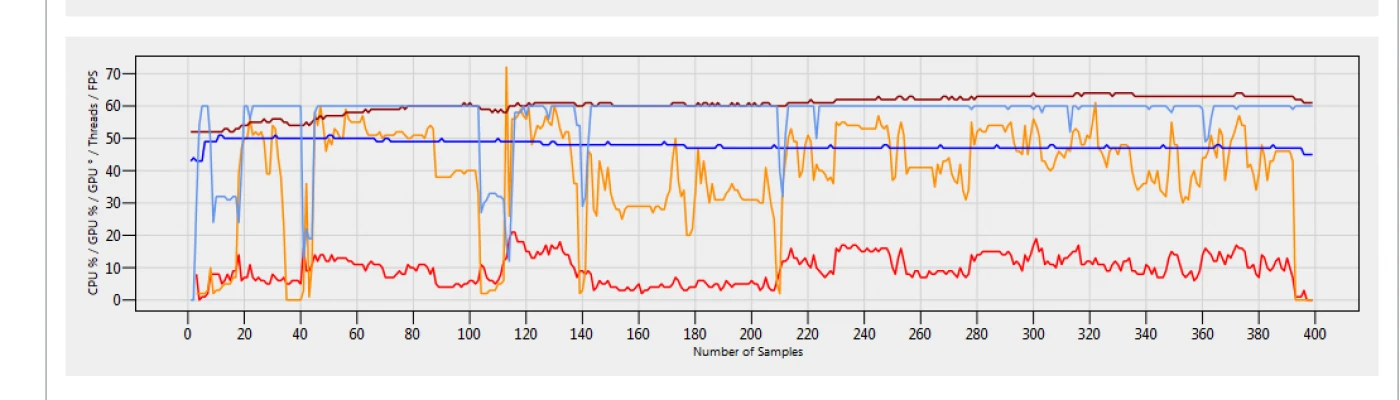
Before fixing problems, it’s important to know what Skyrim Performance Monitor actually does and why players rely on it. This tool is a lightweight program that runs outside of Skyrim. It tracks important stats about your system:
- RAM usage – How much memory Skyrim and your mods are using
- VRAM usage – How much video memory (graphics card memory) is used
- CPU and GPU load – How hard your processor and graphics card are working
- Temperature – How hot your CPU and GPU get while playing
- Framerate (FPS) – How smooth your game runs
With these numbers, you can see if your game is using too much memory, if your computer is getting too hot, or if you’re running out of video RAM. This is especially important if you play with many mods, high-resolution textures, or ENB.
If SPM stops working, you lose valuable feedback about your system. That’s why fixing it matters.
Common Symptoms Of Skyrim Performance Monitor Not Working
When SPM doesn’t work, you might notice:
- All values show 0 or “N/A” even when Skyrim is running
- SPM window freezes or crashes on launch
- Error messages appear (“Cannot open process”, “Access denied”)
- SPM does not detect Skyrim even when the game is running
- Graphs do not update in real time
- The program closes unexpectedly
These problems can have many causes. Let’s look at what usually goes wrong, and how to troubleshoot each one.
Root Causes: Why Skyrim Performance Monitor Fails
To fix SPM, you must first understand why it stops working. There are several possible reasons:
- Lack of admin rights – SPM needs to access Skyrim’s process, which can require administrator permission.
- Antivirus or firewall blocks – Security programs sometimes stop SPM from reading Skyrim’s data.
- Game version mismatch – SPM may not support your Skyrim version (especially Skyrim Special Edition).
- Outdated SPM version – Newer Windows updates or Skyrim versions may not work with old SPM releases.
- Missing .NET Framework – SPM needs .NET Framework 3.5 or higher.
- Wrong game path – If SPM can’t find Skyrim’s executable, it won’t track the game.
- Conflicts with overlays or mods – Other tools like ENB, Steam Overlay, or ReShade can interfere.
- Corrupted settings or files – Damaged SPM files can cause crashes or display errors.
- User Account Control (UAC) interference – Windows security can block SPM access to Skyrim.
- Wrong executable selected – SPM might be monitoring the wrong process (e.g., SkyrimSE.exe vs Skyrim.exe).
- Multiple Skyrim installations – If you have both Oldrim and Special Edition, SPM may get confused.
- Windows updates – New Windows security changes may block SPM functions.
Some of these are obvious, but others are easy to miss. Let’s go through how to check and solve each one.
Basic Troubleshooting: Quick Fixes To Try First
Start with the simplest steps before trying more advanced solutions. Many users find their problem is fixed with these basic checks.
1. Run Skyrim Performance Monitor As Administrator
Right-click the SPM shortcut and choose Run as administrator. This often solves “Access denied” and “Cannot open process” errors. Without admin rights, SPM can’t read Skyrim’s data.
2. Add Spm To Antivirus And Firewall Exceptions
Security tools can block SPM from talking to Skyrim. Open your antivirus and firewall settings. Add the SPM folder to the exceptions or whitelist list. This tells your security software to ignore SPM and let it run freely.
3. Make Sure Skyrim Is Running
SPM only works when Skyrim is open. Launch Skyrim first, then start SPM. If you run SPM before the game, it might not detect the process. Try closing both programs, then launch Skyrim first and SPM second.
4. Check For Updates
If you use an old SPM version, download the latest release. Also, check if your Skyrim is the original (Oldrim) or the Special Edition. SPM was mainly made for Oldrim. For Special Edition, some features may not work or need tweaks.
5. Restart Your Computer
This simple step often helps, especially after installing new mods, updates, or drivers. A fresh start can clear temporary problems.
Advanced Solutions For Persistent Problems
If the basic steps above don’t work, try these more advanced methods.
1. Install Or Repair .net Framework
SPM needs .NET Framework 3.5 or later. If it’s missing or broken, SPM won’t launch or will crash.
- Open Windows Features (Control Panel > Programs > Turn Windows features on or off)
- Check the box for .NET Framework 3.5
- If already checked, uncheck and recheck it, then restart your PC
You can also download the installer from Microsoft’s official site if needed.
2. Check The Game Path
SPM needs to know where Skyrim’s main executable is. If you moved your game, or use a non-standard folder, SPM may look in the wrong place.
- Open SPM settings and look for Game Path or Process Name
- Make sure it points to your Skyrim installation (e.g., C: \Program Files (x86)\Steam\steamapps\common\Skyrim\Skyrim.exe)
- For Skyrim Special Edition, the file is SkyrimSE.exe
If you have both Oldrim and SE, be sure you monitor the right one.
3. Turn Off Overlays And Injectors
Software like ENB, ReShade, MSI Afterburner, RivaTuner, and Steam Overlay can conflict with SPM. Try disabling these one by one:
- Close MSI Afterburner or RivaTuner
- Turn off Steam Overlay (right-click Skyrim in Steam > Properties > Uncheck “Enable the Steam Overlay”)
- Disable ENB/ReShade temporarily by renaming their .dll files
After testing, turn them back on one at a time to see which is causing the problem.
4. Reset Spm Settings
Corrupt or old settings can break SPM. Delete the SPM config file (usually in the same folder as the. exe), or uninstall and reinstall SPM. A fresh setup often fixes hidden problems.
5. Run Both Spm And Skyrim As Administrator
Sometimes, you must run both programs as admin. Right-click both SPM and Skyrim shortcuts, choose Properties, then the Compatibility tab, and check “Run this program as administrator.”
6. Fix User Account Control (uac) Issues
If UAC is blocking SPM, you’ll see errors when trying to monitor Skyrim. Try lowering the UAC slider (search “User Account Control” in Windows). Slide it down one notch and restart. If this works, you can raise it back later and add SPM as an allowed app.
7. Reinstall Skyrim Performance Monitor
If all else fails, uninstall SPM completely. Download the latest version and reinstall. Make sure to install in a folder outside Program Files if possible, as Windows is stricter about apps in that directory.
Comparing Skyrim Performance Monitor With Other Tools
Sometimes, SPM just won’t work on certain systems, especially with newer versions of Skyrim. Let’s see how it stacks up against other popular monitoring tools.
| Tool | Supports Oldrim | Supports Special Edition | Tracks RAM | Tracks VRAM | Framerate (FPS) | Ease of Use |
|---|---|---|---|---|---|---|
| Skyrim Performance Monitor | Yes | Partial | Yes | Yes | Yes | Easy |
| MSI Afterburner | Yes | Yes | No | Yes | Yes | Medium |
| HWMonitor | Yes | Yes | Yes | Yes | No | Medium |
| Fraps | Yes | Yes* | No | No | Yes | Easy |
*Fraps support for Skyrim SE is limited.
As you can see, SPM is still the best for tracking both RAM and VRAM in Skyrim (especially Oldrim), but if you cannot get it working, alternatives like MSI Afterburner or HWMonitor can help.
Special Issues With Skyrim Special Edition
Many users report Skyrim Performance Monitor not working with Skyrim Special Edition (SE). This is because SE uses a 64-bit engine, while the original Skyrim uses 32-bit. SPM was designed for the 32-bit version, so some features do not work with SE.
What Works And What Doesn’t
- CPU and RAM tracking – Usually works with both Oldrim and SE
- VRAM and GPU tracking – May fail with SE, especially with newer graphics cards
- Framerate (FPS) – Sometimes works, but may not be accurate
If you play SE and SPM does not show VRAM or GPU stats, it’s not your fault. The program was not updated for full SE support. Try MSI Afterburner or HWMonitor for these numbers.
Workarounds For Se Users
- Run SPM as admin and select SkyrimSE.exe manually
- Use other tools for VRAM/GPU if SPM fails
- Join forums and check for community-made SPM forks or updates
Dealing With Multiple Skyrim Installations
If you have both Oldrim and SE installed, SPM can get confused. It might monitor the wrong game, or not find the running process.
How to fix:
- Open SPM settings and select the correct process name (Skyrim.exe for Oldrim, SkyrimSE.exe for SE)
- Launch only the version you want to monitor
- If needed, move one installation to a different drive

Checking For Hidden Process And Permissions Problems
Sometimes SPM fails because it cannot “see” the Skyrim process. This can happen if:
- You run Skyrim and SPM as different users (e.g., one as admin, one as standard user)
- Skyrim is set to run in compatibility mode, but SPM is not (or vice versa)
- Windows Defender or another security tool blocks background access
How to check:
- Open Task Manager and confirm Skyrim.exe or SkyrimSE.exe is running
- Make sure SPM is also running under your user account
- Try running both programs in the same compatibility mode (right-click > Properties > Compatibility tab)
Dealing With Windows Updates And New Security Policies
Windows 10 and 11 updates sometimes change how programs can read data from other apps. After a big update, SPM may stop working.
What to do:
- Re-add SPM to your firewall/antivirus exceptions
- Reinstall .NET Framework if needed
- Run SPM in compatibility mode for Windows 7 or 8
Advanced Tip: Monitoring Skyrim With Msi Afterburner And Rivatuner
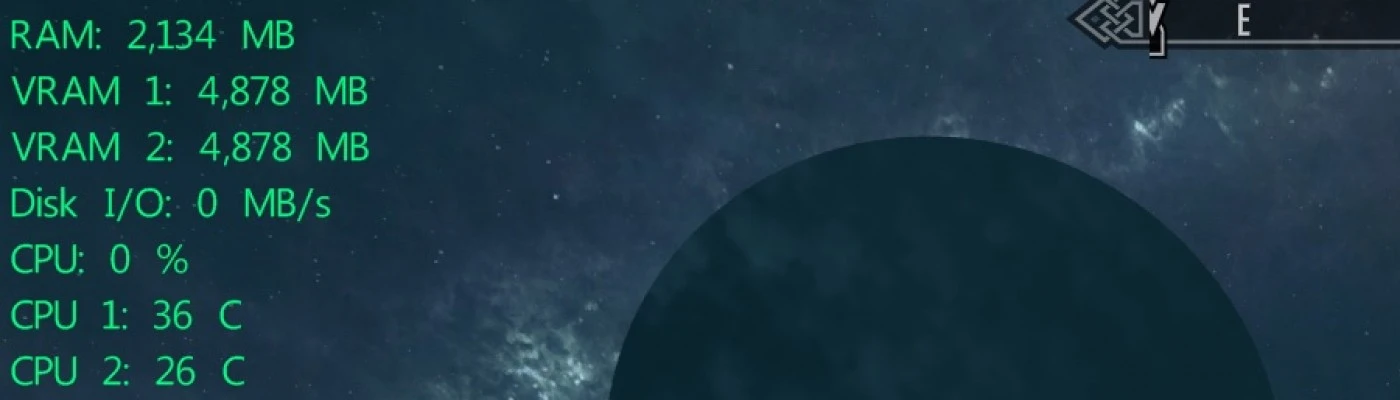
If you cannot get SPM to work, or want more detailed graphs, try MSI Afterburner with RivaTuner. This combo is popular for modern games. It can display real-time stats on-screen while you play.
Here’s a quick comparison:
| Feature | SPM | MSI Afterburner + RivaTuner |
|---|---|---|
| RAM Tracking | Yes | No |
| VRAM Tracking | Yes | Yes |
| On-Screen Display | No | Yes |
| Works with SE | Partial | Yes |
Non-obvious Insights And Pro Tips
Many guides miss a few key details about SPM:
- SPM Graphs May Lag Behind Real Time – If your computer is slow, or you have many background apps, SPM graphs can show data with a slight delay. Try closing other programs to reduce lag.
- Mod Load Order Can Affect SPM – If you use a script extender (like SKSE) or heavy script mods, they can cause Skyrim to use more resources than SPM expects. If SPM’s numbers seem wrong, double-check your mod setup.
- Virtual Machines and Remote Play – If you use a VM or play Skyrim remotely, SPM may not work, as it needs direct access to hardware.
When To Use Other Tools
SPM is great for most users, but if you need advanced features (logging data, on-screen overlays, or supporting other games), MSI Afterburner or HWMonitor might serve you better. They are updated more often and support more hardware.
You can find more about these alternatives on the official sites, for example, MSI Afterburner’s homepage: MSI Afterburner.
Real-world Example: Fixing Spm In A Modded Skyrim Setup
Imagine you install a new ENB, heavy texture mods, and notice your game starts to lag. You launch SPM, but it shows only zeros. Here’s what to do:
- Close Skyrim and SPM.
- Right-click SPM and “Run as administrator.”
- Add SPM folder to your antivirus exceptions.
- Check if your game path in SPM points to the correct Skyrim.exe.
- Disable ENB and overlays, then try SPM again.
- If it works, enable overlays one at a time to find the conflict.
- If it still fails, reinstall .NET Framework 3.5.
- As a last resort, try MSI Afterburner for VRAM/FPS tracking.
Most users find that admin rights and correct game path fix their issue.
Keeping Skyrim Performance Monitor Working In The Future
Here are some habits to avoid future problems:
- Always run SPM as administrator.
- Update SPM after major Windows or Skyrim updates.
- Keep .NET Framework up to date.
- Add SPM to your antivirus whitelist after installing new security software.
- Use the correct process name in SPM settings, especially if you upgrade from Oldrim to SE.
Frequently Asked Questions
What Do I Do If Skyrim Performance Monitor Shows Only Zeros?
First, make sure Skyrim is actually running. Then, run SPM as administrator. Check your game path in SPM settings. If you use Skyrim Special Edition, some numbers (like VRAM) may not work due to engine differences.
Does Skyrim Performance Monitor Work With Skyrim Special Edition?
SPM was made for the original Skyrim. It can track CPU and RAM with SE, but VRAM and GPU tracking may not work. Use tools like MSI Afterburner for full support with SE.
Why Does Skyrim Performance Monitor Crash On Launch?
Common causes are missing. NET Framework, corrupted SPM files, or antivirus blocking. Reinstall. NET Framework 3. 5, add SPM to your security exceptions, or reinstall SPM.
Can Overlays Like Enb Or Reshade Cause Spm Problems?
Yes. ENB, ReShade, and even Steam Overlay can block SPM from reading game data. Disable overlays and injectors, then test SPM again.
What’s The Best Alternative If Spm Doesn’t Work?
MSI Afterburner is a top choice. It supports both Skyrim versions, offers on-screen stats, and tracks GPU, VRAM, and FPS. HWMonitor is good for hardware temps and loads.
Solving Skyrim Performance Monitor not working is possible for almost every user with the right steps. By following this guide, you can quickly pinpoint and fix the real problem, keep your game running smoothly, and enjoy modded Skyrim without performance surprises.