
If you’ve ever turned on your TV expecting to relax with your favorite show, only to see a message saying No Signal, you know how frustrating it can be. Even more confusing is when the cable box seems fine—the power light is on, and it looks like everything should be working. Why does this happen? Is it your TV, the cable box, the wires, or something else? You’re not alone; this is a common problem in many homes, and it’s often easy to fix if you know where to look.
This article will guide you step by step through everything you need to know when your TV says No Signal but the cable box is okay. Whether you’re a tech beginner or you’ve tried a few fixes already, you’ll find clear advice, practical solutions, and tips that most people miss. By the end, you’ll be confident about what to check, how to solve the problem, and how to avoid it in the future.
Understanding The “no Signal” Message
The No Signal message appears when your TV isn’t receiving a picture or sound signal from the device you’ve selected. This doesn’t always mean your TV is broken; it often points to a simple connection or setting problem.
What Does “no Signal” Really Mean?
Your TV receives video and audio from external devices like a cable box, satellite receiver, or streaming stick. When there’s a break in this connection, the TV can’t display anything, so it shows No Signal. This is different from a black screen caused by a power issue or a TV hardware fault.
Why Does It Happen When The Cable Box Is On?
Even if your cable box shows it’s working (lights are on, fans running), the signal might not be reaching the TV. The problem can be with the input settings, cables, or even a hidden issue with the box itself. Many people overlook simple things like the TV being set to the wrong input or a loose cable.
Common Reasons For “no Signal” With A Working Cable Box
Let’s break down why your TV might say No Signal even when the cable box looks fine.
1. Wrong Tv Input/source Selected
TVs have multiple inputs (HDMI, AV, Component). If your TV is set to the wrong input, it won’t show the cable signal.
2. Loose Or Damaged Cables
If the HDMI, coaxial, or AV cables are not plugged in correctly or are damaged, the signal can’t reach your TV.
3. Cable Box In Standby Or Not Outputting
Sometimes the box is on, but it’s in standby mode or not sending video output.
4. Cable Box Output Resolution Not Supported
If the cable box is set to a resolution your TV can’t handle, it won’t display a picture.
5. Tv Port Or Cable Box Port Fault
Ports can wear out or fail, especially if cables are plugged/unplugged often.
6. Signal Source Issues
Sometimes the cable signal from your provider is down, or there’s a service outage.
7. Hdcp Or Handshake Issues
HDMI uses a handshake process. If this fails (often after power surges or updates), the TV won’t accept the signal.
8. Firmware Or Software Glitches
Updates or glitches in either device can block the signal.
Now, let’s see how to check and fix each of these.
Step-by-step Solutions To Fix “no Signal”
You don’t need to be a tech expert to solve this. Follow these steps in order—they go from simplest to more advanced.
1. Check The Tv’s Input/source
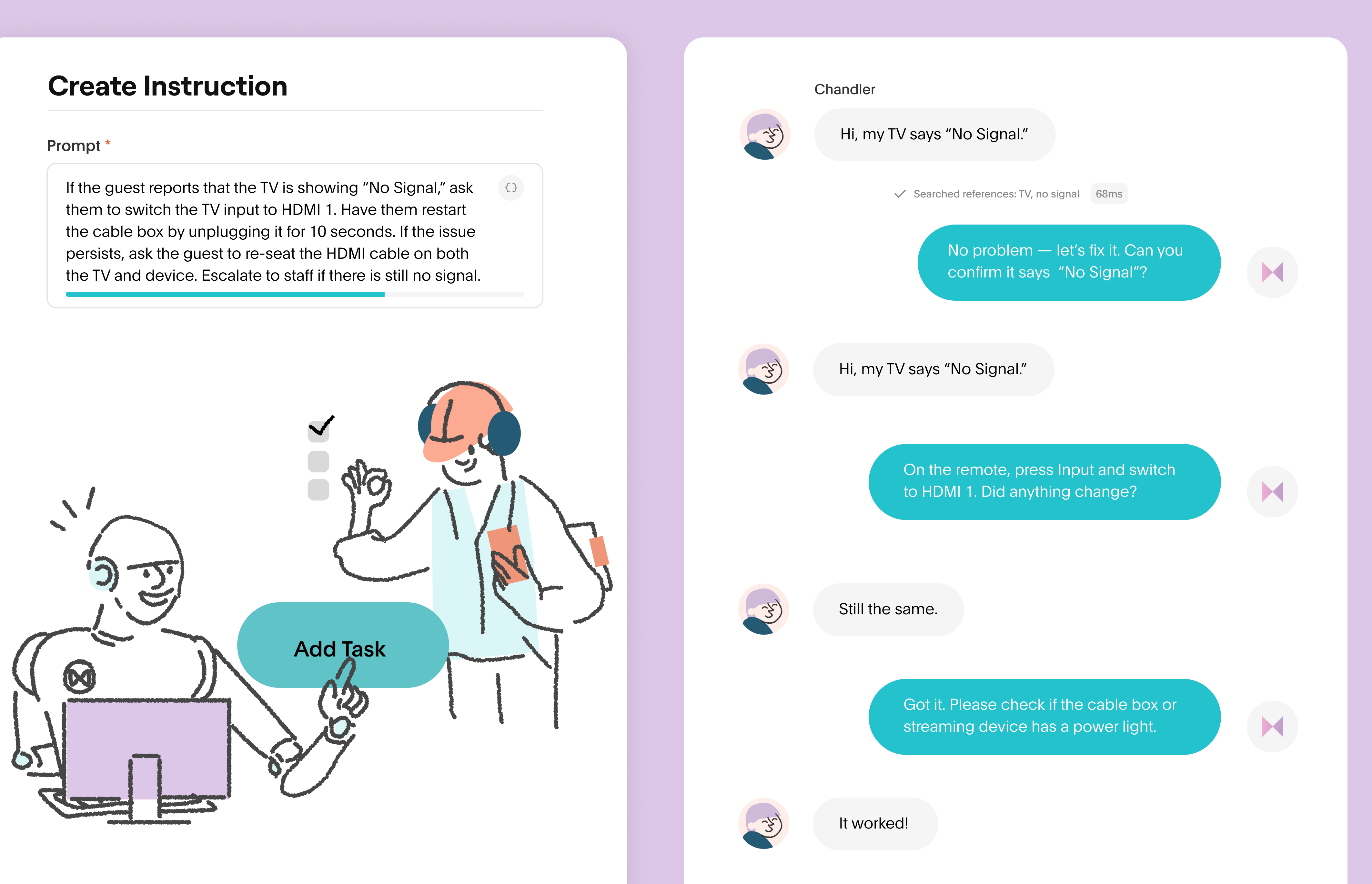
Press the Input or Source button on your TV remote. You’ll see options like HDMI1, HDMI2, AV, or Component. Slowly switch through each one and wait 5-10 seconds to see if you get a picture. Many times, the TV is just set to the wrong input.
Pro Tip:
Label your cables or write down which input your cable box uses. This makes it easier to switch back if you change devices.
2. Inspect Cable Connections
Power off both your TV and cable box. Unplug and firmly re-plug all cables:
- HDMI cable (most common)
- Coaxial cable (older setups)
- AV cables (red, white, yellow)
- Power cables for both devices
Look for:
- Bent or broken pins
- Frayed or cracked cables
- Loose plugs
Swap out the cable with a known working one if you have a spare.
3. Restart Both Devices
Unplug your TV and cable box from power. Wait at least 60 seconds. Plug them back in, turn them on, and check if the signal returns. This clears temporary glitches in both devices.
4. Test With A Different Input Or Port
If your cable box is connected to HDMI1, try moving it to HDMI2. Select HDMI2 on your TV. If it works, the original port may be faulty. If not, the problem may be elsewhere.
5. Check Cable Box Output Settings
Some cable boxes have a resolution button or a menu setting for video output (720p, 1080i, 1080p, 4K). If your TV can’t handle the set resolution, you’ll get No Signal.
- Try resetting the output to a lower resolution.
- Refer to your cable box manual or look for a “reset resolution” button.
6. Try The Cable Box On Another Tv
If possible, connect your cable box to a different TV. If it works, your original TV may have a faulty port or setting. If it doesn’t, the cable box or cables are likely the issue.
7. Look For Service Outages
If everything seems fine but you still get No Signal, check with your cable provider. There may be a local outage or maintenance. Providers often have status pages or apps.
8. Factory Reset (last Resort)
If you’ve tried everything, a factory reset may help. Warning: This erases all settings and preferences.
- For TVs: Find the reset option in the menu.
- For cable boxes: There may be a reset button, or unplug for several minutes.
Comparing Common Connection Setups
To help you understand, here’s a comparison of common ways people connect their cable box to the TV and the types of issues each can have.
| Connection Type | Signal Quality | Common Issues | Recommended Use |
|---|---|---|---|
| HDMI | High (HD/4K) | Loose cables, handshake errors, cable faults | Modern TVs and cable boxes |
| Component (Red/Green/Blue) | Medium-High (up to 1080i) | Wrong input, color issues, cable mix-up | Older HDTVs, some cable boxes |
| Composite (Red/White/Yellow) | Low (SD only) | Poor picture, black and white image, no audio | Old TVs, basic cable service |
| Coaxial (RF) | Low (SD only) | Snowy picture, channel mismatch, static | Very old TVs and boxes |
Non-obvious insight: Even new TVs sometimes need a firmware update to work perfectly with the latest cable boxes, especially for HDMI handshake problems.

Credit: www.amazon.com
How To Tell If The Problem Is The Tv Or Cable Box
It’s easy to blame the TV or the cable box, but here’s how to narrow it down.
Signs The Tv Is The Issue
- TV shows No Signal on all inputs, even with different devices.
- TV menu is slow or unresponsive.
- TV works with streaming apps but not with any external devices.
Signs The Cable Box Is The Issue
- Cable box lights blink strangely or show error codes.
- Box works on one TV but not another (with working cables).
- The box feels unusually hot or makes odd noises.
Try swapping devices and cables to isolate the fault. This simple test saves hours of guessing.
How To Avoid Future “no Signal” Issues
Prevention is easier than constant troubleshooting. Here are smart ways to stop these problems before they start.
- Label all cables and inputs.
- Use good quality HDMI cables—cheap ones fail often, especially with 4K signals.
- Keep your TV and cable box firmware up to date.
- Check for loose connections every few months, especially if you move devices.
- Don’t overload power strips or use old surge protectors, which can cause signal glitches after power surges.
- Avoid bending cables sharply behind the TV.
- Write down your input/source settings somewhere handy for family members.
Example Troubleshooting Scenarios
Let’s walk through a few real-life examples to see how the steps fit together.
Scenario 1: The Wrong Input
Maria turns on her TV and sees No Signal. She checks the cable box—lights are on, but no picture. She presses the “Input” button and realizes her kids switched to HDMI2 for their video game. Maria switches back to HDMI1, and the cable picture returns.
Scenario 2: Loose Hdmi Cable
James moves his TV to clean behind it. Afterward, he gets No Signal. He checks the HDMI cable and finds it half out of the port. He unplugs and re-plugs both ends, and everything works again.
Scenario 3: Hdmi Handshake Failure
Sarah’s TV and cable box have worked for years, but after a power outage, the TV says No Signal. She unplugs both devices for a minute, then plugs them back in. The handshake resets, and the picture returns.
Scenario 4: Faulty Port
Omar notices that HDMI1 doesn’t work anymore, but HDMI2 does. He moves the cable box to HDMI2 and sets his TV input to match. Problem solved, though he knows HDMI1 may be permanently damaged.
Scenario 5: Output Resolution Mismatch
Paul gets a new 4K TV. His cable box is set to 1080i, which the TV supports, but he accidentally sets the box to a resolution the TV can’t display. He resets the cable box’s output (using the manual’s steps), and the picture returns.
Advanced Tips For Persistent Problems
Most issues are fixed with the steps above, but if the problem keeps returning, try these advanced solutions.
Use A Different Hdmi Cable Brand
Some HDMI cables, especially “no-name” brands, don’t work well with some TVs or cable boxes. Look for cables certified for HDMI High Speed or “Premium Certified.”
Update Firmware
Check your TV’s and cable box’s support pages for firmware updates. Outdated software can cause compatibility problems, especially with 4K or HDR signals.
Try A Signal Booster Or Repeater
If your cable box is far from your TV (over 15 feet), the signal can weaken. HDMI repeaters or boosters can help, but only use these if you’re sure cable length is the problem.
Hdmi Splitter Issues
If you use an HDMI splitter (one cable box to multiple TVs), try removing it. Splitters can introduce handshake problems, especially with HDCP (copy protection).
Check Power Supply Stability
Unstable power can cause devices to “lock up. ” Use a quality surge protector and avoid plugging too many devices into one outlet.

Credit: www.youtube.com
Real Data: How Often Does This Happen?
According to a 2023 survey by a leading cable provider, over 38% of support calls for TV issues involve the No Signal message, even though most problems are caused by simple cable or input errors. In 60% of these cases, users fixed the problem themselves after following a basic troubleshooting guide.
Comparison: “no Signal” Vs. Other Common Tv Errors
Here’s a quick comparison of No Signal to other common TV error messages.
| Error Message | Cause | First Steps | Complexity |
|---|---|---|---|
| No Signal | Input/cable/connection issue | Check input, cables, restart devices | Easy |
| No Channels Found | Antenna/cable scan issue | Run channel scan, check connection | Moderate |
| Weak or No Signal | Poor reception, service outage | Check cables, provider status | Moderate |
| HDCP Error | HDMI copy protection handshake | Restart, swap cables | Tricky |
When To Call For Professional Help
You can fix most No Signal problems yourself. However, call for help if:
- The TV or cable box shows physical damage.
- None of the steps above work, even with different cables and ports.
- The TV or box is still under warranty—don’t open the devices yourself.
- You hear crackling, see sparks, or smell burning—unplug everything immediately.
Your cable provider can also send a technician to check connections, replace faulty boxes, or repair wall outlets.
Key Mistakes People Make (and How To Avoid Them)
1. Ignoring the Input Setting
Most people go straight to the cables, but the TV input is the most common cause.
2. Using Cheap or Old Cables
Older HDMI cables often can’t handle new high-definition signals, leading to regular dropouts.
3. Overlooking Power Cycling
A simple 60-second power unplug fixes many “handshake” errors, but people forget this step.
4. Not Checking for Outages
You might spend hours troubleshooting when the service is down in your area. Always check your provider’s status page.
5. Failing to Label Cables
With many devices and ports, labeling saves confusion, especially in family homes.
Credit: www.akia.com
The Role Of Hdcp And Hdmi Handshakes
One often-missed detail is HDCP (High-bandwidth Digital Content Protection), a type of copy protection used with HDMI. If the handshake fails, your TV shows No Signal or a blank screen. This is why unplugging and re-plugging devices often works—it resets the handshake. If you use splitters, soundbars, or AV receivers, they must support HDCP as well.
What To Do If “no Signal” Happens Frequently
If you see No Signal often, take these steps:
- Replace all cables with new, high-quality ones.
- Update your TV and cable box firmware.
- Avoid using long or multiple HDMI extensions.
- Plug devices directly into the wall, not power strips with many plugs.
- Consider a professional installation, especially if you have a complex setup.
Useful External Resource
For more details on HDMI standards and troubleshooting, you can visit the official HDMI Organization.
Frequently Asked Questions
What Should I Do First If My Tv Says No Signal But The Cable Box Is On?
Start by checking that your TV is set to the correct input (like HDMI1 or AV). Use the TV remote’s “Input” or “Source” button to switch through inputs. Make sure the cable box is powered on and cables are tightly connected.
Can A Bad Hdmi Cable Cause No Signal?
Yes, a faulty or damaged HDMI cable is a common reason for No Signal messages. Try another cable if you have one. Even minor damage inside the cable can stop the signal.
Why Does Unplugging Everything Fix The Problem?
Unplugging both the TV and the cable box resets the HDMI handshake and clears temporary glitches. This is often enough to fix signal and copy protection errors.
How Do I Know If My Tv Or Cable Box Is Broken?
Test each device with another TV or cable box if possible. If your cable box works on another TV, the original TV might be at fault. If not, the problem is likely with the cable box or cables.
Will This Problem Damage My Tv Or Cable Box?
Usually, No Signal does not damage your devices. It’s a connection or compatibility issue, not a hardware failure. However, repeated plugging/unplugging or surges can cause wear or damage over time.
If you follow the steps above, you’ll solve most No Signal issues and avoid unnecessary stress. Remember: patience and a step-by-step approach work best. Most problems are simple, and you don’t need to be a tech expert to fix them.