
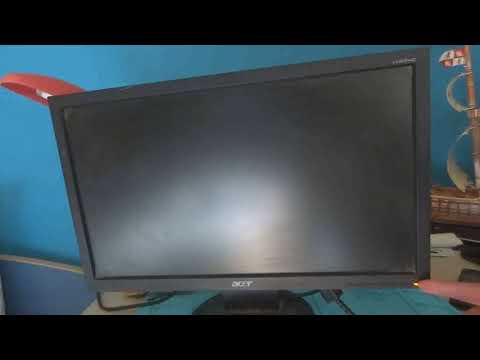
Is your Acer monitor’s blue light blinking, but the screen stays dark? This blinking blue light can be confusing and frustrating, especially when you’re eager to get back to work or gaming.
You might wonder: Is it a simple connection issue, a sleep mode glitch, or something more serious? The good news is, you don’t have to guess or panic. Understanding why your Acer monitor’s blue light blinks can help you fix the problem quickly and avoid downtime.
You’ll discover what the blinking blue light means, common reasons behind it, and easy steps you can take right now to solve the issue. Keep reading to bring your monitor back to life without hassle!
Blinking Blue Light Causes
The blinking blue light on an Acer monitor signals that something is not right. It often means the monitor is not receiving a proper signal or facing an internal problem. Understanding the causes helps in fixing the issue quickly. This guide covers the main reasons behind the blinking blue light.
Signal Cable Issues
Loose or damaged cables can cause the blinking blue light. The monitor may not get a stable video signal. Check if the HDMI or DisplayPort cables are firmly connected. Swap cables to see if the problem persists. Faulty cables often lead to signal interruptions, causing the light to blink.
Power Supply Problems
Power issues also trigger the blinking blue light. A weak or unstable power source can disrupt the monitor’s function. Inspect the power adapter and cable for damage. Try plugging the monitor into a different outlet. A steady power supply is vital for the monitor’s normal operation.
Sleep Mode And Standby
The monitor blinks blue when it enters sleep mode. It waits for a signal from the computer to wake up. Sometimes, the computer may not send this signal properly. This causes the monitor to stay in standby, blinking the blue light. Pressing a key or moving the mouse usually wakes the monitor.
Resolution And Refresh Rate Conflicts
Setting a resolution or refresh rate not supported by the monitor causes blinking. The monitor cannot display the video signal correctly. Check the computer’s display settings for compatibility. Adjust the resolution and refresh rate to match the monitor’s limits. This fixes display conflicts and stops the blinking.
Internal Hardware Failures
Internal faults can make the blue light blink continuously. Issues with the monitor’s circuit board or backlight are common causes. These problems need professional repair or replacement. If all other fixes fail, the monitor may have a hardware failure. Contact Acer support for further assistance.
Basic Troubleshooting Steps
When your Acer monitor shows a blinking blue light, start with basic troubleshooting. These simple steps help find the cause fast. They guide you through checking connections and settings. Follow each step carefully. This can fix common problems without extra tools or help.
Check And Secure Cables
Loose cables often cause blinking lights. Unplug all cables from the monitor and PC. Check for bent or damaged pins. Plug them back in firmly. Make sure each cable fits tightly in its port. A secure connection stops signal loss and blinking.
Switch Hdmi Or Displayport
Try changing the cable type. Use an HDMI cable if you used DisplayPort first. Or switch from HDMI to DisplayPort. Different ports can solve compatibility issues. Using a new cable also rules out a broken wire. This test is quick and easy.
Verify Pc Power Status
Check if your PC is on and awake. A blinking blue light may mean no signal from the computer. Press a key or move the mouse to wake it. Look at the PC’s power light. If the PC is off or asleep, the monitor won’t get a signal.
Test Different Ports
Connect the monitor to another port on your PC. Sometimes one port fails or gets disabled. Use a different HDMI or DisplayPort input on the PC. This can restore the video signal. Testing ports helps isolate the problem location.
Perform A Hard Reset
Turn off the monitor and unplug its power cable. Wait about 60 seconds to clear any stored power. Plug the power back in and turn on the monitor. This resets the internal electronics. A hard reset often fixes blinking lights and black screens.
Scenario-specific Fixes
Different situations cause the Acer monitor’s blue light to blink. Each scenario needs a unique approach to fix the problem. Understanding the exact issue helps save time and effort. The following fixes focus on specific cases users often face with Acer monitors.
Blinking After Pc Shutdown
The blue light blinks because the monitor waits for a signal. The PC might have fully powered off without telling the monitor. Press the monitor’s power button to turn it off manually. Unplug the monitor from the power source for a minute. Plug it back and turn it on to reset the connection.
Blue Light On But Black Screen
The monitor gets power but does not display an image. This often happens due to a loose or faulty cable. Check all video cables and reconnect them firmly. Try a different HDMI or DisplayPort cable to rule out cable failure. Perform a hard reset by unplugging both power and video cables for 30 seconds. Reconnect and power on the monitor.
Monitor Stuck In Sleep Mode
The monitor stays in sleep mode with a blinking blue light. Wake the PC by moving the mouse or pressing a key on the keyboard. Check the PC’s power settings to prevent it from sleeping too quickly. Update the graphics driver to ensure proper communication. A quick restart of both PC and monitor often solves the issue.
No Signal On New Gaming Pc
New gaming PCs may cause the monitor to show no signal with a blinking light. Ensure the monitor connects directly to the graphics card, not the motherboard. Check the graphics card is properly seated in its slot. Update the PC BIOS and graphics drivers to improve compatibility. Try a different input port or cable to find a working connection.

Credit: www.youtube.com
Power Settings And Sleep Mode
The power settings and sleep mode play a key role in the Acer monitor blinking blue light issue. Monitors often enter sleep mode to save energy when inactive. This action can cause the blue light to blink, signaling that the monitor is in standby. Adjusting these settings helps stop the blinking and keeps your display active.
Understanding and managing power options prevents the monitor from entering sleep mode too quickly. Customizing these settings offers better control over your monitor’s behavior. Simple changes can fix the blinking light without complicated steps.
Disable Sleep Mode
Disabling sleep mode stops the monitor from going into standby. On Windows, open Settings and go to System > Power & Sleep. Set the screen and sleep options to “Never” or a longer time. This keeps the monitor on and stops the blue light from blinking.
Disabling sleep mode works well if you want the monitor active during long tasks. Remember to turn off the monitor manually to save energy.
Adjust Power Saving Settings
Power saving settings control how the monitor uses energy. Open the control panel or monitor menu to access these options. Lowering power saving sensitivity or turning off features like eco-mode can stop the blinking light.
Adjust these settings based on your usage. Balancing power saving and screen activity keeps the monitor stable and responsive.
Manually Turn Off Monitor
Manually turning off the monitor avoids blinking when the PC shuts down. Use the power button on the monitor to switch it off completely. This action prevents the monitor from staying in standby mode with a blinking blue light.
Manual power control is a simple way to manage the monitor’s status. It helps avoid confusion when the monitor appears active but shows no display.
Advanced Solutions
Advanced solutions address persistent blinking blue light issues on Acer monitors. These steps go beyond basic checks to resolve deeper technical problems. Follow each method carefully to restore your monitor’s normal function.
Update Graphics Drivers
Outdated or corrupted graphics drivers can cause display issues. Visit your graphics card manufacturer’s website. Download and install the latest drivers for your system. Restart your computer after the update. This often fixes signal and compatibility problems.
Reset Monitor To Factory Settings
Resetting your Acer monitor clears custom settings that may trigger the blinking light. Access the monitor’s on-screen menu using the buttons on the device. Find the option to restore factory defaults. Confirm the reset and wait for the monitor to reboot. This can solve configuration conflicts.
Check For Firmware Updates
Firmware controls your monitor’s hardware functions. Check Acer’s official site for firmware updates. Download and follow instructions to update the monitor’s firmware. Updated firmware improves stability and fixes bugs that cause blinking lights.
Consult Acer Support
If the problem persists, contact Acer customer support. Provide your model number and a detailed issue description. Support can guide you through advanced troubleshooting. They may offer repair or replacement options if needed.

Preventive Tips
Preventing the Acer monitor blinking blue light issue saves time and stress. Simple habits keep your monitor stable and reliable. Follow these tips to reduce chances of blinking lights and signal loss.
Use Quality Cables
Always choose high-quality HDMI or DisplayPort cables. Cheap cables may cause loose connections and signal drops. Secure cable ends firmly into the monitor and PC. Replace worn or damaged cables promptly to avoid flickering lights.
Regularly Update Software
Keep your graphics drivers and monitor firmware updated. Updates fix bugs and improve compatibility. Check the Acer website or your PC manufacturer for the latest updates. Updated software reduces conflicts that trigger blinking blue lights.
Avoid Unsupported Resolutions
Set your display to supported screen resolutions and refresh rates. Using unsupported settings confuses the monitor and causes blinking signals. Consult the Acer monitor manual for recommended resolutions. Stick to these settings for smooth, stable display performance.
Maintain Proper Ventilation
Place your Acer monitor in a well-ventilated area. Overheating leads to hardware issues and blinking lights. Avoid blocking air vents on the monitor. Clean dust regularly from vents and surrounding areas to keep airflow steady and cool.
Frequently Asked Questions
Why Is My Monitor Flashing A Blue Light?
A flashing blue light on your monitor usually means no signal or sleep mode. Check cables, input source, and PC status. Try a hard reset or different cables to fix it. Persistent blinking may indicate hardware issues.
How To Force Reset An Acer Monitor?
To force reset an Acer monitor, unplug its power cable, wait 30 seconds, then press and hold the power button for 10 seconds. Reconnect power and turn it on. This clears temporary issues and resets the monitor settings.
Why Is The Power Light Blinking But No Display On My Acer Monitor?
A blinking power light with no display on your Acer monitor often means an unsupported resolution or refresh rate. Check cables, input source, and perform a hard reset to fix it. Faulty power supply or internal hardware issues may also cause this problem.
How Do I Fix My Acer Black Screen Of Death?
To fix Acer black screen of death, perform a hard reset by unplugging power for 60 seconds. Check cables, reconnect securely. Update or reinstall graphics drivers. Boot in safe mode to troubleshoot software issues. If unresolved, seek professional hardware repair.
Why Is My Acer Monitor Blinking A Blue Light?
A blinking blue light on Acer monitors means no signal or sleep mode. It shows the monitor is powered but not receiving input from the PC. Check cable connections and PC status first.
Conclusion
A blinking blue light on your Acer monitor often signals connection or power issues. Check cables and ports carefully to ensure proper connection. Restart your computer or perform a hard reset to refresh the monitor’s status. If problems persist, the power supply or internal hardware might need attention.
Simple steps often resolve the blinking light quickly. Stay calm and follow these easy fixes to get your monitor working again.