
Are your AirPods showing as connected, but the sound is still coming from your phone? It’s a frustrating problem that can catch you off guard, especially when you expect to enjoy crisp, wireless audio.
You’re not alone—many people face this issue, and the good news is, it’s usually easy to fix. You’ll discover simple, effective steps to get your AirPods working properly again. Keep reading, and you’ll be back to listening the way you want in no time.
Check Audio Output Settings
Sometimes your AirPods connect properly but the sound still plays through the phone. Checking the audio output settings often solves this problem. Your device might not be sending audio to the AirPods even when they appear connected.
Adjusting the output settings ensures your AirPods become the active audio device. This step is quick and easy. It helps the phone recognize where to send the sound.
Use Control Center To Select Airpods
Open the Control Center on your iPhone. On iPhones with Face ID, swipe down from the top-right corner. For older models, swipe up from the bottom of the screen.
Look for the audio playback widget in the Control Center. Tap the AirPlay icon, which looks like a triangle with circles above it.
A list of available audio devices will appear. Select your AirPods from this list. This action directs sound to play through your AirPods, not the phone speaker.
Confirm Airpods Are Active Output
After selecting your AirPods, check if they show as the current output device. The Control Center should display the AirPods name with a checkmark.
Play some audio to test if the sound now comes through your AirPods. If not, try reconnecting or restarting your device.
Ensuring AirPods are the active output device helps fix most sound routing issues. This small check prevents confusion between the phone speaker and AirPods.

Restart Bluetooth And Device
Restarting Bluetooth and your device often solves sound issues with AirPods. This simple step clears minor glitches. It helps your iPhone or iPad reconnect properly to the AirPods. Many users find this quick fix restores normal sound output from the AirPods instead of the phone speaker.
Start by toggling Bluetooth off and on. If that does not work, restart your device. These actions refresh the connection and fix common audio routing problems.
Toggle Bluetooth Off And On
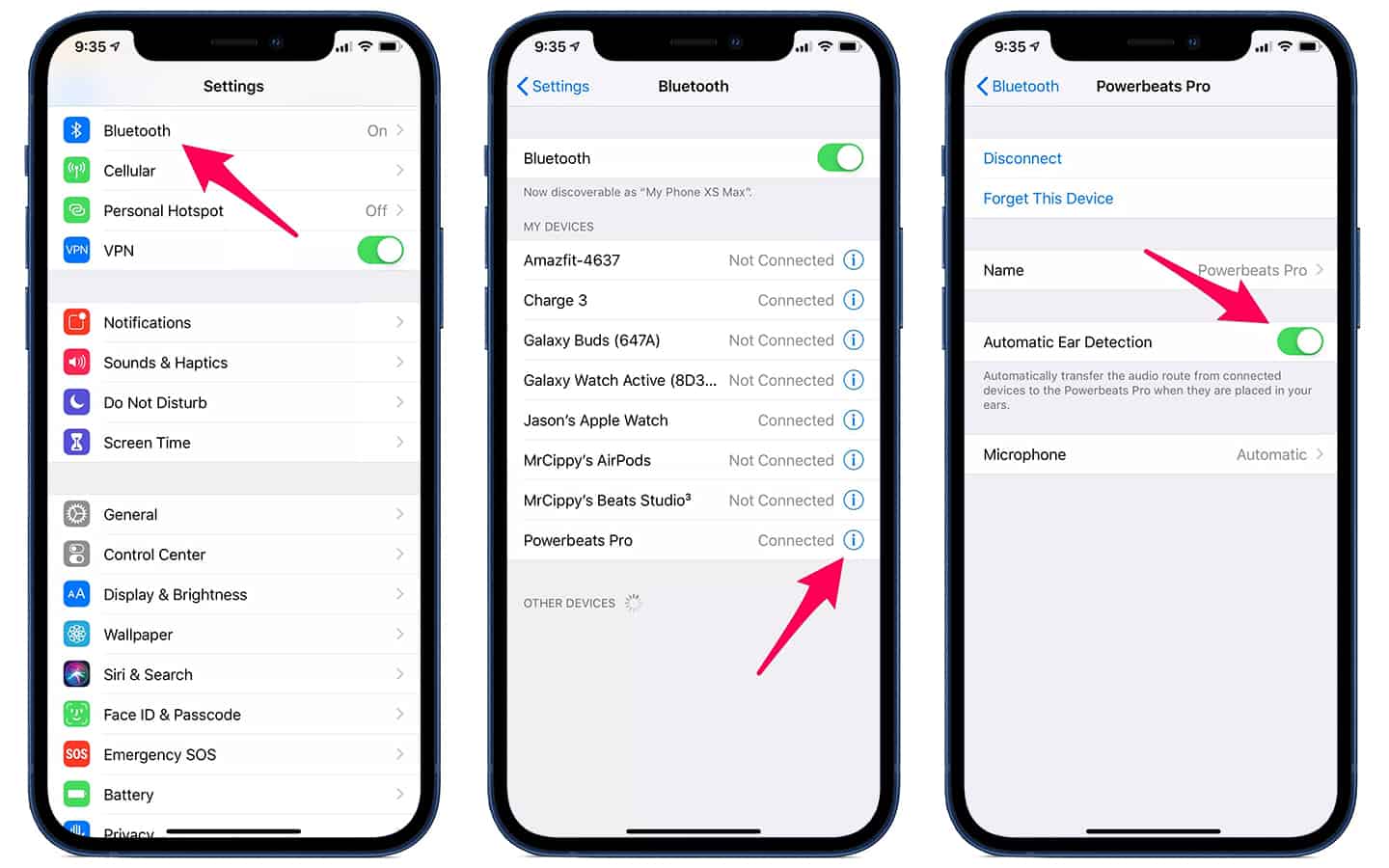
Open the Settings app on your iPhone or iPad. Tap on Bluetooth. Switch the Bluetooth toggle off. Wait for a few seconds. Turn Bluetooth back on. This resets the Bluetooth radio. Your AirPods may then reconnect correctly and play sound through them.
Restart Your Iphone Or Ipad
Press and hold the power button until the slider appears. Slide to power off the device. Wait about 30 seconds. Press and hold the power button again to turn it back on. Restarting clears temporary software glitches. Your AirPods should now output sound properly instead of the phone speaker.
Forget And Re-pair Airpods
Updating your iOS and AirPods firmware plays a key role in solving sound issues. Outdated software can cause your AirPods to connect but still play sound from your phone. Regular updates improve compatibility and fix bugs. Keeping both your iPhone and AirPods up to date ensures smoother audio performance.
Install Latest Ios Updates
Start by checking your iPhone for the latest iOS updates. Open Settings, tap General, then Software Update. Download and install any available updates. These updates often include fixes for Bluetooth and audio problems. After updating, restart your phone to apply changes. This simple step can resolve many connection issues.
Update Airpods Firmware
AirPods also need firmware updates to work properly. These updates happen automatically when AirPods connect to an iPhone with internet access. To check your firmware version, go to Settings, then Bluetooth, and tap the “i” next to your AirPods. Compare this version with the latest from Apple’s support site. If outdated, place AirPods in the charging case near your iPhone and keep them connected to Wi-Fi. The firmware will update silently in the background.
Frequently Asked Questions
Why Are My Airpods Connected But Not Playing Anything?
Your AirPods may connect but not play sound if the audio output is set to your phone. Select AirPods in Control Center’s AirPlay menu. Restart Bluetooth or your device to fix glitches. Clean sensors and ensure both AirPods and case are charged.
Re-pair or reset AirPods if needed.
Why Is My Bluetooth Connected But Still Playing Through My Phone?
Your phone may not route audio to Bluetooth despite connection. Select your Bluetooth device as audio output in Control Center. Restart Bluetooth or your phone to fix glitches. Re-pair or reset your Bluetooth device if needed. Check device battery and clean sensors for proper function.
Why Do My Airpods Make A Noise When My Phone Is Near?
Your AirPods may emit noise due to the Find My feature activating to locate them. It triggers sounds when your phone is nearby.
Why Are My Airpods Constantly Chiming?
Your AirPods may chime constantly due to low battery, connection issues, or the Find My feature being active. Check battery levels, toggle Bluetooth, or disable Find My to stop the chimes.
Why Are My Airpods Connected But Sound Plays From Phone?
Your device may not be sending audio to AirPods. Check the audio output settings and select AirPods. Sometimes toggling Bluetooth off and on fixes this issue.
Conclusion
AirPods connected but sound plays from your phone can frustrate anyone. Simple fixes often solve this issue quickly. Check your audio output settings first to ensure AirPods are selected. Restart your device or toggle Bluetooth to clear glitches. Re-pairing or resetting AirPods may also help.
Cleaning the AirPods and charging them fully supports proper function. Always keep your iOS updated to avoid compatibility problems. These easy steps bring your audio back to your AirPods smoothly. Enjoy your music and calls without interruptions again.