
Is your Blink camera refusing to connect to the Sync Module? You’re not alone, and it can be incredibly frustrating when your security system won’t work as it should.
Whether your camera keeps dropping the connection or simply won’t sync at all, this issue can leave you feeling vulnerable and stuck. But don’t worry—help is at hand. You’ll discover simple, effective steps to troubleshoot and fix the connection problem quickly.
By the end, you’ll know exactly how to get your Blink camera back online and protecting your home with confidence. Keep reading to regain control and peace of mind.

Credit: www.youtube.com
Common Connection Issues
Common connection issues often cause Blink cameras to fail linking with the Sync Module. These problems affect the camera’s ability to send video and alerts reliably. Understanding these issues helps find quick fixes and restore smooth operation.
Several factors can disrupt the connection between your Blink camera and Sync Module. Most issues relate to wireless signal strength, power supply, and environmental interference. Each area needs attention for proper troubleshooting.
Weak Wireless Signal
The Sync Module needs a strong Wi-Fi signal to connect with Blink cameras. Walls, floors, and distance reduce signal strength. A weak signal causes delays or failure in syncing the camera. Check signal bars in the Blink app for strength details. Move the Sync Module closer to the router or camera for better reception.
Battery Problems
Low or dead batteries in Blink cameras cause connection failures. The camera may lose power before completing the sync process. Replace batteries with fresh, high-quality ones for stable operation. Always use batteries recommended by Blink for best results. Regularly check battery status in the Blink app to avoid sudden power loss.
Wi-fi Interference
Other wireless devices can interfere with Blink camera signals. Microwaves, cordless phones, and baby monitors use similar frequencies. This interference disrupts communication between the camera and Sync Module. Reduce nearby device usage or move the Sync Module away from electronic noise sources. Changing your Wi-Fi channel can also improve connection stability.
Router And Sync Module Placement
Placement matters for both the router and Sync Module. Keep the Sync Module in an open area, not inside cabinets or behind large objects. Place the router in a central spot to cover the whole home evenly. Avoid placing the Sync Module near metal objects or thick walls. Good placement ensures a stable link between your Blink cameras and Sync Module.
Basic Troubleshooting Steps
Basic troubleshooting steps can help fix the Blink camera connection issue fast. These steps focus on simple actions you can do yourself. They address common problems like weak signals or software glitches. Follow these easy tips to get your camera back online.
Restarting The Sync Module
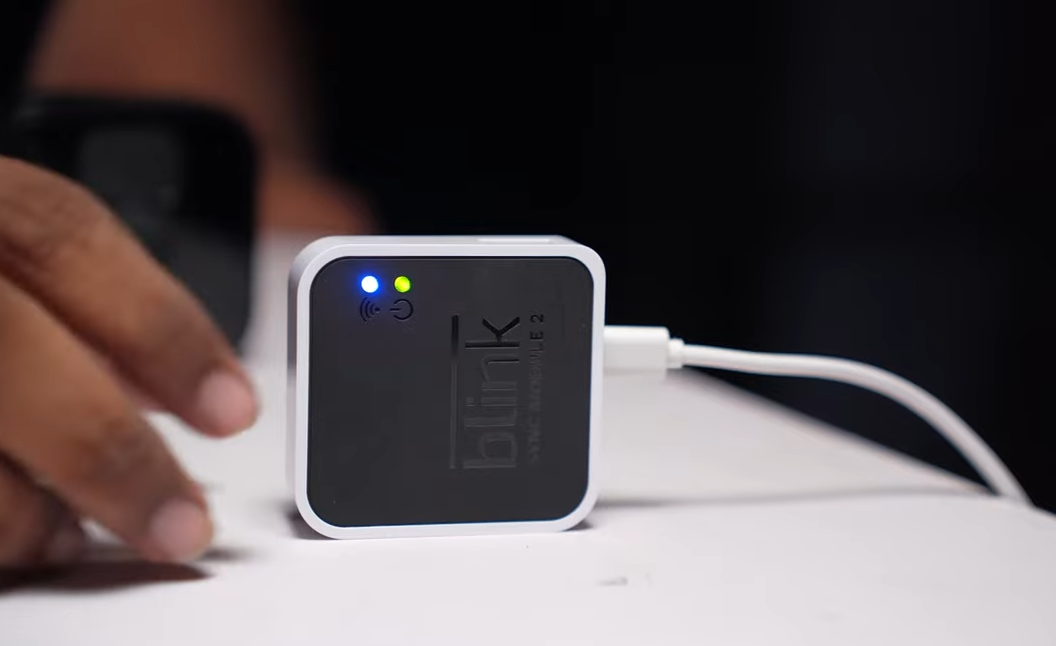
Restarting the Sync Module refreshes its connection to your network. Unplug the Sync Module from power. Wait about 30 seconds to clear temporary errors. Plug it back in and watch for the LED lights. A steady light means it is ready to connect. This step often restores the camera’s connection.
Power Cycling Your Router
Power cycling the router resets your internet connection. Unplug the router’s power cable. Wait 30 seconds before plugging it back in. This clears network issues that block the Sync Module. Once the router is fully on, check the camera status. This quick reset can solve many connection problems.
Removing And Re-adding The Camera
Removing the camera from the Blink app can clear setup glitches. Open the Blink app and select your camera. Use the settings to remove it from your account. Then, add the camera again by following the setup prompts. This refreshes the link between camera and Sync Module. It can fix stubborn connection errors.
Using A Different Mobile Device
Trying a different phone or tablet can isolate app issues. Download the Blink app on another device. Log in with your Blink account credentials. Attempt to connect the camera to the Sync Module from there. If it works, the problem may be with your original device. This step helps find simple device-specific bugs.
Network Settings And Compatibility
Network settings and compatibility play a key role in connecting your Blink camera to the Sync Module. Problems often happen due to incorrect Wi-Fi settings or incompatible devices. Understanding these issues helps fix connection failures quickly.
Ensuring your network supports the Blink system and configuring it properly avoids many common errors. Simple adjustments in your router or device settings can improve connection success.
Checking Wi-fi Frequency Bands
Blink cameras and Sync Modules work best on 2.4 GHz Wi-Fi bands. Many routers offer both 2.4 GHz and 5 GHz bands. The Sync Module may not connect if it tries to use 5 GHz.
Confirm your router’s settings and connect the Sync Module to the 2.4 GHz band only. This band covers longer distances and passes through walls better, ideal for smart home devices.
Disabling Mobile Data During Setup
Mobile data can interfere during the Sync Module setup. Phones often switch between Wi-Fi and mobile data, causing connection drops.
Turn off mobile data on your phone before starting the Blink camera setup. This ensures the phone uses your Wi-Fi network exclusively, allowing a stable connection to the Sync Module.
Avoiding Device Conflicts On The Network
Multiple devices using the same Wi-Fi can cause conflicts. Smart home gadgets, computers, and phones may compete for bandwidth or IP addresses.
Try disconnecting unnecessary devices during setup. This reduces network traffic and prevents IP conflicts, improving the chances of a smooth Sync Module connection.
Router Configuration Tips
Some router settings block or limit Blink device connections. Features like MAC filtering or firewall rules may stop the Sync Module from joining the network.
Check your router’s settings to allow new devices. Disable MAC filtering or add the Sync Module’s MAC address to the allowed list. Also, ensure DHCP is enabled so the Sync Module can get an IP address automatically.
Advanced Fixes
Advanced fixes help solve difficult connection problems with your Blink camera and Sync Module. These steps go beyond basic troubleshooting. They can restore proper function when simple resets fail.
Follow each method carefully. These fixes often require more time but increase the chance of success. Start with the factory reset of the Sync Module. Then try resetting the camera itself. Updating software is also crucial. Finally, reinstall the Blink app to clear any app-related issues.
Factory Resetting The Sync Module
Unplug the Sync Module from power. Wait at least 30 seconds. Press and hold the reset button with a paperclip. Hold for 10 seconds until the LED blinks red. Release the button and wait for the module to restart. This wipes all settings and returns the device to factory defaults.
Resetting The Blink Camera Without Sync Module
Remove the camera’s batteries. Press and hold the setup button on the camera. While holding, reinsert the batteries. Keep holding the button for 10 seconds. Release the button when the LED flashes blue. The camera resets and can be paired again without the Sync Module.
Updating Firmware And App
Open the Blink app and check for updates. Update the app from your device’s app store if available. Next, check the camera and Sync Module firmware in the app settings. Install any available firmware updates. Updated software improves stability and fixes bugs that block connections.
Reinstalling The Blink App
Delete the Blink app from your phone or tablet. Restart your device to clear memory. Download and install the latest version of the Blink app. Log in with your account credentials. Re-adding devices may fix app glitches that prevent Sync Module connections.

Preventing Future Connection Problems
Preventing future connection problems between your Blink camera and Sync Module is essential. Consistent connection ensures your security system works smoothly. Small changes can reduce interruptions and improve performance. Follow these simple tips to keep your devices connected and reliable.
Optimizing Sync Module Location
Place your Sync Module near the center of your home. Avoid walls, metal objects, or large furniture blocking the signal. Higher locations often provide better signal coverage. Keep it away from devices that cause interference, like microwaves or cordless phones. A good spot means fewer connection drops.
Maintaining Strong Signal Strength
Check your Wi-Fi signal strength regularly. Use apps or device settings to test signal power near the Sync Module. If the signal is weak, consider a Wi-Fi extender. Avoid placing the Sync Module too far from your router. Strong signals help the camera and Sync Module communicate without issues.
Regular Battery Checks
Check the camera’s battery level often. Low batteries can cause connection failures. Replace batteries before they run out. Use recommended battery types for best results. Keeping batteries fresh helps maintain a steady connection and prevents unexpected shutdowns.
Keeping Network Devices Updated
Update your router’s firmware regularly. Updated firmware improves security and performance. Also, update the Blink app and Sync Module software when available. Outdated software can cause connection problems. Staying current helps your system work smoothly and reduces bugs.
Frequently Asked Questions
How Do You Reboot The Sync Module On Blink?
To reboot the Blink Sync Module, unplug it from power for 10 seconds. Then, plug it back in and wait for it to restart. This refreshes the connection and resolves minor issues quickly.
How To Reset A Blink Camera Without Sync Module?
To reset a Blink camera without a Sync Module, remove the batteries, press and hold the reset button for 10 seconds, then reinsert batteries. The camera will reboot and reset to factory settings. Use the Blink app to re-add the camera after resetting.
Why Does My Blink Keep Saying Failed To Connect?
Your Blink shows “failed to connect” due to weak Wi-Fi, battery issues, or interference. Restart your router, Sync Module, and camera. Move devices closer, check batteries, or reset the Sync Module to fix connection problems.
Will Unplugging The Blink Module Reset It?
Unplugging the Blink Sync Module only powers it off temporarily. It does not reset the device or erase settings. Perform a factory reset in the app to fully reset the module.
Why Won’t My Blink Camera Connect To The Sync Module?
A weak Wi-Fi signal or interference often causes connection problems. Also, low camera batteries can prevent syncing with the module.
Conclusion
Blink camera connection issues with the Sync Module can be frustrating. Check your Wi-Fi signal strength and battery levels first. Restart the Sync Module and router to refresh connections. Re-adding the camera in the app often helps resolve problems. Keep devices close to avoid interference and weak signals.
Using simple fixes saves time and keeps your system working well. Following these steps improves your Blink camera’s reliability. Stay patient and try each method carefully for the best results.