
Many people love Roku TVs because they are simple, affordable, and easy to use. But as more people want to listen to TV with wireless headphones or connect speakers without wires, one big question comes up: Do Roku TVs have Bluetooth? You might hope to use your Bluetooth headphones or soundbar with your Roku TV, but the answer is not as simple as yes or no. In this in-depth guide, you will discover everything about Bluetooth and Roku TVs, including which models support it, how you can connect Bluetooth devices, and smart ways to get wireless audio even if your Roku TV does not have built-in Bluetooth.
Let’s clear up the confusion and help you get the most from your Roku TV, whether you want private listening, better sound, or just fewer wires in your living room.
What Is Bluetooth And Why Do People Want It On Roku Tvs?
Bluetooth is a wireless technology that lets devices like headphones, speakers, and smartphones connect to each other over short distances. For TVs, Bluetooth is very popular because:
- It allows you to use wireless headphones for private listening.
- You can connect wireless soundbars or speakers for better audio.
- It makes your setup cleaner with fewer cables.
Roku TVs are known for their streaming abilities. Still, many users are disappointed when they discover that their TV might not let them connect regular Bluetooth devices directly. This is because not all smart TVs, including most Roku TVs, have full Bluetooth support built-in.
Do Roku Tvs Have Bluetooth? The Short Answer
If you are looking for a simple yes or no—most Roku TVs do not have classic Bluetooth support built-in. You can’t just pair your regular Bluetooth headphones or speakers like you might with a smartphone or tablet.
But the story does not end there. Some Roku TVs have limited Bluetooth features, and there are still ways to get wireless audio. To understand why, let’s look at how Bluetooth works on Roku TVs, the exceptions, and what you can do if your TV does not support it natively.
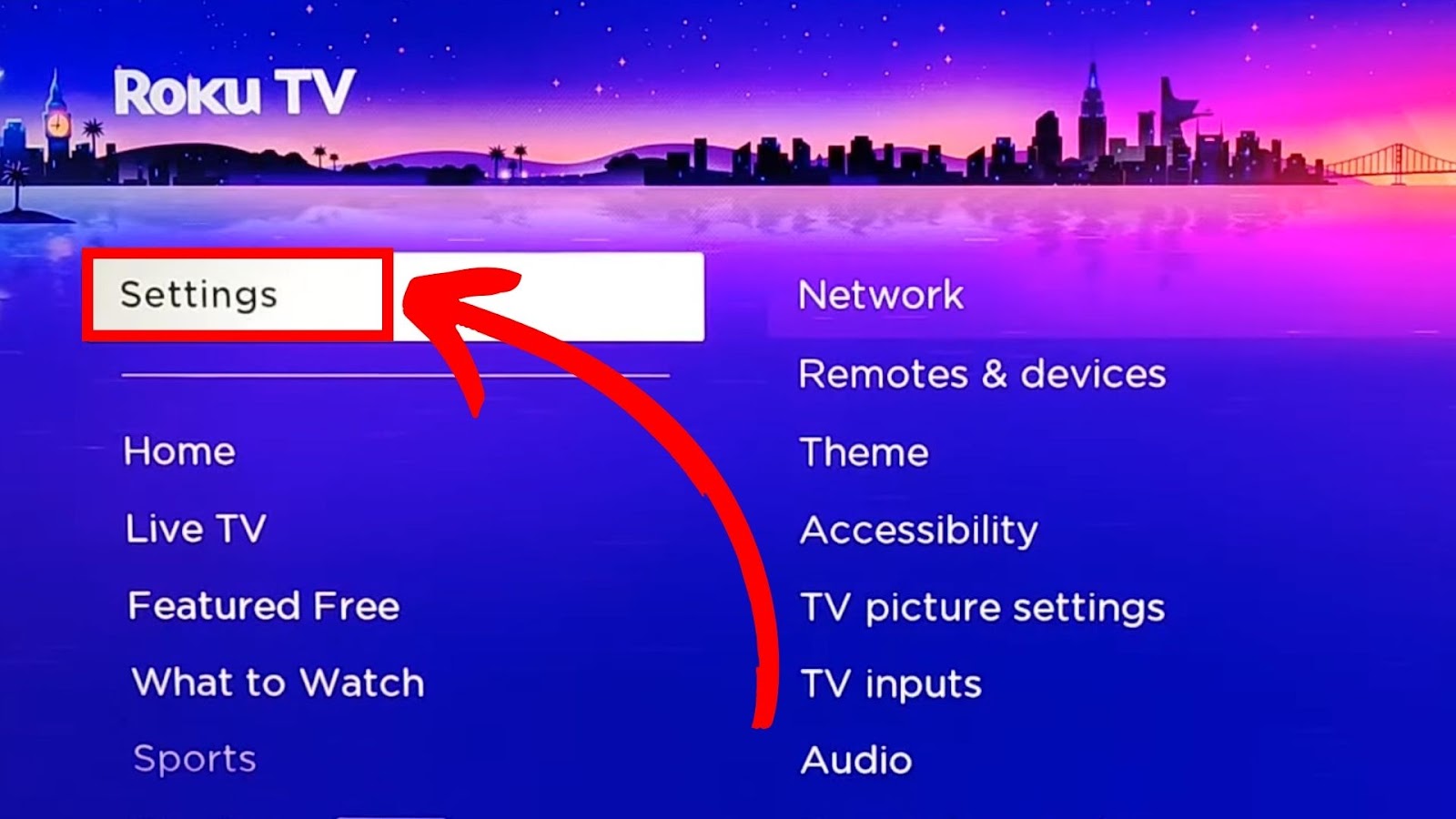
Roku Tv Bluetooth Support: The Details
To fully answer if Roku TVs have Bluetooth, you need to know about the different types of Bluetooth support and the various Roku TV models.
Types Of Bluetooth On Roku Tvs
When people ask if Roku TVs have Bluetooth, they usually mean one of two things:
- Bluetooth for audio devices (like headphones, earbuds, soundbars, or speakers)
- Bluetooth for remote controls or game controllers
Almost all Roku TVs use a wireless remote, but this usually works on Wi-Fi Direct, not classic Bluetooth. True Bluetooth support for audio devices is much less common.
Which Roku Tvs Have Bluetooth?
Most Roku TVs—including models from TCL, Hisense, Sharp, and others—do not offer classic Bluetooth audio pairing. However, there are some Roku devices and TVs that support Bluetooth in special ways:
- Roku Streambar and Roku Smart Soundbar: These devices have Bluetooth. You can pair Bluetooth speakers or headphones directly with them, and they connect to your TV.
- Roku TV Wireless Speakers: These work with specific Roku TVs using a wireless protocol similar to Bluetooth, but not standard Bluetooth. You can’t use regular Bluetooth speakers.
- Roku Voice Remote Pro: This remote uses a different wireless protocol, not Bluetooth audio.
- Roku Ultra and some set-top boxes: Some models offer Bluetooth for private listening, but only through the Roku app or accessories.
In summary, you can’t usually connect regular Bluetooth headphones or speakers directly to a Roku TV. However, you can use Roku’s own wireless speakers and certain accessories.
Why Don’t Most Roku Tvs Have Bluetooth?
Adding full Bluetooth support to a TV is not as simple as it seems. Some reasons include:
- Cost: Adding Bluetooth hardware and certification increases the cost of a TV.
- Licensing: Bluetooth requires special licensing and software.
- Performance: Bluetooth audio can have a small delay (lag), which may ruin the viewing experience.
- Market choice: Roku prefers to push its own wireless audio accessories.
This is why, even though many people want Bluetooth, most Roku TVs do not offer it directly.
How To Use Bluetooth With Roku Tv (even Without Built-in Support)
If your Roku TV does not have Bluetooth, don’t worry. There are several ways to enjoy wireless audio. Some use the Roku mobile app, and others use external devices. Here are the most popular and practical solutions:
1. Private Listening With The Roku Mobile App
The Roku mobile app (available for iOS and Android) is the easiest way to get wireless audio from your Roku TV. Here is how it works:
- Install the Roku app on your smartphone or tablet.
- Connect your Bluetooth headphones or speaker to your phone (not directly to the TV).
- Open the Roku app, and connect it to your Roku TV.
- Use the “Private Listening” feature inside the app.
Now, audio from your TV streams to your phone, which sends it to your Bluetooth headphones or speaker. This method works for all Roku TVs and does not need any extra hardware.
Key points:
- The connection is between your TV, the Roku app, and your Bluetooth device (through your phone).
- There may be a small audio delay, especially with some Bluetooth headphones.
- This is best for private listening, not for watching with a group.
Non-obvious insight: Many users forget that you must keep your phone near your TV and on the same Wi-Fi network for this to work smoothly.
2. Using A Bluetooth Audio Transmitter
If you want to connect Bluetooth headphones or speakers directly to your TV, you can use a Bluetooth transmitter. This small device plugs into your TV’s headphone jack or audio output and sends the audio wirelessly.
How to set it up:
- Buy a Bluetooth transmitter (look for aptX Low Latency for better sync).
- Plug the transmitter into your Roku TV’s headphone jack or RCA/optical audio output.
- Pair your Bluetooth headphones or speaker with the transmitter.
Now, you can enjoy wireless audio from your Roku TV with almost any Bluetooth device.
Key benefits:
- Works with any Bluetooth headphones or speakers.
- No need for the Roku app or a smartphone.
- Usually offers better audio sync, especially if the transmitter supports low latency.
Practical tip: Some TVs disable their built-in speakers when using the headphone jack. If you want sound from both, pick a transmitter that supports “pass-through” audio or use the optical output.
3. Connecting Roku Wireless Speakers
For those who want wireless TV speakers, Roku offers its own Roku TV Wireless Speakers. They connect wirelessly to compatible Roku TVs, but they do not use classic Bluetooth. Instead, they use a private wireless protocol to reduce audio lag and ensure better sync.
How to use:
- Buy Roku TV Wireless Speakers.
- Follow the on-screen instructions to pair them with your Roku TV.
- Enjoy better wireless sound with video and voice sync.
Limitation: These speakers only work with certain Roku TV models, not with regular Bluetooth speakers.
4. Using The Roku Streambar Or Roku Smart Soundbar
Roku’s Streambar and Smart Soundbar combine a soundbar and a Roku streaming device. These products include true Bluetooth support:
- You can pair your Bluetooth headphones or speakers with the Streambar/Soundbar for wireless audio.
- The soundbar connects to your TV with HDMI or optical cable.
Extra tip: These devices also support Bluetooth input, letting you play music from your phone through your TV speakers.
5. Other Workarounds: Av Receivers And Soundbars
If you have an AV receiver or a soundbar with Bluetooth, you can connect your Roku TV to that device using HDMI ARC, optical, or RCA cables. Then, pair your Bluetooth headphones or speakers with the receiver or soundbar.
This is not direct Bluetooth from the TV, but it gives the same result.
Comparing Bluetooth Solutions For Roku Tv
Here’s a quick look at how the different methods compare:
| Method | Needs Extra Device? | Works With Any Roku TV? | Audio Delay | Supports Multiple Listeners? |
|---|---|---|---|---|
| Roku Mobile App | No | Yes | Sometimes | No |
| Bluetooth Transmitter | Yes | Yes | Low (with aptX) | Some (if transmitter supports it) |
| Roku Wireless Speakers | Yes | Only with compatible Roku TVs | Low | Yes (for room listening) |
| Streambar/Soundbar | Yes | Yes (with HDMI/optical) | Low | Yes |
Which Roku Tv Models Offer The Best Wireless Audio Options?
If you are shopping for a Roku TV and want the best wireless audio experience, consider these points:
- TCL Roku TVs: Popular but do not have classic Bluetooth. Use the Roku app or a Bluetooth transmitter.
- Hisense Roku TVs: Similar to TCL, no classic Bluetooth audio.
- Sharp, Philips, Element, and other brands: Same limitations.
- Roku Streambar and Roku Smart Soundbar: Best for true Bluetooth support, but not traditional TVs.
If you want true Bluetooth audio, buy a Roku TV that works with Roku Wireless Speakers or plan to use a Bluetooth transmitter. The Roku Streambar is a good all-in-one option for small rooms.
Table: Roku Tv Brands And Bluetooth Support
| Brand | Classic Bluetooth Audio? | Supports Roku Wireless Speakers? | Can Use Bluetooth Transmitter? |
|---|---|---|---|
| TCL | No | Yes (select models) | Yes |
| Hisense | No | Yes (select models) | Yes |
| Sharp | No | Yes (select models) | Yes |
| Element | No | Yes (select models) | Yes |
| Roku Streambar | Yes | Not needed | Yes |
Non-obvious insight: Even though almost all Roku TVs lack classic Bluetooth, most support Roku Wireless Speakers—a good solution for room-filling sound if you don’t mind buying Roku’s branded products.
Setting Up Wireless Audio: Step-by-step
Let’s walk through the main methods for setting up Bluetooth or wireless audio on your Roku TV.
Using The Roku Mobile App For Private Listening
- Download the Roku app from the App Store or Google Play.
- Connect your phone/tablet to the same Wi-Fi network as your Roku TV.
- Pair your Bluetooth headphones or speaker with your phone/tablet.
- Open the Roku app and connect to your Roku TV.
- Tap the “Remote” icon in the app.
- Tap the headphone icon to activate Private Listening.
- Audio will stream from your TV to your phone, and out to your Bluetooth device.
Tip: If you hear audio lag, try a different pair of headphones or restart the app.
Using A Bluetooth Transmitter
- Buy a Bluetooth transmitter that supports your TV’s audio output (headphone jack, RCA, or optical).
- Plug the transmitter into your Roku TV.
- Power on the transmitter (some use USB power).
- Pair your Bluetooth headphones/speakers with the transmitter.
- Adjust your TV volume as needed.
Common mistake: Some users forget to switch their TV audio output to the right source (headphones or optical).
Pairing Roku Wireless Speakers
- Buy Roku TV Wireless Speakers.
- Follow the pairing instructions in the speaker box.
- On your Roku TV, go to Settings > Remotes & devices > Pair new device > Wireless speakers.
- Follow the on-screen prompts to finish pairing.
Tip: Make sure your TV software is up to date for the best compatibility.
Connecting Via Streambar Or Smart Soundbar
- Connect the Streambar/Soundbar to your Roku TV (HDMI ARC or optical).
- Power on the device and follow the setup instructions.
- Enter Bluetooth pairing mode on the soundbar.
- Pair your Bluetooth headphones or speakers as needed.
Extra insight: Streambars can also play music from your phone via Bluetooth, not just TV audio.
Bluetooth Audio: Delay And Sync Issues
One problem with Bluetooth audio on TVs is lag—a small delay between video and sound. This happens because Bluetooth needs time to compress, send, and decode the audio.
How Bad Is The Delay?
- With the Roku app, the delay is usually small but can be noticeable.
- With cheap Bluetooth transmitters, the delay is often 200–300 milliseconds (about 1/5 of a second)—enough to notice lips not matching the sound.
- AptX Low Latency transmitters reduce delay to less than 40 milliseconds—almost unnoticeable.
How To Reduce Bluetooth Audio Delay
- Use a transmitter with aptX Low Latency (your headphones must also support it).
- Keep your Bluetooth device close to the transmitter.
- Avoid using Bluetooth for fast-paced gaming where audio sync is critical.
Practical tip: If you only want wireless sound for music or casual viewing, any transmitter will work. For movies or gaming, invest in low-latency gear.
Pros And Cons Of Bluetooth Audio On Roku Tvs
To help you decide if Bluetooth audio is worth the effort with your Roku TV, here’s a quick summary:
Advantages
- Private listening: Watch TV late at night without disturbing others.
- Clean setup: Fewer wires in your living room.
- Flexible: Use your favorite headphones or speakers.
Disadvantages
- Setup complexity: Needs extra devices or app.
- Audio delay: Possible lag, especially with cheap transmitters or the Roku app.
- Limited compatibility: Roku TVs do not support classic Bluetooth for audio by default.
- Extra cost: May require buying transmitters or Roku accessories.

What About Bluetooth For Game Controllers Or Keyboards?
Some smart TVs support Bluetooth keyboards or game controllers, but Roku TVs do not. Roku’s operating system is designed for simple streaming, not gaming or advanced control. You can use the Roku app as a remote or for voice search, but you cannot connect a standard Bluetooth keyboard or controller to a Roku TV.
Bluetooth Alternatives For Roku Tv Users
If Bluetooth is not working for you, or you want a different wireless experience, consider these alternatives:
- RF (Radio Frequency) Headphones: These come with a base station that plugs into your TV and use radio waves, not Bluetooth. They usually have less delay and longer range.
- Wi-Fi Speakers: Some speakers use Wi-Fi for multi-room audio and better sound quality.
- Wired Solutions: A long headphone extension cable is simple and avoids lag.
- Soundbars with proprietary wireless connections: Some soundbars include their own low-latency wireless connection kits.
Tip: For the best sync with video, wired headphones are always the safest.
Real-world User Experiences With Roku Tv Bluetooth
Many Roku TV owners try to connect their Bluetooth headphones or speakers and are surprised by the lack of support. Here are a few real-world stories and what they learned:
- John (TCL Roku TV): Tried to pair his Bluetooth headphones directly. It did not work. He used the Roku app on his phone for private listening, but sometimes the app would disconnect.
- Lisa (Hisense Roku TV): Bought a Bluetooth transmitter with aptX Low Latency. She was happy with the sound and lip-sync for movies.
- Carlos (Roku Streambar): Wanted Bluetooth sound for music and TV. The Streambar worked perfectly for both.
- Anika (Roku Wireless Speakers): Installed them in her living room. She liked the full sound but wished they worked with other devices.
Lesson: There is no perfect one-size-fits-all Bluetooth solution for Roku TVs, but with the right method, most people can get good wireless audio.
Latest Updates: Will Roku Tvs Add Bluetooth In The Future?
As of 2024, Roku has not announced plans to add classic Bluetooth audio support directly to their TVs. They continue to focus on their own wireless speakers and the Roku app for private listening.
However, as wireless audio gets more popular, it’s possible that future Roku TV models could add this feature. If Bluetooth support is important to you, check the product specs before buying a new Roku TV.
For up-to-date information, see the official Roku support page.
Frequently Asked Questions
Can I Connect Bluetooth Headphones Directly To My Roku Tv?
No, most Roku TVs do not support pairing Bluetooth headphones directly. You can use the Roku mobile app’s private listening feature or a Bluetooth transmitter for wireless headphones.
Do Any Roku Tvs Have Built-in Bluetooth?
Most Roku TVs do not have classic Bluetooth for audio. Some Roku accessories like the Roku Streambar or Roku Wireless Speakers offer wireless audio, but regular Bluetooth is not standard on Roku TVs.
What Is The Best Way To Use Bluetooth Headphones With A Roku Tv?
The two best ways are:
- Use the Roku mobile app for private listening (via your phone).
- Use a Bluetooth transmitter plugged into your TV’s audio output for direct connection.
Can I Use Bluetooth Speakers With Roku Tvs?
You cannot use regular Bluetooth speakers directly with most Roku TVs. Roku Wireless Speakers are the exception, but they use a special wireless protocol, not classic Bluetooth.
Is There Any Audio Delay When Using Bluetooth With Roku Tv?
Yes, some audio lag is common, especially with cheaper Bluetooth transmitters or when using the Roku app. Using a transmitter with aptX Low Latency can greatly reduce this delay.
Final Thoughts
If you hoped to use Bluetooth headphones or speakers with your Roku TV, the answer is more complicated than you might think. Most Roku TVs do not have classic Bluetooth built-in. Still, you have several smart options to enjoy wireless audio, from using the Roku mobile app for private listening to adding a Bluetooth transmitter or investing in Roku’s own wireless speakers. Each method has its pros and cons, and the right choice depends on your needs, budget, and the devices you already own.
As wireless technology improves, it’s likely that future Roku TVs will offer even better support. For now, with a little creativity, you can still enjoy the freedom of wireless sound with your Roku TV.