
If your Firestick remote suddenly starts blinking orange, it can be confusing and frustrating, especially if you just want to relax and watch your favorite show. The orange light is not just a random signal—it’s your remote’s way of telling you something is wrong. Many Firestick users see this blinking for the first time and have no idea what it means or how to fix it. This guide will help you understand the real reasons behind the orange blinking, what you can do to solve it, and how to prevent it in the future.
This article is written to help everyone, even if you don’t know much about technology. You will learn exactly what the orange light means, step-by-step solutions, and why some common “fixes” found online don’t always work. You’ll also find data tables for quick comparison and answers to questions that new users often miss. By the end, you’ll be confident in handling the Firestick remote blinking orange issue, so your streaming setup works smoothly again.
What Does The Firestick Remote Blinking Orange Mean?
When the Firestick remote blinks orange, it’s not just a random light. This color and pattern carry a specific message:
- The remote is in pairing mode and searching for a Fire TV device.
- It could also mean the remote lost connection with your Firestick.
- Sometimes, it signals a software or hardware problem.
This orange light is different from other lights (like white or blue) that may appear on your remote. The orange blinking is a warning that something needs your attention before you can use your Firestick as usual.
How The Blinking Pattern Helps Diagnose Problems
Not all orange blinking is the same. Here’s what different patterns can mean:
- Slow blinking (every 2-3 seconds): The remote is trying to pair.
- Fast blinking (multiple times per second): Pairing failed or there’s interference.
- Solid orange: Less common, but can mean a hardware error.
Understanding the blinking speed can help you find the right solution faster.
Why Does The Firestick Remote Blink Orange?
There are several reasons why your remote may be blinking orange. Some are simple, while others need more attention. Here are the most common causes:
- Pairing Mode Activated: This often happens if you press and hold the Home button for 10 seconds or more, or if the remote loses sync with the Firestick.
- Bluetooth Interference: The Firestick remote uses Bluetooth, which can be disrupted by other devices like wireless headphones or Wi-Fi routers.
- Low or Faulty Batteries: Weak batteries can cause the remote to lose connection and try to re-pair.
- Software Update Issues: After a Fire TV update, the remote sometimes fails to reconnect automatically.
- Hardware Fault: Rare, but possible—internal faults or water damage can trigger orange blinking.
- Distance or Obstruction: If you’re too far from the Firestick or something is blocking the signal, the remote may not connect.
- Multiple Remotes Paired: If you have more than one remote paired, there can be conflicts.
Real-world Example
Imagine you just replaced the batteries in your remote. Suddenly, you see the orange blinking light. This usually means the remote has gone into pairing mode, either because the batteries were out for too long or you pressed the Home button by accident.
Credit: www.youtube.com
How To Fix Firestick Remote Blinking Orange
Resolving the blinking orange light can be easy if you follow the right steps. Here’s a detailed guide to fix the issue, starting from the simplest solutions to more advanced ones.
1. Check And Replace The Batteries
Weak or old batteries are a common cause. Even if your remote lights up, the voltage might be too low for stable pairing.
- Remove the back cover of the remote.
- Replace both batteries with new, high-quality AAA batteries (avoid cheap brands).
- Wait for a few seconds and see if the blinking stops.
- If the orange light continues, try the next steps.
Pro Tip: Firestick remotes are sensitive to battery quality. Even slightly used batteries can cause problems.
2. Re-pair The Remote
If the batteries are fine, your remote may need to be paired again.
- Unplug your Fire TV device from power for 30 seconds, then plug it back in.
- Hold down the Home button on your remote for at least 10 seconds.
- Wait for the orange light to start blinking slowly, then release the button.
- When the pairing is successful, the light should stop blinking and the Fire TV screen will show a confirmation.
If nothing happens, move closer to the Firestick and remove any obstacles between the remote and device.
3. Reduce Bluetooth Interference
Other Bluetooth devices can interfere with your remote’s signal.
- Turn off or move any Bluetooth headphones, speakers, or game controllers in the room.
- Move Wi-Fi routers or microwaves farther away from your Firestick, if possible.
- Try pairing the remote again.
4. Restart Your Fire Tv Device
Sometimes, a simple restart can fix connectivity issues.
- Go to Settings > My Fire TV > Restart using your Firestick menu (if possible).
- If you can’t use the menu, unplug your Fire TV device from power, wait 30 seconds, and plug it back in.
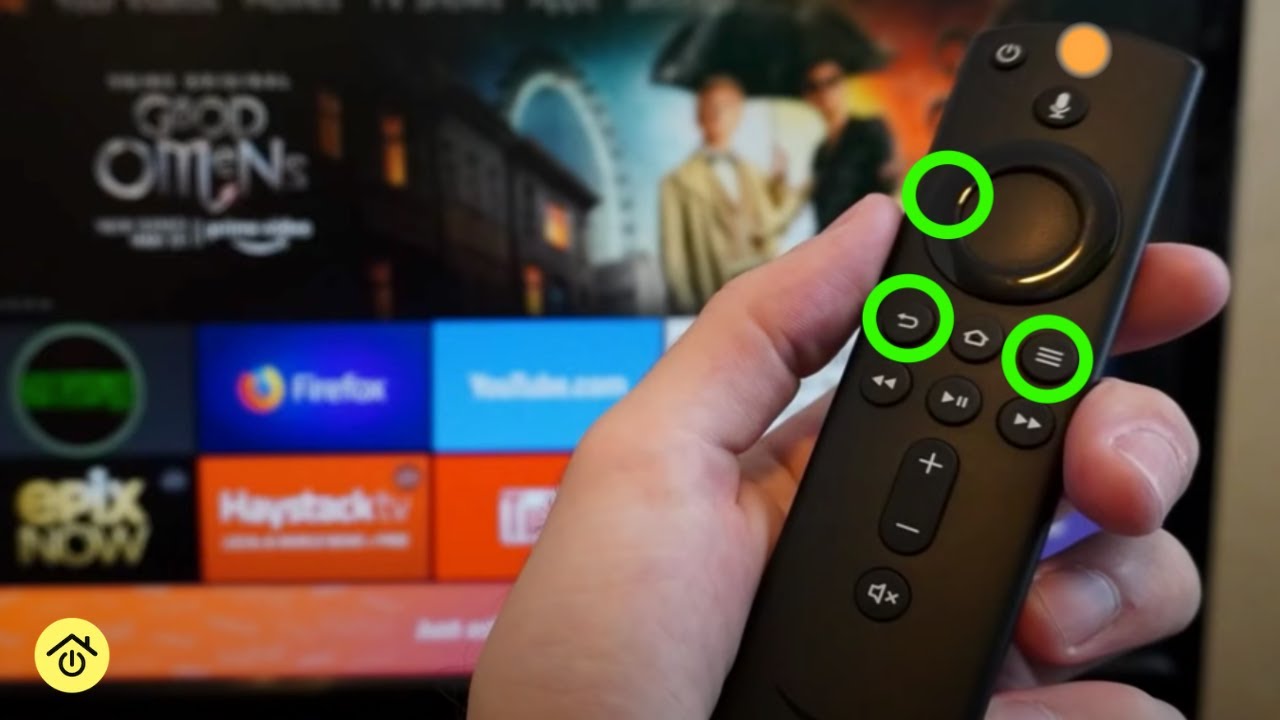
5. Reset The Firestick Remote
If nothing works, a full remote reset can help.
- Hold down the Left, Menu, and Back buttons at the same time for 12 seconds.
- Release all buttons and wait 5 seconds.
- Remove the batteries, wait another 5 seconds, and re-insert them.
- Press the Home button to try pairing again.
This process resets the remote’s internal software, which often stops the orange blinking.
6. Update Fire Tv Software
Outdated software can cause connection problems.
- Go to Settings > My Fire TV > About > Check for Updates.
- If an update is available, install it.
- After updating, restart your Fire TV and try pairing the remote again.
7. Try A Different Remote (or The App)
If you have a second Firestick remote, try pairing it. You can also use the Fire TV app on your smartphone as a remote:
- Download the official Fire TV app from Google Play or the App Store.
- Connect your phone to the same Wi-Fi network as your Firestick.
- Follow the instructions to pair the app as a remote.
- Use the app to navigate to Settings and try pairing your physical remote again.
8. Check For Hardware Damage
If you dropped the remote or spilled water on it, the orange light may mean a hardware fault.
- Look for cracks, corrosion, or battery leakage inside the battery compartment.
- If you suspect water damage, remove the batteries and let the remote dry for 24 hours.
- If the problem persists, you may need to replace the remote.
9. Reset Firestick To Factory Settings (last Resort)
If all else fails, a factory reset may be necessary. This will erase all your settings, so only use it as a last step.
- Go to Settings > My Fire TV > Reset to Factory Defaults.
- Confirm and wait for the device to restart.
- Pair your remote again during the initial setup.
Warning: You will need to reinstall all your apps and sign in again.
Common Myths And Mistakes When Fixing Blinking Orange
Many users waste time on solutions that don’t work or even make the problem worse. Here are some common mistakes:
- Using old or mismatched batteries: Always use fresh batteries of the same brand and type.
- Pressing random buttons: This can confuse the remote even more.
- Ignoring interference: Devices like baby monitors or wireless cameras can block Bluetooth signals.
- Not waiting long enough: Sometimes, it takes up to a minute for the remote to pair after a reset.
How The Firestick Remote Communicates
Understanding the technology can help you troubleshoot better. The Firestick remote uses Bluetooth Low Energy (BLE) to connect to your Fire TV device, not infrared like old remotes. BLE is great for range (up to 30 feet), but it’s sensitive to interference and battery power.
Comparison: Bluetooth Vs Infrared Remotes
Here’s a quick look at how Firestick remotes differ from traditional TV remotes:
| Feature | Bluetooth (Firestick) | Infrared (Traditional TV) |
|---|---|---|
| Range | Up to 30 feet | 10-15 feet, line of sight |
| Interference Risk | High (Wi-Fi, other Bluetooth) | Low |
| Battery Sensitivity | Very High | Medium |
| Can Work Through Walls? | Yes, but less reliable | No |
Advanced Troubleshooting For Persistent Blinking Orange
If you’ve tried all the basic steps and the problem continues, there are a few advanced techniques:
1. Remove Other Paired Devices
Firestick can only handle a limited number of paired Bluetooth devices (usually 7). If you have multiple remotes, game controllers, or headphones paired, your new remote may fail to connect.
- Go to Settings > Controllers & Bluetooth Devices > Other Bluetooth Devices.
- Unpair any devices you are not using.
2. Use A Different Usb Power Source
Sometimes, the Fire TV device itself doesn’t get enough power. If you’re using your TV’s USB port, try the original power adapter instead.
- Plug your Firestick directly into a wall outlet using the official adapter.
- Low power can cause strange remote behavior, including blinking orange.
3. Update The Remote’s Firmware
Some newer Firestick remotes can receive firmware updates. The update process happens automatically when paired, but sometimes it needs a fresh start.
- Pair the remote as usual.
- Leave the Firestick idle with the remote nearby for 15-30 minutes.
- Check for improved behavior after this period.
4. Test Remote With Another Fire Tv Device
If possible, try pairing your remote with a different Fire TV device. This can help you find out if the problem is with the remote or your Firestick.
- Follow the pairing process on another Fire TV.
- If the remote works, your original Firestick may have a problem.
- If it doesn’t, the remote may be faulty.
How To Prevent Firestick Remote Blinking Orange In The Future
Once you’ve fixed the issue, it’s important to keep it from happening again. Here are some prevention tips:
- Change batteries regularly and use high-quality brands.
- Keep the remote and Firestick updated with the latest software.
- Avoid too many Bluetooth devices near your Fire TV.
- Store the remote safely to prevent drops or water damage.
- Don’t leave batteries out for a long time if you remove them; this can reset the remote.
Data: Most Common Firestick Remote Issues
Here’s a summary of common Firestick remote problems, based on user reports:
| Problem | Frequency (%) | Usually Fixable at Home? |
|---|---|---|
| Blinking Orange Light | 35% | Yes |
| No Light/No Response | 40% | Yes |
| Random Disconnects | 15% | Yes |
| Physical Damage | 10% | No (Needs Replacement) |
As you can see, blinking orange is one of the most common issues, but most users can solve it without buying a new remote.
When To Contact Amazon Support
If you’ve tried everything and your remote still blinks orange, it may be time to get help from Amazon.
- If your remote is under warranty, you may qualify for a free replacement.
- Amazon’s customer support can guide you through advanced troubleshooting steps.
- You may be asked for details like remote model number, blinking pattern, and what you’ve already tried.
You can reach Amazon’s support through your account on their website or through the Fire TV app.
Credit: appuals.com
Non-obvious Insights Most Beginners Miss
- Battery Contacts Matter: Even with new batteries, dirty or corroded contacts inside the remote can cause poor connections. Clean the contacts gently with a pencil eraser or a cotton swab dipped in alcohol.
- Firmware Updates Can Happen Silently: Sometimes, your remote will blink orange while it’s updating its internal software. Don’t interrupt the process—wait up to 15 minutes before trying to pair again.
- The Fire TV App Can Save the Day: Many users don’t realize that the Fire TV mobile app can control your device even when the physical remote is acting up. This lets you fix pairing issues without buying a new remote right away.
How Firestick Remote Problems Compare To Other Streaming Devices
Are Firestick remotes more likely to have pairing issues than other brands? Here’s a quick comparison:
| Device Brand | Common Remote Issue | Pairing Problem Frequency (%) | Typical Solution |
|---|---|---|---|
| Amazon Firestick | Blinking Orange | 35% | Re-pair remote |
| Roku | No Response | 20% | Replace batteries |
| Apple TV | Unresponsive | 15% | Charge remote |
| Google Chromecast | Laggy Control | 10% | Restart device |
Amazon’s Firestick remotes are a bit more likely to show pairing problems, but almost all streaming remotes have occasional issues.
Quick-reference: What Each Remote Light Means
A blinking orange light is not the only signal your remote might show. Here’s a quick guide:
- Blinking orange: Pairing mode or connection problem.
- Solid blue: Remote successfully paired.
- Blinking white: Voice command in progress.
- No light: Batteries dead or remote off.
Knowing these signals can help you react faster next time.
Key Takeaways
- Blinking orange on your Firestick remote almost always means a pairing or connection problem.
- Start with batteries, then try re-pairing and resetting.
- Avoid interference and use the Fire TV app as a backup.
- Regular maintenance can prevent future problems.
If you follow these steps, you can solve most issues without buying a new remote or calling support.

Credit: appuals.com
Frequently Asked Questions
Why Does My Firestick Remote Keep Blinking Orange Even With New Batteries?
This usually means the remote is stuck in pairing mode or cannot find your Fire TV device. Try restarting both the remote and the Firestick, and make sure there are no other Bluetooth devices interfering. If the problem continues, a full remote reset may be needed.
Can I Use My Firestick Without The Remote If It Keeps Blinking Orange?
Yes. You can use the official Fire TV app on your smartphone as a remote. Download the app, connect your phone to the same Wi-Fi network, and pair it with your Firestick. This lets you control everything, including fixing remote pairing issues.
How Do I Know If My Firestick Remote Is Broken?
If the remote keeps blinking orange after you’ve replaced the batteries, reset the remote, and removed all interference, it may have a hardware fault. Look for signs of physical damage or battery leakage. If it won’t pair with any Fire TV device, it probably needs replacing.
Is The Blinking Orange Light Dangerous For My Firestick Or Tv?
No, the orange blinking is just a signal from the remote. It does not harm your Firestick or TV. However, it means you won’t be able to use your remote until the pairing or connection issue is fixed.
Where Can I Get More Help If These Steps Don’t Work?
If you still have problems, contact Amazon’s official support for help. They can walk you through advanced troubleshooting or arrange a replacement if your remote is under warranty. You can learn more at the official Amazon Fire TV Help page.
Firestick remote blinking orange doesn’t have to ruin your streaming night. With the right steps, you can fix it quickly and get back to your favorite shows.