
When your Motorola baby monitor starts acting up, it can be stressful. Maybe the screen is frozen, the signal keeps dropping, or the sound cuts out. A reliable baby monitor is essential for peace of mind, especially for new parents. But before you think about buying a new one or calling customer service, there’s a simple step that solves most issues: resetting your Motorola baby monitor.
This guide gives you everything you need to know about how to reset Motorola baby monitors. You’ll learn step-by-step instructions for different models, what to do if things go wrong, and how to avoid common mistakes. You’ll also understand why resets help, what to expect after you reset, and how to keep your monitor running smoothly.
Let’s get your monitor back on track—so you can focus on what matters most.
Why Resetting Your Motorola Baby Monitor Helps
Technology doesn’t always work perfectly, even with trusted brands like Motorola. Baby monitors can face problems such as:
- No signal between camera and parent unit
- Frozen screen or controls
- Loss of sound or video
- Wi-Fi connection issues (for smart models)
- Strange beeping or error messages
A reset often acts like a “refresh” for your monitor. It clears out minor software bugs, resets connections, and can restore normal function. Think of it like rebooting a computer or phone when it slows down.
But not all resets are the same. There are soft resets, which just restart the device, and factory resets, which erase all settings and restore default options. Knowing which one to use is important—so you don’t lose saved settings or camera pairings by accident.
Resetting is especially helpful because many issues are caused by temporary glitches. For example, a sudden power outage or a Wi-Fi router reset can leave your monitor in a confused state, unable to reconnect or show the right video feed.
Instead of spending hours troubleshooting, a reset gives your monitor a clean slate. It’s a quick fix that often saves you a call to support.
Another benefit of resetting is that it can solve problems you didn’t even realize were related. Maybe your monitor’s battery seems to drain too quickly, or the night vision won’t turn on. These strange behaviors are sometimes tied to software bugs that a reset can clear away.
Types Of Motorola Baby Monitors And Their Reset Methods
Motorola makes many baby monitors, from basic audio-only units to advanced smart monitors with Wi-Fi and smartphone apps. The reset method depends on your specific model. Here are the main categories:
- Audio-only monitors (e.g., MBP8, MBP10)
- Video monitors without Wi-Fi (e.g., MBP33, MBP36, MBP41)
- Wi-Fi-enabled smart monitors (e.g., Halo+, MBP855, MBP88CONNECT)
If you’re not sure which model you own, check the label on the parent unit or camera. It usually lists the model number. For some models, the label is found inside the battery compartment or on the bottom of the unit.
This step is important, because using the wrong reset method can lead to more problems or may not work at all.
Comparing Common Motorola Monitor Models
To make things clearer, here’s a comparison of common Motorola baby monitor types and their reset options:
| Model Type | Example Models | Soft Reset | Factory Reset |
|---|---|---|---|
| Audio-only | MBP8, MBP10 | Unplug/replug | Hidden button or power cycle |
| Video (no Wi-Fi) | MBP33, MBP36, MBP41 | Power button | Menu option or button combo |
| Wi-Fi Smart | Halo+, MBP855 | App restart or power cycle | App settings or reset button |
Always check your user manual for model-specific instructions, but the following steps cover most situations. If you lost your manual, most can be found online by searching for the model number and “user manual. ”

Credit: www.bibliotecaoscura.com
How To Perform A Soft Reset On Motorola Baby Monitors
A soft reset is the first thing to try. It won’t erase your settings or unlink cameras. This method simply restarts the device and often clears glitches.
For Audio-only Models
- Unplug the unit from the power outlet.
- Wait 10-15 seconds.
- Plug it back in and turn it on.
This works for both the parent unit and the baby unit (camera). If your model has a battery, remove it as well for a full reset. This can help if the monitor doesn’t respond after being unplugged.
For Video Monitors (no Wi-fi)
- Turn off the parent unit using the power button.
- Turn off the camera unit by unplugging it.
- Wait 15 seconds.
- Plug in the camera and turn on the parent unit.
For some units, you might hear a beep or see a flashing light after restarting—this is normal. If your monitor uses rechargeable batteries, check that they are charged before performing the reset.
For Smart Wi-fi Monitors
- Turn off the camera and parent unit.
- If you use a smartphone app, close and restart the app.
- Unplug the camera and parent unit, wait 10 seconds, then reconnect.
With Wi-Fi models, a soft reset often helps after a router change or after your internet goes down. You don’t need to delete the monitor from your app for a soft reset. Many parents overlook closing and reopening the app, but app glitches are a common cause of connection issues.
A soft reset will not delete paired devices or Wi-Fi settings. If your monitor still isn’t working, it’s time for a factory reset.
How To Factory Reset Motorola Baby Monitors
A factory reset erases all custom settings and pairings. Use this only if a soft reset doesn’t help or if you want to set up the monitor for a new family.
Steps For Factory Reset By Model Type
Audio-only Models
Most audio-only models don’t have a visible reset button. Try this:
- Unplug the unit.
- Hold down the power button.
- While holding the power button, plug the unit back in.
- Keep holding for 10 seconds, then release.
If the unit beeps or the light flashes, the reset is complete. If you don’t see any signs, repeat the process, making sure to hold the button a bit longer. Some models may also have a small pinhole reset button—check the case carefully.
Video Monitors (no Wi-fi)
For most models (MBP33, MBP36, MBP41):
- Make sure the monitor is ON.
- Press the MENU button.
- Navigate to “Settings” or “System.”
- Look for “Reset” or “Restore Default” and select it.
- Confirm your choice.
Some models require holding the PAIR button on the camera for 10-15 seconds until the LED flashes. If you have more than one camera, you may need to repeat the pairing process for each.
Smart Wi-fi Monitors
For Halo+, MBP855, and similar:
- Locate the reset button (often a small hole near the power port).
- Use a paperclip to press and hold the button for 10-15 seconds.
- Release when the LED blinks rapidly.
On some models, you can reset through the app:
- Open the Motorola app.
- Go to Device Settings.
- Tap “Remove Device” or “Factory Reset.”
Remember: Factory reset will erase Wi-Fi settings, camera pairings, and custom alerts. You’ll need to set up the monitor again after the reset. If you have multiple users on the app, all will need to reconnect.
Factory Reset Methods By Model
Here’s a quick guide to factory reset methods for popular models:
| Model | Factory Reset Method | Reset Button Location |
|---|---|---|
| MBP33 | Menu > Settings > Restore Default | Not present |
| MBP36 | Menu > System > Reset | Not present |
| MBP41 | Hold Pair button 15 sec | Back of camera |
| Halo+ | Hold reset button 10-15 sec | Near power port |
| MBP855 | Hold reset button 10-15 sec | Bottom of camera |
Always check your user manual or the Motorola support website if you’re unsure. A wrong reset method won’t harm the unit, but it may not solve your problem.
Setting Up Your Motorola Baby Monitor After Reset
After a factory reset, your monitor will act like it’s brand new out of the box. Here’s what you need to do next:
- Pair the parent unit and camera. Most video monitors require pressing a “Pair” or “Link” button on both units. Follow the on-screen instructions if available.
- Set up Wi-Fi connection. For smart models, use the Motorola app to reconnect to your home Wi-Fi. Make sure your phone is on the same network.
- Adjust settings. Reset your volume, brightness, lullabies, or alerts to your preference.
- Test the connection. Place the camera and parent unit in different rooms to ensure a strong signal.
For models with temperature or movement alerts, you’ll need to re-enable these features. Some smart monitors also have night light or sound sensitivity settings—check these to match your family’s needs.
Tips For Faster Setup
- Write down your Wi-Fi password before starting.
- Keep both units close together during pairing.
- Update the app or firmware if prompted.
- If your monitor supports SD cards or cloud storage, reinsert or reconnect after setup.
- For homes with multiple cameras, pair each camera one at a time to avoid confusion.
Many parents forget to test the monitor after resetting. Always check both audio and video before trusting the monitor at night. Test in different rooms and at different times of day—sometimes Wi-Fi or interference problems show up only in certain locations.
Troubleshooting If Your Monitor Won’t Reset
Sometimes, even after following the reset steps, your Motorola baby monitor won’t respond. Here’s what to do:
1. Check The Power Source
A weak or faulty power supply can prevent a reset. Try a different power adapter or outlet. Check for loose wires, and make sure the battery (if present) is charged. If your unit uses replaceable batteries, try new ones—old batteries can sometimes trick the unit into thinking it’s on, but not provide enough power for a reset.
2. Hold The Reset Button Longer
On some models, you need to hold the reset button for up to 20 seconds. If the light doesn’t flash after 10 seconds, keep holding. Also, make sure you’re pressing the correct button—sometimes the reset is next to other ports or buttons.
3. Try Both Units
If you have a parent unit and camera, reset both devices—sometimes one unit gets “stuck” while the other is fine. If you have multiple cameras, reset each one individually.
4. Remove Batteries (if Possible)
Some parent units have removable batteries. Take out the battery, wait 30 seconds, then reinstall and try again. This can also help if your unit doesn’t turn on after a reset.
5. Update Firmware
A failed firmware update can cause problems. If your monitor connects to Wi-Fi or an app, check for updates after a reset. Sometimes, updating the app on your phone can also solve problems with connecting to the camera.
If your monitor still doesn’t work, contact Motorola support or visit their official support page at Motorola Store Support for further guidance. They may have model-specific advice or be able to provide warranty support.

Credit: www.woolyyarn.com
Common Mistakes To Avoid When Resetting
Resetting seems simple, but many parents make mistakes that create new problems. Here’s what to avoid:
- Not backing up camera positions or favorite settings. Take a picture of your settings or write them down before a factory reset.
- Rushing the process. Always wait the full 10-15 seconds when unplugging or holding buttons.
- Mixing up power cables. Some Motorola cameras and parent units use different voltage adapters. Swapping them can damage the device.
- Forgetting to test after reset. Don’t assume the reset worked—always check both audio and video.
- Skipping firmware updates. Outdated software can cause ongoing issues, even after a reset.
- Pressing the wrong button. On some units, buttons are close together and easy to confuse—double-check before holding down any button.
A less obvious mistake is forgetting to reconnect the monitor to your home Wi-Fi after a factory reset. Without this step, smart features and mobile alerts won’t work.
When To Reset Vs. When To Replace
A reset fixes most common problems, but sometimes your monitor is beyond repair. Here are signs you may need a replacement:
- The screen remains blank after multiple resets
- Audio or video quality is poor, even with strong Wi-Fi
- The device gets very hot or shows burn marks
- Buttons or controls are physically broken
- You hear repeated error beeps after resetting
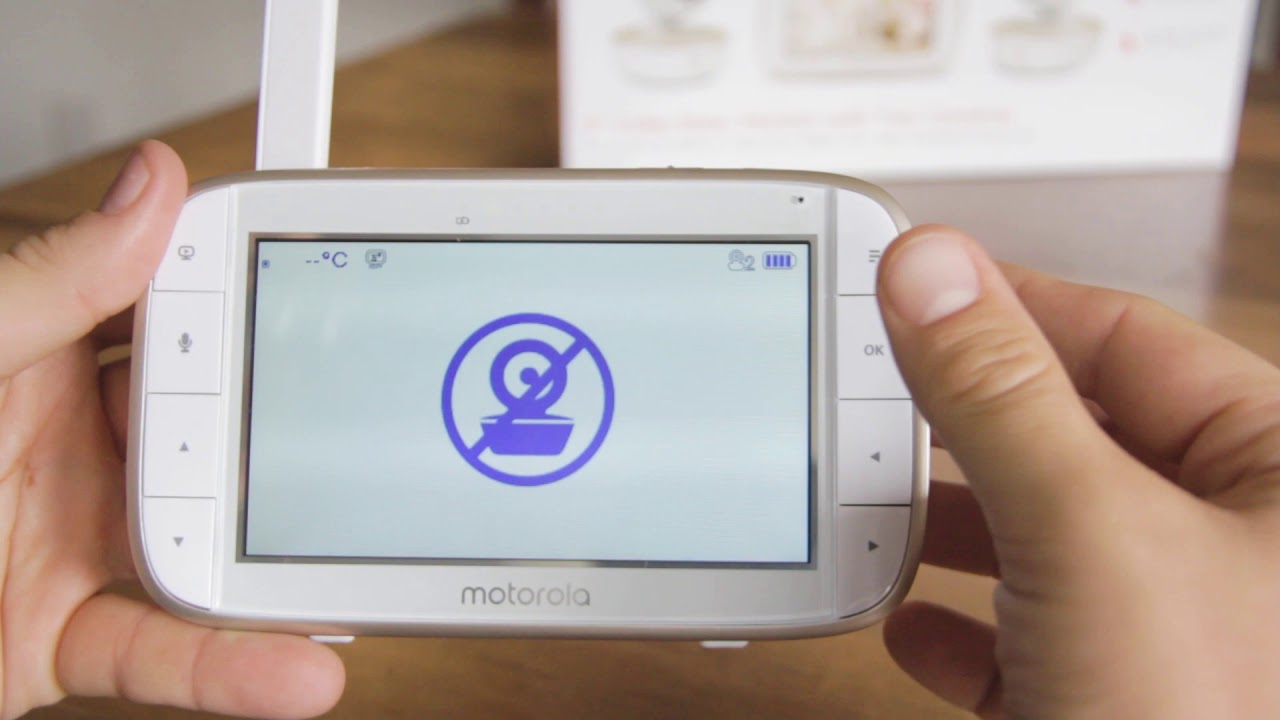
If your monitor is older than 3–4 years, consider upgrading to a newer model. New monitors offer better battery life, improved range, and smart features. If your monitor is still under warranty, contact Motorola before buying a new one—many problems can be fixed or replaced without cost.
Credit: www.youtube.com
How To Keep Your Motorola Baby Monitor Running Smoothly
Prevention is easier than repair. Here’s how to avoid the need for frequent resets:
- Keep firmware updated. Always install the latest updates using the Motorola app or website.
- Use original power adapters. Cheap third-party chargers can cause glitches.
- Avoid overheating. Keep cameras and parent units in cool, ventilated areas.
- Don’t move units while powered on. Unplug before changing locations.
- Check Wi-Fi regularly. For smart models, reconnect if your home network changes.
- Clean the camera lens and vents. Dust and dirt can cause overheating or blurry images.
Maintenance Checklist
Use this quick checklist every month:
| Task | How Often | Why It Matters |
|---|---|---|
| Check firmware updates | Monthly | Prevents bugs and adds features |
| Inspect power cables | Monthly | Reduces risk of sudden shutdowns |
| Test camera/parent unit | Weekly | Ensures reliable operation |
| Clean vents and lenses | Monthly | Prevents overheating, keeps image clear |
Also, consider labeling your power adapters if you have multiple devices. This avoids accidentally using the wrong charger, which is a surprisingly common cause of failure.
Following these steps means fewer surprises—and a safer environment for your baby.
Non-obvious Insights For Motorola Baby Monitor Owners
Many parents overlook these advanced tips:
- Wi-Fi interference: If your smart monitor keeps disconnecting, check for other devices (like microwaves or cordless phones) that might interfere. Move your monitor away from them if possible. Even thick walls or fish tanks can affect wireless signals.
- Hidden reset holes: Some cameras have tiny reset holes that look like part of the case. Use a flashlight to find them—don’t poke random holes, as some are for microphones.
- Backup power: During storms, use a small uninterruptible power supply (UPS) to keep your monitor running. This prevents sudden resets or data loss.
- App cache: If using a Motorola app, clear the app’s cache if the monitor won’t connect, before resetting the hardware.
- Time zone settings: On smart models, check that the time zone is correct after a reset—otherwise, alerts or recordings may be off schedule.
- Router settings: Some Wi-Fi monitors require a 2.4GHz Wi-Fi network. If your router is set to 5GHz only, the monitor may not connect after a reset.
Frequently Asked Questions
How Do I Know If My Motorola Baby Monitor Needs A Reset?
If you notice frozen screens, missing audio, signal loss, or strange beeping, a reset is a good first step. Frequent connection drops or settings not saving are also signs. Try a soft reset first; if problems continue, use a factory reset.
Will Resetting My Monitor Delete All My Settings?
A soft reset will not erase your settings or pairings. A factory reset will delete custom settings, Wi-Fi info, and camera pairings. You’ll need to set up everything again after a factory reset.
What If My Monitor Doesn’t Turn On After Resetting?
Check the power adapter and make sure it’s plugged in securely. Try a different outlet. If your parent unit has a battery, remove and reinsert it. If the screen stays blank, the monitor may need repair or replacement.
Can I Reset My Motorola Baby Monitor From The App?
Some Wi-Fi-enabled models allow resets through the Motorola app. Go to Device Settings and look for a “Reset” or “Remove Device” option. For most models, you need to use the physical buttons on the device.
How Often Should I Reset My Motorola Baby Monitor?
You don’t need to reset your monitor regularly. Only reset when you see performance problems (like freezing, signal loss, or connection issues). Routine resets are not necessary for most families.
A reliable baby monitor helps you sleep better at night. By following the right reset steps and taking care of your Motorola device, you can trust it to keep your little one safe—and avoid unnecessary stress. If you ever need more help, check Motorola’s support resources or find tips from other parents on trusted forums.
Your family’s peace of mind is worth it.