
You turn on your Samsung TV and something feels off. Maybe the screen is frozen, your apps won’t open, or the sound is gone. Sometimes, even the smartest TVs get confused. That’s when a reset can help. Resetting your Samsung TV is like giving it a fresh start, clearing small glitches without much effort.
But how do you do it safely, and which reset should you choose? Not all resets are the same—some keep your settings, while others erase everything.
In this guide, you’ll learn the different ways to reset your Samsung TV, when to use each method, and what to expect during the process. You’ll also discover troubleshooting tips and answers to common questions. Whether you lost your remote, want to fix a stubborn app, or need to do a full factory reset, this article covers every step with clear, simple language.
By the end, you’ll know exactly how to reset your Samsung TV and solve issues with confidence.
Understanding Why You Might Need To Reset Your Samsung Tv
Before you start pressing buttons, it helps to know why a reset is sometimes necessary. Samsung TVs, like all smart devices, can develop problems over time. The most common reasons people reset their TVs include:
- Frozen apps or menus that don’t respond
- Network issues such as Wi-Fi disconnecting
- Sound or picture problems not fixed by changing settings
- Software glitches after a failed update
- Forgotten passwords or parental controls
- Preparing to sell or give away your TV
Resetting often solves these problems, but not always. Understanding the root cause helps you choose the right type of reset.
Types Of Reset For Samsung Tvs
Not all resets are the same. Samsung TVs offer several types, each with different effects. Choosing the right one can save you time and prevent data loss.
1. Soft Reset (power Cycle)
A soft reset is like rebooting your computer. It clears temporary glitches without changing your settings or deleting your apps. This is the safest first step.
2. Reset Picture Or Sound Settings
If only your sound or picture is wrong, you can reset those settings without touching the rest of the TV.
3. Network Reset
This resets only the TV’s network settings. Useful if you’re having trouble connecting to Wi-Fi.
4. Smart Hub Reset
Smart Hub is where you access apps. If you have app problems, this reset can help. It signs you out of all apps and restores the Smart Hub to default.
5. Factory Reset (full Reset)
This is the most complete reset. It erases all settings, removes your accounts, and returns the TV to its original state. Use this before selling or if other fixes don’t work.
Preparing To Reset Your Samsung Tv
Before you reset, do a few things to avoid problems:
- Backup important information: Write down Wi-Fi passwords, streaming service logins, and custom settings.
- Check your TV model: Some steps differ by model year or remote type. You can find the model on the back of the TV or in the TV’s settings menu.
- Update your TV software: Sometimes, updating fixes problems without a reset. Go to Settings > Support > Software Update.
These steps save time if you need to set up your TV again after the reset.
How To Soft Reset Your Samsung Tv
A soft reset is fast and safe. It’s the best first step if your TV is slow, apps freeze, or the screen is blank.
With The Remote
- Press and hold the Power button on your remote until the TV turns off and back on.
- Wait for the Samsung logo to appear.
Without The Remote
- Find the power button on your TV. It’s usually at the bottom or back.
- Press and hold for about 10 seconds.
- Release when the TV turns off, then turn it on again.
A soft reset does not erase your apps or settings. It simply refreshes the TV’s system.
How To Reset Picture And Sound Settings
If colors look strange, or the volume is not right, you can reset just the picture or sound settings.
Reset Picture
- Press Home on your remote.
- Go to Settings.
- Select Picture.
- Scroll down to Expert Settings.
- Choose Reset Picture and confirm.
Reset Sound
- Press Home on your remote.
- Go to Settings.
- Select Sound.
- Scroll to Expert Settings.
- Choose Reset Sound and confirm.
This resets only picture or sound options. Your apps and accounts stay the same.
How To Network Reset Your Samsung Tv
Having trouble connecting to Wi-Fi? Try a network reset.
- Press Home on your remote.
- Go to Settings.
- Select General.
- Scroll to Network.
- Choose Reset Network and confirm.
Your TV will forget all Wi-Fi networks. You’ll need to reconnect after the reset.
How To Reset Smart Hub On Samsung Tv
Apps not working or missing? Resetting the Smart Hub can help.
- Press Home on your remote.
- Go to Settings.
- Select Support.
- Choose Device Care (on newer models) or Self Diagnosis (on older models).
- Select Reset Smart Hub.
- Enter your TV’s PIN (default is 0000).
This will sign you out of all apps and remove downloaded apps. You’ll need to log in to your accounts again.
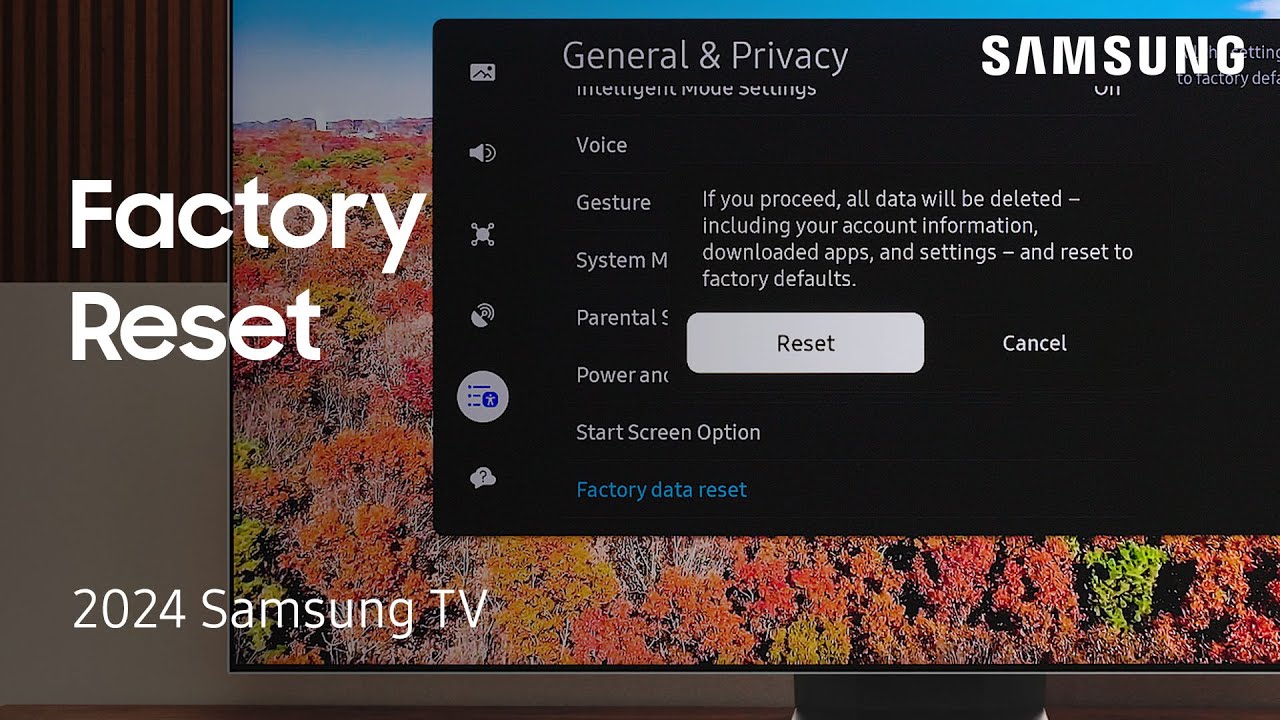
How To Factory Reset Your Samsung Tv
A factory reset erases everything: settings, accounts, and apps. Only use this if nothing else works or before selling your TV.
Using The Remote (standard Method)
- Press Home on your remote.
- Go to Settings.
- Scroll to General.
- Select Reset.
- Enter your PIN (default is 0000).
- Confirm to start the reset.
For Older Samsung Tvs (pre-2017)
Some older TVs have different menus.
- Press Menu or Settings on your remote.
- Go to Support.
- Select Self Diagnosis.
- Choose Reset and enter your PIN.
Without The Remote
If your remote is lost or broken:
- Find the physical buttons on your TV (usually under the Samsung logo).
- Use the Menu button to open settings.
- Use the volume and channel buttons to navigate to Reset.
- Press Enter to select and confirm.
This method can be slow, but it works if you have no remote.
Using The Samsung Smartthings App To Reset
If you have the SmartThings app on your phone, you can control and reset your TV.
- Open the SmartThings app.
- Select your TV from the device list.
- Tap the menu (three dots) and choose Settings.
- Look for a Reset or Factory Reset option.
This is helpful if your TV’s remote is missing or not working.
What Happens After A Factory Reset?
A factory reset removes everything you’ve added or changed:
- All Wi-Fi and network settings
- All app logins and downloaded apps
- Custom picture and sound settings
- Any accounts linked to the TV (Samsung, Netflix, etc.)
- Parental controls and PIN codes
Your TV will restart as if brand new. You’ll need to set up everything from scratch.
Comparing Reset Types
Understanding the differences helps you pick the right reset. Here’s a simple comparison:
| Reset Type | What It Affects | Best For | Data Loss |
|---|---|---|---|
| Soft Reset | Temporary system files | Minor glitches, freezing | No |
| Picture/Sound Reset | Picture or sound settings | Display or audio issues | No |
| Network Reset | Wi-Fi and network info | Connection problems | Yes (network only) |
| Smart Hub Reset | App logins, Smart Hub settings | App errors | Yes (apps only) |
| Factory Reset | All settings, apps, accounts | Major problems, selling TV | Yes (everything) |
When Should You Not Reset Your Tv?
Resets can fix many problems, but sometimes they’re not the answer.
- If your TV has a hardware problem (like a cracked screen), resetting won’t help.
- If a power outage caused issues, wait a few minutes before resetting.
- If you’re updating software, let the update finish first.
- If you have valuable custom settings you can’t remember, try writing them down before resetting.
Knowing when not to reset saves you from extra work.
Common Problems Solved By Resetting
Resetting is a powerful tool for many Samsung TV issues. Here are examples of what a reset can fix:
- App not loading: A Smart Hub reset or soft reset usually solves this.
- Wi-Fi disconnects often: Network reset clears connection bugs.
- TV is slow or freezes: Soft reset refreshes the system.
- Forgotten PIN code: Factory reset restores default PIN (0000).
- Strange colors or sound: Reset just picture or sound settings.
- Preparing to sell: Factory reset erases all your info.
Some problems need more than one reset. For example, you may need to reset the network and Smart Hub if apps won’t connect online.
Step-by-step Example: Fixing A Netflix App That Won’t Open
If the Netflix app freezes or won’t open, here’s a clear example of how to troubleshoot:
- Try a soft reset: Hold the power button until the TV restarts.
- Reset Smart Hub: This usually fixes app errors. Go to Settings > Support > Device Care > Reset Smart Hub.
- Reinstall the app: Delete Netflix, restart the TV, then download Netflix again.
- Factory reset: Only if other steps fail. This erases all data, so use as a last resort.
Non-obvious insight: Many users forget to check for software updates before resetting. Outdated software can cause app errors. Always update your TV first.
Resetting Without A Pin Code
If you forgot your TV’s PIN and can’t reset, don’t worry. Samsung TVs have a default PIN, usually 0000. If you changed the PIN and forgot it, try this:
- Go to the Reset menu.
- When asked for a PIN, enter 0000.
- If that doesn’t work, use your remote to enter the following sequence on the number pad (with TV on):
- Mute, 8, 2, 4, Power
- The TV will restart and reset the PIN.
If these steps don’t help, contact Samsung support.
How To Reset Without A Remote
Lost your remote? You still have options.
- Use the buttons on your TV (usually under the Samsung logo).
- Download the Samsung SmartThings app on your phone to control your TV.
- Buy a universal remote compatible with Samsung TVs.
Non-obvious insight: Many Samsung TVs support HDMI-CEC. If another device (like a Fire Stick or PlayStation) is connected, you can sometimes use that remote to control your TV’s menus.
What To Do After A Reset
After resetting, your TV is like new. Follow these steps to set it up:
- Choose your language and region.
- Connect to Wi-Fi and enter the password.
- Sign in to your Samsung account.
- Download your favorite apps (like Netflix, YouTube).
- Adjust picture and sound settings to your preference.
- Set up parental controls if needed.
If you backed up your old settings, refer to them for a faster setup.
Factory Reset Vs. Service Menu Reset
Some advanced users try to access the service menu for deeper resets. Be careful—changing the wrong setting here can damage your TV.
- Factory reset (from the standard menu) is safe and recommended for most people.
- Service menu reset can erase advanced settings or even brick your TV if used wrong.
Only use the service menu if you’re guided by a Samsung technician or official support.

Table: Remote Types And How To Reset
Not all Samsung remotes look the same. Here’s how to identify yours and reset the TV:
| Remote Type | Look | Reset Method |
|---|---|---|
| Standard Remote | Many buttons, number pad | Menu > Settings > General > Reset |
| Smart Remote | Fewer buttons, minimal design | Home > Settings > General > Reset |
| No Remote | Use TV buttons or SmartThings app | Physical buttons or app |
Knowing your remote helps you follow the right steps.
Pros And Cons Of Resetting Your Samsung Tv
Resetting is powerful, but it has ups and downs.
| Pros | Cons |
|---|---|
| Fixes many common problems Removes bugs and glitches Restores TV to fresh state | Erases all custom settings Must reinstall apps Time-consuming setup after reset |
Resetting is best for stubborn problems, but not for simple issues.
Practical Tips To Avoid Needing Frequent Resets
Many TV problems can be prevented. Here’s how:
- Update your TV’s software regularly. New updates fix bugs.
- Restart your TV once a week to clear memory.
- Avoid installing too many apps you don’t use.
- Keep your TV cool and dust-free to prevent overheating.
- Use a surge protector to avoid damage from power spikes.
Being proactive saves you time and keeps your TV running smoothly.
When To Contact Samsung Support
Some problems need expert help. Contact Samsung if:
- Your TV won’t turn on after a reset.
- The screen is cracked or damaged.
- You see error codes you can’t clear.
- The TV menu won’t open at all.
- You can’t reset the PIN or access the settings.
Samsung support can guide you, and their official site offers live chat and phone support. For more details, visit the Samsung Support page.
Frequently Asked Questions
How Often Should I Reset My Samsung Tv?
You shouldn’t need to reset your Samsung TV often. Most people reset only when there’s a problem, like freezing or app errors. Regularly restarting your TV (once a week) is enough for maintenance.
Will Resetting My Samsung Tv Delete Everything?
A factory reset will erase all your settings, downloaded apps, and accounts. A soft reset or picture/sound reset will not delete your apps or logins. Always check which reset you’re doing.
What If My Tv Doesn’t Respond After A Reset?
If your TV won’t turn on or respond after a reset, unplug it from the power outlet for 60 seconds, then plug it back in. If it still doesn’t work, contact Samsung support for help.
Can I Reset My Samsung Tv Using My Smartphone?
Yes, if you have the Samsung SmartThings app and your TV is connected, you can control and reset your TV from your phone. This is useful if your remote is lost or broken.
Is There A Way To Reset Without Losing My Data?
Yes. Soft reset, picture/sound reset, and network reset don’t erase your personal data or apps. Only a factory reset deletes everything. Always choose the least-damaging reset first.
Resetting your Samsung TV can solve many problems, from slow apps to lost connections. Start with the simplest reset and move to stronger options only if needed. Always back up your settings and be patient—most issues are fixed in a few steps.
With these clear instructions, you can handle nearly any reset situation and keep your TV working its best.