
Getting your LG TV connected to WiFi can open a world of streaming, apps, and smart features. But for many users, especially those new to smart TVs, setting up WiFi isn’t always simple. Maybe you just unboxed your LG TV.
Maybe you changed your router password, or you want to switch to a new network. No matter your reason, connecting your LG TV to WiFi is a must for unlocking its full potential.
This article will walk you step by step through the process. You’ll learn different methods for different LG TV models, what to do if you have trouble, and practical tips that most guides miss. Whether your TV is brand-new or a few years old, you’ll finish with a clear understanding of how to turn on WiFi and what to check if things don’t work the first time.
Understanding Lg Tv Wifi Features
Before you start, it helps to know how WiFi works on LG TVs. Most LG Smart TVs released since 2013 come with built-in WiFi. This allows the TV to connect to your home network just like a smartphone or laptop. Once connected, you can:
- Watch streaming platforms like Netflix, YouTube, and Hulu
- Download and use apps from the LG Content Store
- Receive system and app updates
- Mirror your phone or computer screen
Some older LG TVs may not have built-in WiFi but can connect using a compatible WiFi dongle or through a wired Ethernet cable. Knowing your TV’s capabilities will save time and confusion.
How To Check If Your Lg Tv Has Built-in Wifi
- Press the Settings button on your remote.
- Go to All Settings > Network.
- Look for WiFi Connection or Wireless. If you see it, your TV has built-in WiFi.
- If you only see options for Wired Connection or Ethernet, your TV may need a WiFi dongle.
This small check prevents wasted time trying methods that won’t work for your TV model.
How To Turn On Wifi On Lg Tv: Step-by-step
The process for enabling WiFi can differ based on your LG TV’s year and software. Let’s cover the most common methods, focusing on the WebOS platform (used on most LG smart TVs since 2014), and then older models.
For Lg Tvs With Webos (2014 And Later)
Most LG TVs today use WebOS. Follow these steps to connect to WiFi:
- Press the Settings button (sometimes a gear icon) on your LG remote.
- Select All Settings (or Advanced Settings on some models).
- Navigate to Network.
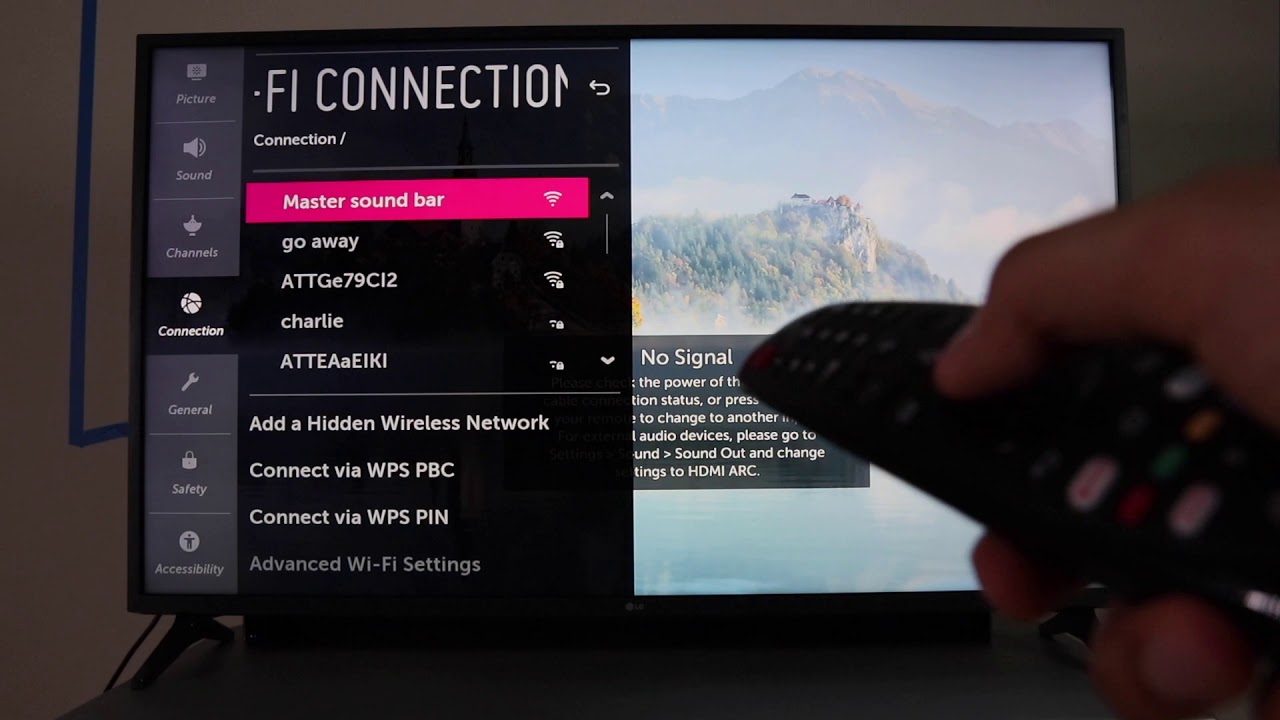
- Choose WiFi Connection.
- Your TV will scan for available networks. Select your WiFi network from the list.
- Enter your WiFi password using the on-screen keyboard.
- Confirm and wait a few seconds for the TV to connect.
You should see a Connected message. Now, your LG TV can access the internet and online features.
For Lg Tvs With Netcast (pre-2014 Models)
Older LG smart TVs use NetCast instead of WebOS. The steps are similar but with slight differences:
- Press Settings on your remote.
- Go to Network.
- Choose Network Connection.
- Select Start Connection.
- The TV will search for wireless networks. Pick your WiFi network.
- Enter your password and select OK.
If successful, you’ll see a confirmation message.
Using The Quick Settings Menu
On newer LG TVs, there’s a faster way via the Quick Settings panel:
- Press the Settings button on the remote.
- At the bottom of the screen, select Network.
- Choose your WiFi network and enter the password.
This is handy if you just need to switch networks quickly.
Connecting With The Lg Thinq App
If you prefer using your smartphone, the LG ThinQ app lets you manage your TV, including network settings.
- Download the LG ThinQ app on your Android or iOS device.
- Ensure your TV and phone are on the same network, or follow the app’s pairing instructions.
- Open the app, add your TV, and go to Settings.
- Tap Network, select your WiFi, and enter your password.
This method is useful if your remote isn’t working or you find the on-screen keyboard slow.
What To Do If Wifi Doesn’t Turn On
Sometimes, you might follow all the steps and still not see WiFi options. This usually means a hardware or software issue. Here are common reasons and solutions:
1. The Wifi Module Is Disabled Or Faulty
LG TVs have a WiFi module inside. If it is loose or damaged, WiFi won’t work.
- Unplug your TV for 2-3 minutes and plug it back in (power cycling).
- If that doesn’t help, contact LG support. Repairing or replacing a WiFi module usually requires a technician.
2. Software Glitches
Firmware bugs can make WiFi unavailable.
- Go to Settings > All Settings > General > About This TV > Check for Updates.
- Update your TV if a new version is available.
- After updating, repeat the WiFi connection process.
3. Region Settings
Rarely, the TV’s region code may block WiFi settings.
- In All Settings > General > Location, check your Broadcast Country and LG Services Country.
- Set both to your actual location.
4. Wifi Not Showing On The List
If your WiFi network doesn’t appear:
- Make sure your router is on and broadcasting.
- Check if your WiFi is using a hidden SSID (network name). If yes, select Add a Hidden Network on your TV and enter the network details manually.
5. Remote Control Problems
If you can’t access settings due to a broken remote, use:
- The physical buttons on the TV (often under the screen)
- The LG ThinQ app as a virtual remote
How To Connect Lg Tv To Wifi Without A Remote
Losing your remote doesn’t mean you can’t connect to WiFi. Here’s how:
Using Tv Buttons
Most LG TVs have basic controls under the screen or on the back. You can:
- Press the Menu or Settings button to open the menu
- Use the Volume or Channel buttons to navigate
- Select options with the Power button
It’s slower, but possible for basic setup.
Using Lg Thinq Or Universal Remote Apps
- Download the LG ThinQ app or a universal remote app that supports LG TVs.
- Connect your phone to the same WiFi as your TV (if already set up).
- Use the app to navigate settings and connect to a new WiFi network.
*Non-obvious tip:* If your TV is not connected to WiFi at all, some universal remote apps can work over infrared (IR). Make sure your phone supports IR blaster.
Connecting Lg Tv To Mobile Hotspot
If you don’t have home WiFi, you can use your smartphone’s mobile hotspot.
- On your phone, go to Settings > Network & Internet > Hotspot & Tethering.
- Turn on WiFi Hotspot. Set a network name and password.
- On your LG TV, follow the regular WiFi setup steps and select your phone’s hotspot.
- Enter the password and connect.
*Important:* Mobile data can be expensive and slower than home WiFi. Streaming HD video uses about 3GB per hour.
Wired Connection Vs. Wireless: Which Is Better?
Some LG TVs have both WiFi and Ethernet ports. Here’s a quick comparison:
| Feature | WiFi | Wired (Ethernet) |
|---|---|---|
| Speed | Good (depends on signal) | Usually faster and more stable |
| Setup | Easy, no cables | Needs cable from router to TV |
| Reliability | Can drop if signal weak | Very reliable |
| Best For | Most users | 4K streaming, gaming |
If your WiFi is weak or you stream a lot of 4K video, wired is better. For most homes, WiFi is fine.

Common Wifi Issues And How To Fix Them
Connecting your LG TV to WiFi should be simple, but problems happen. Here are practical fixes for the most common issues.
Lg Tv Won’t Connect To Wifi
- Double-check your password. The most common mistake is entering the wrong password.
- Restart both your TV and your router.
- Move your TV closer to the router to reduce interference.
- If your TV connects but the internet doesn’t work, check if other devices (like your phone) can use the WiFi.
Lg Tv Keeps Disconnecting From Wifi
- This often means weak signal or interference.
- Try changing your router’s WiFi channel to avoid overlap with neighbors.
- Reduce obstacles between the router and TV, such as thick walls or microwaves.
- Update your TV’s firmware for the latest fixes.
Lg Tv Not Finding Any Wifi Networks
- Make sure your router is broadcasting (not hidden).
- Check that the router is using 2.4 GHz or 5 GHz. Some older TVs don’t support 5 GHz.
- Restart both the TV and router.
Error Codes (e.g., 106, 107)
- Error 106: Network not found. Solution: Check router and try manual connection.
- Error 107: Internet not connected. Solution: Restart router, re-enter password.
Lg Tv Connects To Wifi But Not Internet
- This often means a DNS or gateway problem.
- Go to All Settings > Network > Advanced Settings.
- Set DNS Server to 8.8.8.8 (Google’s DNS) and try again.
*Non-obvious insight:* Some LG TVs have trouble with certain router security settings. If you use WPA3, try switching the router to WPA2.
Advanced Tips For Stable Wifi On Lg Tv
To enjoy smooth streaming and avoid buffering, try these tips:
- Place your router high up and in the open, away from microwaves and cordless phones.
- Use the 5 GHz band if your TV supports it. It’s less crowded but has a shorter range.
- Update both your TV and router firmware regularly.
- Limit the number of devices using your WiFi when watching movies.
- If your TV is far from the router, consider a WiFi extender or mesh network.
How Lg Tv Wifi Compares To Other Brands
LG’s WebOS system is known for its easy WiFi setup, but how does it compare to Samsung and Sony?
| Brand | WiFi Setup Process | App Support | Common Issues |
|---|---|---|---|
| LG | Simple, clear menu | WebOS app store | WiFi module failures (rare) |
| Samsung | Similar steps, SmartThings app | Wide app support | Occasional software bugs |
| Sony | Android TV setup | Google Play Store | DNS issues more common |
The main difference is the menu layout and remote control style. But the steps are very similar across brands.
Frequently Missed Details When Setting Up Lg Tv Wifi
Most guides skip these important points:
- Network Overload: If too many devices are using the same WiFi, your TV might not get a strong signal. Try disconnecting some devices.
- Guest Networks: Some routers have “guest” WiFi that blocks smart TVs from connecting. Use your main network.
- MAC Filtering: If your router uses MAC address filtering for security, you must add your TV’s address. Find it in Settings > All Settings > Network > WiFi Connection > Advanced Settings.
Using Ethernet Adapters And Wifi Dongles
If your LG TV doesn’t have built-in WiFi, you’re not out of luck.
- Many older LG TVs support a USB WiFi dongle (model AN-WF100 or similar).
- Plug the dongle into the TV’s USB port, then set up WiFi as usual.
- For the most reliable connection, use an Ethernet cable if your TV has the port.
*Tip:* Always check your TV’s manual for compatible dongles. Not all third-party devices will work.
Security Tips When Connecting Lg Tv To Wifi
Smart TVs are part of your home network, so keep them secure:
- Always use a strong, unique WiFi password.
- Don’t connect to public or open WiFi networks.
- Turn off features you don’t use, like remote access.
- Update your TV’s software to fix security bugs.
- If you use LG’s ThinQ app, secure your phone with a password or fingerprint.

What To Do If All Else Fails
If you’ve tried everything and your LG TV still won’t connect to WiFi, here are your final options:
- Factory Reset: Go to All Settings > General > Reset to Initial Settings. This wipes all data but can fix deep software problems.
- Contact LG Support: Some hardware issues require professional repair. LG’s support site and phone help can guide you.
- Use a Wired Connection: If WiFi won’t work, try Ethernet for a stable connection.
For more help, you can check the official LG Support page.
How To Keep Your Lg Tv’s Wifi Working Well
Once your TV is online, keep it that way:
- Don’t unplug your TV suddenly. Use the power button to turn it off.
- If you move your router, run the WiFi setup again to reconnect.
- Check for TV software updates every few months.
- If your WiFi changes (new password, new router), reconnect your TV using the steps above.
Frequently Asked Questions
How Can I Find My Lg Tv’s Mac Address?
Go to Settings > All Settings > Network > WiFi Connection > Advanced Settings. The MAC address will show on the screen. You need this if your router uses MAC filtering.
Can I Use 5 Ghz Wifi With My Lg Tv?
Most newer LG TVs (WebOS models) support both 2.4 GHz and 5 GHz WiFi. If your router broadcasts both, you’ll see two networks when connecting. Older TVs may only work with 2.4 GHz.
Why Does My Lg Tv Disconnect From Wifi When Turned Off?
Some TVs have a “Quick Start+” feature that can cause WiFi issues. Try turning off Quick Start+ in Settings > All Settings > General > Quick Start+. Also, update your firmware.
Is There A Way To Connect Lg Tv To Wifi Without A Password?
Generally, no. You need the correct WiFi password for security. If your router supports WPS, you can use “Connect via WPS” in the TV’s network settings, but most routers and TVs no longer support this for security reasons.
My Lg Tv Says “wifi Is Turned Off.” How Do I Fix This?
This usually means the TV’s WiFi module is not working or disconnected. Try unplugging the TV for a few minutes. If that doesn’t work, check for software updates or contact LG support.
Getting your LG TV connected to WiFi unlocks streaming, smart features, and app downloads. With the clear steps and troubleshooting tips in this guide, you should be able to connect quickly and solve most problems on your own. For stubborn issues, don’t hesitate to reach out to LG support or use a wired connection as a backup.
Enjoy your smart TV experience!