
Are your Hunter Douglas remote blinds suddenly not working? It’s frustrating when you press the button, and nothing happens.
You rely on those motorized shades for convenience, privacy, and light control, so when they stop responding, it can throw off your whole day. But don’t worry—this problem is more common than you think, and there are simple steps you can take right now to fix it.
You’ll discover easy troubleshooting tips to get your Hunter Douglas remote blinds back to smooth operation. Whether it’s a battery issue, syncing problem, or power glitch, you’ll learn exactly what to check and how to solve it. Keep reading to regain control over your blinds without calling for expensive repairs.
Check Remote Batteries
Checking the remote batteries is the first step to fix Hunter Douglas remote blinds not working. Weak or dead batteries often cause remote control issues. Testing the batteries ensures the remote sends signals properly to the blinds. Follow these simple steps to check and replace the batteries safely.
Remove Remote From Holder
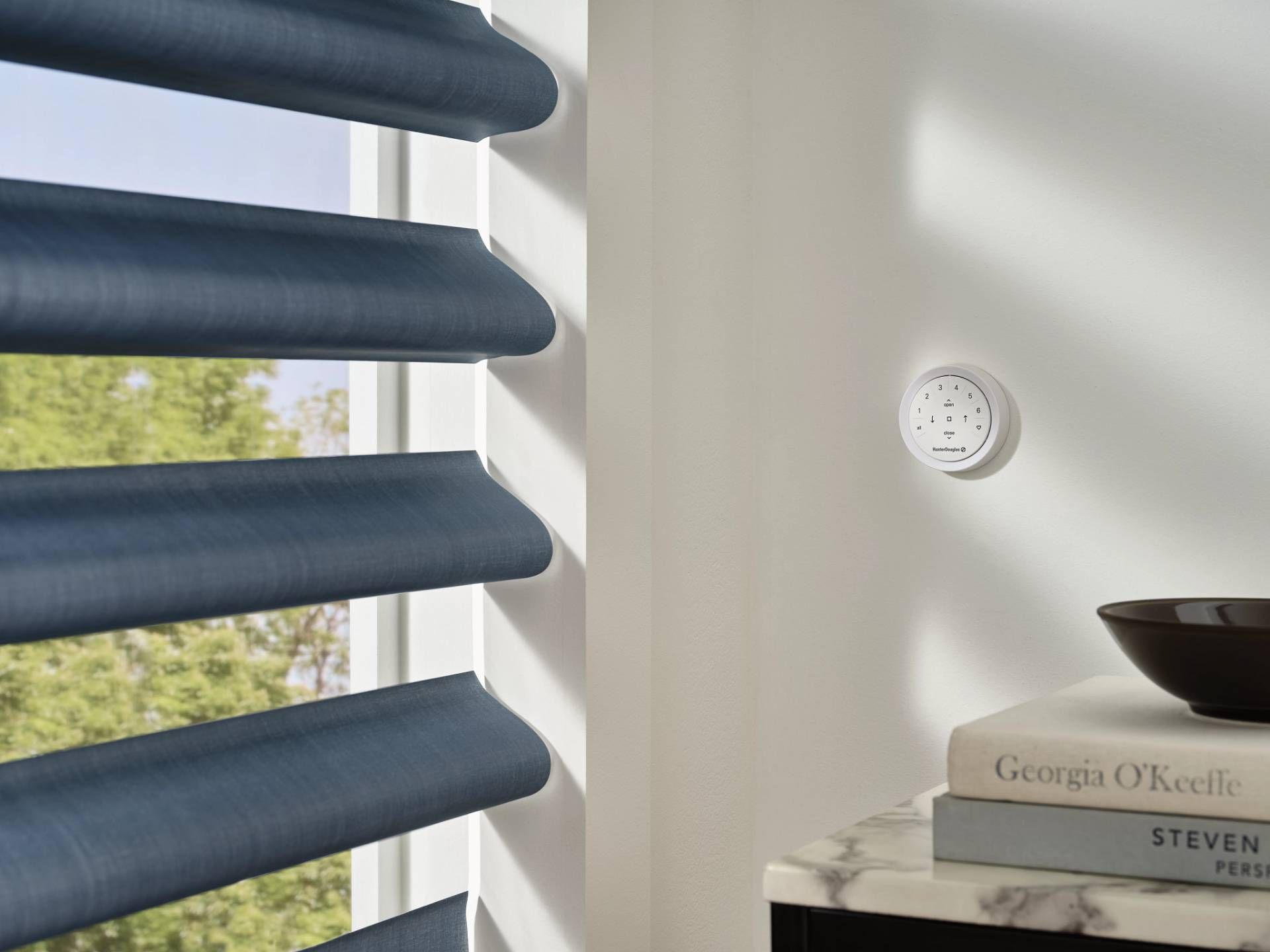
Start by removing the remote from its holder or Pebble case. Some remotes sit in a wall-mounted holder for easy access. Gently pull the remote out to avoid damage. Removing it allows you to open the battery compartment easily. This step helps you inspect and replace batteries without trouble.
Replace Batteries Correctly
Open the battery cover on the back of the remote. Remove old batteries and dispose of them properly. Insert new batteries matching the size and type listed in the manual. Ensure the positive (+) and negative (-) ends align with the markings inside the compartment. Incorrect placement stops the remote from working.
Inspect For Battery Corrosion
Look inside the battery compartment for any white or green powder. This powder means battery corrosion, which blocks power flow. Use a dry cloth or cotton swab to clean the corrosion gently. Avoid liquid cleaners that may damage the remote. After cleaning, insert fresh batteries and test the remote again.
Verify Shade Power Source
Verifying the power source is the first step in diagnosing Hunter Douglas remote blinds not working. Without power, the shades cannot respond to remote commands. Power supply varies by model. Some shades use batteries, while others connect directly to electricity. Understanding your shade’s power type helps target the issue quickly.
Start by checking the battery pack in battery-powered shades. For hardwired shades, inspect the power connection thoroughly. Both steps ensure your shades receive the energy needed to operate smoothly.
Check Battery Pack In Battery-powered Shades
Remove the battery pack from the shade. Look for any visible damage or corrosion on the contacts. Replace old or drained batteries with fresh ones. Use the recommended battery type for your model. Reinsert the pack and test the shade with the remote. A fully charged battery pack usually restores normal function.
Note the battery orientation inside the pack. Batteries placed incorrectly prevent power flow. Clean battery contacts gently to remove dirt. This simple action can fix many power issues. Check for any loose wires connecting the battery pack. Secure any loose connections before testing again.
Inspect Hardwired Shade Power Connection
Locate the hardwired power connection near your window. Ensure the plug is firmly inserted into the outlet. Check for any signs of damage on the cord or plug. Look for tripped circuit breakers or blown fuses in your home’s electrical panel. Reset breakers if necessary and test the shade again.
Examine the wiring inside the shade housing carefully. Loose or disconnected wires stop power delivery. Tighten any loose connections using proper tools. Avoid handling electrical parts with wet hands. If unsure, contact a professional electrician to inspect and repair the wiring.
Select Correct Remote Channel
Choosing the right remote channel is essential for Hunter Douglas blinds to work properly. Each remote can control multiple blinds, but only one channel at a time. The blinds will only respond if the remote is set to the correct channel for that particular window.
Many users forget to check the channel setting before pressing buttons. This causes the blinds to appear unresponsive or broken. Always confirm the channel number matches the blind you want to control.
Select The Correct Remote Channel
Look at your remote control and find the channel button. It usually displays numbers or letters. Press the channel button until the number matches the blind’s assigned channel. This ensures the remote sends commands to the right blind.
Try operating the blinds after selecting the channel. If they still do not move, double-check the channel again. Sometimes the remote resets or the channel changes accidentally.
How To Identify Your Blind’s Channel
Check the user manual or the installation guide for your blinds. The channel number is often listed there. If you cannot find the manual, look on the motor or frame of the blind for a small label with the channel info.
You can also test each channel on the remote one by one. When the correct channel is selected, the blind will respond to the remote commands.
Resetting The Remote Channel
To reset the channel, press and hold the channel button on the remote. Wait until the remote’s light blinks or changes color. Release the button and select the desired channel again. This helps clear any errors.
After resetting, test the blind to confirm it reacts to the remote signals. Repeat this process if needed until the blinds move correctly.
Resync Remote And Shade
Resyncing your Hunter Douglas remote and shade can fix many common connection issues. This process helps the remote communicate properly with the motorized blinds. It is a simple step that often restores full control without replacing any parts.
Follow these instructions carefully to resync your remote and shade. The two key steps are locating the programming button on the shade and then performing the sync procedure.
Locate Programming Button On Shade
First, find the programming button on your Hunter Douglas shade. It is usually a small, round button near the shade’s motor. This button might be hidden under the fabric or in the headrail. Use a flashlight if needed to spot it clearly.
Pressing this button puts the shade into programming mode. This allows the remote to connect directly to the shade’s motor. Make sure you can reach this button easily before starting the sync process.
Perform Sync Procedure
Press and hold the programming button on the shade for about 5 seconds. The shade may move slightly or a light may blink to show it is in sync mode. Release the button after this time.
Next, press the desired button on the remote to link it with the shade. This is usually the “up” or “down” button. Hold it for a few seconds until the shade responds by moving. This confirms the remote and shade are synced.
Test the remote by operating the shade through all commands. Repeat the sync steps if the shade does not respond correctly.
Reset Shades To Factory Settings
Resetting your Hunter Douglas shades to factory settings can solve many remote control issues. This process wipes all custom settings and returns the shades to their original state. It often fixes unresponsive or erratic behavior. Resetting is simple and can be done at home without special tools.
Follow the reset steps carefully to avoid damage. After reset, you must reprogram the remote to control the shades again. This method is a reliable way to restore normal function when other fixes fail.
When To Reset
Reset your shades if they don’t respond to the remote. If the shades move erratically or stop midway, reset might help. Use reset when batteries are fresh, and remote functions seem correct. Resetting helps clear software glitches that block commands.
Try other troubleshooting first, like replacing batteries or checking the power source. Reset is a last resort before calling service. It can save time and fix many common problems.
Step-by-step Reset Instructions
- Locate the reset button on the shade’s motor or control unit.
- Press and hold the reset button for about 10 seconds.
- Release the button when the shade jogs up and down once.
- Wait for the shade to complete the reset cycle.
- Test the shade with the remote after the reset finishes.
- If needed, reprogram the remote to the shade following the manual.
Ensure you press the correct button and hold it long enough. The shade’s jog is the sign the reset worked. Be patient as the process may take a few moments.
Resetting clears errors but erases custom settings. You will lose presets and favorite positions. Prepare to set these up again after reset. This step helps restore full remote control and smooth operation.

Credit: www.youtube.com
Adjust Upper And Lower Limits
Adjusting the upper and lower limits can fix Hunter Douglas remote blinds that won’t move properly. These limits tell the blinds where to stop when opening or closing. Resetting them may restore smooth operation and solve remote control issues.
Adjusting the upper and lower limits of your Hunter Douglas remote blinds can fix many issues. These limits control how far the blinds move up and down.
If the limits are set incorrectly, the blinds may stop before reaching the top or bottom. They might also get stuck or fail to respond to the remote commands.
Setting the limits properly helps your blinds move smoothly and fully open or close as desired. This adjustment is simple and can save you from calling a technician.
Locate The Limit Adjustment Buttons
Find the small buttons on the motor or headrail of the blinds. These are usually marked as “up” and “down” limit buttons.
Sometimes, these buttons are hidden behind a cover or inside a small panel. Check your product manual for the exact location.
Set The Upper Limit
Press the “up” limit button while operating the remote to raise the blinds. Stop pressing when the blinds reach the desired top position.
Hold the button for a few seconds to save the new upper limit setting. The blinds will remember this as their highest point.
Set The Lower Limit
Press the “down” limit button while lowering the blinds with the remote. Stop at the position where you want the blinds to rest fully down.
Hold this button for a few seconds to lock in the lower limit. The blinds will stop here next time you close them.
Test The Limits
Use the remote to raise and lower the blinds fully. Check if the blinds stop correctly at the new upper and lower limits.
If the blinds do not stop correctly, repeat the limit adjustment steps. Make small changes until the movement feels smooth and precise.
Replace Faulty Components
Replacing faulty components can restore your Hunter Douglas remote blinds quickly. Parts like motors, remotes, or power supplies may wear out over time. Identifying the exact faulty part is key. This saves time and avoids unnecessary costs. Follow simple steps to find and replace damaged components safely.
Identify Parts Needing Replacement
First, check the remote’s batteries. Dead or weak batteries often cause issues. Next, test the motor by trying to operate the blinds manually if possible. Listen for unusual sounds or no response at all. Inspect the power source and connections for damage or loose wires. Note any part that seems broken or unresponsive. This helps pinpoint what needs replacement.
Contact Hunter Douglas Support
Contact Hunter Douglas support for official replacement parts. They provide genuine components that fit perfectly. Support can guide you through troubleshooting and ordering parts. They may offer warranty service if your blinds are still covered. Keep your product details and purchase information ready. This makes the process smoother and faster.
Prevent Future Issues
Preventing future problems with your Hunter Douglas remote blinds keeps them working smoothly. Simple care and correct use extend their life and avoid common issues. Small steps can make a big difference in performance.
Regular Maintenance Tips
Clean blinds gently with a soft cloth to remove dust and dirt. Avoid harsh chemicals that can damage the motor or fabric. Check the remote and blinds for any signs of wear or damage regularly. Replace batteries in the remote before they run out completely. Keep the blinds free from obstacles that may block their movement. Schedule a full check-up every few months to catch problems early.
Proper Remote Handling
Handle the remote with care to avoid drops or impacts. Store the remote in a safe, dry place away from direct sunlight. Avoid pressing buttons too hard or too fast to prevent internal damage. Change batteries using the correct type and insert them the right way. Keep the remote away from water or moisture to prevent short circuits. Teach everyone in the household how to use the remote correctly to reduce accidental damage.
Frequently Asked Questions
Where Is The Reset Button On Hunter Douglas Motorized Blinds?
The reset button on Hunter Douglas motorized blinds is a small manual programming button. Find it on the side or bottom of the headrail. Press and hold it to reset or re-sync your blinds with the remote.
Why Is My Hunter Douglas Blind Not Responding To The Remote?
Check the remote’s batteries and ensure correct placement. Verify the blind’s power source or battery wand. Re-sync remote and shade using the programming button. Confirm you’re on the correct channel. Replace batteries if corroded or drained.
Why Are My Motorized Blinds Not Responding To The Remote?
Check remote batteries and ensure correct orientation. Verify shade batteries or power source. Confirm you use the correct channel. Re-sync remote and blinds using the programming button on the shade if needed.
What Is The Life Expectancy Of Motorized Blinds?
Motorized blinds typically last 10 to 15 years with proper maintenance and battery replacements. Quality and usage affect lifespan.
Why Is My Hunter Douglas Remote Not Working?
The remote batteries may be dead or inserted incorrectly. Check and replace batteries if needed. Also, remove the remote from any holder before use.
Conclusion
Troubles with Hunter Douglas remote blinds often come from simple issues. Check the batteries in both remote and blinds first. Make sure the remote uses the correct channel for your blinds. Inspect the power source if your blinds are hardwired.
Resetting the blinds can often solve communication problems. Small steps like these save time and avoid costly repairs. Stay patient and follow each step carefully for best results. Your blinds should work smoothly again in no time.