
When your Insignia TV remote suddenly stops working, it can turn a relaxing night of entertainment into a frustrating search for solutions. Many people quickly blame the remote, but the problem could come from several sources, including the TV, batteries, or even interference from other devices. Understanding why your Insignia TV remote is not working—and how to fix it—can save you time, money, and stress.
This guide will walk you through every possible cause, methodical troubleshooting steps, and advanced tips that even experienced users sometimes miss. Whether you use a basic remote, a universal model, or the Insignia Fire TV remote, you’ll find practical answers here.
If you’re ready to regain control of your TV without guessing or endless trial and error, keep reading.
Common Reasons Your Insignia Tv Remote Is Not Working
Let’s start by examining the most frequent reasons why your Insignia TV remote might not respond.
- Dead or Weak Batteries: The most common cause is also the simplest: batteries may be drained or not making proper contact.
- Obstructions or Interference: Objects between the remote and the TV sensor, or other electronic devices, can block the signal.
- Remote Sensor Issues: Dust or damage on the TV’s infrared sensor can prevent communication.
- Remote Control Damage: Drops, spills, or long-term use can harm internal components.
- Pairing or Programming Errors: Universal and smart remotes sometimes lose their pairing or become unprogrammed after power outages.
- Software Glitches: Both the TV and remote can experience bugs that a reset will fix.
- Physical Button Problems: Sticky or unresponsive buttons can make it seem like the remote is dead.
- Signal Range Limitations: Using the remote too far from the TV or at the wrong angle can affect performance.
- Firmware Updates: After a TV update, the remote may temporarily stop working until re-paired.
- Interference from Sunlight or LED Lights: Strong lights can disrupt infrared signals.
Many users focus only on batteries, missing these other important causes. For example, it’s easy to overlook how sunlight or nearby electronics can impact your remote.
Step-by-step Troubleshooting Guide
If your Insignia TV remote is not working, follow these steps in order. Each one is designed to address a different possible cause, moving from simple to advanced solutions.
1. Check And Replace The Batteries
Remove the battery cover. Make sure the batteries are inserted with the correct polarity (+ and -). If the remote still does not work:
- Replace with fresh, high-quality batteries (alkaline preferred)
- Clean the battery contacts with a dry cloth
- Avoid mixing old and new batteries
Even slightly weak batteries can cause the remote to work only sometimes, especially for signal-heavy commands like volume or power.
2. Remove Obstacles And Reduce Interference
Make sure nothing blocks the front of your TV where the infrared sensor is located. Common culprits include:
- Soundbars
- Decorations
- Books
- Other remotes
Remove these items and try the remote again. Turn off or move away other devices (like Wi-Fi routers or Bluetooth speakers) that may cause interference.
3. Test The Remote’s Infrared Signal
Most Insignia TV remotes use infrared (IR) light, which you cannot see with your eyes. But your smartphone camera can! Here’s how to test:
- Open your phone’s camera app
- Point the remote’s tip at the camera
- Press any button and watch the phone’s screen
If you see a faint light flashing from the remote’s tip, the IR signal works. If not, the remote may be faulty.
4. Clean The Remote And Tv Sensor
Dust, fingerprints, or sticky residue can block signals. Use a soft, dry cloth to gently clean:
- The tip of the remote (where the IR light comes out)
- The TV’s sensor (usually a small dark window on the lower bezel)
Never use water or cleaning chemicals directly.
5. Power Cycle The Tv And Remote
Sometimes, both the TV and remote need a reset. To do this:
- Unplug the TV from the wall for 1 minute
- Remove the remote’s batteries
- Press and hold the remote’s power button for 30 seconds to drain any charge
- Plug the TV back in, insert batteries into the remote, and try again
This can clear out software bugs or minor glitches.
6. Test Another Remote Or Tv
If possible, try your Insignia remote with another Insignia TV, or use another compatible remote on your TV. This helps you identify whether the problem is with the remote or the TV itself.
7. Re-pair Or Re-program The Remote
If you use a universal remote or the Insignia Fire TV remote, the remote may need to be paired or programmed again.
- For universal remotes, follow the manufacturer’s programming steps using the correct Insignia code.
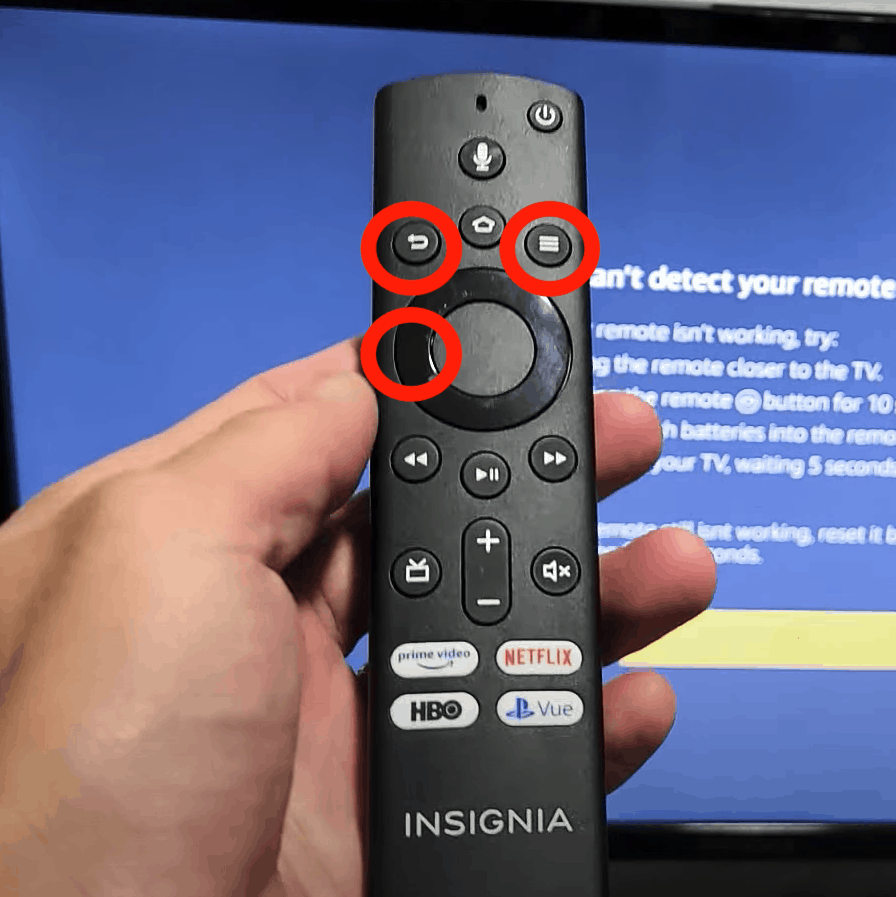
- For Insignia Fire TV remotes, press and hold the Home button for 10 seconds to re-pair.
Check your remote’s manual or the Insignia website for specific steps.
8. Update Tv Firmware
Old TV firmware can cause remote issues. Use your TV’s menu buttons or a working remote to check for updates:
- Go to Settings > System > Software Update
- Download and install any available updates
If you can’t access the menu, skip this step until you have basic remote control restored.
9. Reset The Tv To Factory Settings
As a last resort, you can reset your Insignia TV to its factory defaults. This will erase all settings and data.
- Find the reset button (often a small hole labeled “RESET”) on the back or side of your TV.
- Use a paperclip to press and hold it for 20 seconds.
- The TV will restart and reset to factory settings.
Only do this if you’ve tried everything else, as it erases Wi-Fi, apps, and personal settings.
10. Replace The Remote
If none of the above steps work, your remote may be broken. Replacement Insignia remotes are available online or in stores. Make sure you buy the correct model for your TV.
Many users overlook the importance of matching the model number—remotes that look similar may not work with your specific TV.

Differences Between Insignia Tv Remote Types
Insignia offers several kinds of remotes. Knowing which type you have can help you troubleshoot more effectively.
| Remote Type | Main Features | Common Issues |
|---|---|---|
| Standard IR Remote | Basic controls (power, volume, channels) | Batteries, line-of-sight problems |
| Insignia Fire TV Remote | Voice control, Bluetooth, extra buttons | Pairing issues, Bluetooth interference |
| Universal Remote | Controls multiple devices, programmable | Programming errors, wrong codes |
For example, if you use a Fire TV remote and it’s not working after a power outage, it’s often a pairing problem rather than a hardware issue.
Advanced Tips Most People Miss
Some remote issues are rare or easy to overlook. Here are two advanced tips:
- Check for Stuck Buttons: Sometimes, a button can get stuck down (especially after spills or drops). This can make the remote seem dead. Press each button several times to loosen it.
- Look for IR Signal Reflection Problems: In rare cases, shiny furniture or glass in front of the TV can reflect IR signals away from the sensor. Try moving reflective objects or the TV itself.
When To Contact Insignia Support
If your remote still does not work after all troubleshooting, it may be time to contact Insignia support or your retailer. Before you call, have this information ready:
- Your TV model number (found on the back or in the manual)
- The remote’s model number (inside the battery compartment)
- A summary of what you have tried
Insignia support can be reached through the official Best Buy website or the Insignia TV support line.
Preventing Future Remote Problems
To avoid problems with your Insignia TV remote in the future, follow these tips:
- Always use fresh, high-quality batteries
- Store the remote in a safe, dry place
- Clean the remote and TV sensor regularly
- Keep the TV’s firmware up to date
- Don’t drop or expose the remote to liquids
A little care can extend the life of your remote and reduce frustration.
Comparing Fixes: Easy Vs. Advanced Solutions
Not all fixes require the same effort. Here’s a quick comparison:
| Solution | Difficulty | Success Rate |
|---|---|---|
| Change batteries | Easy | Very high |
| Remove obstacles | Easy | High |
| Power cycle TV/remote | Easy | High |
| Re-pair remote | Moderate | Medium |
| Factory reset TV | Advanced | Medium |
| Replace remote | Moderate | Very high |
Most users fix their problem with the first three solutions. Advanced steps are only needed for stubborn issues.
Real-life Example: Troubleshooting A Fire Tv Remote
Imagine Maria, who owns an Insignia Fire TV. One morning, her remote stops working after a storm. She tries changing the batteries—no luck. She checks for obstacles, but nothing is in front of the TV.
Maria remembers her remote uses Bluetooth, so she holds the Home button for 10 seconds to re-pair it. The remote lights flash, and it starts working again. Her patience and methodical steps avoided an unnecessary remote purchase.
Understanding Infrared Vs. Bluetooth Remote Problems
Insignia TVs use both infrared (IR) and Bluetooth remotes. Each type has unique challenges.
| Remote Type | Signal Method | Typical Issues |
|---|---|---|
| Standard IR Remote | Line-of-sight infrared | Obstructions, sensor dirt, battery issues |
| Fire TV Remote | Bluetooth and IR | Pairing, interference from Wi-Fi/Bluetooth devices |
If you know your remote’s type, you can focus on the most likely fixes.
Common Mistakes To Avoid
Many people make the same errors when fixing their Insignia TV remote:
- Ignoring the battery contacts (corrosion or dirt can block power)
- Using cheap or old batteries
- Not checking for stuck buttons
- Trying to program a universal remote without the correct code
- Overlooking sunlight or LED lamps causing interference
Avoid these pitfalls for a faster, more successful repair.
Best Practices For Universal Remotes
If you use a universal remote with your Insignia TV:
- Always check the latest code for your TV model (codes can change)
- Test the remote after programming each function, not just the power button
- Keep the remote’s manual handy for troubleshooting
- Update the remote’s firmware if possible
Universal remotes add convenience but need careful setup.
Where To Buy Replacement Insignia Remotes
If your remote is lost or broken, you have several options for replacement:
- Official Insignia remotes from Best Buy or the Insignia website
- Universal remotes compatible with Insignia TVs
- Online retailers (make sure the model number matches)
- Some smartphone apps can control Insignia TVs, but only if your TV supports network control
Buying from an official source ensures compatibility and warranty support.
The Role Of The Insignia Tv Mobile App
Some newer Insignia TVs support remote control through a mobile app. This can be a temporary solution if your physical remote is not working. However, setup often requires the original remote, so this is best as a backup, not a long-term fix.
Apps are available for both Android and iOS devices. Check your TV’s manual or the Insignia website for details.
Signs You May Need A New Tv, Not Just A Remote
Remote problems are usually easy to fix, but sometimes the issue is with the TV’s hardware. Signs include:
- The TV does not respond to any remote, even after trying multiple remotes and batteries
- The TV’s sensor is visibly damaged
- TV buttons on the set itself also do not work
If you see these signs, contact Insignia support or a TV technician.
Helpful Resources For Insignia Tv Owners
For more information, visit the official Insignia support page or forums where users share tips and solutions. The Best Buy Insignia Support page is a reliable starting point for troubleshooting guides and firmware updates.
Frequently Asked Questions
Why Does My Insignia Tv Remote Work Only Sometimes?
This often means the batteries are weak or not making solid contact. Try replacing with new, high-quality batteries and cleaning the contacts. Interference from sunlight or other devices can also cause intermittent issues.
How Do I Pair My Insignia Fire Tv Remote?
Hold the Home button on your remote for at least 10 seconds. The light should start flashing, and the remote will re-pair with your TV. If this does not work, unplug your TV for one minute, plug it back in, and try pairing again.
Can I Use A Universal Remote With My Insignia Tv?
Yes, most universal remotes work with Insignia TVs. You need the correct code for your model. Check the remote’s manual or the Insignia website for updated codes. After programming, always test all buttons, not just power.
What If My Insignia Tv Does Not Respond To Any Remote?
First, try all troubleshooting steps: new batteries, cleaning sensors, power cycling, and testing another remote. If the TV still does not respond, the problem may be with the TV’s sensor or internal hardware. Contact Insignia support for further help.
Where Can I Buy A Replacement Insignia Tv Remote?
You can buy official replacement remotes from Best Buy stores, the Insignia website, or online retailers. Always check that the remote matches your TV model number for full compatibility.
A broken remote shouldn’t ruin your TV experience. By following these steps, you’ll quickly identify and fix most problems with your Insignia TV remote not working. If the issue continues after thorough troubleshooting, reaching out to Insignia support or considering a replacement remote is the next smart step. With a bit of patience and the right approach, you’ll be back to enjoying your favorite shows in no time.