
If you ever needed to find your iPhone and instead saw the message No Location Found, you probably felt a mix of confusion and worry. This notification can appear at the worst times—maybe you lost your phone in a busy place, or you’re trying to check on a family member’s device. Either way, not knowing what it means or how to fix it can leave you frustrated and unsure of your next step. The good news is, this problem can almost always be solved with the right information and a few clear actions.
This guide explains everything about the iPhone No Location Found issue. You’ll learn why this message appears, how it’s different from similar alerts, and most importantly, step-by-step solutions to get your device’s location working again. We’ll also cover advanced troubleshooting, privacy concerns, and real-world scenarios, so by the end, you’ll feel confident handling this common iPhone problem—whether it’s for your own device or someone you care about.
What Does ‘no Location Found’ Mean On Iphone?
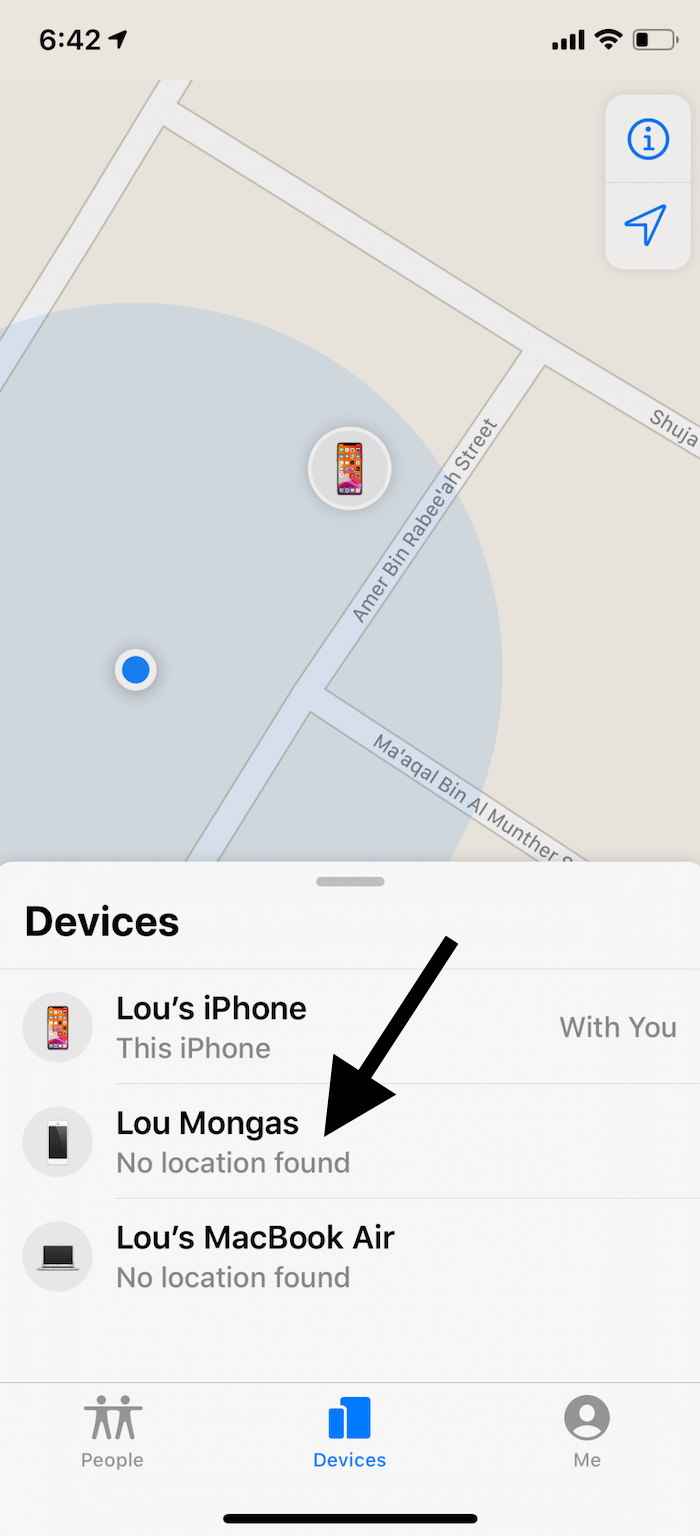
When your iPhone (or someone else’s) shows No Location Found in the Find My app, it means the device’s location cannot be determined at that moment. This can happen for many reasons, and understanding the message is key to fixing it.
Unlike Location Not Available (which means the device is online but location services are off or restricted), No Location Found usually points to a deeper issue. The device might be offline, out of battery, not connected to the internet, or blocked from sharing its location. Sometimes, it’s a temporary glitch; other times, it’s a sign of a bigger problem.
Common Reasons For ‘no Location Found’ On Iphone
Several factors can trigger this frustrating message. Here are the most frequent causes:
1. No Internet Connection
For the iPhone to share its location, it needs access to either Wi-Fi or cellular data. If it’s not connected, the Find My app can’t update the device’s location.
2. Device Is Off Or Out Of Battery
If the iPhone is powered off or the battery is dead, it can’t send its location. This is one of the most common reasons.
3. Find My Iphone Is Disabled
The device must have the Find My feature enabled in settings. Without it, location sharing simply won’t work.
4. Airplane Mode Is On
Enabling airplane mode cuts off all wireless signals. This stops location updates until airplane mode is turned off.
5. Date And Time Are Incorrect
If the iPhone’s date and time are wrong (especially if set manually), it can disrupt many features, including location services.
6. Outdated Ios Version
Older iOS versions sometimes have bugs or security limits that prevent location sharing from working correctly.
7. Sim Card Issues
A missing, damaged, or unsupported SIM card can block cellular data, which is essential for location tracking.
8. Location Services Are Off
If location services are disabled in settings, the iPhone can’t determine or share its position.
9. Blocked Or Limited Permissions
If you’ve blocked location sharing for specific apps or contacts, or set up restrictions, you may see this error.
10. Network Restrictions (e.g., Parental Controls, Vpns)
Filters or VPNs can sometimes block the necessary data for updating location.
Many users overlook at least one of these points, especially if the device was recently changed, restored, or had privacy settings adjusted.

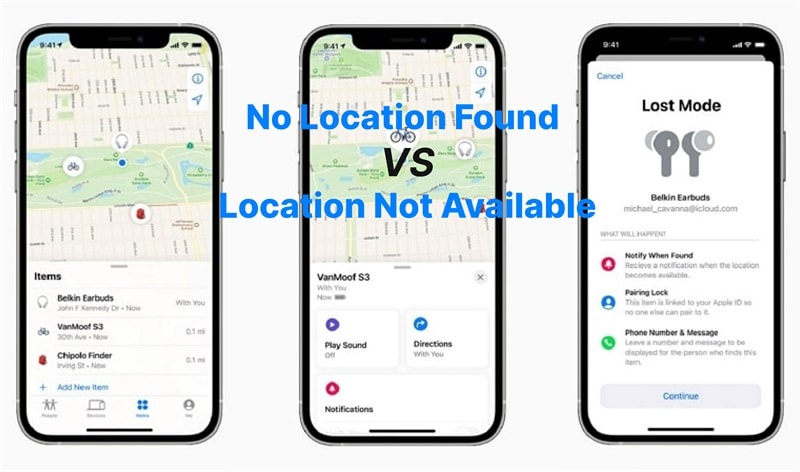
How ‘no Location Found’ Differs From ‘location Not Available’
Although both messages look similar, they mean different things. Knowing the difference helps you troubleshoot smarter.
- No Location Found
The iPhone or other device can’t be found at all. It might be offline, out of battery, or unable to send data.
- Location Not Available
The device is online, but location sharing is turned off, or the user has restricted sharing.
Here’s a quick comparison:
| Message | What It Means | Common Causes |
|---|---|---|
| No Location Found | Device can’t be found at all | Offline, dead battery, not connected, Find My disabled |
| Location Not Available | Device is online, but not sharing location | Location services off, restricted permissions, user disabled sharing |
Understanding this difference can save you time and help you focus on the right solution.
Step-by-step Solutions To Fix ‘no Location Found’
If you see this message, don’t panic. Most problems can be solved by checking settings and making a few changes. Follow these steps in order, and test after each one.
1. Check Device Power And Internet Connection
Before anything else, make sure the iPhone is turned on and charged. If possible, ask someone near the device to plug it in. Next, confirm it’s connected to Wi-Fi or cellular data. A device with no internet connection cannot update its location.
2. Verify Find My Iphone Is Enabled
Go to Settings > [your name] > Find My > Find My iPhone. Make sure the feature is turned on. If you use Family Sharing, confirm that sharing is also enabled for the right group or person.
3. Turn Off Airplane Mode
Swipe down to open Control Center and check that airplane mode is off (the airplane icon should not be orange). If airplane mode is on, tap to turn it off and wait for the device to reconnect.
4. Make Sure Location Services Are On
Go to Settings > Privacy & Security > Location Services. This switch should be green. If not, turn it on. Scroll down to Find My and make sure location access is set to While Using the App or Always.
5. Check Date And Time Settings
Go to Settings > General > Date & Time. Set it to Set Automatically. Incorrect date or time can prevent location sharing.
6. Update To The Latest Ios
Go to Settings > General > Software Update. If there’s an update available, download and install it. Apple often fixes bugs and improves reliability in new versions.
7. Remove And Reinsert Sim Card
If you have access to the device, use the SIM tool (or a paperclip) to eject the SIM card. Wait a few seconds, then reinsert it. Restart the iPhone to refresh the connection.
8. Restart The Iphone
Sometimes a simple restart fixes connection or software glitches. Hold the side button and either volume button, then slide to power off. Wait 30 seconds, then turn it back on.
9. Disable Vpn Or Security Apps
If you use a VPN or a security app that controls internet traffic, turn it off temporarily. Some VPNs block the Find My app from sending location data.
10. Reset Network Settings
If all else fails, go to Settings > General > Transfer or Reset iPhone > Reset > Reset Network Settings. This will erase Wi-Fi passwords and network preferences, but often fixes stubborn connection issues.
Each of these steps addresses a common cause of the No Location Found problem. If you’re still stuck after trying everything, it’s time to consider less obvious causes.
Less Obvious Causes And Advanced Troubleshooting
Most guides stop at basic settings, but there are deeper issues that can block location sharing. Here’s what you might be missing:
Icloud Account Issues
If the iPhone recently signed out of iCloud, or is using a different Apple ID, Find My may not work as expected. Double-check the device is signed in with the correct Apple ID under Settings > [your name].
Device Restrictions Or Screen Time
Parental controls (Screen Time) can block location sharing. Go to Settings > Screen Time > Content & Privacy Restrictions and make sure location sharing is allowed.
Hardware Problems
A damaged antenna or logic board can disrupt GPS or cellular connections. If the iPhone recently fell or got wet, hardware repair might be needed.
Server Outages
Rarely, Apple’s servers may be down. You can check the current status at Apple’s System Status page. If Find My is offline, you may need to wait.
Device Is In A Location With No Signal
If the iPhone is in a remote area (e. g. , underground parking, rural regions), it might not have enough signal to send its location.
The Iphone Was Erased
If someone erased the device, Find My might not work unless Send Last Location was enabled before the wipe. In this case, you’ll only see the last known spot.
Location Sharing Was Stopped Manually
If the user turned off location sharing in Find My, you will see No Location Found until it’s re-enabled.
| Advanced Cause | How It Blocks Location |
|---|---|
| Signed out of iCloud | Find My is linked to Apple ID; signing out disables tracking |
| Screen Time restrictions | May block location sharing for privacy or parental controls |
| Hardware damage | Damaged GPS or antennas prevent accurate location updates |
Privacy And Security Concerns
Some users intentionally disable location sharing for privacy. Understanding these settings is important, especially if you’re worried about being tracked or want to help someone else set boundaries.
- Location Sharing in Find My:
You can stop sharing your location with anyone at any time. This can be done in the Find My app under the “People” tab.
- Share My Location:
Found in Settings > [your name] > Find My > Share My Location. Turn this off to hide your location from family and friends.
- Emergency Situations:
Even if location sharing is off, an iPhone can send its location during an emergency call in some countries.
- Last Location:
If enabled, your iPhone sends its last location before the battery dies. This feature can help if you lose your phone while it’s offline.
Many people forget about the Send Last Location option. Turning this on is a smart move—it gives you one final chance to find your device even if it runs out of power or is switched off.
Real-life Scenarios: When ‘no Location Found’ Appears
Let’s look at some examples where this problem causes confusion, and what you can do in each case.
You Lost Your Iphone
You open Find My from another device and see No Location Found. First, try calling your phone to check if it’s on. If you can’t reach it, it might be out of battery or offline. Enable Notify When Found in the Find My app, so you’ll get an alert when the device comes online.
Checking On A Family Member
You track a loved one’s device, but the message appears. Before worrying, contact them directly. They might be in a place with poor signal, or their phone may have died. Ask them to check their settings when possible.
Tracking A Child’s Phone
If you use Family Sharing to track your child, and see No Location Found, check that their device has location sharing enabled and is connected to the internet. Screen Time settings can sometimes block location sharing for privacy.
After Restoring Or Resetting An Iphone
A recently restored iPhone may need to sign in to iCloud and re-enable Find My. Remind the user to check all settings after setup.
Using Find My With Multiple Devices
If you have more than one Apple device, make sure you’re tracking the correct one. Sometimes, users accidentally select an old or inactive device, which will always show No Location Found.
What To Do If ‘no Location Found’ Persists
If you’ve tried all basic and advanced solutions but still can’t see the location, here’s what to do next:
1. Double-check Apple Id
Make sure the device is signed in to the correct Apple ID. Sometimes, users change IDs after repairs or upgrades.
2. Contact Apple Support
If you suspect hardware damage or software corruption, reach out for help.
3. Check For Software Bugs
Search forums or Apple’s support site for known bugs affecting location services for your iOS version.
4. Consider A Full Restore
As a last resort, back up the device and perform a factory reset, then restore from backup. This can clear deep software issues.
5. Use Third-party Location Apps
If Find My is unreliable, try trusted alternatives like Google Maps Timeline, but remember these also need location and internet to work.
How To Prevent ‘no Location Found’ In The Future
Solving this issue once is good—but preventing it is better. Here are practical tips:
- Always Keep Find My Enabled
Don’t turn off this feature, even if you think you won’t lose your phone.
- Enable Send Last Location
In Find My settings, make sure this is on. It’s a simple, often-missed step.
- Charge Your Device Regularly
A dead battery is the #1 reason for location problems.
- Keep iOS Updated
Regular updates protect against bugs and add new features.
- Review Location Settings Every Few Months
Sometimes settings change after updates or repairs.
- Avoid Unreliable VPNs or Network Filters
These can block location updates without warning.
- Inform Family or Trusted Friends
Make sure someone knows how to help you find your phone if needed.
- Use a Case With a Battery Pack for Travel
This keeps your device powered for longer, reducing the risk of being offline.
Many users only enable Find My after losing their device—it’s too late by then. Setting these features now saves trouble later.
Comparing Apple’s Find My With Other Tracking Services
Apple’s system is powerful, but how does it compare with alternatives like Google or Samsung? Here’s a quick look:
| Feature | Apple Find My | Google Find My Device | Samsung Find My Mobile |
|---|---|---|---|
| Last Location | Yes, if enabled | Yes | Yes |
| Works Offline | Limited (with Bluetooth network) | No | Limited |
| Family Sharing | Yes | No | Yes |
| Web Access | Yes | Yes | Yes |
| Privacy Controls | Very strong | Strong | Strong |
Apple’s Find My stands out for privacy, Family Sharing, and offline tracking (using other Apple devices nearby). However, all systems need location services and internet at some point. This is why “No Location Found” can occur on any platform, not just iPhones.
Myths And Misunderstandings About ‘no Location Found’
Many users believe one of these common myths:
- Myth: “If I see ‘No Location Found,’ my phone is stolen or hacked.”
Reality: Most often, the device is just offline or out of battery.
- Myth: “Turning off Find My saves battery life.”
Reality: The feature uses little power. Disabling it mostly increases risk if you lose your device.
- Myth: “If I reset my iPhone, Find My will always turn off.”
Reality: Since iOS 13, Find My requires your Apple ID to be removed before it can be disabled.
- Myth: “Location sharing is unsafe.”
Reality: You control who can see your location. Apple encrypts this data for privacy.
Understanding these points can help you make smarter choices and avoid panic or unnecessary changes to your device.
Frequently Asked Questions
Why Does My Iphone Say ‘no Location Found’ Even When It’s On?
This usually means the device is online but not able to send location data. Check that Wi-Fi or cellular data is working, and that Location Services and Find My are turned on. If you’re using a VPN, try disabling it.
Can ‘no Location Found’ Mean My Phone Is Stolen?
Not always. Most of the time, it means your phone is offline, out of battery, or unable to connect to the internet. If you think your phone is stolen, use Find My to mark it as lost and contact your local authorities.
Will ‘no Location Found’ Update If My Phone Is Turned Back On?
Yes. If you set Notify When Found in Find My, you’ll get an alert as soon as the device comes back online and can share its location again.
How Can I Stop Others From Seeing My Iphone Location?
Go to Settings > [your name] > Find My > Share My Location and turn it off. You can also stop sharing your location with specific people in the Find My app under the “People” tab.
Is There A Way To Find My Iphone If It Shows ‘no Location Found’?
If Send Last Location was enabled, you’ll see the last place your iPhone was online. If not, you’ll have to wait until the device is powered on and connected to the internet. In some cases, contacting your carrier may help track the device using the SIM card.
If you want more technical details about device tracking, Apple’s official support documentation is always a good reference. You can visit Apple’s Support Page for up-to-date information.
Solving iPhone No Location Found can feel overwhelming, but with the right steps, nearly every issue can be fixed. Understanding why this message appears, how to respond, and how to prevent it in the future gives you control and peace of mind—so you’ll never feel lost with your iPhone again.