
Is your Optimum remote’s volume button suddenly not working? It’s frustrating when you want to adjust the sound quickly, but nothing happens.
You might have tried pressing the button repeatedly or changing the batteries, yet the problem sticks around. Don’t worry—you’re not alone, and this issue can usually be fixed without calling a technician. You’ll discover simple, step-by-step solutions to get your remote’s volume control back in action fast.
Keep reading to regain full control over your TV sound and enjoy your favorite shows without interruption!
Check Remote Batteries
Checking the remote batteries is one of the simplest ways to fix Optimum remote volume issues. Weak or dead batteries often cause the remote to stop working. The remote needs enough power to send signals to your TV. Without fresh batteries, buttons may not respond properly. Always start troubleshooting by inspecting the batteries before trying other fixes.
Replace Weak Or Dead Batteries
Remove the old batteries from your remote. Look for signs of corrosion or leakage. Replace them with new batteries of the correct size and type. Using fresh batteries ensures the remote gets enough power. Test the volume buttons after inserting the new batteries. If the remote works, the problem was low battery power.
Clean Battery Contacts
Sometimes, battery contacts inside the remote get dirty or corroded. This stops electricity from flowing properly. Use a cotton swab dipped in rubbing alcohol. Gently clean the metal contacts where the batteries sit. Let the contacts dry completely before inserting new batteries. Clean contacts improve the connection and help the remote work better.
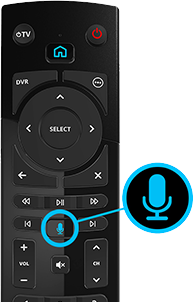
Credit: www.optimum.net
Ensure Clear Line Of Sight
Ensuring a clear line of sight between your Optimum remote and the TV is vital. The remote uses infrared (IR) signals that require a direct path. Any blockage can prevent the volume buttons from working properly.
Remove Obstructions Between Remote And Tv
Objects like furniture, decorations, or even people can block the IR signal. Keep the area in front of the TV clear. Avoid placing items directly between the remote and the TV sensor. This simple step helps the remote send commands without interruption.
Clean Ir Sensors
Dust and dirt on the IR sensors can weaken the signal. Use a soft, dry cloth to gently clean both the remote’s emitter and the TV’s IR receiver. Regular cleaning ensures a strong connection. Make this a quick habit to keep the remote working smoothly.
Power Cycle Cable Box
Power cycling your cable box can fix many common remote control issues. This method refreshes the box’s system and clears temporary glitches. It often resolves problems causing the Optimum remote volume not to work. Follow simple steps to power cycle your device safely and correctly.
Unplug And Reconnect Power
Start by unplugging your Optimum cable box from the power outlet. Disconnect the power cable completely. This stops all power to the box and resets the internal hardware. Avoid just turning off the device with the remote or power button.
Wait at least 30 seconds before plugging it back in. This pause allows the cable box to clear its memory and reset important settings. After reconnecting, the box will begin the restart process.
Wait For Full Restart
Give the cable box time to fully restart. This may take a few minutes. You will see the startup screen or logos on your TV. Avoid pressing any buttons on the remote or box during this time.
Once the box finishes loading, test the remote’s volume buttons. Power cycling often restores proper communication between the remote and the cable box. If the volume still does not work, try other troubleshooting steps.
Reprogram Optimum Remote
Reprogramming your Optimum remote can fix volume control issues quickly. Sometimes the remote loses connection with the TV. This breaks the volume function. Resetting the remote restores proper communication.
Several methods help you reprogram the remote. Try device settings, follow on-screen prompts, or use the auto-search feature. These steps guide the remote to sync with your TV. This process often solves volume problems without extra tools.
Use Device And Remote Settings
Start by accessing the device settings on your cable box menu. Look for “Device and Remote Settings” or a similar option. Select “Stream Remote” if available. Then choose “Change TV Setup.” This option lets you select your TV brand. The remote will try to connect using preset codes.
This method uses known codes to match your TV’s make. It is fast and often successful. Make sure your TV is on during this step. The remote sends signals to check if the code works.
Follow On-screen Instructions
After selecting your TV brand, watch the screen carefully. The system will show simple instructions to finish programming. Follow each step exactly as shown. You may need to press buttons on the remote as directed.
The screen may ask if the volume worked. Say “yes” if it did. If not, the system will suggest trying another code. Continue until the volume responds. This ensures the remote is synced correctly.
Try Auto-search Method
If the preset codes fail, use the auto-search method. Hold down the Volume Up button on your remote. Keep it pressed until the TV volume changes. Release the button immediately once you see the volume move.
This method lets the remote scan all possible codes. It finds the right one by testing each code automatically. If the volume still does not work, repeat the process slowly. Auto-search often fixes tricky connection problems.
Enable Hdmi-cec Settings
Enabling HDMI-CEC settings helps your devices communicate through one HDMI connection. This feature lets your Optimum remote control your TV volume by syncing commands between devices. Without HDMI-CEC, your remote might not adjust volume correctly. Adjusting these settings can fix volume issues quickly.
Turn On Cec On Tv
Access your TV’s main menu using the TV remote. Look for settings labeled “HDMI-CEC,” “Anynet+,” “Bravia Sync,” or similar. These names vary by brand. Switch this feature to “On” or “Enabled.” This setting lets your TV receive volume commands from the cable box. Save your changes and exit the menu.
Enable Hdmi Audio On Cable Box
Power on your Optimum cable box and open its settings menu. Find the audio or HDMI settings section. Make sure “HDMI Audio” is enabled to allow sound signals through the HDMI connection. This step ensures the cable box sends volume control signals to your TV. Confirm the changes and restart the cable box if needed.
Test Remote Volume Control
Testing your Optimum remote’s volume control helps find the root of the issue. This step checks if the remote sends the right signals to your TV or cable box. It also confirms if the remote needs a reset or reprogramming. Follow these simple tests to see if the volume control works properly.
Check Volume Response After Reset
First, reset your Optimum remote by removing the batteries. Wait for 10 seconds before reinserting them. This simple reset can clear minor glitches affecting volume control.
After resetting, point the remote at the TV. Press the volume up or down buttons and watch for changes. Look for the volume bar on the TV screen. If it moves, your remote is working correctly.
No change means the remote may not be synced with the TV. You might need to reprogram the remote or check the batteries next.
Try Controlling Tv Volume
Sometimes, the volume buttons control the cable box, not the TV. Check if your TV volume changes when you press the remote buttons. If not, try adjusting the TV volume manually first.
Next, use your remote to increase or decrease the volume. If your TV volume does not respond, the remote might not be paired with your TV correctly.
Re-sync the remote by following the setup instructions from Optimum. This process helps the remote communicate with your TV to control volume properly.
Request Replacement Remote
Requesting a replacement remote can solve volume issues fast. A damaged or faulty remote often causes volume buttons to stop working. Getting a new remote restores full control over your Optimum service.
There are two simple ways to get a replacement remote. You can visit a local Optimum store or order one online through the Support Center. Both options offer quick and easy solutions.
Locate Local Optimum Store
Find the nearest Optimum store to pick up a replacement remote. Visit the official Optimum website and use the store locator tool. Enter your zip code or city to see nearby locations. Walking into a store lets you get the remote the same day. Staff can also help set it up for you. This option is best for those who want fast service and personal help.
Order New Remote Via Support Center
Visit the Optimum Support Center online to order a new remote. Log in to your Optimum account to access replacement options. Select the type of remote that works with your service. Provide your shipping details for home delivery. The Support Center also offers troubleshooting guides if you want to try fixing the remote first. Online ordering suits those who prefer convenience and home delivery.
Additional Troubleshooting Tips
Additional troubleshooting tips can help fix the Optimum remote volume issue fast. These steps cover power checks and visual guides. They provide clear solutions to common problems. Follow each tip carefully for the best results.
Verify Optimum Stream Box Power
Check if the Optimum Stream Box is powered on properly. The box must have a steady power supply to work well. Unplug it from the outlet and wait for about 30 seconds. Plug it back in and let it fully restart. This reset can clear temporary glitches affecting the remote’s volume control.
Make sure the power light on the box is steady and not blinking. A blinking light can mean the device is still booting or has an error. If the box does not turn on, check the power cable for damage or loose connection. Replace the cable if needed to ensure proper power flow.
Consult Visual Step-by-step Guides
Use visual guides to fix the remote volume problem easily. Many online resources offer images or videos showing exact steps. These guides often explain how to re-sync the remote or program it for your TV model. Visual instructions make it simpler to follow and reduce mistakes.
Find these guides on the official Optimum website or trusted tech help sites. Follow each step slowly and in order. Pause videos and compare your remote or box with the pictures. This method helps solve the issue without confusion or extra help.
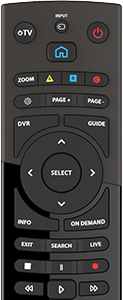
Credit: www.optimum.net
Frequently Asked Questions
How Do I Get The Volume To Work On My Optimum Remote?
Check and replace remote batteries, ensure clear line of sight to the TV, then power cycle your cable box. Re-pair the remote via Settings or use the auto-search method. Also, enable HDMI-CEC in TV and cable box settings for volume control.
Replace the remote if issues persist.
What To Do If The Tv Remote Volume Button Is Not Working?
Check and replace remote batteries. Ensure a clear line of sight to the TV. Re-sync or reprogram the remote via settings. Enable HDMI-CEC in TV and box settings. Power cycle the cable box. Request a replacement remote if the problem persists.
How To Reset The Optimum Remote Control?
Unplug your Optimum cable box and remove the remote batteries. Plug the box back in, wait, then reinsert batteries. Re-pair the remote via Settings > Device and Remote Settings. Use the auto-search if needed. Enable HDMI-CEC on your TV for volume control.
Replace the remote if problems persist.
Are The Remote Batteries Causing The Volume Issue?
Weak or dead remote batteries often cause volume issues by failing to send signals properly. Replace batteries to fix this.
Why Is My Optimum Remote Volume Not Working?
Low batteries or blocked sensors often cause volume issues. Check battery power and clear any obstacles between remote and TV.
Conclusion
Fixing the Optimum remote volume issue often takes simple steps. Check batteries and clear any obstacles between remote and TV. Restart your cable box and re-sync the remote to the TV. Make sure HDMI-CEC is enabled on both devices for better control.
If problems persist, consider replacing the remote. Small fixes can bring back smooth volume control quickly. Keep these tips handy for easy troubleshooting.