
Streaming workouts at home has changed the way people exercise, and the Peloton App is a big part of this change. If you own a Samsung TV, you might wonder if you can bring Peloton’s huge library of classes onto your big screen. The answer is yes, but the path isn’t always straightforward. Many users have questions about compatibility, setup, and the best experience. This article will guide you through everything you need to know about using the Peloton App on your Samsung TV, including setup, features, troubleshooting, and smart tips for an optimal workout. Whether you already have a Peloton subscription or are just curious about new ways to work out at home, you’ll find practical advice and clear steps here.
The Peloton App: An Overview
The Peloton App started as a companion for Peloton’s famous bikes and treadmills. Now, it offers thousands of classes for cycling, running, strength training, yoga, meditation, and more—even if you don’t own Peloton hardware. You can stream workouts live or on-demand, track your progress, and join a huge community of fitness fans. The app works on many devices: smartphones, tablets, computers, smart TVs, and streaming sticks.
Samsung TVs are among the world’s most popular smart TVs. Many models use the Tizen operating system, which supports a wide range of apps. However, not every app is available natively for every smart TV, and that includes Peloton. Let’s explore what this means for Samsung users.
Is The Peloton App Available On Samsung Tv?
If you go to your Samsung TV’s app store and search for “Peloton,” you may be surprised. There is currently no native Peloton App on the Samsung TV app store. This means you can’t download and install the app directly like you would on your phone.
Why is this? Peloton has built native apps for platforms like iOS, Android, Apple TV, Fire TV, and Roku. But as of now, Samsung’s Tizen store does not offer a dedicated Peloton app. This can be frustrating, but there are several good workarounds.
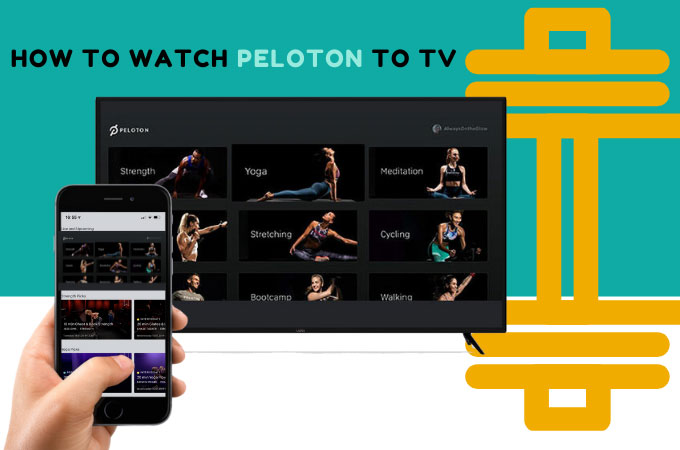
Ways To Watch The Peloton App On Samsung Tv
Even without a direct app, you can access Peloton workouts on your Samsung TV using alternative methods. Here’s how:
1. Screen Mirroring From Your Smartphone Or Tablet
Most Samsung TVs support screen mirroring using technologies like Smart View (Samsung’s version of Miracast) or Apple AirPlay 2. This lets you play the Peloton App on your phone or tablet and show it on your TV screen.
Using Smart View (android Devices)
- Make sure your Samsung TV and your Android device are on the same Wi-Fi network.
- Open the Peloton App on your device.
- Swipe down to open the quick menu and tap Smart View or Screen Mirroring.
- Select your TV from the list of available devices.
- The TV will show your device’s screen. Start your Peloton workout—audio and video will stream to your TV.
Using Apple Airplay (ios Devices)
- Ensure your Samsung TV supports AirPlay 2 (most models 2018 and newer do).
- Connect your iPhone/iPad and TV to the same Wi-Fi network.
- Open the Peloton App and start your workout.
- Swipe down from the top right (iPhone X and later) or up (older models) to access Control Center.
- Tap Screen Mirroring, select your TV, and the Peloton App will display on your TV.
Non-obvious insight: Screen mirroring will show everything on your phone’s screen, not just the app. Notifications and calls can appear, so activate “Do Not Disturb” before your workout for fewer interruptions.
2. Using An Hdmi Cable
If you want the most reliable video and audio, connect your device directly to your TV with an HDMI cable. You’ll need an adapter for your phone or tablet (such as USB-C to HDMI or Lightning to HDMI).
- Connect the adapter to your phone/tablet and the HDMI cable to your TV.
- Change your TV’s input to the correct HDMI port.
- Open the Peloton App and start a class. The image and sound will play on your TV.
This method avoids Wi-Fi issues and lags. It’s especially useful for older TVs or if your Wi-Fi is slow.
3. Streaming Devices: Fire Tv Stick, Roku, Apple Tv, Google Chromecast
If you have a streaming device plugged into your Samsung TV, you might be able to download the Peloton app there—even if the Samsung App Store doesn’t offer it.
- Amazon Fire TV Stick: Download the Peloton App from the Amazon Appstore and log in with your Peloton credentials.
- Roku: The Peloton App is available on the Roku Channel Store.
- Apple TV: The app is on the Apple TV App Store.
- Google Chromecast: Use your phone to cast Peloton workouts directly to your TV.
These devices are affordable and easy to use. They also offer smoother video quality than some mirroring methods.
Pro Tip: If you’re considering buying a streaming stick, check which ones support Peloton before purchasing. Some older models may not work well with high-definition video.
4. Using The Samsung Internet Browser App
Some Samsung TVs have a built-in web browser. You can try visiting the Peloton web app at members.onepeloton.com:
- Open the Internet browser app on your TV.
- Go to the Peloton website and log in.
- Start your workout.
This method is less reliable. The web browser may not support all video features, and the interface is not as friendly as the app. Still, it’s an option if you don’t want to use another device.
5. Casting Via Chromecast (if Supported)
Some Samsung TVs, especially newer models, have Chromecast built-in. If your TV supports this:
- Open the Peloton App on your Android device or Chrome browser.
- Tap the Cast icon and select your TV.
- The video will play on your Samsung TV.
Not all Samsung TVs have Chromecast support, so check your model’s specifications.
Summary Table: Main Ways To Use Peloton App On Samsung Tv
Here’s a quick comparison of the main methods:
| Method | Requirements | Pros | Cons |
|---|---|---|---|
| Screen Mirroring | Compatible phone/tablet, same Wi-Fi | Wireless, easy | Mirrors everything, possible lag |
| HDMI Cable | Adapter, cable | Stable, no lag | Needs cable, less flexible |
| Streaming Device | Fire TV, Roku, etc. | Native app, smooth | Extra hardware needed |
| Web Browser | Samsung Internet app | No extra device | Poor interface, possible issues |
| Chromecast | Supported TV/Chromecast device | Wireless, app control | Not available on all TVs |
Setting Up Peloton App On Samsung Tv: Step-by-step
Let’s look at the detailed steps for each method, including troubleshooting advice if things don’t go as planned.
Screen Mirroring (smart View/airplay)
- Connect to Wi-Fi: Both your mobile device and TV must be on the same Wi-Fi network.
- Open Peloton App: Start the app on your phone or tablet.
- Activate Screen Mirroring: Use Smart View for Android or AirPlay for iOS.
- Select TV: Your Samsung TV should appear in the device list.
- Accept Connection: Some TVs will show a prompt—allow the connection.
- Start Workout: Play any class. The video and sound will appear on your TV.
Troubleshooting:
- If your TV doesn’t show up, check that Wi-Fi is on and both devices are on the same network.
- Restart both devices if you have trouble connecting.
- Update your device and TV software for best compatibility.
Using Hdmi Cable
- Get the right adapter: For iPhones, use a Lightning to HDMI adapter; for Android, a USB-C to HDMI adapter.
- Connect devices: Plug the adapter into your phone/tablet and the HDMI cable into your TV.
- Switch input: Use your TV remote to select the correct HDMI input.
- Open Peloton App: Start your workout.
Troubleshooting:
- If there’s no picture, check connections and try a different HDMI port.
- Make sure the adapter is compatible with your device.
Using A Streaming Device
- Plug in the device: Connect your Fire TV Stick, Roku, or Apple TV to an HDMI port.
- Set up device: Follow the on-screen instructions to connect to Wi-Fi.
- Download Peloton App: Go to the device’s app store, search for “Peloton,” and install.
- Log in: Use your Peloton credentials.
- Start streaming workouts directly from the app.
Troubleshooting:
- If you can’t find the app, check for device updates.
- Make sure your device is supported by Peloton (older devices may not work).
Using Samsung’s Web Browser
- Open Internet app from your TV’s home screen.
- Go to the Peloton website: Enter members.onepeloton.com.
- Log in: Use your Peloton account.
- Select a workout and start streaming.
Troubleshooting:
- If the video won’t play, try updating your TV firmware.
- Not all browser features are supported; consider another method if you have problems.
Chromecast
- Open Peloton App on your phone or Chrome browser.
- Tap the Cast icon (usually in the top right).
- Select your TV or Chromecast device.
- Start your workout.
Troubleshooting:
- If your TV doesn’t appear, make sure Chromecast is set up and on the same Wi-Fi.
- Restart your devices if you can’t connect.
Best Practices For Peloton App On Samsung Tv
Getting the Peloton App to work on your Samsung TV is only the first step. For the best experience, follow these tips:
Optimize Video Quality
- Use a strong Wi-Fi connection for wireless methods.
- If possible, use an Ethernet cable for your TV or streaming device for more stable streaming.
- Set your device to play videos in HD for clearer classes.
Improve Sound
- Connect your TV to a good speaker or soundbar for better audio, especially for music-heavy workouts.
- Adjust the sound settings on your TV for clarity.
Minimize Delays And Lag
- Close other apps on your phone or tablet before mirroring.
- Restart your devices before a workout session.
- Place your Wi-Fi router near your workout space.
Use The Right Accessories
- For HDMI, use certified, high-quality cables and adapters.
- Consider a TV wall mount or adjustable stand so you can see the screen clearly during all movements.
Privacy And Notifications
- Turn on “Do Not Disturb” before screen mirroring to avoid embarrassing pop-ups or calls during your workout.
- If you’re streaming from a browser, log out of other accounts for privacy.
Non-obvious insight: If you’re doing a group class or live ride, screen mirroring can sometimes delay the leaderboard updates by a few seconds. For competitive workouts, use a streaming device for the most accurate, real-time experience.
Key Features You Can Access On Samsung Tv
Even if you’re not using a native app, you can still use most of Peloton’s popular features:
- Live and On-demand Classes: Join live rides, runs, and strength workouts, or pick from thousands of recorded classes.
- Class Filtering: Search by length, instructor, music, or difficulty.
- Metrics Display: See your heart rate, cadence, and other stats if your device supports it.
- Leaderboard: Compare your performance to others (best on streaming devices).
- Programs and Challenges: Join programs for weight loss, muscle gain, or flexibility.
- Music Integration: Enjoy curated playlists for motivation.
- Multiple Profiles: Set up different users within your household (with the right subscription).
Some advanced features, like connecting Bluetooth heart rate monitors or showing cadence/resistance data, may not work when mirroring. For these, a streaming device or the web version is better.
Peloton App Subscription And Costs
To use the Peloton App, you need a Peloton App Membership. Here’s how the pricing works as of 2024:
- Peloton App Free: Limited classes per month, no live classes, basic tracking.
- Peloton App One: Around $12.99/month, unlimited access to most classes.
- Peloton App+ (Premium): About $24/month, includes advanced features, more class types, and device integration.
If you own a Peloton Bike or Tread, you may already have an All-Access Membership (about $44/month), which unlocks everything.
| Plan | Monthly Price | Main Features | Device Access |
|---|---|---|---|
| App Free | $0 | Limited classes, basic tracking | Phone, tablet, web |
| App One | $12.99 | Unlimited classes, most features | Phone, tablet, web, TV |
| App+ | $24 | All classes, premium features | All supported devices |
| All-Access | $44 | Device metrics, full community | Peloton hardware + all others |
Important: You can use one subscription across multiple devices, but only one person can join a live class at a time unless you have a family plan.
Comparing Peloton App To Other Workout Apps On Samsung Tv
You may wonder how Peloton compares to other fitness apps that are available natively on Samsung TVs, like Nike Training Club, YouTube, or Apple Fitness+ (via AirPlay).
- Peloton: Best for cycling, running, variety, and community features.
- Nike Training Club: Great for bodyweight and strength training, free classes.
- YouTube: Many free workouts, but less structure and tracking.
- Apple Fitness+: Excellent for Apple device users, but not natively on Samsung TV (requires AirPlay).
Peloton stands out for its live class experience and advanced tracking. But if you want something quick or free, other apps can also work well.

Common Mistakes To Avoid
Many beginners run into the same problems when trying to stream Peloton on a Samsung TV. Avoid these to save time:
- Not checking Wi-Fi connection: Both devices must be on the same network for mirroring.
- Trying to download Peloton from the Samsung App Store: It’s not available—use another method.
- Using an old streaming stick: Older Roku or Fire TV models may lag or not play HD video.
- Forgetting “Do Not Disturb”: Notifications can interrupt your class during mirroring.
- Ignoring TV firmware updates: Updates can fix bugs with Wi-Fi and AirPlay.
- Buying the wrong adapter: Make sure it’s compatible with your phone or tablet.
- Trying to use two Peloton accounts at once: Only one can be active per class/stream.
Non-obvious insight: If you use Bluetooth headphones with your phone while mirroring, the sound may stay on the phone, not the TV. For the best audio, connect headphones directly to the TV or use the TV speakers.
Tips For An Immersive Peloton Experience On Samsung Tv
Want your living room to feel like a boutique studio? Try these:
- Adjust lighting: Dim the lights and use spotlights to focus on your workout space.
- Place your mat or bike in front of the TV: So you can see the instructor clearly.
- Use a TV larger than 40 inches: Bigger screens help you see details, especially for yoga and strength training.
- Join live classes: The energy is higher and you can compete on the leaderboard.
- Invite family or friends: Multiple people can follow along on the big screen.
- Schedule your workouts: Use the app to set reminders so you don’t forget your next session.
Future Possibilities: Will Peloton Release A Native Samsung Tv App?
Many users hope Peloton will create a dedicated app for Samsung’s Tizen OS. This would remove the need for workarounds and offer better integration. As of now, there is no official announcement. However, Peloton is expanding its TV partnerships, so it’s possible in the future.
If you want to be notified about new app releases, sign up for updates on the Peloton website or follow their official social channels.

For the latest list of supported devices, see the official Peloton Support page.
Frequently Asked Questions
Can I Download The Peloton App Directly On My Samsung Tv?
No, the Peloton App is not available in the Samsung TV app store. You need to use mirroring, a streaming device, Chromecast, or the TV’s web browser.
Does Using Screen Mirroring Reduce Video Quality?
Sometimes, especially if your Wi-Fi is weak or there’s interference. For the best quality, use a wired HDMI connection or a streaming device with a native app.
Can I Use My Peloton Heart Rate Monitor When Streaming To My Samsung Tv?
Only if your streaming device or browser supports it. Screen mirroring usually won’t transmit Bluetooth data from the monitor to the TV app.
Is It Possible To Stream Peloton Classes For Free On Samsung Tv?
You can use the Peloton App Free plan, which offers a limited number of classes per month. For unlimited access and all features, you’ll need a paid subscription.
What’s The Best Way To Get Real-time Class Stats On My Tv?
A streaming device like Fire TV Stick or Roku with the Peloton App is best. Mirroring may cause delays or miss advanced metrics.
Peloton and Samsung TV together can make home workouts more engaging and enjoyable. With these methods, you can turn your living room into a smart gym and never miss your favorite class. Whether you’re a tech expert or just starting out, follow these steps, and you’ll have a smooth, motivating experience every time.