
If your Philips TV starts blinking a red light two times in a row, it can be worrying. Many people think their TV is broken or that expensive repairs are needed. But often, this signal is a clue about what is wrong and how you can fix it. Understanding this blinking pattern can save time, money, and stress. Let’s explore what the red light blinking twice really means, how to fix it, and how to avoid future problems.
What Does The Red Light Blinking Two Times Mean?
When a Philips TV blinks its red standby light two times, it is sending a signal. TVs use blinking codes to show errors. Each pattern points to a specific issue. In Philips TVs, blinking twice often relates to hardware problems—usually with the power supply or main board.
Key points about the 2-blink code:
- The TV tries to start but stops because it detects a fault.
- The power supply is the most common issue.
- Sometimes, it can be caused by bad connections or internal components.
Many people do not realize that the TV is protecting itself. The blinking is not random—it is a safety feature. If the TV continued working with a fault, it might suffer serious damage. This protection also means the TV is less likely to be further harmed if you take action quickly.
For example, if you notice the blinking right away and unplug the TV, you can often avoid extra damage to sensitive parts. Some users think the TV is simply “not working,” but understanding that the blink is a message helps you focus your repair efforts.
Another detail many miss: sometimes, the blink pattern will repeat every few seconds. If you pay close attention, you might see two blinks, a short pause, then two more blinks. This repeating pattern tells you the TV is still “alive” and waiting for help, not completely dead.
Common Causes Of The 2-blink Error
Several problems can trigger the two-blink red light. Understanding these causes helps with troubleshooting. Sometimes, the cause is not what you expect, so checking each possible reason is important.
1. Power Supply Failure
The power supply delivers electricity to all parts of the TV. If it fails, the TV cannot operate. Signs include:
- TV does not turn on at all
- Red light blinks twice, then pauses
Power supply issues can be caused by:
- Burnt capacitors (you might see swelling or leaking)
- Loose cables or connectors, sometimes after moving the TV
- Surge damage after storms, or from unstable outlets
Many times, people overlook small signs like a faint burning smell or a slightly warped area on the back panel. These can point directly to a power supply problem. Also, if your home has many power outages or voltage drops, the power supply might wear out faster.
2. Main Board Issues
The main board is the TV’s brain. If it is damaged or not communicating, the TV will not start. Symptoms:
- TV starts, then shuts off quickly
- No picture or sound
Main board faults usually happen after:
- Electrical surges
- Moisture exposure (like from a humid room or accidental spills)
- Aging components, especially if the TV is over five years old
Sometimes, a main board issue is caused by tiny cracks in the board, which you cannot see without a magnifier. This can happen if the TV has been dropped or knocked, even gently.
3. Bad Connections
Sometimes, the problem is simple—a loose cable or connector inside the TV. Over time, heat or vibration can cause connections to move.
Signs of bad connections:
- TV works sometimes, but not always
- Red light blinking comes and goes
If you recently moved or wall-mounted your TV, check for loose connections. Internal cables can disconnect slightly, especially if the TV was handled at an angle.
4. Internal Component Failure
Other parts, like LED backlights, can fail. If the TV detects a problem here, it will not turn on.
You might notice:
- Faint picture with no backlight (try shining a flashlight on the screen)
- TV makes a clicking sound when starting
A less obvious sign is if the TV’s audio works but the screen stays black. This can mean the main system is working, but the backlight is not.
5. Software/ Firmware Glitches
Rarely, software errors can cause blinking. This happens after failed updates or corrupted files.
Symptoms include:
- TV stuck on standby
- Red light blinks, but TV never starts
Non-obvious insight: Firmware glitches can sometimes be fixed with a forced update using a USB drive, even if you cannot access the normal TV menu.

How To Diagnose The 2-blink Error
Finding the cause of the blinking is the first step. Let’s look at practical ways to diagnose.
Visual Inspection
Start by checking for obvious problems:
- Look for burnt smells or marks on the TV.
- Check if cables are loose or damaged.
- Observe if the TV tries to power on (screen flash, sound).
A useful tip: Run your hand gently along the power cable and the back of the TV. If you feel unusual heat in one area, that could be a sign of an internal failure.
Listen For Sounds
Sometimes, the TV will make clicking sounds when it tries to start. This often means the power supply is trying to work but cannot. If you hear a soft click followed by silence, it often points to a power relay issue.
Check Power Source
Plug the TV into another outlet. If the blinking continues, the issue is inside the TV. Also, try unplugging other high-power devices from the same outlet—sometimes, overloaded circuits cause voltage drops.
Try A Soft Reset
Unplug the TV from power and wait for 5–10 minutes. Plug it back in and see if the blinking stops. This resets the TV’s internal memory and can clear some glitches.
Extra insight: Some Philips TVs need you to hold the power button on the TV itself (not just the remote) while plugging it back in, to perform a deeper reset.
Use The Philips Error Code Guide
Philips offers error code guides for their TVs. The two-blink code is usually linked to “power supply protection mode. ” If you have your TV’s manual, check the troubleshooting section.
Compare Symptoms
Use the following table to compare symptoms and likely causes:
| Symptom | Likely Cause | Fix Difficulty |
|---|---|---|
| TV does not turn on, blinks twice | Power supply failure | Medium |
| TV starts, then shuts off | Main board issue | Hard |
| Red light blinks, clicking sound | Bad connection or internal part | Easy/Medium |
| TV sometimes works, sometimes not | Loose cable | Easy |
Step-by-step Solutions For The Philips Tv 2-blink Error
If you want to fix your TV, follow these steps. Some fixes are simple, while others may need professional help.
1. Basic Troubleshooting
Start with the basics before opening the TV or spending money.
- Unplug TV – Remove power for at least 10 minutes. This resets the TV.
- Check outlet – Test with another device to make sure power is available.
- Try a different power cable – Sometimes, the cable is faulty.
- Press power button for 30 seconds – With TV unplugged, press and hold the button to discharge any stored electricity.
If the TV works after these steps, the issue was a simple power glitch. If not, move to deeper troubleshooting.
2. Inspect External Connections
Loose HDMI or AV cables can cause issues. Remove all external devices (DVD, game console, etc. ) And try powering on. Sometimes, a faulty device connected to the TV can cause a protection error, especially if it sends voltage back through the HDMI port.
3. Update Firmware
If the TV turns on after a reset, check for updates. Sometimes, software bugs cause the blinking.
- Go to the TV menu.
- Find “Software Update.”
- Follow instructions.
If you cannot access the menu, visit the Philips support site and download the latest firmware to a USB drive. Insert the USB into the TV and follow any on-screen or manual instructions.
4. Open The Tv (advanced)
Only try this if you have experience with electronics. Safety is important—TVs have dangerous voltages.
Steps:
- Remove the back cover with the correct screwdriver.
- Look for bulging or leaking capacitors on the power supply board.
- Check for burnt marks or damaged parts.
- Gently press connectors to ensure they are seated.
- Look for any foreign objects (like screws) that may have fallen inside.
If you find damaged parts, you may need to replace them. Take clear photos before removing anything to help with reassembly.
5. Replace Power Supply Board
If the power supply is faulty, replacement is often the best fix.
- Find the part number on the board (usually a sticker).
- Order a compatible replacement from a trusted seller.
- Carefully swap the old board for the new one, making sure all connectors are secure.
Remember, some Philips TVs have more than one board—do not confuse the power supply with the main board.
6. Seek Professional Repair
If you are not confident, call a certified technician. They can diagnose and fix the problem safely. Many repair shops offer free estimates, so you know the cost before agreeing.
7. Contact Philips Support
If your TV is still under warranty, contact Philips. They may offer a free repair or replacement. Even out of warranty, Philips support can guide you to approved service centers.
Cost Comparison: Diy Vs Professional Repair
Fixing a TV can be expensive. Here is a comparison of costs for common repairs:
| Repair Type | DIY Cost | Professional Cost | Success Rate |
|---|---|---|---|
| Power supply replacement | $35–$70 | $120–$200 | High |
| Main board replacement | $55–$120 | $180–$350 | Medium |
| Loose cable fix | $0 | $60–$90 | Very high |
| Firmware update | $0 | $50–$80 | High |
Non-obvious tip: Many Philips TVs have hidden reset buttons inside the remote compartment. Check there before spending money.
Another practical tip: If you keep your original receipt and packaging, some retailers offer extended returns or low-cost repairs, especially for recent models.
Real-life Examples
Let’s look at a few real cases to see how people fixed the 2-blink error.
Example 1: Power Surge After Storm
A user reported their TV blinking red twice after a thunderstorm. They unplugged the TV, waited, and checked connections. But the problem stayed.
- They opened the TV and found a burnt capacitor.
- Replaced the capacitor for $4.
- TV worked again.
This shows the value of inspecting inside the TV if you’re comfortable, especially after electrical events.
Example 2: Loose Internal Connector
Another user had the problem after moving the TV. The red light blinked, and the TV would not start.
- Opened the TV carefully.
- Found a loose connector between the main board and power supply.
- Re-seated the connector.
- TV powered on.
This case highlights how moving the TV, even a short distance, can cause connections to loosen.
Example 3: Firmware Update Failure
A user tried to update the TV’s software. After the update, the TV would not turn on—just blinked twice.
- Unplugged the TV.
- Used a USB stick with the correct firmware from Philips.
- Followed recovery instructions.
- TV recovered and worked.
Firmware recovery can fix issues that seem like hardware failure.
Extra insight: Always check the exact model and software version before updating firmware. Wrong firmware can make problems worse.

Preventing The 2-blink Red Light Problem
Most people do not think about prevention until their TV fails. But there are simple ways to reduce risk.
Use Surge Protectors
Electrical surges are a leading cause of TV failures. Use a quality surge protector for all electronics. Some surge protectors have indicator lights to show if they’re still working—replace them if the light goes out.
Keep Tv In Safe Locations
Avoid placing the TV near windows or in humid areas. Moisture can damage internal parts. Even kitchen steam can cause long-term damage if your TV is close by.
Clean Vents Regularly
Dust buildup makes TVs overheat. Clean the vents with a vacuum or compressed air every few months. Overheating can shorten the life of both the power supply and main board.
Update Software Carefully
Only update firmware from official sources. Avoid interruption during updates. If your area has frequent power outages, wait for a stable time before updating.
Handle Tv Carefully
When moving or installing, avoid bumping or shaking the TV. This prevents loose connections. Always hold the TV at the sides, never by the screen or connectors.
Check Cables
Inspect power and HDMI cables for damage. Replace old cables before problems start. Poor-quality cables can cause voltage fluctuations that trigger protection modes.
Non-obvious insight: If you use a smart plug or timer, make sure it can handle the TV’s power load. Weak smart plugs can cause blinking errors by not supplying enough current.
Philips Tv Vs Other Brands: Error Signals
Philips TVs use blinking codes, but not all brands use the same system. Here’s a comparison:
| Brand | Error Signal | Common Causes |
|---|---|---|
| Philips | Red light blinks (number of times) | Power supply, main board |
| Sony | Red/green light blinks (number of times) | Power supply, panel failure |
| Samsung | Red standby light, sometimes no blink | Power board, LED backlight |
| LG | Red/blue light, sometimes error codes on screen | Main board, firmware |
Insight: Philips TVs are easier to diagnose because their blink codes are standardized. Other brands may require more technical knowledge. For example, some Sony TVs need you to count both red and green blinks, while Samsung sometimes only signals with the standby light.
When To Repair Vs Replace Your Tv
Not every TV is worth repairing. Here’s how to decide.
Tv Age
- TVs older than 7–8 years may not be worth fixing.
- Newer TVs are easier to repair and cheaper parts are available.
- Very old TVs may not have parts available anymore.
Repair Cost Vs Replacement
- If the repair costs more than half the price of a new TV, consider replacing.
- For simple fixes (cables, capacitors), repair is best.
- Always get a quote before agreeing to expensive repairs.
Features
- Older TVs may lack smart features, 4K resolution, or good sound.
- New TVs often use less power and are safer.
- If you want to upgrade your streaming experience, replacement can be an opportunity.
Warranty
- If your TV is under warranty, always contact Philips before trying to fix it yourself.
- Repairing yourself may void the warranty.
Non-obvious tip: Some credit cards or retailers offer extended warranties if you bought the TV with their card. Check before paying for repairs.
Dealing With Philips Customer Support
If you decide to contact Philips, be ready with these details:
- TV model and serial number (usually on the back of the TV)
- Description of the blinking pattern
- What steps you have tried
- Purchase date
Philips support may offer:
- Remote troubleshooting (they might ask you to try resets)
- Service center locations (for in-person help)
- Free repairs (if under warranty)
You can find official support at Philips Support.
Extra tip: When calling support, write down the reference number and the name of the agent. This helps if you need to call again.
Common Mistakes When Fixing The 2-blink Error
Many beginners make errors that can make things worse. Avoid these:
- Opening the TV without unplugging it – Dangerous.
- Touching internal parts with bare hands – Static can damage electronics.
- Replacing parts without checking compatibility – Wrong parts can cause new problems.
- Ignoring signs of moisture or overheating – Leads to bigger failures.
- Skipping surge protection – Risk of repeat failures.
Non-obvious tip: If you replace a board, always check if a firmware update is needed. New boards sometimes require syncing with the TV software.
Another insight: Save all screws and small parts in a labeled container when opening your TV, so reassembly is smooth.
Advanced Troubleshooting Tips
For those with technical skills, here are deeper steps:
Using A Multimeter
- Check power supply voltages.
- Compare with values in the service manual.
- If a voltage is missing or much lower than expected, you’ve found a likely problem.
Checking For Fault Codes
Some Philips TVs show fault codes on the screen or in the service menu. Search online for your model’s code list. Sometimes, pressing a combination of buttons on the remote brings up a hidden menu.
Reflowing Solder Joints
Old TVs sometimes have cracked solder joints. Use a soldering iron to reflow these—this can restore connections. Focus on areas that look dull or have tiny rings around the solder.
Testing Led Backlights
Backlights can be tested with a flashlight. Shine it on the screen while the TV is on. If you see a faint image, the backlight is the issue. Backlight strips can often be replaced for less than the cost of a new TV.
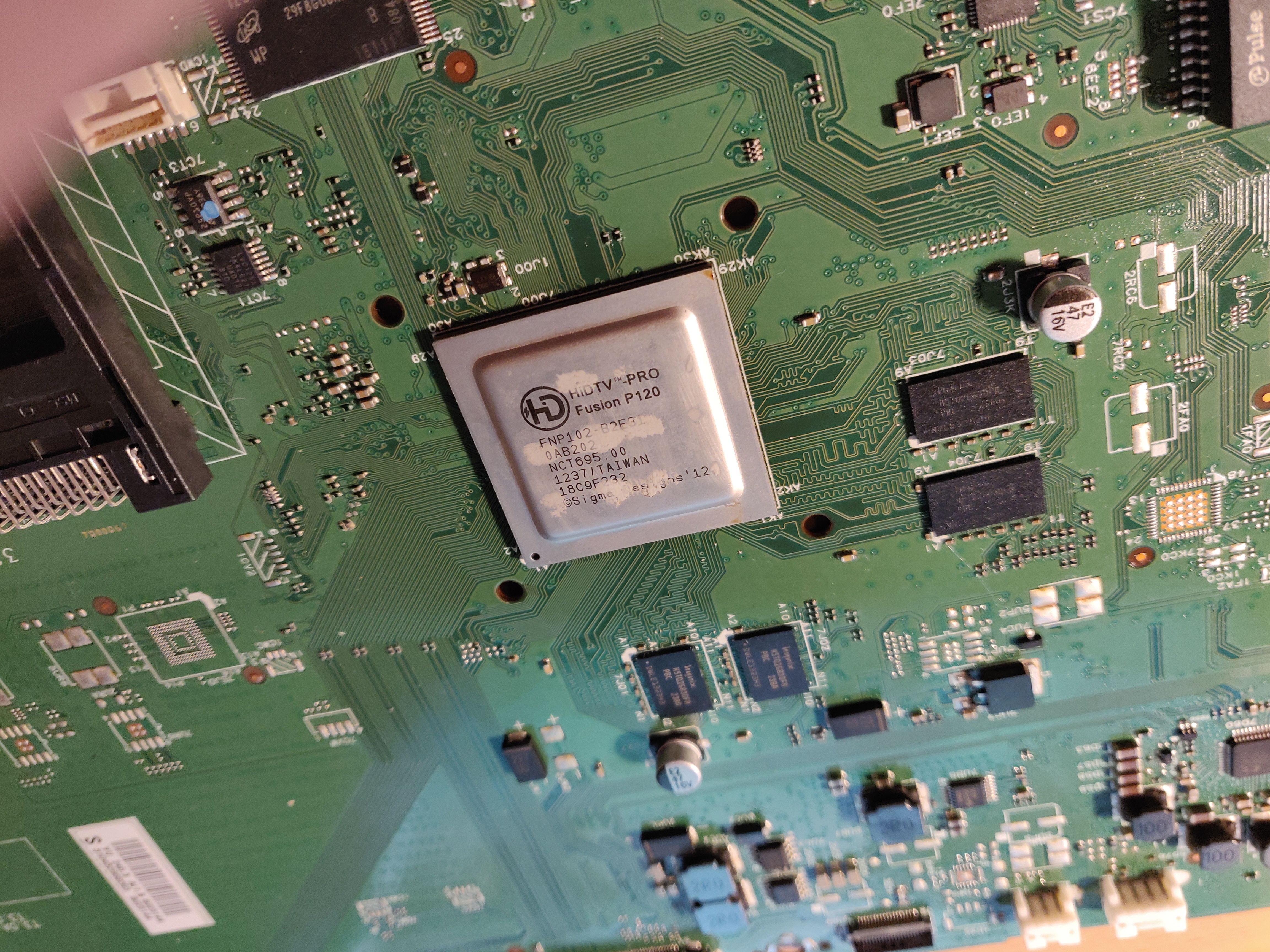
How To Find Parts For Philips Tvs
If you need replacement parts, use these sources:
- Philips official parts store
- EBay and Amazon
- Local electronics shops
Always search using the exact model number. Compare prices and check seller reviews.
Insight: Some parts are compatible across several Philips models. Check forums and official guides for compatibility lists. If you are not sure, ask the seller or join a TV repair forum for advice.
The Role Of Firmware In Error Codes
Many users do not realize that TV software controls error codes. Sometimes, a firmware update can fix blinking errors—even if the cause seems hardware-related.
- Firmware updates improve stability and fix bugs.
- Outdated firmware can cause false error signals.
- After replacing a main board or power supply, check for firmware updates to prevent new errors.
Always check for updates after fixing hardware problems.
Future-proofing Your Tv
If you fix your TV, take steps to keep it running longer:
- Use surge protection.
- Update firmware regularly.
- Clean vents and check cables every 6 months.
- Avoid moving the TV unless needed.
- Keep the TV in a dry, dust-free area.
Non-obvious tip: Write down your TV’s serial number and main board model number in a safe place. This helps you find the right parts faster in the future.
Frequently Asked Questions
What Does The Red Light Blinking Two Times Mean On My Philips Tv?
The red light blinking twice means your Philips TV has detected a hardware issue, usually with the power supply or main board. It is a safety signal to prevent further damage.
Can I Fix The 2-blink Error Myself?
Many people can fix simple causes, like loose cables or power supply issues. For complex faults (main board, internal parts), professional help is safer. If you are unsure, start with visual checks and basic resets.
How Much Does It Cost To Repair The 2-blink Error?
Costs vary. DIY fixes can be under $50. Professional repairs range from $120 to $350, depending on the part and labor. Always get a repair quote before agreeing to the service.
Will A Firmware Update Help With The 2-blink Error?
If the issue is caused by software, a firmware update may help. But for hardware faults, updating alone will not fix the problem. After a repair, always check for updates.
Is The 2-blink Error Common On Philips Tvs?
Yes, especially after power surges or as TVs age. Using surge protectors and keeping the TV clean can reduce risk. If your area is prone to electrical storms, unplugging the TV during bad weather adds extra safety.
Solving the Philips TV blinking red light two times error is possible with patience and careful troubleshooting. Understanding the cause, trying simple fixes, and knowing when to ask for help will save time and money. With these tips, you can restore your TV—or make a smart decision if it’s time for an upgrade.