
If your Wyze Plug isn’t working as expected, you might feel frustrated. Maybe it stopped responding to Alexa, won’t turn on your lamp, or keeps dropping from Wi-Fi. Don’t worry — most problems are fixable with a simple reset. Whether you’re new to smart plugs or have used Wyze devices for years, knowing how to reset your Wyze Plug can save time and stress. This guide walks you through every reset method, common issues, troubleshooting tips, and what to do next. You’ll also find clear answers to the most searched questions about the Wyze Plug reset process.
What Is A Wyze Plug?
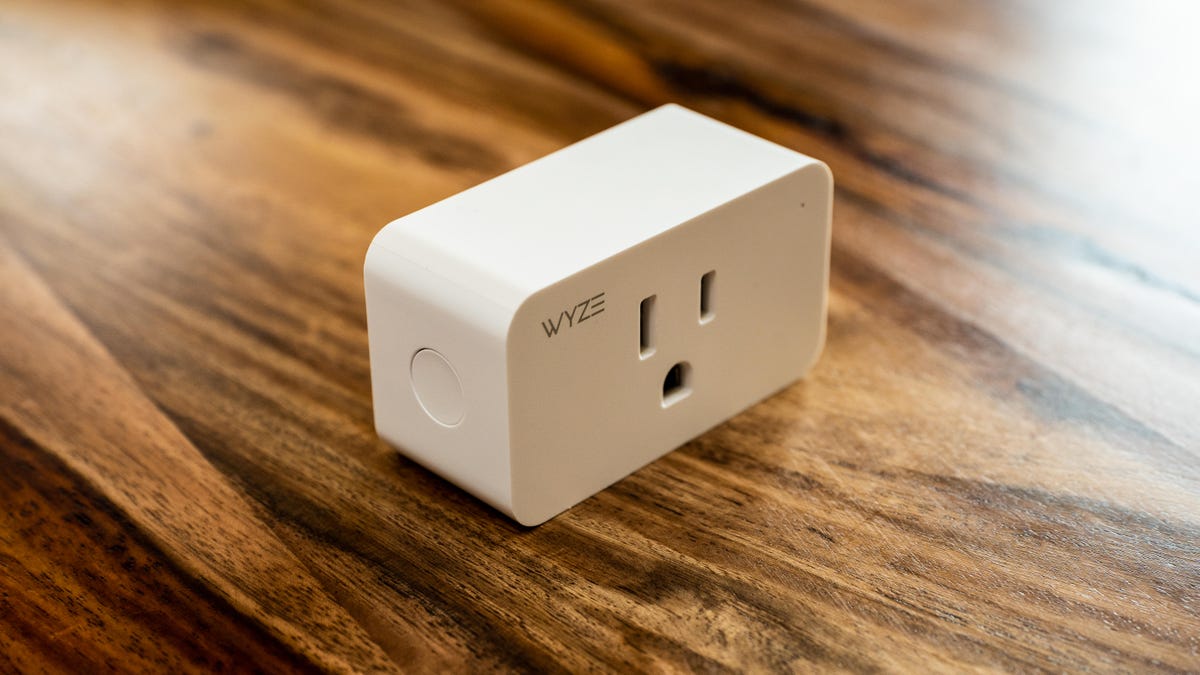
The Wyze Plug is a small, affordable smart plug that lets you control any device plugged into it using your phone, voice, or schedule. It works with Amazon Alexa, Google Assistant, and the Wyze app. People use Wyze Plugs to automate lights, fans, coffee makers, and more. With its compact design and easy setup, the Wyze Plug is popular among smart home beginners and tech enthusiasts alike.
When Should You Reset A Wyze Plug?
Resetting a Wyze Plug isn’t something you do every day. You only need to reset when:
- The plug isn’t responding in the Wyze app
- The device won’t connect to Wi-Fi
- Alexa or Google Assistant can’t control it
- You want to set it up in a new home or with a new Wi-Fi network
- You plan to give the plug to someone else
Many users try unplugging and plugging the device back in, but a full reset is different. It wipes old settings, removes the plug from your account, and makes it ready for a fresh setup.
Types Of Wyze Plug Resets
Not all resets are the same. The Wyze Plug supports two main types:
- Soft Reset: This restarts the plug without deleting settings. Useful for minor glitches.
- Factory Reset: This erases all settings, removes the plug from your account, and returns it to “brand new” mode.
Choosing the right reset depends on your problem. If you’re selling or giving away your plug, always do a factory reset.
How To Soft Reset A Wyze Plug
A soft reset is simple and quick. It’s like rebooting your computer when an app freezes.
- Unplug the Wyze Plug from the wall outlet.
- Wait 10 seconds.
- Plug it back in.
- Wait for the status light. If it turns solid blue or green, the plug is working.
A soft reset fixes many common connection drops and freezing issues. If your plug still doesn’t work, try a factory reset.
How To Factory Reset A Wyze Plug
A factory reset erases everything. The steps are slightly different depending on your Wyze Plug model. Let’s break it down for each type.
Wyze Plug (original, 2019 Model)
- Make sure the Wyze Plug is plugged into an outlet.
- Hold down the power button on the side for about 5 seconds.
- Release the button when the status light starts blinking blue.
- The plug is now reset and ready to set up again in the Wyze app.
Wyze Plug (2021 Version)
- Plug in the Wyze Plug.
- Press and hold the reset button (sometimes labeled “On/Off”) for about 10 seconds.
- When the status light starts blinking rapidly, release the button.
- The plug is now in pairing mode, ready for a new setup.
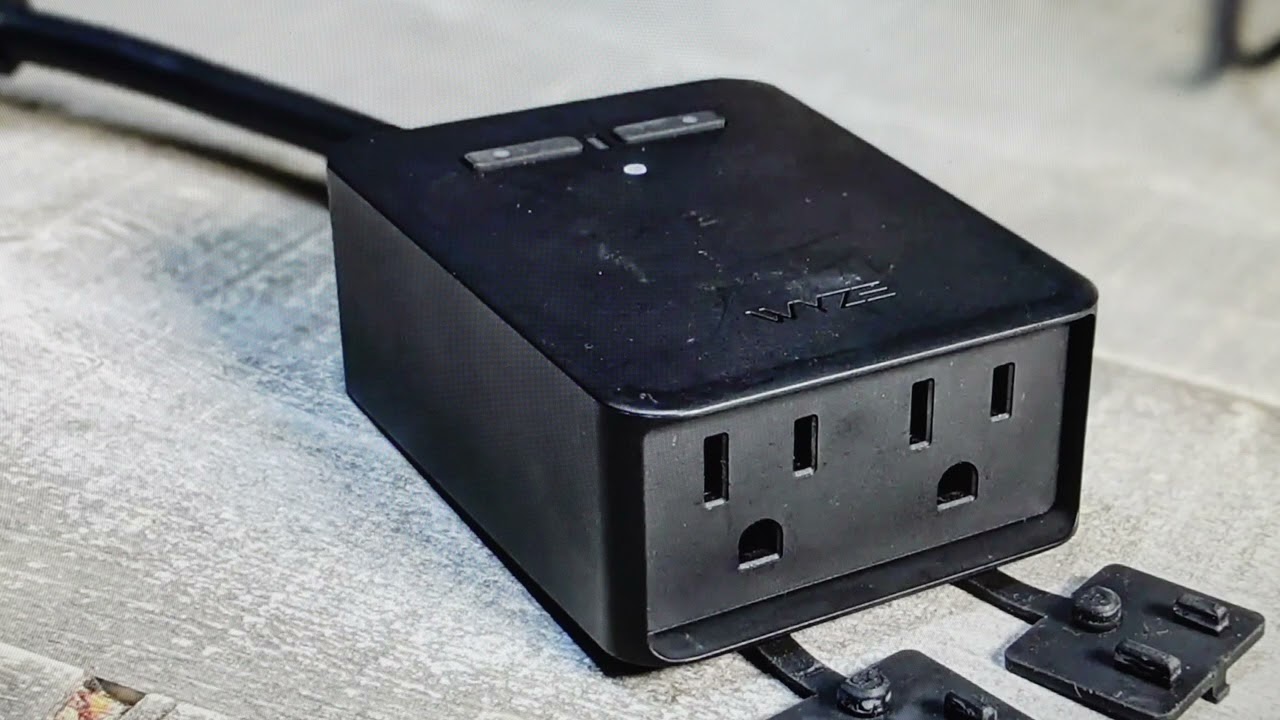
Wyze Outdoor Plug
- Make sure the plug is powered.
- Hold both power buttons (one for each outlet) for 10 seconds.
- When both status lights blink, release the buttons.
- The outdoor plug is now reset.
Wyze Plug Eu Version
- With the plug powered, press and hold the main button for 10 seconds.
- Release when the light blinks.
- The plug is reset.
Practical tip: Sometimes, the button is hard to find or the plug is in a tight space. Use a flashlight and small mirror if needed.
What Happens After A Factory Reset?
After a factory reset, your Wyze Plug:
- Forgets your Wi-Fi network
- Gets removed from your Wyze app and account
- Deletes all schedules, timers, and automations
- Returns to “setup mode” with a blinking light
You’ll need to set it up again like it’s new.
Setting Up Wyze Plug After A Reset
Ready to use your plug again? Here’s how to set it up from scratch:
- Open the Wyze app on your phone (download from App Store or Google Play if you don’t have it).
- Tap the + (plus) in the top left.
- Choose Add Device.
- Select Power & Lighting, then Wyze Plug.
- Follow the app instructions:
- Plug in the device
- Make sure the light is blinking (if not, repeat the reset)
- Connect to your Wi-Fi (2.4 GHz only)
- Name your plug and assign it to a room if you want
When finished, you’ll see your plug in the app’s home screen. Try turning it on and off to make sure it works.
Common Problems And Troubleshooting
Even after a reset, some users face issues. Let’s look at the most frequent problems and how to solve them.
Plug Won’t Enter Setup Mode
- Make sure you’re pressing the correct button for your model
- Hold the button for a full 10 seconds — count slowly
- Check the outlet (try another one)
- If the light never blinks, the plug could be faulty
Wyze Plug Can’t Connect To Wi-fi
- Use a 2.4 GHz Wi-Fi network (not 5 GHz)
- Enter the correct Wi-Fi password (double-check for typos)
- Keep your phone near the plug during setup
- Restart your router if needed
Plug Not Found In Wyze App
- Make sure Bluetooth is enabled on your phone
- Try restarting the Wyze app
- Log out and log back in
Plug Responds Slowly Or Drops Offline
- Place the plug closer to your Wi-Fi router
- Remove large metal objects or thick walls between plug and router
- Update the Wyze app and plug firmware
Factory Reset Doesn’t Work
- Unplug the device for 1 minute, then try again
- If the status light is dead, check power at the outlet
- If still stuck, contact Wyze support
Wyze Plug Reset Steps: Model Comparison
Here’s a quick comparison of reset steps for different Wyze Plug models:
| Model | Reset Button Location | Hold Time | Status Light |
|---|---|---|---|
| Wyze Plug (2019) | Side | 5 seconds | Blinks blue |
| Wyze Plug (2021) | Front/Side | 10 seconds | Blinks rapidly |
| Wyze Outdoor Plug | Both Outlets | 10 seconds | Both blink |
| Wyze Plug EU | Main Button | 10 seconds | Blinks |
Why Resets Don’t Always Fix The Problem
Resetting solves most issues, but not all. Some users try many resets and still face problems. Here’s why:
- Hardware failure: Rare, but plugs can break due to power surges, heat, or age.
- App or firmware bugs: Sometimes, the Wyze app or plug firmware has bugs. Updating both can help.
- Network issues: If your router is overloaded or has weak signals, smart plugs can fail.
- Account conflicts: Using the same plug on two Wyze accounts causes confusion.
If you suspect hardware failure, test with another device or contact Wyze support.
Real-world Examples
Let’s look at two real-life scenarios where a reset helped:
Case 1:
Jane’s Wyze Plug stopped responding after a power outage. She tried unplugging and replugging, but it didn’t help. A soft reset fixed the issue in 30 seconds.
Case 2:
Alex moved to a new apartment. His plug kept searching for his old Wi-Fi. After a factory reset, he set up the plug on his new network in two minutes, and it worked perfectly.
Insight: Many people forget to reset the plug after moving or changing routers, causing endless frustration.
Advanced Tips For Wyze Plug Users
If you want more control or run into unusual issues, try these advanced ideas:
- Rename your Wi-Fi: If you keep the same Wi-Fi name and password at a new home, plugs may reconnect without reset (though not always).
- Firmware updates: Check for firmware updates in the Wyze app. Updates can fix bugs and add features.
- Check device limits: Some routers limit the number of smart devices. If your plug won’t connect, see if you’ve hit a device cap.
- Separate 2.4 GHz network: Some routers combine 2.4 GHz and 5 GHz into one name. If setup fails, try splitting them and connect only to 2.4 GHz.
Wyze Plug Vs. Other Smart Plugs: Reset Process
How Does The Wyze Plug Reset Compare To Other Brands?
| Brand | Factory Reset Method | Setup Time | App Required? |
|---|---|---|---|
| Wyze Plug | Press/hold button | 2-3 mins | Yes |
| Kasa Smart Plug | Press/hold reset 5s | 2-3 mins | Yes |
| Amazon Smart Plug | Hold 12s | 2-3 mins | Yes |
| Gosund Plug | Hold power 5s | 2-3 mins | Yes |
Most smart plugs use a similar reset process: press and hold a button until a light blinks. The main difference is the button location and exact hold time.
Security And Privacy After Reset
A factory reset wipes your personal data from the plug. If you sell or give away a Wyze Plug, always reset it first. This protects your Wi-Fi password, schedules, and account details. Never hand off a used plug without doing this. If you buy a used plug, reset it yourself before connecting.
Common Mistakes To Avoid
Even experienced users make errors. Here are mistakes to watch out for:
- Wrong Wi-Fi Band: Wyze Plug only works on 2.4 GHz. Trying to set up on 5 GHz will always fail.
- Rushing the Reset: If you let go of the button too soon, the plug may not reset.
- Forgetting the App Step: After reset, always re-add the plug in the Wyze app.
- Overloading the Outlet: Don’t plug high-wattage appliances (like heaters) into Wyze Plugs — they’re not rated for heavy loads.
- Ignoring Firmware Updates: These can fix silent bugs that cause connection drops.
How To Tell If The Reset Worked
A successful reset is clear:
- The status light blinks (meaning “ready for setup”)
- The plug disappears from your Wyze app (factory reset)
- You can set it up from scratch
If the light never blinks, repeat the steps slowly.
What To Do If Your Wyze Plug Still Won’t Work
If you’ve tried all reset steps and your Wyze Plug still misbehaves, try these:
- Plug it into a different outlet
- Test it with another phone and Wyze account
- Try setup on a different Wi-Fi network (friend’s house, mobile hotspot)
- Contact Wyze support with your plug’s serial number and your troubleshooting steps
Some plugs are defective from the factory — don’t spend hours if nothing works.
Wyze Plug Reset: Myths And Lesser-known Facts
Let’s clear up some common myths:
- Myth: You can use the plug on two accounts at once.
Fact: Each plug links to one Wyze account. To change, factory reset first.
- Myth: Unplugging the device is the same as a reset.
Fact: Only a factory reset wipes all settings.
- Myth: Resetting harms the plug.
Fact: You can reset as often as needed. It does not damage the device.
- Myth: You must reset after every power outage.
Fact: Most plugs recover on their own.
Non-obvious insight: Some plugs enter “zombie mode” after a failed firmware update. In this rare case, leave the plug unplugged for 10 minutes before retrying.
Best Practices For Wyze Plug Users
To avoid the need for frequent resets:
- Place the plug where it has a strong Wi-Fi signal
- Don’t overload the plug with large appliances
- Keep the Wyze app updated
- Reset the plug before changing Wi-Fi or moving
- Label your plugs in the app for easy identification
How To Reset Multiple Wyze Plugs
If you have several Wyze Plugs (for example, in a vacation rental or office), resetting each one manually can be time-consuming. Unfortunately, Wyze does not support batch resets. You must reset each plug one by one, following the steps above.
Time-saving tip: If you need to reset many plugs, bring a power strip and reset them all in one location before installing.
Wyze Plug Reset And Smart Home Integrations
After a reset, you’ll need to reconnect your plug to Alexa or Google Assistant. Open the respective app and discover devices again. If you use IFTTT, update applets to include the “new” plug.
Example: If you had a routine that turned on a Wyze Plug named “Bedroom Lamp,” after reset and re-adding, you may need to update routines with the new device.
Wyze Plug Reset Vs. Power Cycle
People often confuse power cycling (unplug/plug in) with a reset. Here’s how they differ:
| Action | What It Does | When to Use |
|---|---|---|
| Power Cycle | Restarts plug, keeps settings | Minor glitches, quick reboot |
| Factory Reset | Erases all data, setup needed | Major issues, changing owner, new Wi-Fi |
How To Update Wyze Plug Firmware After A Reset
After you reset and set up your plug, check for firmware updates:
- Open the Wyze app
- Tap on your plug
- Tap the settings (gear icon)
- Look for “Firmware Version”
- Update if available
Firmware updates can fix bugs, improve security, and add features.
Environmental Factors Affecting Wyze Plug Performance
Not all problems are due to the plug. Your home environment matters:
- Distance from router: Plugs far from the router may drop offline.
- Interference: Microwaves, cordless phones, and thick walls block Wi-Fi.
- Electrical noise: Cheap power strips or old wiring can cause problems.
If your plug works in one room but not another, check these factors.

Is It Safe To Reset Wyze Plug Frequently?
You can safely reset your Wyze Plug as often as needed. It does not shorten the life of the device. However, frequent resets suggest an underlying problem (like poor Wi-Fi or old firmware). Fix the root cause to avoid extra work.
Giving Away Or Selling Your Wyze Plug
Before passing your plug to someone else, factory reset it. This protects your personal info and lets the new user set it up easily. Include the original packaging and instructions if possible.
Where To Find Official Wyze Reset Guides
The official Wyze website and help center offer step-by-step guides and troubleshooting. For the latest info, visit the Wyze Support Center.
Frequently Asked Questions
How Do I Know If My Wyze Plug Needs A Factory Reset?
If your plug won’t connect, can’t be found in the app, or you want to give it to someone else, a factory reset is the best solution. If basic troubleshooting fails, resetting often fixes hidden issues.
Can I Reset My Wyze Plug Without The App?
Yes. You can reset the plug using the physical button on the device. You do not need the app for the reset itself, but you need the app to set up the plug again afterward.
Will Resetting Delete My Schedules And Timers?
Yes. A factory reset erases all schedules, timers, and automations stored on the plug. You’ll need to re-enter these in the Wyze app after setup.
Why Does My Wyze Plug Keep Dropping From Wi-fi After Reset?
This usually means a weak Wi-Fi signal, interference, or a router issue. Move the plug closer to your router, check for firmware updates, and make sure your router supports 2. 4 GHz Wi-Fi.
Is There A Way To Reset Multiple Wyze Plugs At Once?
No. Each Wyze Plug must be reset individually. There is no “batch reset” feature. Reset each plug one by one, especially before changing networks or ownership.
Resetting your Wyze Plug doesn’t need to be stressful. With a few simple steps, you can solve most issues and get back to enjoying a smarter home. Use the tips in this guide to fix problems, avoid common mistakes, and get the most from your Wyze devices.
If all else fails, official support channels are there to help.