
If you sit down to stream your favorite movie and see your Roku not connecting to WiFi, it can feel frustrating and confusing. You’re not alone—this is one of the most common Roku problems. Good news: most WiFi connection issues with Roku can be solved with careful steps, clear troubleshooting, and understanding why the problem happens. This guide will help you fix Roku WiFi problems, from the simplest checks to advanced solutions, so you can get back to streaming as quickly as possible.
Why Is Roku Not Connecting To Wifi?
Many things can cause Roku WiFi issues. Sometimes, it’s a small problem—like entering the wrong password. Other times, it’s more technical, such as router settings or interference. Here are the main reasons your Roku might not connect:
- Incorrect WiFi password
- Weak WiFi signal in the Roku’s location
- Network congestion (too many devices using WiFi)
- Router issues (needs reboot or firmware update)
- Roku software issues
- Outdated hardware (old Roku models may not support newer networks)
- ISP outages (internet service is down)
Understanding these causes is the first step. Now, let’s dig deeper into how to find and solve your specific issue.
It’s important to remember that some problems can be temporary or caused by changes in your network environment. For example, if you recently changed your WiFi password or got a new router, your Roku will need to be updated with the new information.
Also, sometimes interference from other devices—like cordless phones, microwaves, or even neighboring WiFi networks—can make your Roku lose connection unexpectedly.
How To Tell If Roku Is Not Connecting To Wifi
Sometimes, the problem is not your Roku, but your WiFi or the internet. Before starting fixes, check if the issue is actually Roku WiFi connection or something else.
Signs Of Roku Wifi Connection Problems
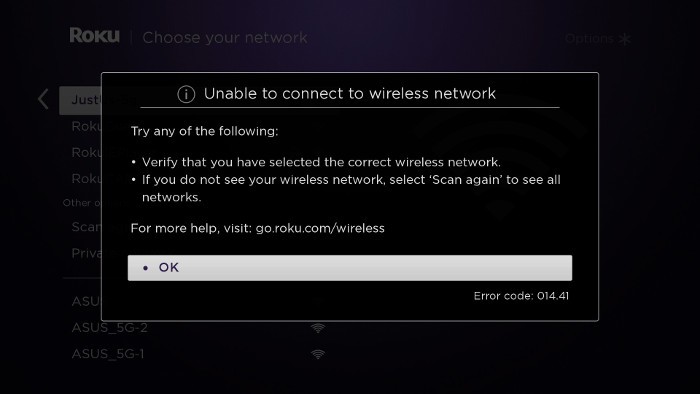
- Error messages on screen (like “Unable to connect to wireless network”)
- Red X or exclamation mark next to WiFi symbol
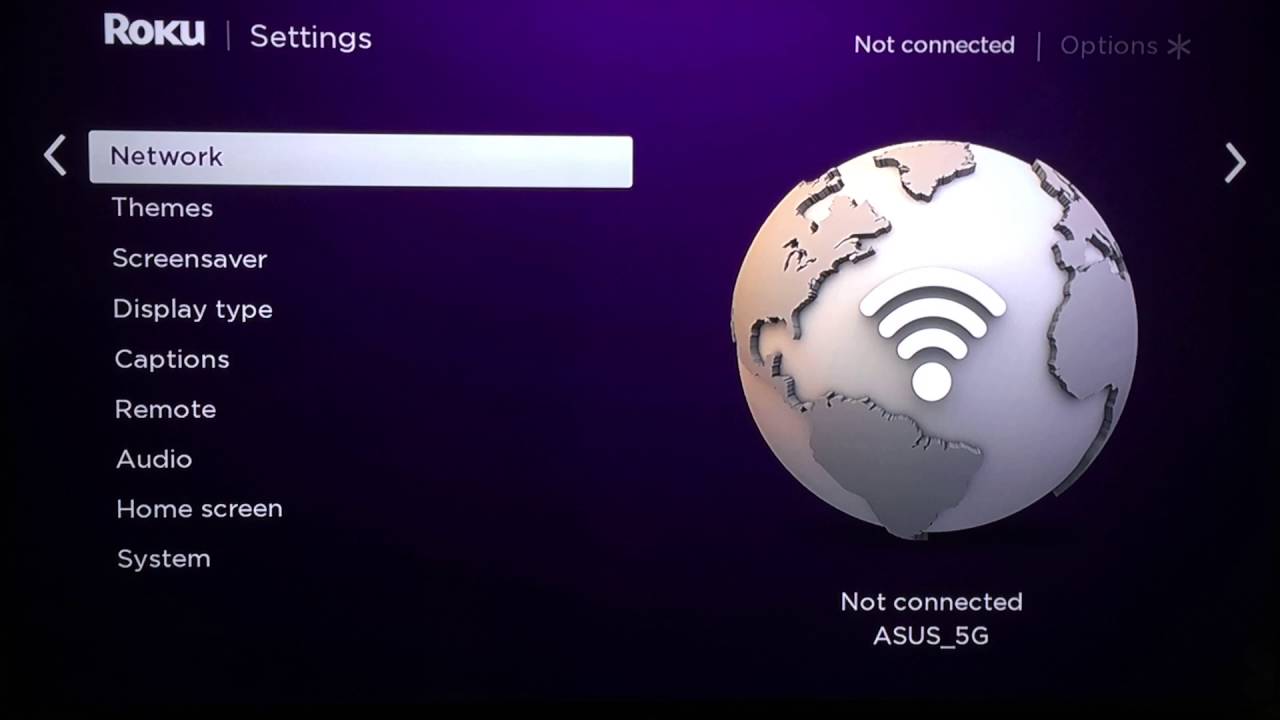
- Roku menu shows “Not connected” under network settings
- Apps won’t load or keep buffering
- No internet on other devices (if so, it’s likely your whole network)
Other signs can include a “Loading…” spinner that never goes away, or certain channels (like Netflix or YouTube) that refuse to open while others might still work. Sometimes, the Roku will show a lower video quality because it’s struggling with a weak connection.
How To Check Roku’s Network Status
- Go to Settings from the home screen.
- Select Network.
- Choose About to see connection info (signal strength, IP address).
- Select Check connection to test internet speed and status.
This information gives you clues. For example, if you see a strong signal but no internet, the router might be working, but your internet service is down. If the signal is weak or absent, the Roku can’t reach the router at all.
If you see “Not connected,” your Roku is not linked to WiFi. If you see “Connected” but have no internet, the problem is with your router or ISP.

Quick Fixes For Roku Not Connecting To Wifi
Let’s begin with simple, fast solutions. These often solve the problem in minutes, especially if it’s a small error.
1. Restart Your Roku
A quick restart can solve many temporary glitches.
- Go to Settings > System > System restart and select “Restart.”
- If the remote doesn’t work, unplug Roku from power, wait 10 seconds, and plug back in.
Restarting helps clear out temporary memory problems, like software bugs that stop Roku from reconnecting after a power outage or network hiccup.
2. Reboot Your Router And Modem
Internet problems often start at the source. Try this:
- Unplug your router and modem from power.
- Wait 30 seconds.
- Plug them back in.
- Wait 2-3 minutes for everything to fully restart.
This step resets your network and often clears up minor internet issues for all devices, not just Roku.
3. Check Wifi Password
Typos are easy to make. Go to Settings > Network > Set up connection and re-enter your WiFi password carefully. Remember, passwords are case-sensitive.
If you changed your WiFi password recently, make sure all your devices—including Roku—are updated with the new one. If your Roku keeps failing to connect after entering the password, double-check for spaces or special characters.
4. Move Roku Closer To Router
If the WiFi signal is weak, connection will be unstable. Try moving Roku (or your router) closer together. Remove barriers like thick walls or big electronics that might block signal.
Physical obstacles and electronic interference can weaken WiFi signals a lot more than most people think. For example, a Roku hidden behind a TV or inside a cabinet may not get enough signal, even if the router is close.
5. Test With Another Device
Try connecting your phone or laptop to the same WiFi. If other devices also fail, the issue is your network, not the Roku.
If other devices work fine, the issue is likely with Roku’s settings, not the router or internet.
Advanced Troubleshooting Steps
If simple steps don’t work, try these more detailed fixes. This section will help you troubleshoot like a pro—even if you’re not a tech expert.
1. Forget And Reconnect To Wifi
Sometimes, stored WiFi settings get corrupted. Remove and re-add your network:
- Go to Settings > Network > Set up connection.
- Select your WiFi network and choose “Forget this network.”
- Restart Roku.
- Go back to “Set up connection” and reconnect using the password.
This clears out any old or broken settings, which can help if you recently changed your network name or password.
2. Check Wifi Frequency: 2.4 Ghz Vs 5 Ghz
Some Roku devices only work with 2. 4 GHz networks, not 5 GHz. Knowing which your router uses is important.
Roku Model And Wifi Band Compatibility
| Roku Model | 2.4 GHz Support | 5 GHz Support |
|---|---|---|
| Roku Express (3900, 3930) | Yes | No |
| Roku Streaming Stick+ | Yes | Yes |
| Roku Ultra | Yes | Yes |
| Roku Premiere | Yes | Yes |
If your Roku doesn’t see your WiFi, check if your router is set to 5 GHz only. Try enabling 2. 4 GHz, or connect to that band instead.
Some routers have “smart connect” features that merge 2. 4 GHz and 5 GHz into one network name. But older Roku models may struggle with this, so try splitting your WiFi into two separate names (for each band) in your router’s settings.
3. Update Roku Software
Outdated software can cause connection issues. To update:
- Go to Settings > System > System update.
- Select “Check now.”
- Install any available updates.
If WiFi isn’t working, connect Roku to the internet using an Ethernet cable (if your model supports it), or use a mobile hotspot temporarily.
Updates fix known bugs and improve compatibility with newer routers and security settings.
4. Change Router Channel
WiFi channels can get crowded, especially in apartments. Changing the channel can improve connection.
- Log into your router’s web interface (usually by typing its IP address into a browser).
- Find the Wireless settings section.
- Change the channel (try channels 1, 6, or 11 for 2.4 GHz).
- Save and reboot the router.
If you live in a busy building, other WiFi networks can overlap and cause interference. Changing the channel can give your Roku a clearer signal.
5. Reduce Network Congestion
Too many devices (phones, laptops, TVs) can slow down WiFi.
- Pause streaming or downloads on other devices.
- Disconnect unused devices from WiFi.
- Try streaming on Roku again.
Some smart home devices, like security cameras or smart speakers, are always connected and can use up bandwidth even when not in use.
6. Factory Reset Your Roku
As a last resort, reset Roku to factory settings. This erases all settings and installed channels.
- Go to Settings > System > Advanced system settings > Factory reset.
- Follow on-screen instructions.
Caution: This will erase everything, so only use if other steps fail.
After a factory reset, you’ll need to set up Roku from scratch, including logging into your accounts and adding your channels.
Wifi Signal Strength And Placement Tips
A strong WiFi signal is essential for streaming. If your Roku is far from the router or behind thick walls, the signal drops and causes issues.
How To Improve Signal
- Place the router in a central location in your home.
- Keep the router off the floor and away from metal or microwaves.
- Use WiFi extenders or mesh WiFi for large homes.
Consider the layout of your furniture and electronics. Mirrors, aquariums, and even holiday lights can affect WiFi. Routers work best when placed high up (like on a shelf) and away from thick walls.
Wifi Signal Strength And Streaming Quality
| Signal Strength | Expected Streaming Quality |
|---|---|
| Excellent | HD/4K, no buffering |
| Good | HD, rare buffering |
| Fair | SD, frequent buffering |
| Poor | Low quality, constant buffering |
You can check signal strength in Roku’s Settings > Network > About.
A quick tip: If your Roku supports an Ethernet adapter (some Express and Ultra models), using a wired connection can eliminate WiFi problems entirely.
Common Roku Error Codes And Their Meanings
Roku often shows an error code when it cannot connect to WiFi. Understanding these can help you fix the problem faster.
Roku Error Code Comparison
| Error Code | What It Means | How to Fix |
|---|---|---|
| 009 | Roku is connected to WiFi, but no internet | Restart router, check ISP, reboot Roku |
| 014.30 | WiFi password is wrong | Re-enter correct password |
| 014.40 | Cannot connect to network | Check router, move Roku closer |
| 016 | No internet connection | Restart devices, check with ISP |
If you see these codes, follow the suggested actions. Most can be fixed in minutes.
Some less common codes (like 017 or 018) might point to slow speeds or DNS problems. In these cases, try rebooting your router, or switching to a different DNS server in your router settings.
Special Cases: Wired Connections And Mobile Hotspots
Not all Roku models have Ethernet ports, but if yours does, a wired connection can solve WiFi issues. Also, you can use a phone’s hotspot in emergencies.
Using Ethernet
- Plug an Ethernet cable from your router to Roku.
- Go to Settings > Network > Wired to set up.
Wired is more stable and faster than WiFi but less flexible.
If your Roku doesn’t have an Ethernet port, some models support USB Ethernet adapters—just check compatibility before buying one.
Using Mobile Hotspot
- Enable hotspot on your smartphone (be aware of data limits).
- On Roku, search for your phone’s WiFi and connect.
- Useful if home WiFi is down or for testing.
Tip: If Roku can connect to a mobile hotspot but not your home WiFi, the issue is with your router or network, not the Roku.
Mobile hotspots are also helpful for testing: if the Roku works with your phone’s data, you know the device itself is working fine.
When To Contact Roku Or Isp Support
If you’ve tried everything and Roku still won’t connect, it might be time to get help.
- Contact Roku Support if you suspect device hardware or software is the issue.
- Contact your ISP if other devices also can’t connect, or the internet is unstable.
Sometimes, a device’s WiFi radio fails, or the router blocks new connections due to security settings. Both Roku and your ISP can walk you through more advanced diagnostics.
It can also help to write down any error messages, steps you’ve tried, and your Roku model number before you call support. This saves time and helps the support team solve your issue faster.
Hidden Issues Beginners Often Miss
- MAC Address Filtering: Some routers block devices unless their MAC address is allowed. Check your router’s security settings. Roku’s MAC address can be found in Settings > Network > About.
If your router uses MAC filtering, you’ll need to add your Roku’s address to the allowed list.
- Network Isolation or Guest Mode: Some routers have isolation features that block devices from talking to each other. Make sure your Roku and phone are on the same network, not a guest network.
Guest networks often block streaming devices from working correctly, even if you enter the right password.
- Firmware Updates: Both routers and Roku devices need firmware updates. Outdated router firmware can prevent new devices from connecting, even if WiFi works for older devices.
Router firmware is often forgotten—check your router brand’s website for update instructions. Regular updates keep your network running smoothly and securely.
Another hidden issue: Some Internet Service Providers (ISPs) have special security features or “parental controls” that can block devices like Roku from accessing the web. Make sure to check your ISP’s control panel or app for any blocked device lists or restrictions.
Preventing Roku Wifi Problems In The Future
You can avoid many future issues with a few habits:
- Update software on both Roku and your router regularly.
- Reboot your router every few weeks to keep it running smoothly.
- Use strong, unique passwords to prevent interference and security risks.
- Place your router in a good spot for even coverage.
- Don’t overload your WiFi with too many streaming devices at once.
Also, avoid stacking electronics on top of your router, as this can cause overheating and reduce performance over time. Label your WiFi networks clearly, especially if you have multiple bands (like 2. 4 GHz and 5 GHz), so you always know which one your Roku should use.
Comparing Roku Wifi Problems To Other Streaming Devices
How does Roku stack up against similar devices like Amazon Fire TV Stick or Google Chromecast when it comes to WiFi issues?
- Roku is known for simple setup and clear error messages. Many users say it is easier to troubleshoot than Fire Stick.
- Some Fire TV models support more advanced WiFi standards, but not all users notice a real difference.
- Chromecast depends heavily on your phone’s WiFi connection; if your phone has weak WiFi, so will Chromecast.
In general, all streaming devices can have WiFi issues. Roku’s clear error messages and helpful support make fixing problems faster for most people.
A unique advantage with Roku: their support website has step-by-step guides and a large community forum where you can search for your exact error code or situation. This kind of resource is not always as detailed for other devices.
Frequently Asked Questions
Why Does My Roku Keep Disconnecting From Wifi?
A common reason is weak WiFi signal or interference from other electronics. Try moving Roku closer to the router and make sure no large objects block the signal. Also, check if your router has too many devices connected.
Other causes include overheating (make sure Roku is in a well-ventilated space) and software bugs—check for updates if problems happen often.
Can I Use Roku Without Wifi?
Most Roku devices need WiFi for streaming. However, some models (like Roku Ultra) support a wired Ethernet connection. You can also use a mobile hotspot, but this may use a lot of mobile data.
Some channels allow you to play downloaded content, but for live streaming or new shows, an internet connection is required.
How Do I Reset Network Settings On Roku?
Go to Settings > System > Advanced system settings > Network connection reset. This will erase all WiFi info and let you set up a fresh connection.
This step is helpful after moving to a new home, changing ISPs, or getting a new router.
My Roku Sees My Wifi, But Won’t Connect. What’s Wrong?
This usually means the password is incorrect or your router is blocking new devices (maybe due to MAC address filtering). Double-check the password and router security settings.
Also, check if your WiFi network is set to “hidden” or not broadcasting its name (SSID). Roku can have trouble connecting to hidden networks unless you enter all details exactly.
What Should I Do If Roku Connects To Wifi But Not The Internet?
Restart your router and Roku. If other devices also have no internet, contact your ISP. If only Roku is affected, try forgetting and reconnecting to WiFi, or use a wired connection if available. Check for firmware updates on both your router and Roku.
Some users find that switching the router off for a full minute (not just 10 seconds) helps clear stubborn issues.
If you want to learn more about WiFi troubleshooting or device compatibility, you can find in-depth guides on the official Roku support site.
Having your Roku not connect to WiFi can interrupt your streaming plans, but with careful steps, most issues can be solved at home without expert help. Remember to check the basics first—restart your devices, verify your network, and watch for error codes. Most people solve the problem with patience and clear steps. If all else fails, reaching out to Roku or your ISP can get you back online. With this guide, you’re now ready to tackle Roku WiFi problems with confidence. Happy streaming!