
Seeing rolling horizontal lines on your TCL TV screen is more than just annoying—it can ruin your viewing experience and even suggest a deeper problem. Some lines are faint and move slowly, while others are bright and fast. Many TCL TV owners notice these lines, especially after owning the TV for a year or more. There are simple reasons, and there are complicated ones. The good news is: many rolling line problems can be fixed at home with a little patience. This guide will help you understand, troubleshoot, and prevent horizontal line issues on your TCL TV.
Whether you own a TCL Roku TV, Android TV, or Google TV, the solutions here apply. We’ll cover why lines appear, which fixes work, and how to know when it’s time to call for repair or consider replacement.
Understanding Rolling Horizontal Lines
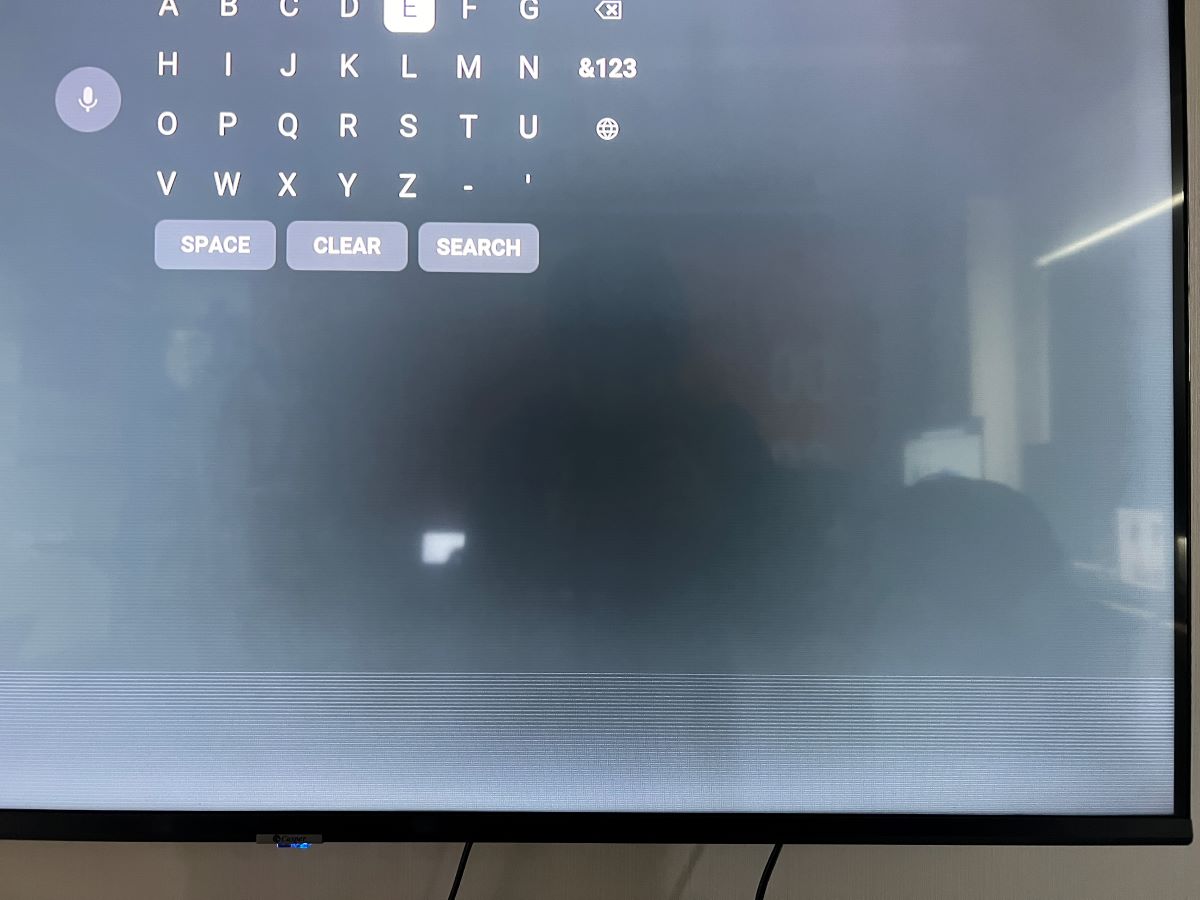
Rolling horizontal lines are moving bars or stripes that go across the TV screen, usually from top to bottom or bottom to top. Sometimes they are almost invisible, while in other cases, they can make your TV unwatchable. These lines may flicker, appear in one color or many, and sometimes come and go depending on what you’re watching.
These lines can look like faint shadows, clear white or black stripes, or even colored bands that move. Sometimes, you might see only one or two lines, while other times, the whole screen appears to ripple. The speed and thickness of the lines can also change.
For example, watching a fast-moving sports game may make the lines more visible than when watching a slow movie. When the lines roll, it often feels like the picture is unstable or vibrating.
Why Do These Lines Appear?
Rolling lines are often caused by signal interference, hardware problems, or software glitches. On TCL TVs, the issue can be from inside the TV, with the source device, or even the cables. It’s important to narrow down the cause before you try to fix it.
Sometimes, lines start after you change something—like connecting a new device, moving the TV, or updating software. Other times, lines appear for no clear reason and may get worse over time. Knowing what recently changed can help you figure out the cause.
Common Symptoms
- Lines move horizontally across the screen
- Lines are visible on all input sources (HDMI, TV, streaming apps)
- The problem appears after moving the TV or connecting new devices
- Sometimes the lines disappear after the TV warms up
- The lines may flicker, pulse, or remain steady
- They can change depending on the picture brightness or color
If you notice lines only when using specific devices, it’s a sign the problem is likely outside the TV. If the lines appear even when viewing the TV’s built-in menu or settings screen, then the issue is usually inside the TV.
Main Causes Of Rolling Horizontal Lines On Tcl Tvs
TCL TVs can show rolling horizontal lines for many reasons. Let’s break down the most common causes.
1. Loose Or Faulty Cables
The most frequent reason for rolling lines is a loose HDMI or AV cable. Damaged or old cables can also cause signal problems, resulting in moving lines.
Even small bends or cracks in a cable can cause signal loss. Sometimes, dust or corrosion on the cable connector can create poor contact, which leads to interference. If you use an adapter or splitter, it can also add problems if it’s low quality or damaged.
2. Electrical Interference
Nearby electronics like routers, speakers, or even light dimmers can create electromagnetic interference. This interference can show up as rolling lines.
Powerful devices such as microwave ovens, power tools, or even older refrigerators can cause interference if they’re running nearby. If your TV is close to a wall outlet that is shared with these devices, the risk increases.
3. Ground Loop Issues
If your TV and other connected devices are plugged into different outlets, a ground loop can form. This causes interference and visible lines.
Ground loops happen when there are multiple paths to ground, which can create unwanted electrical currents. This is more common in older homes or setups where extension cords and power strips are used randomly. Sometimes, the effect is worse during storms or when many devices are running at once.
4. Faulty Hardware Inside The Tv
Problems with the T-Con board, main board, or the panel itself may also be responsible. These are more serious hardware faults.
The T-Con board is a small part behind the screen that controls the image. If it fails, lines often appear. Main board problems can also cause lines, flickering, or color errors. If the panel is damaged (for example, from impact or age), lines may become permanent.
5. Software Bugs Or Firmware Glitches
Software updates sometimes introduce bugs. If the lines started after a system update, a firmware glitch could be the reason.
Sometimes, apps installed on smart TVs may also conflict with firmware, causing display issues. If you notice lines only when using certain apps, uninstalling and reinstalling those apps can help.
6. Problems With Source Devices
A defective set-top box, DVD player, or game console can send a bad signal, causing rolling lines.
If you use a streaming device or game console that has its own display settings, changing the resolution or refresh rate can sometimes fix line problems. For example, setting a device to 1080p instead of 4K may reduce lines if your TV struggles with high resolutions.
7. Bad Power Supply Or Fluctuations
Unstable voltage or a failing TV power supply can create screen artifacts, including rolling lines.
If you notice lines during storms or when other appliances turn on or off, your home may have unstable voltage. Using a voltage stabilizer or surge protector can help protect the TV.
8. Environmental Factors
High humidity, dust buildup, or exposure to heat can degrade internal components, leading to display problems.
If your TV is in a kitchen, near a bathroom, or exposed to sunlight, these factors can speed up wear and tear. Dust inside the vents or ports can also cause overheating, which may lead to rolling lines after the TV has been on for a while.
Diagnosing The Problem: Step-by-step
Before you try any fix, you need to find out what’s causing the lines. Here’s a practical way to test and diagnose.
Step 1: Isolate The Tv
- Unplug all devices (DVD, game console, streaming stick, cable box) from your TCL TV.
- Switch to the TV’s built-in menu. If you still see lines, the problem is likely inside the TV.
If the lines disappear after removing external devices, focus your troubleshooting on cables or devices, not the TV itself.
Step 2: Check Different Inputs
- Plug in one device at a time using a known good HDMI cable.
- Try different HDMI ports.
- If lines appear only on one input, the issue is with the cable or device.
Sometimes, ports can get damaged or dirty. If one port shows lines but others do not, cleaning or avoiding the damaged port may solve the problem.
Step 3: Move Electronics Away
- Move wireless routers, speakers, or phones away from your TV.
- See if the lines disappear or reduce.
If moving devices helps, try rearranging your setup permanently. You can also try wrapping HDMI cables with aluminum foil as a temporary shield to see if it reduces interference.
Step 4: Test Power Outlets
- Plug your TV and all connected devices into the same power strip.
- If the lines disappear, a ground loop was likely causing interference.
If you notice lines are worse at certain times of day, check if other electronics are running and sharing the same circuit. Try plugging into a different room’s outlet to compare.
Step 5: Check For Overheating
- Feel the back of the TV. If it’s very hot, turn off the TV and let it cool for 30 minutes.
- Restart and check if the lines remain.
If overheating is frequent, consider adding airflow behind the TV or cleaning the vents. Avoid covering ventilation holes with decorations or furniture.
Step 6: Software Update Check
- Go to your TCL TV’s settings and check for firmware updates.
- Update the TV and see if the issue is solved.
Check TCL’s official website for firmware releases if your TV doesn’t show an update automatically. Sometimes manual updates are needed.
Step 7: Factory Reset (if Needed)
- As a last resort, perform a factory reset. This will erase all settings but can fix software issues.
Back up your settings if possible, so you can restore preferences after the reset.
Solutions: How To Fix Rolling Horizontal Lines On Tcl Tvs
Once you know the cause, you can apply the right solution. Some fixes are easy, while others require a technician.
1. Secure Or Replace Cables
- Unplug and firmly reconnect all HDMI and AV cables.
- Try a new, high-quality HDMI cable. Cheap or damaged cables often cause problems.
If you use long cables, consider shorter ones for better signal quality. Avoid using more than one adapter or splitter, as each can reduce signal strength.
2. Remove Electrical Interference
- Keep the TV at least 3 feet away from routers, speakers, and other electronics.
- Use shielded HDMI cables to reduce interference.
Shielded cables cost a bit more but can make a big difference. If possible, run cables away from power cords and other electronic devices.
3. Solve Ground Loop Issues
- Plug all devices and the TV into the same surge protector or power strip.
- If you use an antenna, try an antenna ground isolator.
If you have a home theater or soundbar, make sure they are also plugged into the same strip. This reduces electrical noise.
4. Update Tv Firmware
- From the Settings menu, select “System” > “About” > “System update.”
- Download and install the latest update.
If updates fail, restart your TV and try again. Sometimes, unplugging the TV before updating helps clear temporary glitches.
5. Power Cycle The Tv
- Unplug the TV from the wall for 2-3 minutes.
- Press and hold the power button (on the TV, not the remote) for 30 seconds.
- Plug back in and turn on.
This clears any temporary memory errors. If lines return after several hours, repeat the power cycle.
6. Check And Clean Ports
- Dust and debris can affect HDMI ports.
- Use compressed air to gently clean the ports.
Avoid using liquids or metal objects to clean ports. If compressed air doesn’t help, use a soft brush.
7. Factory Reset
- Open Settings > System > Advanced system settings > Factory reset.
- Note: This will erase your apps and settings.
Reinstall apps and logins after the reset. If lines disappear after the reset, a software issue was the cause.
8. Test With A Different Room
- Move the TV to a different room and plug in.
- If lines disappear, the original room’s power or interference was the cause.
This step is often skipped, but it’s very useful. Different rooms can have different electrical wiring and interference levels.
9. Service Or Repair Hardware
If the above fixes don’t help, the problem is likely inside the TV. Common hardware issues include:
- T-Con board failure: Responsible for processing image data.
- Main board issues: Manages signals and power.
- Panel problems: Physical damage or age.
Professional repair may cost from $100 to $300. If your TV is under warranty, contact TCL support.
Sometimes, a technician can fix minor faults by reseating cables inside the TV or updating internal software. If the panel is damaged, replacement is usually expensive and not worth it for older TVs.

Comparing Solutions: Diy Fixes Vs Professional Repair
Some problems are easy to fix at home, while others are best left to experts. Here’s a comparison:
| Solution | DIY or Pro? | Cost Estimate | Success Rate |
|---|---|---|---|
| Secure/Replace Cables | DIY | $10–$20 | High |
| Remove Interference | DIY | Free | High |
| Firmware Update | DIY | Free | Medium |
| Factory Reset | DIY | Free | Medium |
| Hardware Repair | Professional | $100–$300 | Varies |
DIY fixes are safe to try first. If your TV is still new or under warranty, do not open it yourself—this can void your warranty.
When To Repair Vs Replace Your Tcl Tv
If your TCL TV is out of warranty and the cost to repair is over 50% of a new TV, it may be wiser to buy a new one. Here’s a quick guide:
| Situation | Recommended Action |
|---|---|
| TV under warranty | Repair (use warranty) |
| Repair cost < 50% of new TV | Repair |
| Repair cost > 50% of new TV | Replace |
| TV is over 5 years old | Replace (consider new features) |
If you replace your TV, check for models with better HDMI port durability, improved cooling, and regular firmware updates.
Preventing Rolling Horizontal Lines In The Future
Prevention is better than cure. Here are smart tips to avoid rolling lines:
1. Use Quality Cables
Invest in high-quality HDMI and power cables. Avoid very cheap or old ones.
Look for cables labeled “shielded” or “gold-plated connectors. ” These are less likely to break down or allow interference.
2. Connect Devices Properly
Always push cables in fully. Loose connections are a main cause of display problems.
Periodically check all connections, especially after moving the TV or devices.
3. Keep Electronics Apart
Don’t stack routers, speakers, or other devices on or near your TV.
Even a wireless mouse or keyboard can create minor interference if placed too close.
4. Use A Surge Protector
Power surges can damage TV internals. Always use a surge protector.
Choose a protector with enough outlets for all your devices. Some models also filter electrical noise.
5. Keep The Tv Clean
Dust inside HDMI ports or on the TV can cause minor issues. Clean regularly with a dry cloth.
Don’t use water or sprays near the ports. If you live in a dusty area, consider a cover for the TV when not in use.
6. Update Firmware Regularly
Check for updates every few months to avoid software bugs.
Enable automatic updates if your TV allows it, but check manually if you notice any problems.
7. Avoid Humidity And Heat
Place your TV in a dry, cool area. Heat and moisture can damage circuits over time.
If your room is humid, use a dehumidifier. Avoid placing the TV near heaters or in direct sunlight.
8. Use The Same Power Source
Plug all your devices into the same power strip to avoid ground loops.
When setting up a home theater, plan the power connections before arranging the devices.
Real-world Examples: What Tcl Owners Experienced
Many TCL TV owners have dealt with rolling horizontal lines. Here are some cases and how they were solved.
Case 1: The Hdmi Cable Culprit
A user noticed moving lines after connecting a new game console. Swapping the old HDMI cable with a new, shielded one fixed the issue instantly.
This shows how even new devices can make old cables fail. Always check cables first when new lines appear.
Case 2: Ground Loop Mystery
A TCL owner had lines appear only when the cable box was connected. Plugging both the TV and the box into the same surge protector solved the problem.
If you have multiple entertainment devices, this tip can prevent future problems.
Case 3: Software Update Fix
After a firmware update, rolling lines appeared. TCL released a new update within weeks, which fixed the glitch after installation.
Keep an eye on update notes from TCL. Sometimes, waiting for the next update is all you need.
Case 4: Internal Hardware Failure
A TV over four years old began showing thick rolling lines. None of the DIY methods worked. A technician replaced the T-Con board for $180, and the TV returned to normal.
If your TV is older, hardware repairs may become more likely. Consider repair only if the cost is reasonable.
Case 5: Environmental Factor
A TV near a window started showing lines after a humid summer. Moving the TV away from direct sunlight and using a dehumidifier stopped the problem.
Environmental changes can affect electronics. Check your TV’s location if lines appear suddenly.
Key Insights Most Beginners Miss
Many beginners only swap cables or reset the TV. But two things are often overlooked:
- Ground loop interference is a common but hidden cause. Always check if your devices share the same power source.
- Environmental factors like humidity and heat can cause issues over time. Keep your TV in a suitable location and clean it regularly.
Another tip: sometimes the TV menu does not show lines, but HDMI sources do. This usually means the problem is with the source device or its cable—not the TV panel.
Also, some TVs have hidden diagnostic menus. Search for your TCL model’s diagnostic mode online; it can help you see if the problem is hardware or software.
How Tcl Tv Models Differ With This Problem
Not all TCL TVs are the same. Some models are more prone to horizontal lines due to their design or technology.
- TCL Roku TVs: Known for reliable software, but HDMI port quality varies. Some models have more robust ports, while others are sensitive to cable movement.
- TCL Android/Google TVs: More frequent software updates, which can sometimes cause glitches. Updates often fix bugs, but may also introduce new ones.
- Older TCL Models: More likely to have hardware failures after several years. Panels and boards age faster and are more sensitive to power fluctuations.
Before you buy a new TV, check user reviews for rolling line complaints on your model.
What If The Problem Persists?
If you’ve tried all the steps above and the lines remain:
- Take a photo or video of the lines as proof.
- Contact TCL support. Some problems are covered even after the warranty if they are known issues.
- Ask for a technician’s diagnosis. Sometimes the issue is a quick, affordable fix.
- Consider replacement if repair is too costly.
Documenting the issue with photos helps technicians and support teams understand the problem better.
For more about TV hardware issues, you can visit the Wikipedia page on television technology.
Frequently Asked Questions
What Causes Rolling Horizontal Lines On My Tcl Tv?
The most common causes are loose cables, electrical interference, ground loop issues, or internal hardware problems. Sometimes, software glitches after a firmware update can also cause lines.
Can I Fix Rolling Lines Myself, Or Do I Need A Professional?
Many rolling line problems can be fixed at home by checking cables, removing interference, updating firmware, or resetting the TV. Hardware faults usually need a professional technician.
Will A Factory Reset Always Fix Rolling Horizontal Lines?
No, a factory reset only helps if the problem is related to software or settings. If the issue is from hardware or cables, a reset won’t help.
How Do I Know If The Problem Is With My Tv Or Another Device?
If the lines are visible on the TV menu (with no external device connected), it’s likely the TV. If only on certain inputs, check the cables or connected devices.
Should I Repair Or Replace My Tcl Tv If Rolling Lines Won’t Go Away?
If your TV is under warranty or the repair is less than half the price of a new TV, repair is a good choice. For old TVs or expensive repairs, consider replacing the TV.
Rolling horizontal lines can be frustrating, but most problems have a solution. With careful troubleshooting and the right maintenance, your TCL TV can deliver many years of clear, vibrant viewing.