
Is your Samsung phone suddenly not syncing your emails? It’s frustrating when important messages don’t arrive on time, leaving you out of the loop.
Whether it’s work updates or personal notes, missing emails can disrupt your day. But don’t worry—you’re not alone, and there are simple fixes you can try right now. You’ll discover easy steps to get your Samsung email syncing smoothly again.
Keep reading, and you’ll be back on track before you know it.
Check Auto-sync Settings
Checking the auto-sync settings on your Samsung device helps resolve email syncing issues. Auto-sync controls how your phone updates email accounts automatically. When auto-sync is off, your emails won’t refresh on their own. This leads to delays or missed messages. Verify these settings to keep your emails current without manual updates.
Enable Global Auto-sync
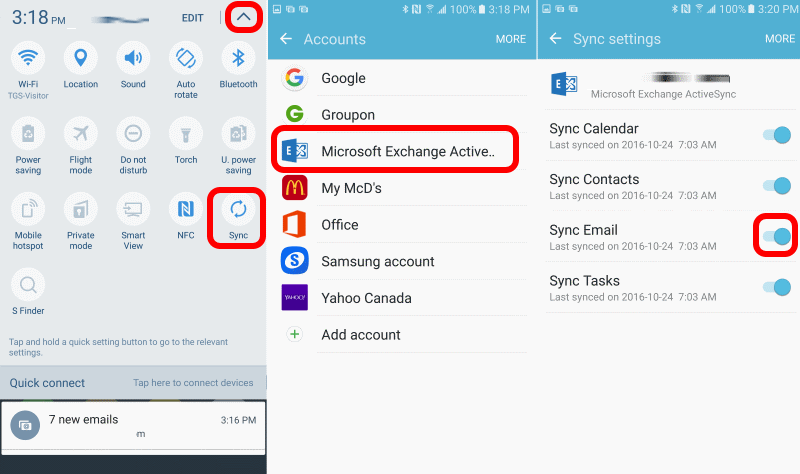
Global auto-sync affects all accounts on your Samsung phone. To enable it, open Settings, then go to Accounts and backup. Tap Manage accounts and find the Auto sync data switch. Turn this switch on to allow your device to sync all accounts automatically. This simple step often fixes syncing problems quickly.
Turn On Sync For Specific Accounts
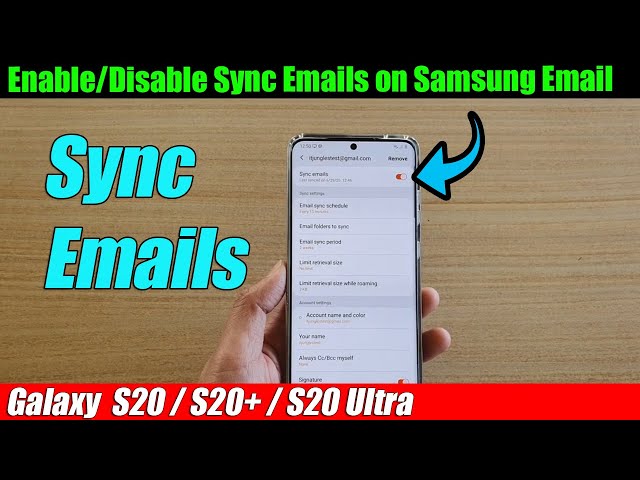
Sometimes, auto-sync is enabled globally but off for certain accounts. Open your email app, like Samsung Email or Gmail. Tap the menu icon (three horizontal lines) in the top left corner. Select Settings, then choose the email account you want to sync. Look for the Sync emails option and turn it on. This ensures your chosen accounts update regularly and display new emails on time.
Credit: www.urtech.ca
Adjust Email App Sync Options
Adjusting the sync options in your email app can fix syncing problems. Sync settings control how often your device updates emails. If syncing is off or limited, new emails won’t appear. Checking these settings helps your Samsung Email app work properly. This section explains how to verify and manage sync options in Samsung Email and Gmail apps.
Verify Sync Emails In Samsung Email
Open the Samsung Email app on your phone. Tap the menu icon (three lines) in the top left corner. Select the Settings gear icon. Choose the email account you want to sync. Find the Sync emails option and make sure it is turned ON. If it is off, toggle it on to enable syncing.
Next, tap Sync account or similar wording. Press the Sync now button to update emails immediately. Check if new emails appear after syncing. This simple step often fixes syncing issues quickly.
Manage Sync In Gmail App
Open the Gmail app on your Samsung device. Tap the menu icon (three lines) in the top left corner. Scroll down and select Settings. Tap the email account you want to adjust. Look for the Sync Gmail option and ensure it is enabled.
Next, go to Data usage within the Gmail settings. Confirm that background data and auto-sync are allowed. If restrictions exist, emails might not sync automatically. Turn off any data saver options blocking Gmail sync.
Manage Battery And Data Usage
Managing battery and data usage on your Samsung phone can improve email syncing. Battery optimization and data saver settings often limit background activity. These restrictions stop your email app from syncing new messages. Adjusting these settings helps keep your emails updated and accessible.
Disable Battery Optimization For Email
Battery optimization saves power by limiting app activity. It can prevent your email app from running in the background. To disable optimization for email, open Settings and tap Apps. Find and select your email app. Tap Battery and choose “Unrestricted” or turn off optimization. This change lets your email sync continuously without interruption.
Allow Email App To Bypass Data Saver
Data saver restricts apps from using data in the background. Your email app may not sync if data saver is on. Open Settings and go to Connections, then Data usage. Tap Data saver and find your email app on the list. Allow the app to bypass data saver restrictions. Your email will sync even when data saver is active.
Clear App Cache And Data
Clearing the app cache and data can fix many syncing problems with the Samsung Email app. The cache stores temporary files that help the app run faster. Sometimes, these files get corrupted and cause syncing errors. Removing the cache clears out these bad files without deleting your emails or settings.
In some cases, clearing the app data is also necessary. This action resets the app to its default state. It removes all settings and stored information, including email accounts. You will need to add your accounts back after clearing app data. This step can solve deeper issues that cache clearing alone cannot fix.
Clear Samsung Email Cache
Open your device’s Settings and tap on Apps or Applications.
Find and select Samsung Email from the list.
Tap on Storage, then press Clear Cache.
Restart the app and check if your emails are syncing correctly.
Remove And Re-add Email Account
Go to Settings and tap Accounts and backup.
Tap Manage accounts, then select your email account.
Choose Remove account and confirm the removal.
Return to Manage accounts and tap Add account.
Enter your email details to set up the account again.
Open Samsung Email to see if syncing works now.
Update Email App And Software
Keeping your Samsung Email app and phone software up to date is essential for smooth email syncing. Outdated apps or system versions often cause syncing problems. Regular updates fix bugs and improve app performance. This section guides you through checking and installing these updates correctly.
Check For Samsung Email Updates
Open the Google Play Store on your Samsung device. Tap the profile icon at the top right. Select “Manage apps & device.” Under “Updates available,” look for Samsung Email. If an update is available, tap “Update” to install it. Updated apps run better and fix syncing issues.
Install System Software Updates
Go to your device’s Settings menu. Scroll down and tap “Software update.” Tap “Download and install” to check for updates. If updates are available, follow prompts to install them. System updates improve overall phone stability and app compatibility. This helps prevent email syncing errors.

Check Network And Connectivity
Network and connectivity issues often cause Samsung Email not syncing properly. Checking these settings can quickly solve the problem. A stable internet connection is essential for email syncing. Without it, your emails won’t update or download. Sometimes switching between Wi-Fi and mobile data helps restore connectivity. These simple steps often fix sync issues without complex troubleshooting.
Confirm Internet Connection
Start by confirming your device has internet access. Open a web browser and visit any website. If the page loads, your connection works. If not, check your router or mobile network. Restart your phone to refresh the network settings. Also, ensure Airplane mode is off. A weak or unstable connection can block email syncing. Try moving to a different location for better signal strength.
Switch Between Wi-fi And Mobile Data
Switching between Wi-Fi and mobile data can help identify the issue. Turn off Wi-Fi and enable mobile data. Check if your email syncs using cellular data. If it does, your Wi-Fi network might be the problem. Turn Wi-Fi back on and disconnect from the current network. Connect to a different Wi-Fi network and test syncing again. This method helps isolate connectivity problems affecting your Samsung Email app.
Review Notification Settings
Checking notification settings can solve Samsung Email not syncing issues. Notifications alert you about new emails instantly. If notifications are off, you may miss new messages. Reviewing these settings ensures your email app notifies you properly.
Enable Email Notifications
First, open the Samsung Email app on your phone. Tap the menu icon, usually three lines or dots. Select the Settings option next. Choose your email account from the list. Make sure the “Notifications” setting is turned ON. This lets your phone alert you for new emails.
Also, check the system notification settings. Go to Settings > Apps > Samsung Email > Notifications. Confirm notifications are allowed and not blocked. This step helps your phone show alerts on the lock screen and status bar.
Adjust Do Not Disturb Settings
Do Not Disturb mode can silence all notifications, including emails. Open your phone’s Settings and find Sound & Vibration. Tap on Do Not Disturb. Review the schedule and exceptions set here.
Allow notifications from the Samsung Email app during Do Not Disturb. This setting prevents missing important email alerts. Disable Do Not Disturb if it blocks your email notifications completely.
Reset Email App Preferences
Resetting email app preferences can solve syncing problems on Samsung phones. This process restores app settings to default. It does not erase your personal data or emails. It can fix glitches caused by misconfigured settings or conflicts with other apps.
Resetting app preferences refreshes the email app’s connection to your accounts. It also clears any blocked permissions or disabled features. This step often helps if your emails stop syncing without clear reasons.
Reset App Settings Without Data Loss
Open your phone’s Settings app. Scroll down and tap on “Apps”. Tap the three-dot menu in the top right corner. Select “Reset app preferences” from the list. Confirm by tapping “Reset” in the popup window.
This action resets all app preferences, including disabled apps, notifications, and permissions. Your email data and account information remain intact. It will not delete emails or attachments.
Reconfigure Email Sync Settings
After resetting, open the Samsung Email app. Go to the app’s Settings menu. Select your email account from the list. Make sure “Sync emails” is enabled. You may need to re-enter your password or server settings.
Check if auto-sync is enabled on your device. Go to Settings > Accounts and backup > Manage accounts. Tap the toggle for “Auto sync data” to turn it on. This ensures your emails update regularly.
Frequently Asked Questions
Why Is My Samsung Phone Not Syncing My Emails?
Your Samsung phone may not sync emails due to disabled auto-sync, battery saver limits, corrupted cache, or incorrect account settings. Enable auto-sync, clear app cache, adjust battery settings, and re-add your email account to fix syncing issues.
Why Has My Email Stopped Syncing?
Your email stopped syncing due to disabled auto-sync, battery saver restrictions, corrupted cache, or account issues. Enable auto-sync, clear cache, check app settings, and ensure battery settings allow background activity to fix it.
How To Resync Email On Samsung?
To resync email on Samsung, enable Auto sync in Settings > Accounts and backup. Open your email app, select your account, and tap Sync now. Clear app cache if needed, and ensure battery saver or data saver doesn’t restrict the email app.
Restart your device if syncing fails.
Why Has My Samsung Galaxy Stopped Receiving Emails?
Your Samsung Galaxy may stop receiving emails due to disabled auto-sync, battery saver limits, or corrupted app cache. Enable auto-sync in Settings > Accounts, allow battery usage for the email app, clear its cache, or remove and re-add your email account to fix syncing issues.
Why Is Samsung Email Not Syncing Automatically?
Samsung Email may stop syncing if Auto Sync is turned off in settings. Also, battery saver or data saver modes can block sync processes. Check these settings to ensure syncing is allowed.
Conclusion
Samsung email sync problems often stem from simple settings issues. Check auto-sync is on and battery saver is off. Clear the email app cache to remove corrupted files. Removing and re-adding your email account can fix stubborn errors. These steps usually restore syncing quickly and easily.
Keep your app and phone updated for smooth email performance. Small fixes can save time and frustration. Stay patient and follow the steps carefully. Your Samsung email should sync properly again soon.