
If you press the buttons on your Samsung remote and nothing happens, it can be very frustrating. The TV might not turn on, the volume stays the same, and you cannot change channels. Many homes rely on the remote for everything. When it stops working, daily routines can be disturbed. But before you think about buying a new one, there are many ways to fix the problem. Sometimes, the solution is simple—other times, it needs a deeper check.
This guide explains every possible reason why your Samsung remote is not working. You will learn step-by-step ways to test, troubleshoot, and fix the problem. We will also help you understand when it’s best to repair, replace, or get help from Samsung support. If you follow these tips, you’ll save money and avoid unnecessary stress.
Common Reasons Why Samsung Remote Stops Working
Several things can make your Samsung remote stop working. Understanding these causes helps you fix the problem faster and avoid mistakes.
1. Dead Or Weak Batteries
The most common reason is battery problems. Remotes use small amounts of power, but over time, the batteries wear out. Sometimes, one battery is weaker than the other, which can cause the remote to act strangely—some buttons might work, while others do not.
2. Remote Not Paired With Tv
Newer Samsung TVs use Bluetooth for their remotes. If the remote is not paired, it cannot control the TV. Pairing can be lost after a software update, power cut, or if you use the remote with another Samsung TV.
3. Blocked Infrared (ir) Signal
Traditional Samsung remotes use infrared (IR) light to send signals. If something blocks the path between the remote and the TV sensor, the TV will not receive the command. Even dust or sunlight can sometimes interfere.
4. Stuck Or Damaged Buttons
Dirt, dust, or spilled drinks can make remote buttons sticky or stuck. If a button is always pressed, other buttons might stop working.
5. Tv Sensor Issues
The TV’s sensor can also have problems. If the sensor is dirty or broken, even a working remote will not control the TV.
6. Software Or Firmware Problems
Samsung TVs sometimes have software bugs. After updates, the TV might stop recognizing the remote until you reset or update the system again.
7. Physical Damage
If the remote was dropped, stepped on, or got wet, it might be damaged inside. Even if it looks fine outside, the inner parts may not work.
8. Interference From Other Devices
Strong lights, other remotes, or wireless devices nearby can interfere with your Samsung remote’s signal.
9. Outdated Remote Model
Old remotes may not work with new Samsung TVs. Compatibility is important, especially if you use a universal remote.
10. Faulty Remote Or Tv Hardware
Sometimes, the remote or even the TV’s receiver is broken, and repairs or replacement are needed.
How To Troubleshoot A Samsung Remote That’s Not Working
Let’s go through the best ways to test and fix your Samsung remote. Start with the simple solutions and move to more advanced steps.
1. Check And Replace The Batteries
- Open the battery cover.
- Remove both batteries.
- Check for leaks, rust, or dirt.
- Insert new, good-quality batteries (use the correct type, usually AA or AAA).
- Make sure batteries are placed in the correct direction (+/-).
Even new batteries can sometimes be weak if they are low quality or stored for a long time. Try batteries from another working device if you are not sure.
2. Test The Remote’s Infrared (ir) Signal
Most Samsung remotes use IR. You can check if the remote sends a signal using your smartphone camera:
- Open the camera app on your phone.
- Point the remote at the camera lens.
- Press any button on the remote.
- Look for a blinking light on the remote’s IR LED (at the front tip).
If you see the light, the remote is sending signals. If there is no light, the remote’s IR LED may be broken, or the batteries are dead.
3. Clear The Path To The Tv Sensor
- Remove any objects in front of the TV’s sensor (usually at the bottom center of the TV).
- Clean the sensor area gently with a soft, dry cloth.
- Make sure nothing is blocking the signal, such as soundbars, decorations, or sunlight.
4. Reset The Remote
If the remote is stuck, it might help to reset it:
- Remove the batteries.
- Press and hold the Power button for 10 seconds.
- Release the button, reinsert the batteries, and try again.
This simple reset can fix many minor issues.
5. Pair The Remote With The Tv
For Bluetooth or Smart Remotes (like Samsung One Remote):
- Stand close to the TV (within 1-2 feet).
- Press and hold the Return and Play/Pause buttons at the same time for about 5 seconds.
- Wait for the TV to show a message that pairing is complete.
If it does not work, try restarting both the TV and the remote.
6. Restart The Tv
Sometimes the TV is the problem, not the remote. Try this:
- Unplug the TV from the wall.
- Wait for 60 seconds.
- Plug the TV back in and turn it on with the remote.
This can clear glitches in the TV’s memory.
7. Update The Tv’s Firmware
Old firmware can cause remote issues. To update:
- Use the TV’s side or bottom buttons to open the Settings menu.
- Go to Support > Software Update.
- Select Update Now.
If your TV is not responding at all, skip this step.
8. Test With Another Remote
If you have another Samsung remote (from the same year or model), try using it with your TV. If the second remote works, your original remote may be faulty.
If you use a universal remote, program it to control your Samsung TV. This test can confirm if the TV’s receiver is working.
9. Check For Interference
Turn off or move other devices near the TV, like routers, cordless phones, or other remotes. Strong sunlight or nearby fluorescent lights can sometimes affect the remote signal.
10. Inspect For Physical Damage
Look for cracks, missing buttons, or signs of water damage. If the remote is wet, remove batteries immediately and let it dry for 24 hours before testing again.
11. Clean The Remote
Dirt can get inside the buttons. To clean:
- Remove batteries.
- Use a soft brush or compressed air to remove dust.
- Wipe the outside with a slightly damp cloth (never use water inside).
For deep cleaning, you can carefully open the remote (if you feel confident), but this may void the warranty.
12. Factory Reset The Tv
If nothing works, try a factory reset. This will erase your settings:
- Use the TV buttons to go to Settings > General > Reset.
- Enter the PIN (default is 0000).
- Confirm the reset.
Your TV will restart as if it is new.
Samsung Remote Types And Their Problems
Samsung has produced different types of remotes over the years. Each type has unique problems.
Standard Ir Remotes
These are the classic remotes with many buttons and no voice control. They use infrared and need a clear path to the TV. Problems are usually batteries, blocked sensor, or old age.
Smart Remotes (samsung One Remote)
These newer remotes use Bluetooth and sometimes infrared together. They can control other devices like soundbars. Problems often include lost pairing, Bluetooth interference, or outdated TV software.
Universal Remotes
These can control different brands and devices. If not programmed correctly, they may not work with your Samsung TV.
Voice Control Remotes
Some newer remotes have a microphone for voice commands. If the voice button does not work, it could be a software issue or microphone failure.
Samsung Remote Troubleshooting Decision Table
The following comparison helps you decide what to do based on your symptoms:
| Problem | Most Likely Cause | Fix |
|---|---|---|
| No buttons work | Dead batteries, remote not paired | Replace batteries, pair remote |
| Some buttons work | Stuck buttons, weak batteries | Clean remote, replace batteries |
| Remote works only close to TV | Weak batteries, blocked sensor | Replace batteries, clear sensor area |
| Remote works with another TV | TV sensor issue | Clean or repair TV sensor |
| Voice not working | Software bug, microphone issue | Update TV firmware, reset remote |
| Remote was dropped | Physical damage | Inspect, replace if needed |
How To Pair And Reset Different Samsung Remotes
Pairing and resetting are not the same for every remote. Here’s a quick guide for the most common types.
Standard Ir Remote
- No need to pair.
- Replace batteries and point directly at the TV.
Samsung One Remote
- Hold Return + Play/Pause for 5 seconds near the TV.
- Wait for “Pairing Complete” on the screen.
- If it fails, repeat, or reset the remote.
Universal Remote
- Follow the manufacturer’s code entry or automatic search method.
- Make sure the remote is compatible with your TV model.
Smart Touch Remote
- Hold the Back and Guide buttons for 3 seconds to reset.
- Re-pair as above.
How To Tell If The Problem Is The Remote Or The Tv
Sometimes, the remote is not the problem—the TV is. Here’s how to check:
- Use the TV’s physical buttons (on the side or bottom) to turn it on and adjust volume.
- If the TV responds, the remote is likely bad.
- Try another remote with your TV.
- If no remote works, the TV’s sensor or main board may be faulty.
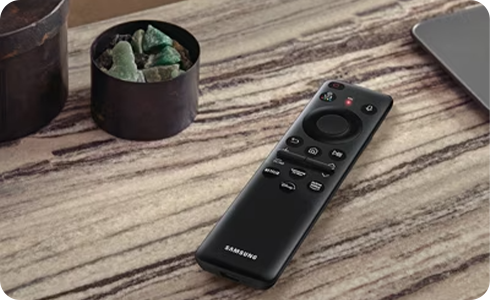
Fixing Sticky Or Stuck Buttons
Sticky buttons are a common problem, especially in homes with kids or food near the TV. Here’s how to clean:
- Remove batteries.
- Press all buttons several times to loosen dirt.
- Use a cotton swab with rubbing alcohol around the stuck button.
- For heavy dirt, open the remote and clean the rubber pad and circuit board gently.
A common beginner mistake is using water or soap, which can damage the electronics.
When To Repair Vs. Replace Your Samsung Remote
Not every problem can be fixed at home. Here’s a quick comparison:
| Situation | Repair | Replace |
|---|---|---|
| Dead batteries | ✔ | |
| Minor dirt/stuck buttons | ✔ | |
| Broken buttons or water damage | ✔ | |
| Remote not pairing after reset | ✔ (try reset) | ✔ (if all else fails) |
| TV sensor not responding | ✔ (repair TV) | |
| Lost remote | ✔ |
Buying A Replacement Samsung Remote
If you decide to buy a new remote, keep these points in mind:
- Check the TV model number (usually on the back of the TV or in the manual).
- Match the remote model to your TV (not all Samsung remotes work with all TVs).
- Choose between original, universal, or smart remotes.
- Original remotes work best but may cost more.
- Universal remotes can control many devices but may not support all Samsung features.
- Smart remotes offer voice and smart home features.
Common mistake: Many people buy the cheapest remote online, only to find it does not work with their TV. Always check compatibility first.
Using The Samsung Tv Remote App
If your physical remote is lost or broken, you can use your smartphone as a temporary remote.
- Download the Samsung SmartThings app (available on iOS and Android).
- Connect your phone and TV to the same Wi-Fi network.
- Add your TV in the app, and use the on-screen remote.
This app can control power, volume, channels, and even type text for searches.
How To Contact Samsung Support
If you have tried all fixes and the remote still does not work, contact Samsung Support:
- Visit the official Samsung website.
- Use the chat, phone, or email options.
- Provide your TV and remote model numbers.
- Describe what you have already tried.
Samsung may send a replacement if your TV is under warranty.
Practical Tips To Avoid Remote Problems
- Do not eat or drink near the remote.
- Replace batteries every 6-12 months.
- Keep the remote out of direct sunlight.
- Store the remote in a safe, dry place.
- Clean the remote gently every few months.
- Teach children not to drop or throw the remote.
Non-obvious insight: Sometimes, surge protectors or power strips can cause TV sensor glitches. Try plugging the TV directly into the wall if nothing else works.
Hidden Features And Shortcuts On Samsung Remotes
Many users do not know about these remote tricks:
- Press and hold the Power button to restart the TV fully (not just turn off/on).
- Use the 123 button on smart remotes for a digital number pad.
- Hold the Volume button for accessibility options.
- Use the Color buttons for extra functions in apps.
Knowing these can make your TV experience smoother and more enjoyable.
The Role Of Firmware Updates And Compatibility
Firmware keeps your TV and remote working well together. Always keep your TV updated to avoid bugs. Some older remotes may stop working after big updates. If your remote was fine before, but stopped after an update, check Samsung’s website for compatibility news or contact support. You can read more about the importance of firmware at the official Samsung Support page.
What To Do If A Universal Remote Is Not Working
Universal remotes need to be programmed:
- Find the code for Samsung TVs in the manual.
- Enter the code as described.
- Test all buttons, especially Power, Volume, and Menu.
If buttons do not work, try another code or reset the remote. Not all universal remotes support smart features like voice or app shortcuts.
Common Myths About Samsung Remotes
- “A remote works with any Samsung TV.” Not true—check compatibility.
- “If the IR light is blinking, the remote is fine.” Not always—buttons can still be faulty.
- “Firmware updates break remotes.” Updates often fix problems, but rare bugs can happen.
- “Universal remotes are always better.” They can lack features like voice or smart controls.
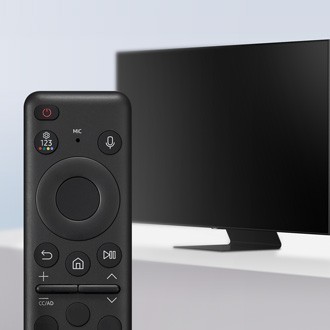
Real-world Example
Sarah bought a new Samsung TV. After a few weeks, the remote stopped working. She changed the batteries, but nothing happened. She tested the remote’s IR light with her phone camera—it worked. She cleaned the TV sensor, and the remote started working again.
The problem was just dust on the sensor, not the remote itself.
This example shows that sometimes, the fix is simple. Do not skip basic cleaning and tests.

Frequently Asked Questions
How Do I Reset My Samsung Remote?
Remove the batteries from the remote. Press and hold the Power button for at least 10 seconds. Reinsert the batteries and try using the remote again. This reset removes minor glitches and can restore normal function.
Why Does My Samsung Remote Only Work Sometimes?
Inconsistent performance is often due to weak batteries, a dirty TV sensor, or interference from other devices. Try fresh batteries, clean the sensor area, and remove nearby electronics that could cause problems.
Can I Use My Phone As A Samsung Remote?
Yes, download the Samsung SmartThings app. Connect your phone and TV to the same Wi-Fi network, add your TV in the app, and use the digital remote. This is a good backup if your remote is lost or broken.
What Should I Do If My Samsung Remote Is Not Pairing?
Move closer to the TV, replace the batteries, and try pairing again (hold Return and Play/Pause). If pairing still fails, unplug the TV for one minute and try again. If nothing works, contact Samsung support.
Are Universal Remotes As Good As The Original Samsung Remote?
Universal remotes can control basic TV functions, but may not support all features, such as voice control, app shortcuts, or smart home links. For the best experience, the original Samsung remote is usually better.
If you follow these steps and tips, you can fix most Samsung remote problems yourself. Checking each possible cause carefully saves time and money—and helps you get back to enjoying your TV with less stress.