
A flashing blue power light on your ViewSonic monitor can be confusing and even a little worrying, especially if you depend on your monitor for work, study, or entertainment. Many people see this blinking light and wonder if their monitor is broken or if something simple is causing the issue.
The truth is, there are several reasons why your ViewSonic monitor may show this behavior, and not all of them mean your device is damaged. Understanding what the flashing blue light means, how to diagnose it, and how to fix it can save you time, money, and frustration.
In this article, you’ll discover everything you need to know about the ViewSonic monitor blue power light flashing issue. We’ll explore the most common causes, step-by-step solutions, expert tips, and even some little-known facts that most beginners miss. Whether you’re a casual user or someone who relies on their monitor daily, this guide will help you get your screen working again—and might even teach you something new about your device.
What Does The Blue Power Light Mean On A Viewsonic Monitor?
Before jumping into fixes, it helps to understand the basic function of the power light on your ViewSonic monitor. The blue power light is designed to show you the current status of the monitor:
- Solid blue: The monitor is powered on and receiving an active signal from your computer or device.
- Flashing blue: The monitor is powered on but not receiving a signal, or it is in a special mode such as standby or sleep.
- Off: The monitor is turned off or not receiving power.
While this light is meant to be helpful, its flashing can signal many different things. Sometimes, it’s a simple connection issue. Other times, it could point to hardware problems. The key is to observe not just the light, but also what’s happening on your screen and with your connected devices.
Common Causes Of A Flashing Blue Power Light
The blue power light flashing on a ViewSonic monitor is one of the most reported issues on tech forums and support sites. Based on user reports and manufacturer guidance, here are the most frequent causes:
- No Signal from Computer: The monitor is on, but there’s no video input.
- Loose or Damaged Cable: The connection between your monitor and computer is faulty.
- Computer in Sleep or Standby Mode: The PC is not sending a signal.
- Monitor in Standby/Sleep Mode: The monitor itself is asleep.
- Incorrect Input Source: The monitor is set to the wrong input (e.g., HDMI instead of DisplayPort).
- Graphics Card Problems: The GPU is not sending a signal.
- Monitor Firmware Glitch: Software inside the monitor is malfunctioning.
- Power Issues: The power supply to the monitor is unstable.
- Resolution or Refresh Rate Out of Range: The computer is sending a signal the monitor can’t display.
- Internal Hardware Failure: The monitor’s internal components are damaged.
Each of these problems can cause a blue light to blink, but the solutions are different. It’s important to diagnose correctly.

Diagnosing The Problem: Step-by-step
Solving the ViewSonic monitor blue power light flashing issue starts with a careful check of your setup. Here’s how to methodically diagnose the problem:
1. Check The Monitor’s Display
First, check if the monitor shows anything at all. Is it completely black, or do you see messages like “No Signal,” “Check Cable,” or a ViewSonic logo?
- No image, no message: Might be a power or hardware problem.
- No Signal message: Usually a connection or input issue.
- Logo appears then goes black: Could be a problem with the computer or input device.
2. Listen For Computer Sounds
If you’re using a desktop or laptop, listen for startup sounds, fans spinning, or beeps. If your computer is totally silent, the problem may not be with the monitor at all.
3. Inspect The Power Light Pattern
Does the blue light flash steadily (on-off-on-off), or is it more random? Some monitors use different patterns to show different errors. Check your ViewSonic manual for specific codes.
4. Examine The Cables
Unplug and replug all cables (power, HDMI, DisplayPort, VGA, DVI). Look for bent pins, frayed wires, or loose connections. Try using a different cable if you have one.
5. Test With Another Device
Connect the monitor to a different computer, laptop, or even a gaming console. If the monitor works, the problem is likely with your original computer. If not, it’s probably the monitor or its cables.
6. Try Another Monitor
Connect a different monitor to your computer. If that monitor works fine, the issue is with your ViewSonic monitor. If not, check your computer’s graphics card or settings.
7. Check Input Source Settings
Use the monitor’s physical buttons to open the on-screen display (OSD) menu. Make sure it’s set to the correct input (HDMI, DisplayPort, etc. ).
8. Restart Everything
Turn off your computer and monitor. Unplug both from power for at least 30 seconds. Plug them back in and restart.
These steps will often reveal the root cause of the problem. If you still see a flashing blue light, it’s time to try specific solutions.
Solutions For Viewsonic Monitor Blue Power Light Flashing
Let’s go through the most effective solutions, starting from the simplest.
1. Secure All Connections
Loose or faulty cables are the #1 cause of the blue power light flashing. Here’s what to do:
- Unplug and re-plug the HDMI, DisplayPort, VGA, or DVI cables.
- Check both ends: At the monitor and at the computer.
- Examine the cables for visible damage. Even small kinks or bends can cause problems.
- If possible, try a different cable.
2. Confirm The Correct Input Source
Monitors can have multiple input options (HDMI, DisplayPort, VGA). If the wrong one is selected, your monitor won’t show a picture—even if your computer is working.
- Use the Input or Source button on the monitor to cycle through available options.
- Match the selected input with the cable you are using.
3. Restart The Computer And Monitor
A simple restart can fix temporary glitches. Shut down your computer and turn off the monitor. Wait 30 seconds, then power them back up.
4. Update Or Reinstall Graphics Drivers
Outdated or corrupt graphics drivers can prevent your computer from sending a display signal.
- On Windows, go to Device Manager > Display adapters.
- Right-click your graphics card and select “Update driver.”
- If the issue started after a recent update, try rolling back the driver.
5. Reset The Monitor To Factory Settings
Sometimes, a setting inside the monitor causes the problem. To reset:
- Press the Menu button on the monitor.
- Navigate to “Setup” or “Reset.”
- Select “Factory Reset” and confirm.
Your monitor will return to its default settings.
6. Test With A Different Device
Connect your ViewSonic monitor to another device (laptop, game console, etc. ). If it works, your computer or its cables may be at fault.
7. Change Resolution And Refresh Rate
If your computer is sending a video signal that the monitor can’t handle (too high resolution or refresh rate), the monitor may blink its power light.
- Boot into Safe Mode (Windows) or use a lower resolution on Mac.
- Set the display to a supported resolution and refresh rate, such as 1920×1080 at 60Hz.
- Restart the computer.
8. Check For Power Issues
A faulty power strip or unstable power supply can cause your monitor to blink.
- Plug the monitor directly into a wall outlet.
- Try a different power cable if possible.
9. Inspect For Overheating
If your monitor is hot to the touch or has been running for a long time, let it cool down for 30 minutes. Overheating can cause temporary malfunctions.
10. Update Monitor Firmware
Some ViewSonic models allow firmware updates. Check the ViewSonic website for your model’s support page. Follow instructions carefully, as a failed update can cause more problems.
11. Contact Viewsonic Support
If none of the above steps work, your monitor may have a hardware failure. Reach out to ViewSonic technical support. They can guide you through advanced troubleshooting or arrange a repair if needed.
Comparison: Common Causes And Solutions
To help you quickly match causes and fixes, here’s a handy table:
| Cause | Quick Solution | Difficulty |
|---|---|---|
| No Signal from Computer | Check cables, restart devices | Easy |
| Loose/Damaged Cable | Replace or secure cable | Easy |
| Wrong Input Source | Change input setting | Easy |
| Outdated Drivers | Update/Reinstall drivers | Moderate |
| Resolution/Refresh Rate | Lower settings | Moderate |
| Internal Failure | Contact support | Hard |
Viewsonic Monitor Models: Are Some More Prone To Flashing Lights?
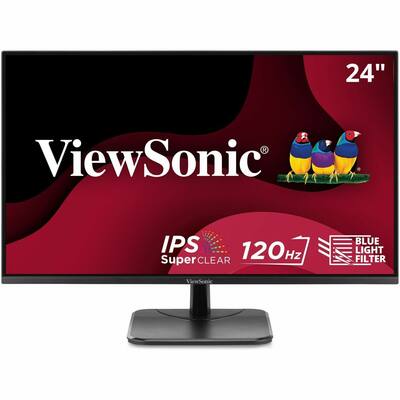
ViewSonic produces many types of monitors, from basic office screens to high-end gaming displays. Some models are more likely to have power light flashing issues based on user reports.
| Model Series | Reported Flashing Light Issues | Notes |
|---|---|---|
| VX Series | Moderate | Common for office and home use |
| XG Gaming Series | Occasional | Often caused by high refresh rate settings |
| VA Series | Low | Entry-level, fewer features |
| VP Professional Series | Rare | Better build quality, fewer issues |
This data is based on user feedback from tech forums and manufacturer support channels. Most modern ViewSonic monitors have similar troubleshooting steps, but if you own a gaming-focused model, be extra careful with refresh rate and cable quality.
Advanced Troubleshooting: What If Basic Steps Fail?
Sometimes, the problem is not easy to fix. Here’s what you can do if the basic solutions don’t work:
1. Test Different Ports
If your monitor has more than one input (HDMI 1, HDMI 2, DisplayPort), try each port with your cable. Sometimes, one port can fail while others still work.
2. Boot With Minimal Devices
Remove all non-essential devices from your computer (USB drives, printers, extra monitors). Sometimes, conflicts can prevent the display from working.
3. Inspect The Monitor’s Power Board
If you’re comfortable with electronics, you can open the back of the monitor and check for bulging capacitors or burnt components. However, this will void your warranty and is not recommended for most users.
4. Use A Different Power Outlet
Electrical problems in your wall socket can cause strange monitor behavior. Move your setup to another room if possible.
5. Bios And Uefi Settings
Sometimes, computers have settings that can affect video output, especially if you’ve changed graphics cards.
- Boot into BIOS/UEFI.
- Look for “Primary Display” or “Integrated Graphics” options.
- Set to “Auto” or the correct graphics card.
6. Professional Repair
If your monitor is still under warranty, contact ViewSonic before trying repairs. If it’s out of warranty, a local electronics repair shop might be able to replace internal components.
Non-obvious Insights Most Beginners Miss
Most guides stop at the basic steps, but there are a few extra things that can make a difference:
- Not all cables are equal. Cheap or old HDMI cables sometimes can’t support modern resolutions or refresh rates, causing the monitor to appear dead or just blink.
- Wake-from-sleep issues. Some computers and monitors don’t wake up properly after sleep mode. If you see a flashing blue light after your PC sleeps, try disabling sleep mode or updating your device’s firmware and drivers.
- Power-saving features. Many modern monitors have eco or power-saving modes that can cause confusing behaviors. Disabling these in the OSD menu can sometimes solve blinking or flickering power lights.
- Graphics card “handshake” problems. On first boot, some graphics cards take a few seconds to initialize, especially if you have more than one display connected. Waiting a bit longer before panicking can sometimes save you a lot of hassle.
Preventing The Blue Power Light Flashing Problem
Once you solve the issue, you likely want to avoid facing it again. Here’s how:
- Use High-Quality Cables: Invest in certified HDMI, DisplayPort, or VGA cables. This reduces the chance of connection errors.
- Keep Drivers Updated: Regularly check for updates for both your graphics card and monitor (if supported).
- Don’t Overload Power Strips: Plug your monitor directly into the wall or use a surge protector.
- Avoid Extreme Resolutions/Refresh Rates: Stay within the recommended settings for your monitor.
- Regularly Clean Ports and Cables: Dust and debris can cause poor connections.
- Monitor Your Monitor’s Temperature: Keep your workspace cool and well-ventilated.
When Is It Time To Replace Your Monitor?
No matter how carefully you maintain your hardware, monitors can eventually wear out. Here are signs it might be time for a new ViewSonic monitor:
- The blue power light keeps flashing even after all fixes.
- You see lines, colors, or distortion on the screen.
- The monitor won’t turn on at all, or shuts off randomly.
- You hear buzzing or see smoke/odd smells.
Monitors typically last between 5 to 8 years with normal use. If yours is older, investing in a new model can save you time and frustration.
How Viewsonic Support Handles Flashing Power Light Issues
ViewSonic offers a helpful support portal for troubleshooting. If you need to contact them:
- Have your monitor’s model number and serial number ready.
- Describe the issue in detail, including what you’ve tried.
- Be ready to send photos or videos if requested.
Depending on your warranty, they may offer a replacement, repair, or advanced troubleshooting steps. For more details, visit the official ViewSonic Support page.
Are There Any Risks To Ignoring The Flashing Blue Light?
Some users ignore the problem, especially if it happens only sometimes. While this may seem fine, there are risks:
- Worsening hardware failure: Small problems can become big ones if left unfixed.
- Data loss: If your monitor fails while you’re working, you could lose unsaved data.
- Electrical hazards: In rare cases, power issues could cause shocks or even fires.
It’s always better to investigate and fix the flashing blue light as soon as you notice it.
User Experiences And Real-world Cases
Many users have shared their experiences with the ViewSonic monitor blue power light flashing. Here are a few notable examples:
- Case 1: Office User
An office worker reported that their ViewSonic VX series monitor would flash blue after their PC went into sleep mode. The fix was to disable sleep mode and update the motherboard BIOS.
- Case 2: Gamer
A gamer with a ViewSonic XG gaming monitor found the blue light blinking when switching from HDMI to DisplayPort. Using a certified DisplayPort cable and setting the monitor to the correct input solved the issue.
- Case 3: Home User
A home user’s monitor flashed blue after a thunderstorm. Plugging the monitor directly into a different wall outlet restored normal function, suggesting a power surge had affected the original outlet.
These stories show that while the flashing blue light can be worrying, it’s often fixable with a few targeted steps.
Frequently Asked Questions
Why Does My Viewsonic Monitor’s Blue Light Keep Flashing Even When The Computer Is On?
The most common cause is a no signal issue. Your computer might not be sending a video signal, or the monitor is set to the wrong input. Check that your cables are secure and the correct input is selected.
Can A Bad Hdmi Cable Cause The Blue Power Light To Blink?
Yes, a damaged or low-quality HDMI cable can stop the video signal from reaching your monitor, leading to a blinking blue light. Try swapping the cable with a new, certified one.
Will Resetting My Viewsonic Monitor Delete All My Settings?
A factory reset will return your monitor’s settings (like brightness, contrast, and input preferences) to default. It won’t affect your computer or files but you’ll need to readjust your display settings.
How Can I Tell If My Viewsonic Monitor Needs Repair?
If your monitor still flashes the blue power light after you’ve checked cables, inputs, drivers, and power, and it doesn’t work with other devices, it likely needs professional repair or replacement.
Where Can I Find Official Troubleshooting Advice For My Specific Viewsonic Monitor Model?
You can get model-specific guidance, manuals, and firmware updates at the ViewSonic Support website. Always use official resources for the best results.
A flashing blue power light on your ViewSonic monitor isn’t the end of the world, but it does require attention. With the steps and insights in this guide, you can diagnose, fix, and even prevent this issue in the future—keeping your screen bright and your work on track.