
When your Westinghouse TV won’t connect to WiFi, it can quickly turn a relaxing evening into a frustrating puzzle. Streaming your favorite shows, watching YouTube, or simply updating the TV’s software all depend on a strong internet connection. If your Westinghouse TV keeps dropping the WiFi or simply refuses to connect, you’re not alone. Many users face this issue for various reasons, but the good news is that most solutions are simple and can be done at home—no technical background required.
Understanding why this happens can save you time, money, and stress. Sometimes, the problem is with the TV’s settings. Other times, the router, network, or even the TV’s software may be at fault. In rare cases, hardware issues or compatibility problems can block your TV from joining your network.
This article will guide you step-by-step through every possible cause and fix. Whether you’re a tech beginner or have already tried a few things, you’ll find practical answers here. Read on to get your Westinghouse TV back online and make WiFi troubles a thing of the past.
Why Your Westinghouse Tv Won’t Connect To Wifi
Before jumping into solutions, it helps to understand the possible reasons your Westinghouse TV isn’t connecting to WiFi. Here are the most common causes:
- Incorrect WiFi password: Typing mistakes or using the wrong password is a classic reason for failed connections.
- Weak signal strength: If your TV is too far from the router or there are obstacles, the signal might be too weak.
- Network congestion: Too many devices using the same network can slow things down or cause connection drops.
- Router compatibility: Some routers or settings may not work well with certain TV models.
- Outdated firmware: Old software can create bugs or block new features needed for WiFi.
- Glitches in TV settings: Sometimes, settings get corrupted or changed by accident.
- MAC address filtering: Your router might block new devices using their MAC address.
- ISP problems: Sometimes, the internet provider is having issues.
- Physical hardware problems: Internal WiFi chip or antenna issues are less common but possible.
Knowing these causes helps you target the right fix instead of guessing.
Initial Quick Fixes To Try First
Before you start changing settings or buying new equipment, try these simple steps. Many connection issues are solved by quick resets or checks.
- Restart your TV: Power off the TV, unplug it from the wall for 60 seconds, then plug it back in. This clears temporary glitches.
- Restart your router: Unplug your router, wait 30 seconds, then plug it back. Let all the lights come back on before testing again.
- Check other devices: Can your phone or laptop connect to the WiFi? If not, the problem is likely with your network, not the TV.
- Move your TV closer to the router: Walls and distance weaken WiFi. Even moving a few feet closer can help.
- Double-check the WiFi password: Use the ‘Show Password’ option if available to confirm you typed it correctly.
These steps solve the problem for many users. If you still can’t connect, it’s time to dig deeper.

Checking Wifi Network And Signal Strength
WiFi networks can be tricky, especially in crowded homes or apartments. Let’s check if your TV is getting a strong enough signal and that your network is working properly.
How To Test Signal Strength On Westinghouse Tv
Most smart TVs, including Westinghouse, have a way to check signal strength:
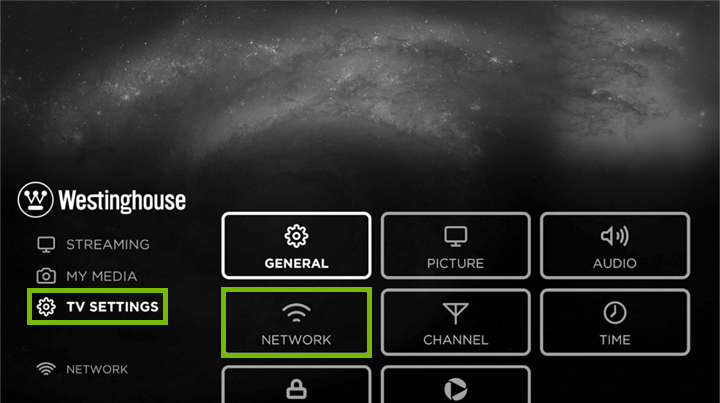
- Go to your TV’s Settings.
- Select Network or WiFi Settings.
- Look for your WiFi network. There should be bars or a signal indicator.
If you see only one bar or a weak signal, this can block a steady connection.
Improving Signal Strength
If your signal is weak:
- Move your router higher or closer to the TV.
- Remove obstacles like thick walls or large furniture.
- Avoid placing the router near microwaves, cordless phones, or other electronics that can cause interference.
- Use the 2.4GHz band if your router supports both 2.4GHz and 5GHz. 2.4GHz travels further, while 5GHz is faster but has a shorter range.
Comparing Signal Strength
Here’s how signal strength impacts your TV’s internet performance:
| Signal Strength (Bars) | Expected Performance |
|---|---|
| 4-5 bars | Strong, stable connection; streaming in HD possible |
| 2-3 bars | Moderate; may experience buffering or slow loading |
| 1 bar | Weak; frequent disconnects, streaming may not work |
| 0 bars | No connection possible |
If your TV is getting only one bar, try moving your router or TV, or consider a WiFi extender.
Verifying Wifi Password And Security Settings
A very common mistake is entering the wrong password, especially if your network uses complex letters, numbers, or symbols.
Tips For Entering Your Password
- Use the Show Password feature if available to see what you’re typing.
- Make sure Caps Lock is off (passwords are case-sensitive).
- Avoid spaces at the beginning or end of the password.
Check Router Security Settings
Some security settings can stop your TV from connecting:
- Make sure your router is using WPA2 or WPA3 encryption. Older ‘WEP’ security is not supported by many smart TVs.
- If you changed your WiFi password recently, update it in your TV’s settings.
If you’re unsure, log in to your router’s admin page (usually by typing 192. 168. 1. 1 or 192. 168. 0. 1 in a web browser).
Updating Westinghouse Tv Firmware
Outdated software can cause many problems, including connection issues. Westinghouse often releases updates to fix bugs or add new features.
How To Check And Update Firmware
- Go to Settings on your TV.
- Select About or System.
- Choose Check for Updates.
- If an update is available, follow the on-screen instructions.
If you can’t connect to WiFi, you may be able to update firmware using a USB drive. Visit the Westinghouse support website, download the latest firmware to a USB stick, and follow their instructions.
Why Updating Helps
Firmware updates often fix hidden bugs, improve WiFi compatibility, and strengthen security. Many users find that simply updating their TV solves mysterious WiFi problems.
Resetting Network Settings On Westinghouse Tv
Network settings can become corrupted or misconfigured over time. A network reset erases your current settings and lets you start fresh.
Steps To Reset Network Settings
- Go to Settings.
- Select Network.
- Find and choose Reset Network Settings or Forget Network.
- Reconnect to your WiFi by entering your password again.
This process is safe and does not erase your apps or personal data.
When To Use Network Reset
- If you changed your router or WiFi name
- If you’ve tried connecting multiple times with no luck
- If your TV connects but keeps dropping the connection
Router Settings That May Block Your Tv
Sometimes the problem isn’t with your TV at all but with your router’s settings.
Common Router Issues
- MAC address filtering: Some routers only allow specific devices. If enabled, you need to add your TV’s MAC address to the allowed list.
- Too many devices connected: Most home routers have a limit. Disconnect unused devices and try again.
- DHCP issues: Routers assign IP addresses using DHCP. If the pool is full, your TV can’t get an address.
How To Find Your Tv’s Mac Address
- Go to Settings > Network > About on your TV.
- Look for MAC Address or WiFi MAC.
If you need to add it to your router, log into your router’s admin page and add the MAC address under the allowed devices.
Router Bandwidth And Compatibility
Some routers offer both 2.4GHz and 5GHz WiFi. Not all Westinghouse TVs support 5GHz. If your TV can’t see your WiFi, try connecting to the 2.4GHz network instead.
Here’s a quick comparison:
| WiFi Band | Range | Speed | Device Compatibility |
|---|---|---|---|
| 2.4GHz | Longer (better through walls) | Slower | Older and newer devices |
| 5GHz | Shorter (blocked by walls) | Faster | Newer devices only |
If you’re unsure, ask your internet provider for help with your router settings.
Factory Resetting Your Westinghouse Tv
If nothing else works, a factory reset returns your TV to its original state. This will erase all settings, apps, and saved data, so use it as a last resort.
How To Factory Reset
- Go to Settings.
- Select System or About.
- Choose Factory Reset or Reset TV to Default.
- Confirm your choice. The TV will restart and erase all custom data.
After resetting, you’ll need to set up your TV again, just like when you first bought it.
When To Use A Factory Reset
- All other fixes have failed
- The TV shows strange behavior beyond just WiFi issues
- You plan to sell or give away the TV
Factory resets are powerful but wipe all personal info, so make sure to back up what you need.
Advanced Troubleshooting: Hidden Problems
If you’ve tried all the basic steps and your Westinghouse TV still won’t connect, it’s time to look at less obvious issues.
Interference From Other Devices
WiFi signals can be blocked or interrupted by:
- Microwaves
- Cordless phones
- Bluetooth speakers
- Baby monitors
- Neighbors’ WiFi
Try turning off these devices or changing your router’s channel (done in the router’s settings).
Checking For Ip Conflicts
An IP conflict happens when two devices try to use the same address on the network. This can confuse the router and block connections.
- Restart all devices connected to your WiFi.
- Assign a static IP to your TV if your router allows it.
Hidden Network Issue Example
A family had a Westinghouse TV that refused to connect, even though all other devices worked fine. After hours of trying, they discovered their router’s firewall was set to ‘maximum’ security. Lowering the firewall setting just for the TV solved the problem—without risking network safety for other devices.
Using A Wired Connection As A Backup
If WiFi just won’t work, consider using an Ethernet cable for a direct connection. Many Westinghouse TVs have a LAN port.
How To Connect
- Plug one end of an Ethernet cable into your router and the other into your TV.
- Go to Settings > Network and select Wired or Ethernet.
- The TV should connect automatically.
Wired connections are more stable and faster than WiFi, though they require running a cable.
Contacting Support And When To Get Help
If none of the above solutions work, your TV may have a hardware problem or need professional service.
When To Contact Support
- The WiFi option is missing from your TV’s menu
- TV won’t connect to any network, even after factory reset
- Physical damage to the TV or its antenna
You can reach out to Westinghouse customer support through their website, phone, or email. Be ready to give your TV model number and describe the problem in detail.
For more complex router issues, your internet service provider (ISP) can help check your connection and router settings.
Common Mistakes To Avoid
Many people repeat the same mistakes when trying to fix WiFi problems. Here are things to watch out for:
- Skipping simple restarts: Always restart both the TV and router before trying advanced fixes.
- Using the wrong WiFi band: If your TV doesn’t support 5GHz, it won’t see the network.
- Entering the password too quickly: Take your time; passwords are case-sensitive.
- Ignoring firmware updates: Updates often fix WiFi issues.
- Not checking router limits: Too many connected devices can block new ones.
- Overlooking MAC filtering: Make sure your router isn’t blocking the TV.
- Forgetting to save settings: After changing anything in the router or TV, always save and restart.
Avoiding these pitfalls will save you time and frustration.
Real-world Example: Troubleshooting Steps In Action
Let’s look at a real scenario to see how these steps come together.
Maria’s Westinghouse TV suddenly stopped connecting to WiFi. She restarted her TV and router but had no luck. Her phone connected fine, so she knew the network was up. Checking the TV’s signal strength, she saw only one bar. Maria moved the router closer, and the signal improved to four bars—but the TV still didn’t connect.
Next, she checked her router’s settings and found MAC filtering was enabled. She added the TV’s MAC address to the allowed list. After restarting both the TV and the router, the TV connected instantly. Maria also updated her TV’s firmware to make sure the problem wouldn’t return.
This example shows that sometimes, it takes more than one step to solve the problem.
Comparing Westinghouse Tv Wifi Issues With Other Brands
It’s helpful to know if your issue is unique to Westinghouse or common across other brands. Here’s a comparison:
| TV Brand | Common WiFi Issues | Unique Problems |
|---|---|---|
| Westinghouse | Connection drops, can’t find network, slow firmware updates | Some models have limited 5GHz support |
| Samsung | Random disconnects, DNS errors | Needs manual DNS settings sometimes |
| LG | Won’t reconnect after sleep, slow UI | WebOS-specific bugs |
| Sony | IP conflicts, weak signals | Older models need manual updates via USB |
Most brands share similar WiFi problems, but certain quirks—like band compatibility or unique software—can make Westinghouse TVs a bit different.
Preventing Future Wifi Problems
Once you’ve solved the issue, you’ll want to avoid it coming back. Here are tips for keeping your TV connected:
- Keep your TV’s firmware updated regularly.
- Restart your router once a month to clear glitches.
- Limit the number of devices on your WiFi, especially during streaming.
- Use a strong, unique WiFi password for security.
- Place your router in a central, open location.
- Avoid blocking the TV’s WiFi antenna (usually located at the back or side).
- Check for new router updates or features from your ISP.
A little maintenance goes a long way in preventing future headaches.
When A New Router Or Tv Might Be Needed
If your TV is very old (over 7 years), it may not support new WiFi standards. Similarly, if your router is outdated, upgrading can solve many hidden problems.
Signs you may need new equipment:
- TV or router does not support WPA2/WPA3 security
- Frequent disconnections with all devices
- Missing support for new streaming apps
Upgrading to a dual-band router or getting a WiFi 6 router can greatly improve speed and reliability.
Extra Insights: What Most Beginners Miss
Two things often surprise beginners:
- WiFi Channel Overlap: Neighboring routers can use the same WiFi channel, causing interference. Switching your router to a less crowded channel (done in router settings) can instantly boost performance.
- Hidden Network Names (SSID): Some users hide their WiFi name for security. If your TV can’t see the network, check if SSID broadcast is turned on in your router.
Most guides skip these, but they’re real causes for connection failure.
For more technical background on WiFi standards, you can visit the Wi-Fi Wikipedia page.
Frequently Asked Questions
Why Does My Westinghouse Tv Keep Dropping The Wifi Connection?
Frequent drops usually mean a weak signal, network congestion, or interference from other devices. Try moving your router closer, reducing connected devices, and turning off nearby electronics.
Can I Connect My Westinghouse Tv To A Mobile Hotspot?
Yes, you can use your phone’s hotspot as a WiFi source. However, this uses mobile data and may be slower than home WiFi. Make sure you have enough data and a strong cellular signal.
How Do I Know If My Westinghouse Tv Supports 5ghz Wifi?
Check your TV’s user manual or the network settings. If you only see 2. 4GHz networks, your TV likely does not support 5GHz. Most older models only work with 2. 4GHz.
Will A Firmware Update Fix My Tv’s Wifi Issues?
Often, yes. Updates can fix bugs and improve WiFi performance. Always check for and install the latest firmware if you’re having connection problems.
What Should I Do If None Of These Solutions Work?
If all else fails, contact Westinghouse support or your internet provider. There may be a hardware issue with your TV or a more complex network problem that needs professional help.
Restoring WiFi on your Westinghouse TV isn’t always easy, but with patience and the right steps, you can fix most issues yourself. By understanding both the common and hidden reasons for connection problems, you’ll save time and avoid unnecessary costs.
Enjoy your streaming, and may your TV stay connected for good!