
Have you ever hit “print” only to find your page marred by annoying vertical or horizontal lines? It’s frustrating, especially when you need a clean, professional-looking document or photo.
But why does this happen? Understanding what causes these lines can save you time, money, and headaches. Whether it’s streaks running across your report or bands ruining your photos, these issues often point to common printer problems that you can fix yourself.
Keep reading to learn the simple reasons behind those unwanted lines and how you can get your printer back to producing flawless prints again.
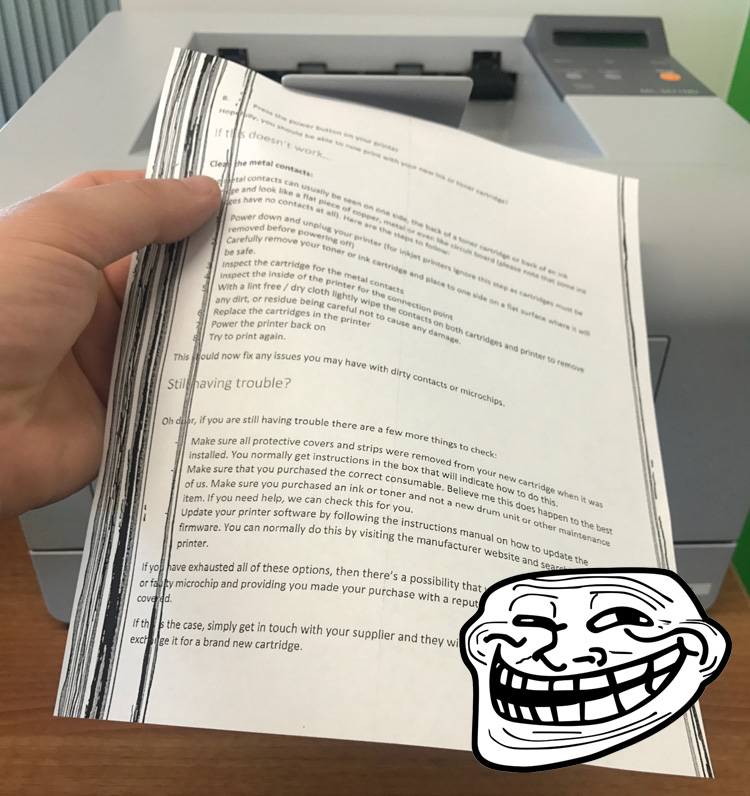
Common Causes Of Printing Lines
Lines appearing on your printed pages can be frustrating. These lines may run vertically or horizontally. Several common issues cause this problem. Understanding these causes helps you fix the issue quickly. Below are some typical reasons for printing lines.
Clogged Print Head Nozzles
Print head nozzles can get clogged with dried ink. This blockage stops ink from flowing properly. The result is streaks or lines on prints. Regular cleaning helps keep nozzles clear. Use printer cleaning tools to avoid nozzle clogs.
Dirty Or Damaged Print Heads
Print heads collect dust and ink residue over time. Dirt or damage on print heads leads to poor print quality. This causes visible lines or smudges. Cleaning print heads carefully can improve print results. Replace print heads if damage is severe.
Debris In Paper Path
Small debris like paper scraps or dust can block the paper path. This blockage can cause lines on printed pages. Debris may scratch the print surface or affect ink placement. Remove any debris inside the printer regularly. Keep the printer environment clean.
Misaligned Paper Feed
Paper feeding incorrectly causes uneven printing. Misalignment can create horizontal or vertical lines. Adjust the paper guides to ensure smooth feeding. Correct paper placement prevents skewed or lined prints.
Low Or Faulty Ink Cartridges
Ink cartridges running low produce faint or streaky lines. Faulty cartridges may leak or fail to distribute ink evenly. Replace low or defective cartridges to restore print quality. Use genuine ink cartridges to avoid issues.
Scanner Glass Contamination
Scanner glass with dust or smudges affects copy and scan quality. Contaminated glass can create lines on scanned images or copies. Clean the scanner glass with a soft cloth regularly. This prevents unwanted lines in printed copies.

Credit: www.ldproducts.com
Diagnosing Vertical Lines
Diagnosing vertical lines in printed documents is crucial to restore print quality. Vertical lines usually appear as repeated streaks down the page. They often signal issues with the printer’s hardware or ink system. Identifying the exact cause helps fix the problem quickly. Below are key steps to diagnose vertical lines effectively.
Inspecting Print Head Condition
The print head sprays ink onto the paper. Over time, it can get clogged or damaged. Check for dried ink or wear on the print head surface. Run a printer cleaning cycle to clear minor clogs. If lines persist, consider manual cleaning or replacing the print head. A well-maintained print head ensures smooth ink flow and clear prints.
Checking For Debris On Printer Components
Dust and debris can block ink nozzles or interfere with paper movement. Open the printer and look inside carefully. Remove any visible dust, paper scraps, or foreign objects. Clean the rollers and surrounding parts gently with a lint-free cloth. Keeping printer components clean prevents streaks and vertical lines in prints.
Analyzing Ink Cartridge Issues
Ink cartridges can cause vertical lines if they are empty, damaged, or improperly installed. Verify ink levels and replace cartridges if low. Remove and reinstall cartridges to ensure proper seating. Check for leaks or dried ink around the cartridge nozzles. Using genuine cartridges often reduces printing problems. Proper cartridge care improves print consistency.
Diagnosing Horizontal Lines
Horizontal lines in printed documents can be frustrating. These lines often appear as thin bands across the page. Understanding their cause helps to fix the issue quickly. Diagnosing horizontal lines involves checking different printer parts. Each part may contribute to the problem. Focus on the paper feed, transfer belt, and printer drum to find the root cause.
Evaluating Paper Feed Alignment
The paper feed system pushes paper through the printer. Misaligned paper feed can cause horizontal lines. Check if the paper moves smoothly without wobbling. Inspect the rollers for wear or dirt. Clean the rollers gently with a soft cloth. Replace rollers if they are damaged. Proper alignment ensures even printing across the page.
Assessing Transfer Belt Condition
The transfer belt moves toner to the paper. A dirty or damaged transfer belt causes streaks or lines. Remove the belt carefully following the printer guide. Look for scratches, toner buildup, or tears. Clean the belt with a lint-free cloth if dirty. Replace the belt if it shows visible damage. A healthy transfer belt produces clean, clear prints.
Reviewing Printer Drum Health
The printer drum transfers images onto paper. A worn or dirty drum causes horizontal lines. Open the printer and remove the drum unit. Check for scratches or toner smudges on the drum surface. Clean gently with a drum cleaning cloth or alcohol wipe. Replace the drum if damage is present. Maintaining the drum improves print quality and reduces lines.

Cleaning And Maintenance Tips
Keeping your printer clean and well-maintained helps prevent vertical or horizontal lines on prints. Dirt, dust, and dried ink can block nozzles or interfere with the paper path. Regular cleaning ensures smooth printing and sharp images. Follow these simple tips to keep your printer running smoothly and avoid print quality issues.
Cleaning Print Heads Properly
Print heads can clog with dried ink and dust. Use a soft, lint-free cloth with a little distilled water or a special cleaning solution. Gently wipe the print heads without applying too much pressure. Avoid touching the nozzles directly with your fingers. Regular cleaning prevents blocked nozzles and uneven ink flow that cause lines.
Removing Debris From Paper Path
Small bits of paper, dust, or dirt can get stuck inside the printer. Open the printer carefully and check the paper path. Remove any debris you find using tweezers or a soft brush. Keep the paper path clean to avoid paper jams and print lines. This step helps maintain smooth paper feeding and consistent print quality.
Wiping Scanner Glass And Strips
Lines on copies or scans often come from dirty scanner glass or strips. Use a soft, damp cloth to clean the glass surface gently. Wipe the glass strips too, as dust there can cause streaks on scans or copies. Clean these parts regularly to ensure clear, line-free scanned images and copies.
Performing Printer Self-cleaning Cycles
Most printers offer a self-cleaning feature to clear clogged nozzles. Run this cycle from your printer’s control panel or software. The printer sprays ink through the nozzles to clear blockages. Repeat the cycle if lines still appear after printing. Use this tool regularly to maintain print head health and reduce print lines.
Fixes For Vertical Lines
Vertical lines on printed pages often signal a problem inside the printer. Fixing these lines usually involves cleaning or adjusting parts that control ink flow and print quality. Simple steps can clear most issues and restore clean prints quickly.
Replacing Or Cleaning Ink Cartridges
Old or clogged ink cartridges cause vertical lines. Remove cartridges and check for dried ink or damage. Cleaning the cartridges gently with a soft cloth can help. Replace cartridges if cleaning does not improve print quality. Using fresh cartridges ensures smooth ink flow and better printing results.
Aligning Print Heads
Misaligned print heads create lines in prints. Printers have built-in tools to align print heads automatically. Access the printer settings and run the alignment process. Proper alignment ensures ink nozzles spray ink evenly. This step often fixes vertical line problems effectively.
Clearing Printer Engine Debris
Dirt and dust inside the printer cause printing issues. Open the printer and inspect the engine area carefully. Use a soft brush or compressed air to remove debris. Be gentle to avoid damaging delicate parts. Keeping the printer clean prevents lines and improves overall print quality.
Fixes For Horizontal Lines
Horizontal lines on your prints can ruin the quality of your documents or photos. These lines often indicate mechanical or calibration issues inside the printer. Fixing horizontal lines involves checking key printer parts and making simple adjustments. This section covers practical fixes that help restore clear, smooth prints.
Adjusting Paper Feed Mechanism
The paper feed mechanism moves paper through the printer. If it is misaligned or dirty, it can cause horizontal lines. Check for any jams or debris stuck in the feed rollers. Clean the rollers gently with a lint-free cloth and some water. Adjust the paper guides to fit the paper size snugly but without bending the sheets. Proper paper feeding ensures smooth, even printing without lines.
Replacing Transfer Belts Or Drums
The transfer belt or drum unit applies toner to the paper. Worn or damaged belts and drums often create horizontal streaks. Inspect these parts for scratches, dust, or toner build-up. Replace the belt or drum if you see damage or print quality drops despite cleaning. Using new parts can stop horizontal lines and improve print sharpness.
Ensuring Proper Printer Calibration
Printers need regular calibration to align colors and print heads correctly. Poor calibration can cause horizontal line defects. Use the printer’s built-in calibration tool found in the settings menu. Follow the prompts to realign the print heads and adjust color balance. Regular calibration keeps prints clear and free from unwanted lines.
Preventive Measures
Preventing vertical or horizontal lines in your prints saves time and ink. Simple care steps keep your printer running smoothly. Following a few key practices can reduce print defects significantly. These preventive measures help maintain print quality over time.
Regular Printer Maintenance Schedule
Clean your printer regularly to avoid dirt buildup. Use the printer’s cleaning function often. Check and clean print heads to prevent clogging. Remove dust from internal parts and paper paths. Schedule maintenance at least once a month. This keeps the printer in good working order.
Using Quality Ink And Paper
Choose ink recommended by the printer manufacturer. Low-quality ink can clog nozzles and cause lines. Use good-quality paper designed for your printer type. Poor paper can cause jams and uneven ink absorption. Using proper supplies improves print clarity and prevents defects.
Proper Printer Storage And Handling
Keep your printer in a clean, dry place. Avoid exposing it to dust and moisture. Cover the printer when not in use for long periods. Handle cartridges carefully to avoid damage or leaks. Store ink cartridges upright and at room temperature. Proper storage helps maintain print quality and printer lifespan.
When To Seek Professional Help
Knowing when to seek professional help for vertical or horizontal lines in printing saves time and frustration. Some issues need expert attention beyond basic cleaning or troubleshooting. Understanding these situations helps keep your printer working well and your prints clear.
Persistent Line Issues After Cleaning
Cleaning the print heads often removes lines or streaks. If lines remain after thorough cleaning, the problem may be deeper. Professional technicians can inspect the printer for hidden damage or stubborn clogs. They use specialized tools to fix issues that home methods cannot.
Hardware Malfunctions
Lines in prints might signal hardware problems. These include damaged print heads, worn rollers, or faulty belts. Such malfunctions affect print quality and printer performance. A professional can diagnose and replace broken parts safely. Attempting repairs without expertise may worsen the damage.
Warranty And Repair Options
Check your printer’s warranty before trying complex fixes. Many repairs are covered under warranty terms. Authorized service centers offer reliable repairs using original parts. Professional repairs protect your investment and maintain printer value. Always use certified services to avoid voiding warranties.
Frequently Asked Questions
How Do I Get Rid Of Vertical Lines When Printing?
Clean the printhead and scanner glass thoroughly to remove dirt or debris. Align the print cartridges and run a nozzle check. Replace any damaged cartridges or printheads. Use high-quality paper and ensure proper printer maintenance to prevent vertical lines.
How Do I Get Rid Of Horizontal Lines When Printing?
Clean the printhead and paper path to remove dirt or debris. Align the print settings and replace low or damaged ink cartridges. Regularly maintain your printer to prevent horizontal lines.
How To Get Rid Of Stripes When Printing?
Clean the printhead and remove any clogged nozzles. Align the paper feed and ensure no debris blocks the path. Regular maintenance prevents stripes.
Why Are Lines Appearing On My Printing?
Lines on your prints often result from clogged or dirty print heads, misaligned paper feed, or debris inside the printer. Regular cleaning and maintenance usually fix this issue.
What Causes Vertical Lines To Appear When Printing?
Vertical lines often result from clogged or dirty print heads. Dirt or dried ink blocks the nozzles, causing streaks. Regular cleaning helps prevent these lines.
Conclusion
Vertical or horizontal lines in prints often signal common printer issues. Dirt, clogged nozzles, or misaligned parts usually cause these lines. Regular cleaning and proper maintenance help prevent print defects. Checking ink levels and using quality paper also improve print results.
Fixing these small problems keeps your printer working well. Clear prints mean less frustration and better documents every time. Simple care goes a long way in avoiding lines during printing.