
AirPods have changed the way people listen to music and take calls. Their wireless design, reliable sound, and easy pairing make them a favorite for millions. But when the AirPods mic stops working, it can be frustrating. You might be unable to make phone calls, use voice assistants, or join online meetings. This problem happens to many users, both new and experienced.
Understanding why the AirPods mic fails is not always easy. Sometimes it is a simple software glitch. Other times, it might be a hardware issue, or maybe something in your settings. This guide will walk you through every possible reason your AirPods mic is not working and offer solutions that work. You will learn how to test your microphone, adjust settings, clean your AirPods, and fix more advanced issues. By the end, you will have a clear path to get your AirPods working again—whether you use them with an iPhone, Android, Mac, or Windows device.
Let’s look at every cause, solution, and tip for fixing your AirPods mic.
Common Reasons Your Airpods Mic Stops Working
AirPods are simple on the outside, but many things can cause the mic to fail. These are the top reasons users face this issue:
- Dirt or debris blocking the mic opening
- Bluetooth connection problems
- Software bugs after updates
- Incorrect microphone selection in device settings
- Low battery
- Physical damage or water exposure
- Firmware glitches
- Interference from other wireless devices
Sometimes, the problem is temporary and easy to fix. Other times, it may need deeper troubleshooting or even a repair. Recognizing the source helps you pick the right solution.
How To Test If Your Airpods Mic Is Working
Before trying any fixes, you should check if your AirPods mic is really the problem. Here’s how to test:
On Iphone Or Ipad
- Open the Voice Memos app.
- Put your AirPods in your ears and make sure they’re connected.
- Record a short message.
- Play it back. If you can hear your voice clearly, the mic is working.
On Android
- Use the built-in Voice Recorder app or download one from the Play Store.
- With AirPods connected, record your voice.
- Listen to the playback.
On Mac
- Open QuickTime Player.
- Select New Audio Recording.
- Pick your AirPods as the input device.
- Record and listen.
If your voice is missing, very quiet, or distorted, your AirPods mic is likely not working.

Quick Fixes For Airpods Mic Problems
Sometimes, the fastest solutions work best. Try these steps first:
- Put AirPods back in the case for 10 seconds, then reconnect.
- Toggle Bluetooth off and on on your device.
- Forget and re-pair AirPods via Bluetooth settings.
- Check battery level—charge your AirPods fully.
- Restart your device (phone, tablet, or computer).
Even if these seem basic, they solve many AirPods mic issues.
Cleaning Your Airpods Mic For Better Performance
Dirt, dust, and earwax can block the small mic holes in AirPods. Cleaning often restores microphone quality.
Safe Cleaning Steps
- Use a dry, soft-bristled brush (like a clean toothbrush).
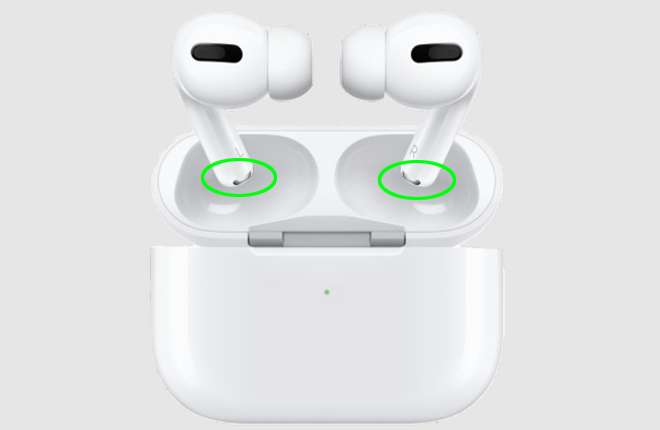
- Gently brush the microphone openings (found on the end of each AirPod).
- For stubborn dirt, use a dry cotton swab.
- Never use liquids, as moisture can damage electronics.
- Avoid sharp objects that could push debris further inside.
Why Cleaning Helps
Even tiny particles can block sound waves. Regular cleaning not only fixes mic issues but also prevents them. Many users are surprised how much better their AirPods sound and work after a simple cleaning.

Checking Microphone Settings On Iphone
Your iPhone can choose which AirPod to use as the microphone. If this setting is wrong, your mic may not work.
How To Check And Change Settings
- Open Settings on your iPhone.
- Tap Bluetooth.
- Find your AirPods and tap the i info button.
- Scroll to Microphone.
- Choose Automatically Switch AirPods for the best experience.
- If you want to use the left or right AirPod only, pick that option.
If you set it to only one AirPod, and that side’s mic is broken or dirty, audio won’t work. Automatic switching is usually best.
Fixing Airpods Mic Not Working On Android
AirPods are built for Apple devices, but they work with Android too. However, Android devices sometimes handle Bluetooth differently.
Troubleshooting Steps
- Unpair and re-pair AirPods in Bluetooth settings.
- Make sure your device allows calls and media audio for AirPods (tap the gear icon next to AirPods in Bluetooth settings).
- Test with different apps (calls, voice recorder, messaging).
- Restart your Android phone.
- Update your device to the latest software.
Some Android phones have trouble using the AirPods mic for certain apps. In those cases, try using a different app or check for app updates.
Fixing Airpods Mic Not Working On Mac
Macs use different sound settings, so problems here might need a different solution.
How To Adjust Input Settings
- Open System Settings (or System Preferences).
- Click Sound.
- Go to the Input tab.
- Select your AirPods as the input device.
- Speak and watch the input level meter move.
If the input is set to the Mac’s built-in mic, switch to AirPods. Also, check the input volume slider—make sure it’s not too low.
Common Mac-specific Issues
- Multiple Bluetooth devices: Disconnect other audio devices to avoid conflicts.
- Outdated macOS: Update your Mac for better compatibility.
Some users find that turning Bluetooth off and on again helps re-establish a strong connection.
Fixing Airpods Mic Not Working On Windows
Windows PCs need extra setup for AirPods mics. Here’s what you should do:
Setting Airpods As Input Device
- Right-click the volume icon on the taskbar.
- Choose Sounds.
- Go to the Recording tab.
- Find your AirPods (may show as “Headset”).
- Right-click and set as Default Device.
Troubleshooting Audio Problems
- Make sure your PC supports Bluetooth audio input (not all Bluetooth dongles do).
- Update your Bluetooth drivers.
- Disconnect other Bluetooth devices.
Some users report that Windows uses the “Hands-Free” profile for calls, which lowers sound quality. For the best mic experience, check your profile and drivers.
Advanced Troubleshooting For Persistent Airpods Mic Issues
If basic steps fail, try these advanced solutions:
Resetting Airpods
- Put AirPods in the charging case, lid open.
- Press and hold the setup button on the back until the light flashes amber, then white.
- Reconnect to your device.
Resetting can clear out firmware glitches and restore normal operation.
Updating Airpods Firmware
Firmware updates fix bugs and improve performance. AirPods update automatically when paired with an iPhone and charging.
- Make sure AirPods are in their case, connected to your iPhone, and charging.
- Leave them near your iPhone with Wi-Fi and Bluetooth on.
There’s no way to force an update manually, but keeping your devices updated helps.
Checking For Physical Damage
Look for cracks, dents, or water signs. If your AirPods have been dropped or washed, the mic might be damaged. Apple does not cover water damage under warranty, but they can check and repair or replace if needed.
Testing With Other Devices
Connect your AirPods to another phone, tablet, or computer. If the mic works on a different device, the issue is with your original device—not your AirPods.
Comparing Airpods Generations For Mic Performance
Some AirPods models have better microphones than others. Here’s a comparison:
| Model | Mic Quality | Noise Reduction | Release Year |
|---|---|---|---|
| AirPods (1st Gen) | Basic | No | 2016 |
| AirPods (2nd Gen) | Improved | No | 2019 |
| AirPods Pro | High | Active | 2019 |
| AirPods (3rd Gen) | Better | Basic | 2021 |
| AirPods Pro (2nd Gen) | Excellent | Advanced | 2022 |
Older AirPods may pick up more background noise. AirPods Pro and newer models have active noise reduction for clearer calls.
Airpods Mic Not Working In Specific Apps
Sometimes, the mic works in some apps but not others. This usually happens due to app permissions or settings.
Iphone And Ipad
- Go to Settings > Privacy > Microphone.
- Make sure the app has permission to use the mic.
- Toggle permission off and on again.
Android
- Open Settings > Apps > [App Name] > Permissions.
- Enable Microphone.
Mac
- Open System Settings > Privacy & Security > Microphone.
- Check the box for the app.
Windows
- Go to Settings > Privacy > Microphone.
- Allow apps to access your microphone.
Some apps have their own audio settings inside the app. Check there if you still have issues.
Airpods Mic Not Working During Calls
Many users find their AirPods work for music but not for phone calls or video calls.
Why This Happens
- Device switches to a different mic during the call
- Bluetooth connection drops or weakens
- App permission issues
Solutions
- Before a call, make sure AirPods are selected as the audio source.
- During the call, check if your device switches to speaker or another Bluetooth device.
- If you hear echo or static, move closer to your device or remove wireless interference.
- Keep only one device connected to AirPods at a time for best stability.
If you use AirPods with video calling apps like Zoom or Teams, check their settings to ensure AirPods are selected for both input and output.
Airpods Mic Not Working With Siri Or Voice Assistants
Siri uses the AirPods mic for voice commands. If Siri can’t hear you, try these steps:
- Check that Siri is enabled (Settings > Siri & Search).
- Clean your AirPods’ mic.
- Reset your AirPods if Siri still doesn’t respond.
- Test with another device to rule out hardware problems.
Some users forget that “Hey Siri” only works with certain AirPods models. Check your model’s support for voice activation.
Airpods Mic Not Working After Water Exposure
AirPods are not waterproof. If they get wet, the mic may stop working.
What To Do
- Remove AirPods from water immediately.
- Dry with a soft, lint-free cloth.
- Leave AirPods and case open to air dry in a warm, dry place for at least 24 hours.
- Do not use heat, rice, or compressed air.
If the mic is still not working after drying, the internal parts may be damaged.
Airpods Mic Not Working After Software Updates
Sometimes, a new iOS or firmware update causes mic problems. This is usually a temporary bug.
Steps To Resolve
- Restart your device.
- Reset and re-pair your AirPods.
- Check for further updates (Apple often fixes bugs quickly).
- Report issues to Apple Support if the problem continues.
A good tip: wait a few days after major updates before installing, as early bugs are common.
Airpods Mic Not Working With Multiple Devices
AirPods can switch between devices, but this can sometimes confuse the mic.
Best Practices
- Unpair AirPods from devices you do not use often.
- Use only one device at a time with your AirPods.
- If you use a Mac and iPhone, make sure Handoff is set up correctly.
Comparing Device Compatibility
Here is a quick overview of AirPods mic compatibility with popular devices:
| Device | Mic Works for Calls | Special Settings Needed |
|---|---|---|
| iPhone/iPad | Yes | No |
| Android Phone | Yes | App Permissions |
| Mac | Yes | Input Selection |
| Windows PC | Yes (with limitations) | Driver Update |
| Apple Watch | No (audio only) | Not Supported |
AirPods work best with Apple devices, but you can use the mic on Android and Windows with the right settings.
When To Contact Apple Support
If you have tried all steps above and your AirPods mic still does not work, it may be time to get help.
- Visit an Apple Store or authorized repair center.
- Use the Apple Support app to chat or book a repair.
- Check warranty status (you may be eligible for a free replacement).
Apple can run diagnostics and confirm if your AirPods have a hardware defect. If out of warranty, they can still repair for a fee.
Tips To Prevent Airpods Mic Problems In The Future
- Clean your AirPods regularly.
- Avoid using AirPods in the rain, shower, or while sweating heavily.
- Keep software updated on all your devices.
- Store AirPods in the case when not in use.
- Don’t force AirPods into your ears; this can push debris into the mic.
Many users do not realize that regular cleaning and careful use greatly extend the life of AirPods mics.
Two Insights Beginners Often Miss
- Microphone auto-switching: AirPods switch the active mic between left and right based on which is in your ear. If only one is clean, or only one is in your ear, this affects performance.
- Bluetooth interference: Devices like Wi-Fi routers, wireless mice, and other Bluetooth gadgets can cause signal drops that mute your mic. Try moving away from these devices during calls.
Real-world Example
Maria, a teacher, noticed her students could not hear her during online classes. She thought her AirPods were broken. After following the steps above, she found that her Mac was using its built-in microphone, not her AirPods. By switching the input in the Sound settings, her AirPods mic worked perfectly again.
One Authoritative Source For Further Reading
For more technical information about AirPods, their microphones, and compatibility, you can visit Apple’s official support page.
Frequently Asked Questions
Why Can Others Not Hear Me On Calls When Using Airpods?
This could be due to a blocked mic, Bluetooth issues, or your device using the wrong microphone. Try cleaning your AirPods, re-pairing, and ensuring your device has selected AirPods as the audio input.
How Do I Clean My Airpods Microphone Safely?
Use a dry, soft brush or cotton swab to gently clear the mic holes. Never use water, cleaning sprays, or sharp objects, as these can damage the microphone.
Does Resetting Airpods Fix The Mic Problem?
Resetting AirPods can solve many software and connection issues, including mic problems. Place them in the case, hold the setup button until the light flashes white, then re-pair.
Can I Use The Airpods Mic With Non-apple Devices?
Yes, but you may need to adjust Bluetooth and app settings for Android or Windows devices. Mic quality and features may be limited compared to Apple devices.
What If My Airpods Mic Works On One Device But Not Another?
This usually means the issue is with the device’s settings, not the AirPods. Check the input source, Bluetooth connection, and app permissions on the device that isn’t working.
Getting your AirPods mic working again can be simple if you follow the right steps. Regular cleaning, understanding your device’s settings, and keeping software updated will prevent most problems. If you try all solutions and still struggle, professional help is always available. With a little attention, your AirPods will provide clear calls and voice commands for years to come.